Create a document with AI
Describe the document you need, or upload a file to build from, and get it written and laid out on clean A4 pages. Edit every section, restyle it, and download a PDF.
Documents 2 min read Updated
This guide shows you how to create a document with AI: describe what you need, let OneCraft write and lay it out, then edit, restyle and download it as a PDF.
Contracts, proposals, reports, one-pagers. The hard part is never the typing, it’s getting from a blank page to a structured draft. So start past the blank page.
Describe the document you need
Open the document generator and describe what you’re after: the type of document, who it’s for, and the points it has to cover. Something like “an employment contract for a full-time software engineer: salary, start date, confidentiality, and termination clauses.” The more specific the brief, the closer the draft.
Have source material? Click Attach file and add a PDF, an image or a text file, up to five. OneCraft reads them and builds the document from your material instead of starting cold.
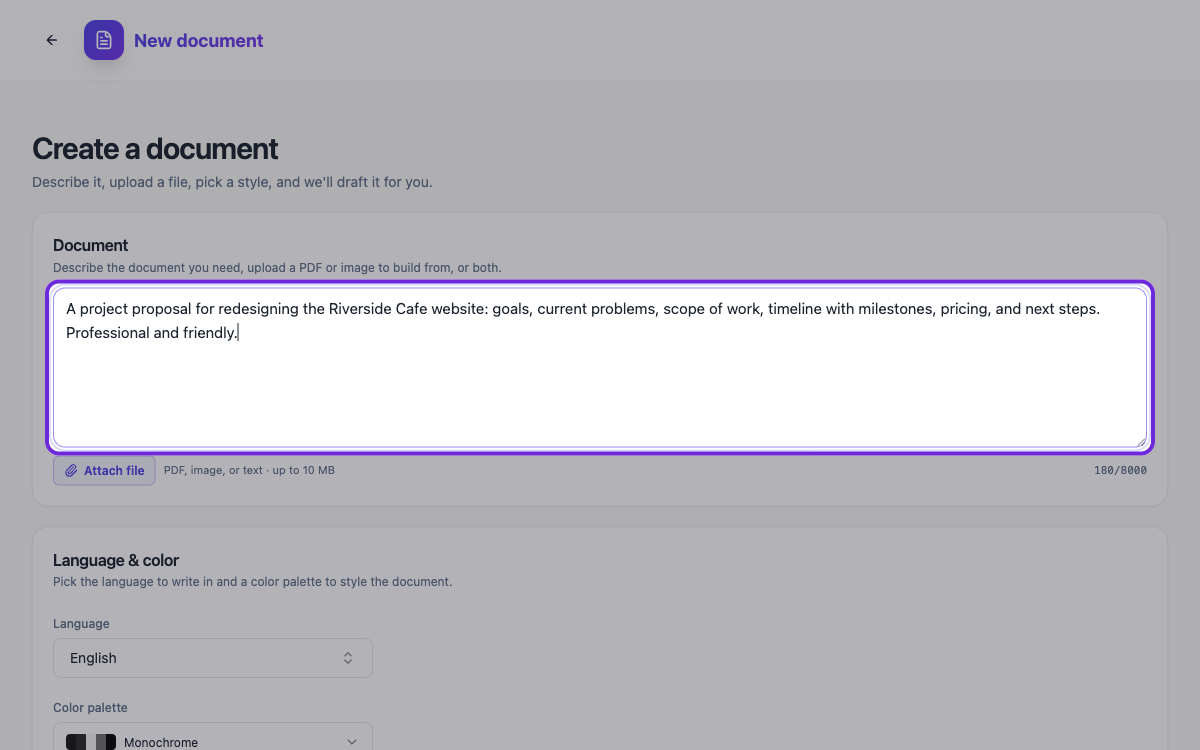 Describe the document, attach source files if you have them, or both.
Pick the language and color palette
Below the description, set the Language the document should be written in and pick a Color palette, from restrained options like Monochrome and Office Blue to richer ones like Midnight Gold. Then hit Generate document. You land in the builder while OneCraft drafts the document, and the pages fill in section by section.
Edit any section
The result is a real, editable document on clean A4 pages, not a wall of text. Click straight into a heading, a paragraph or a table and type to change the wording. For the rest of a block’s settings, select it and click the gear on its top right corner to open the Properties panel. Undo is always one Ctrl+Z away.
Need more than what was generated? The component toolkit on the left holds everything a business document uses: sections, callouts, tables, stats, charts, quotes, timelines, a table of contents, letterheads and signature blocks. Drag one onto the page and it snaps into the layout.
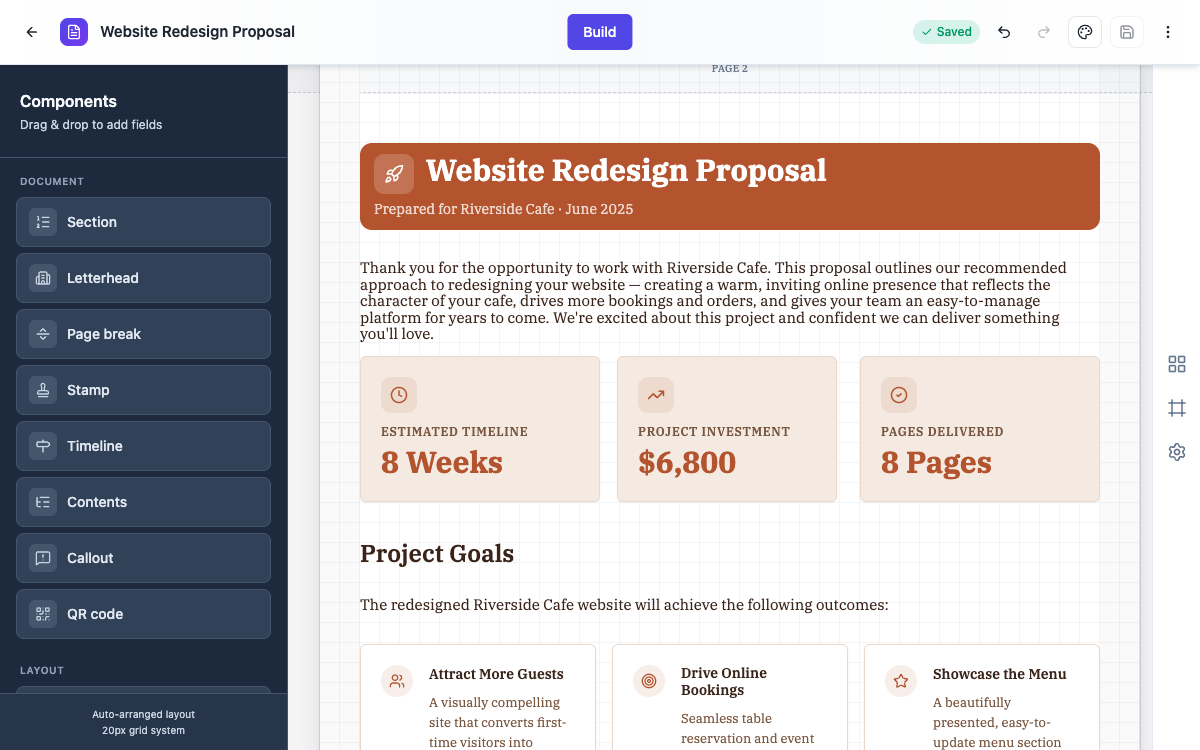 A generated document in the builder. Click to edit, or drag components in from the left.
Restyle it in Theme Studio
Click the palette button in the header to open Theme Studio. Switch between designed themes, swap the color palette, or change the fonts, and the whole document restyles at once, every page, every component.
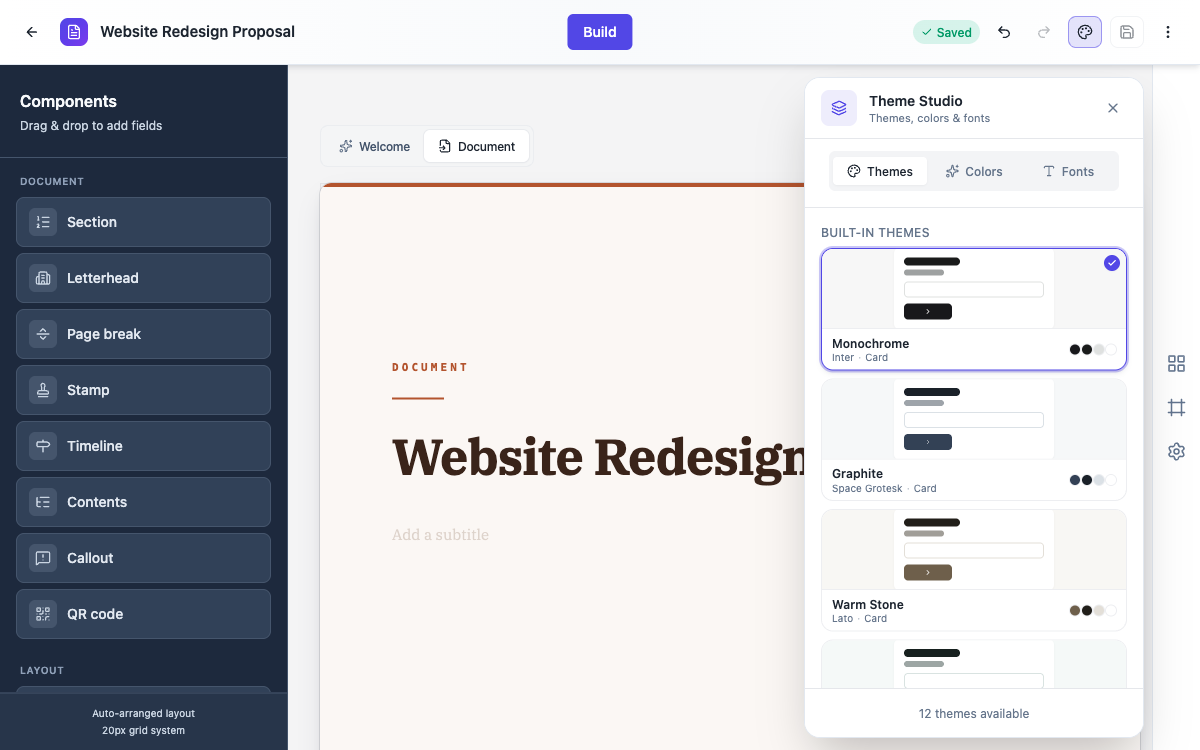 One place for themes, colors and fonts. Apply one and every page follows.
Download the PDF
When the document reads right, open the menu in the top corner and click Download PDF. You get a polished PDF named after your document, ready to print or send.
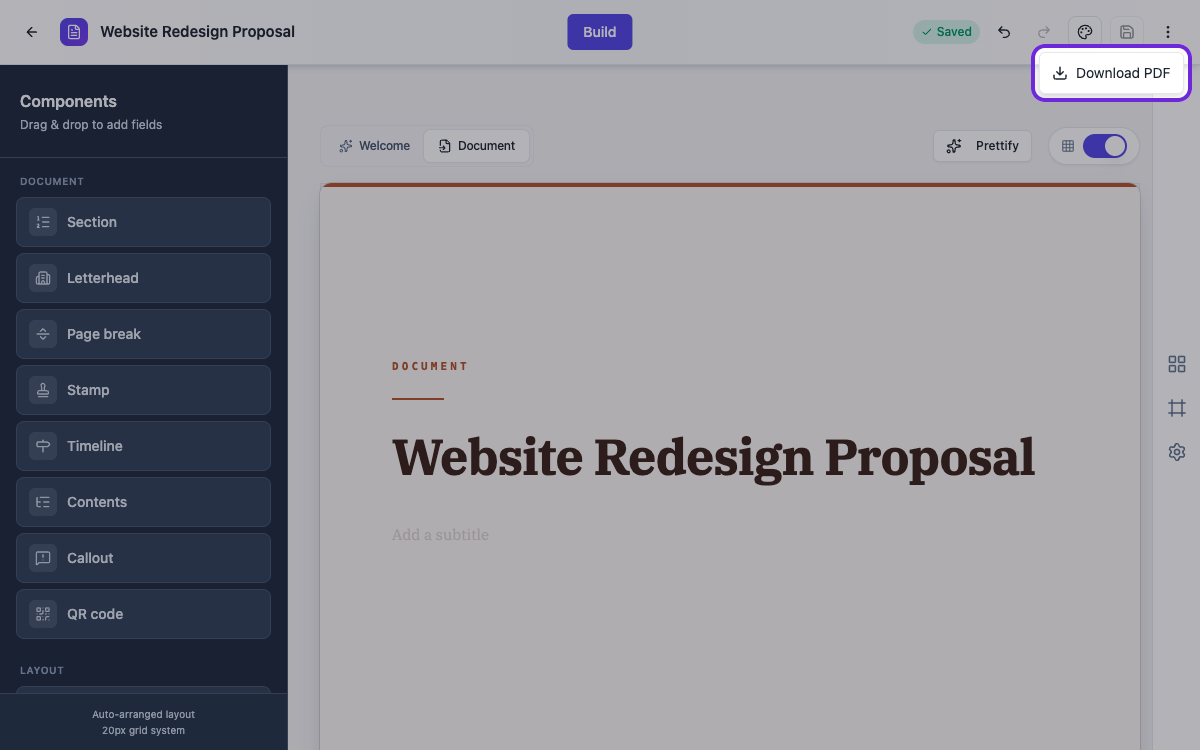 Download PDF exports the finished document, laid out exactly as you see it.
Ready to try it yourself?
Start free. Describe what you need and let OneCraft do the first draft.
Get startedMore documents tutorials
- Every document component and when to use it A tour of the blocks you build documents from, headings and sections, stats and charts, tables, signature blocks and inline fill-in fields, with the settings each one gives you.
- Lay out a document exactly how you want it How document layout works, and how to control it. Set the spacing for the whole document, adjust page margins, add a logo and footer, force page breaks, and style the text inside a section.