Create a conversational form with AI
Describe your form, pick the conversational style, and AI builds a polished one-question-at-a-time experience people actually finish.
Forms 3 min read Updated
This guide shows you how to build a conversational form with AI: one question at a time, styled the way you want, published with a link you can share.
Long forms feel like work. A conversational form asks one thing at a time, like a friendly chat, and that focus shows up in your completion rates. You describe the form once, and AI builds the questions, the flow, the welcome screen, and the thank you screen.
Choose the conversational style and describe your form
Open the form generator and switch Form style to Conversational. Then describe what you want to ask in plain language, one or two sentences is enough. Click Generate form and AI turns your description into a complete, ready-to-edit form.
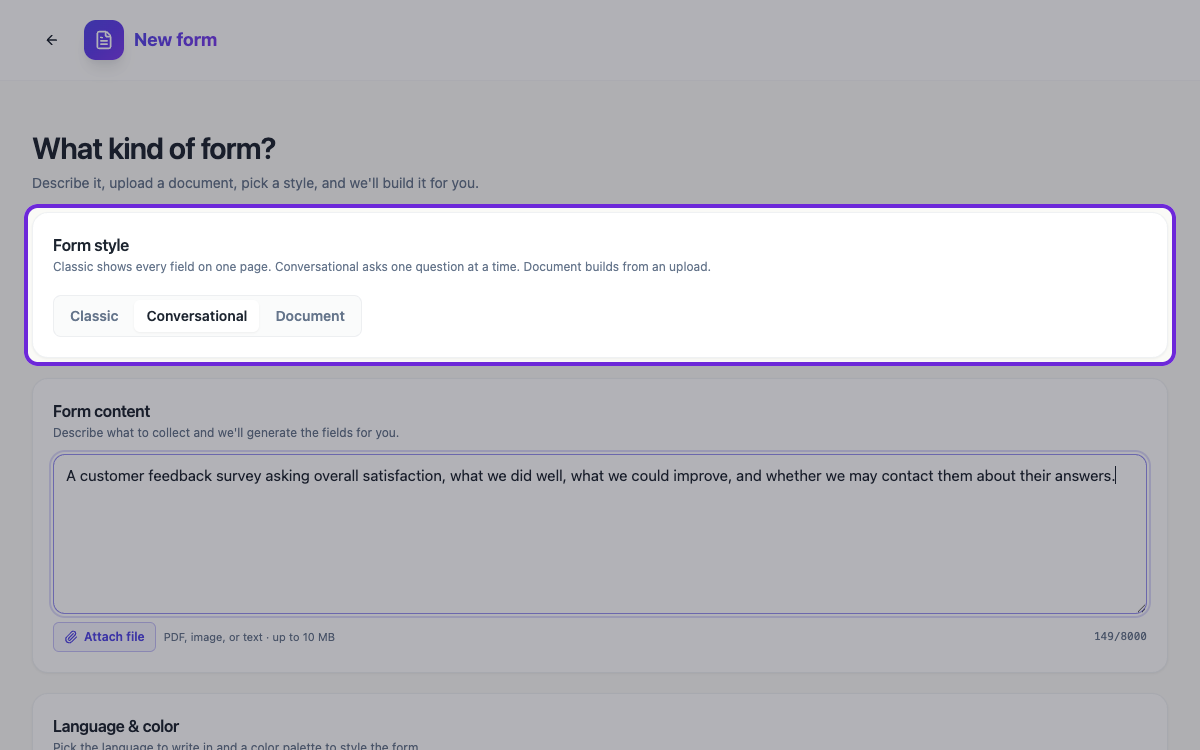 Classic shows every field on one page. Conversational asks one question at a time.
Edit the questions in the builder
The conversational builder is organised around pages: each page is one step of the conversation. The left panel shows every page and its items, and the tabs at the top switch between the Welcome screen, the Form itself, and the Thank You screen. Drag in new components, reword questions, reorder pages, and restyle anything you like.
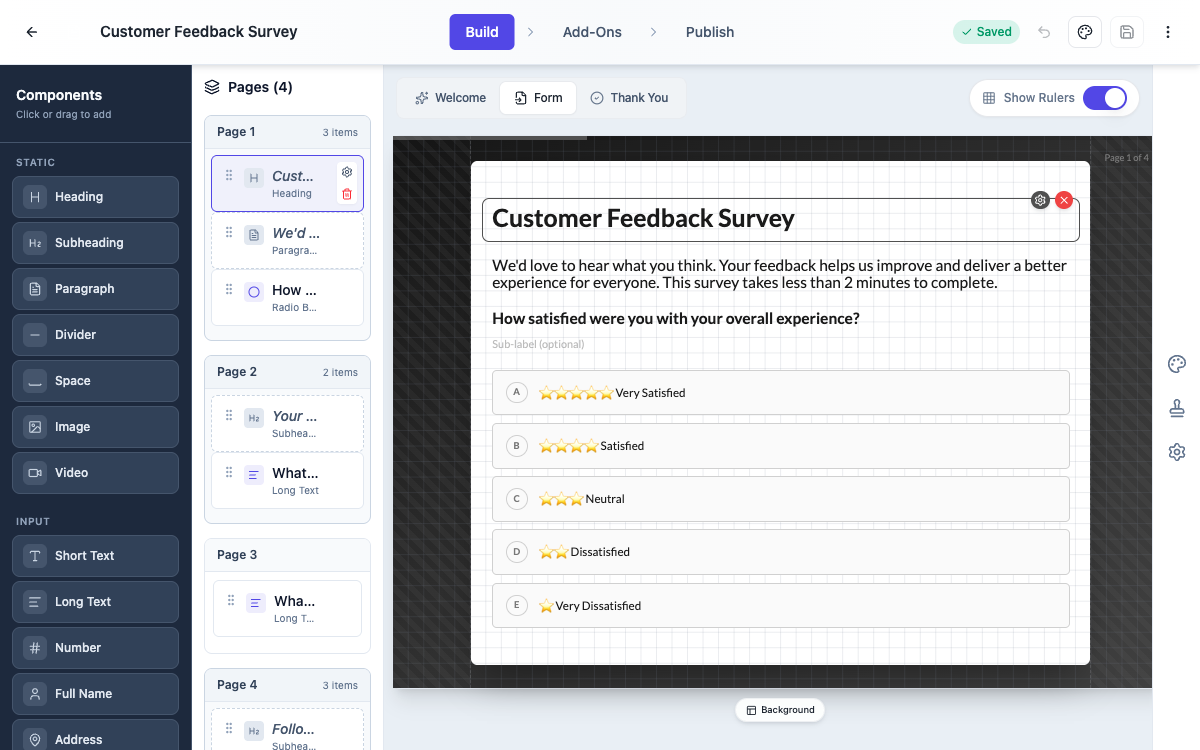 AI drafts the questions and screens. You refine them page by page.
Style your form with themes and backgrounds
Open the Style panel to change the whole look in one click: 25 built-in themes cover everything from clean and minimal to bold and dark, and you can adjust colors and fonts separately.
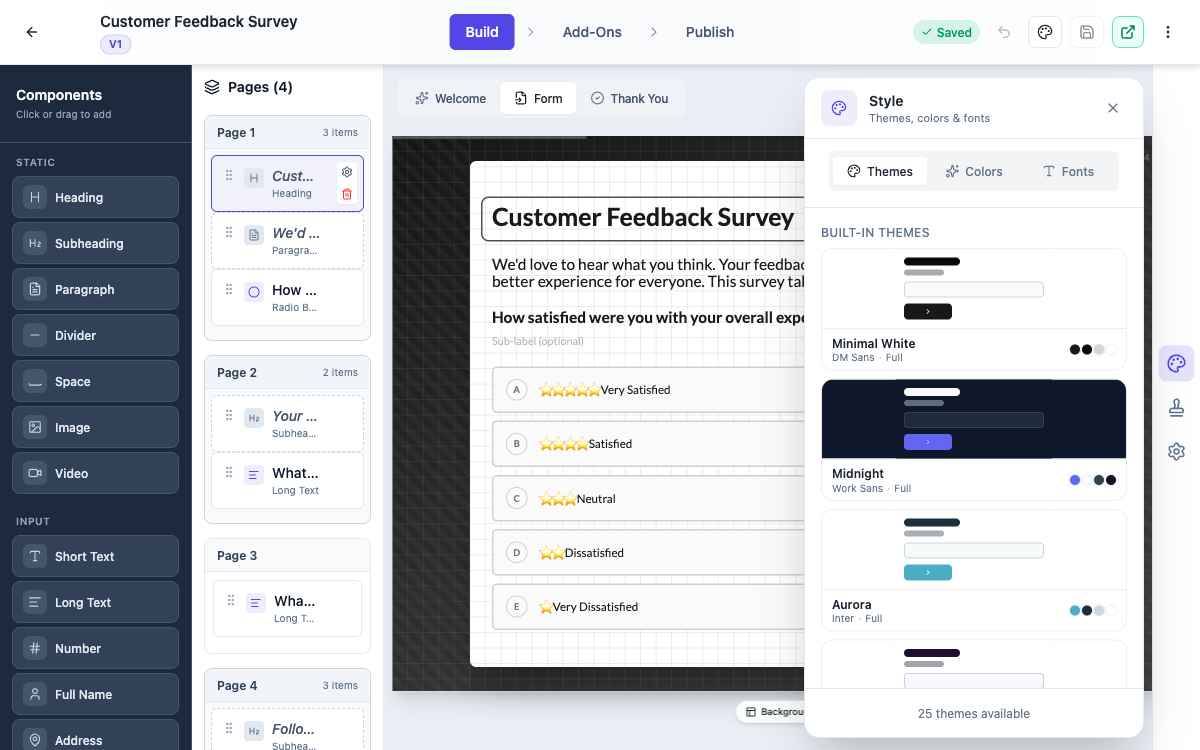 One click swaps the theme. Colors and fonts have their own tabs.
The Background button on the canvas adds a decorative pattern behind your questions: geometric, organic, or minimal, applied to every page or just one.
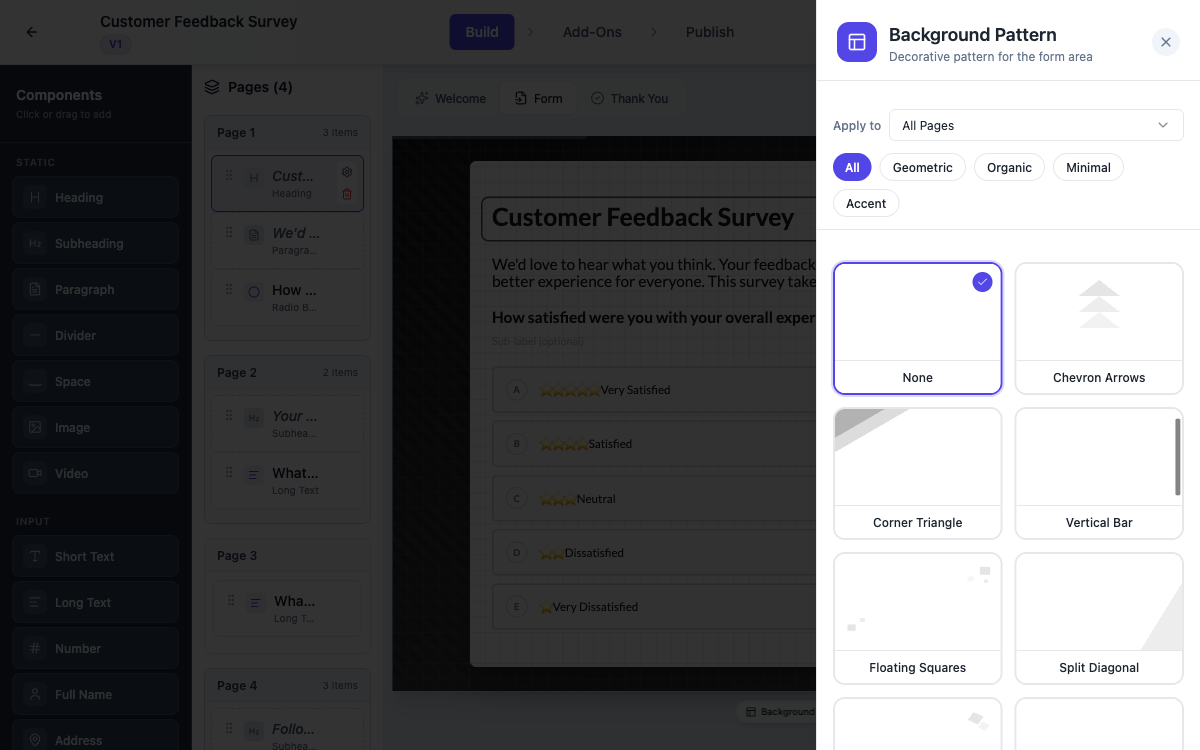 Patterns give each page some character without distracting from the question.
Publish your form and share the link
When it reads well, open Publish. You get a public URL to share anywhere, plus access control if you want to limit who can fill it in. Publishing creates a version, so you can keep editing and only push changes when you’re ready.
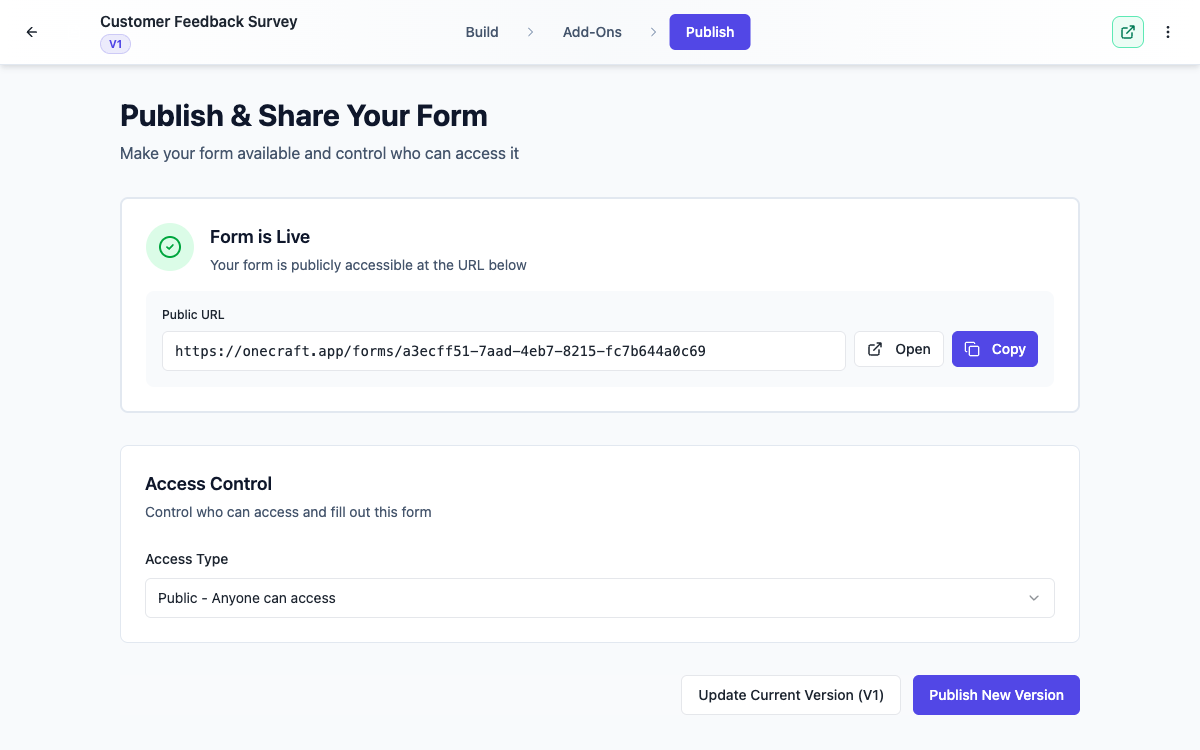 One link to share. Update the live version whenever you’re ready.
What respondents see
Visitors get a full-screen, distraction-free flow: a welcome screen, then one question at a time with keyboard shortcuts on desktop, and a progress indicator so they always know how far along they are.
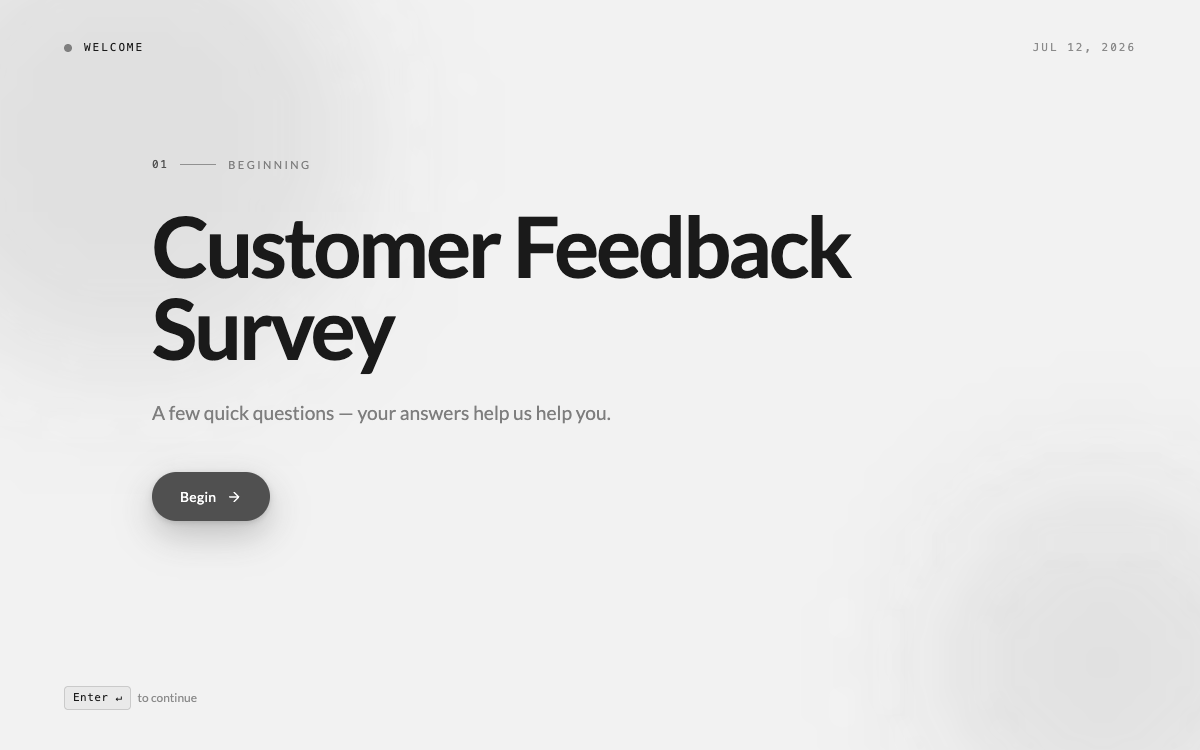 A clean welcome screen sets the tone before the first question.
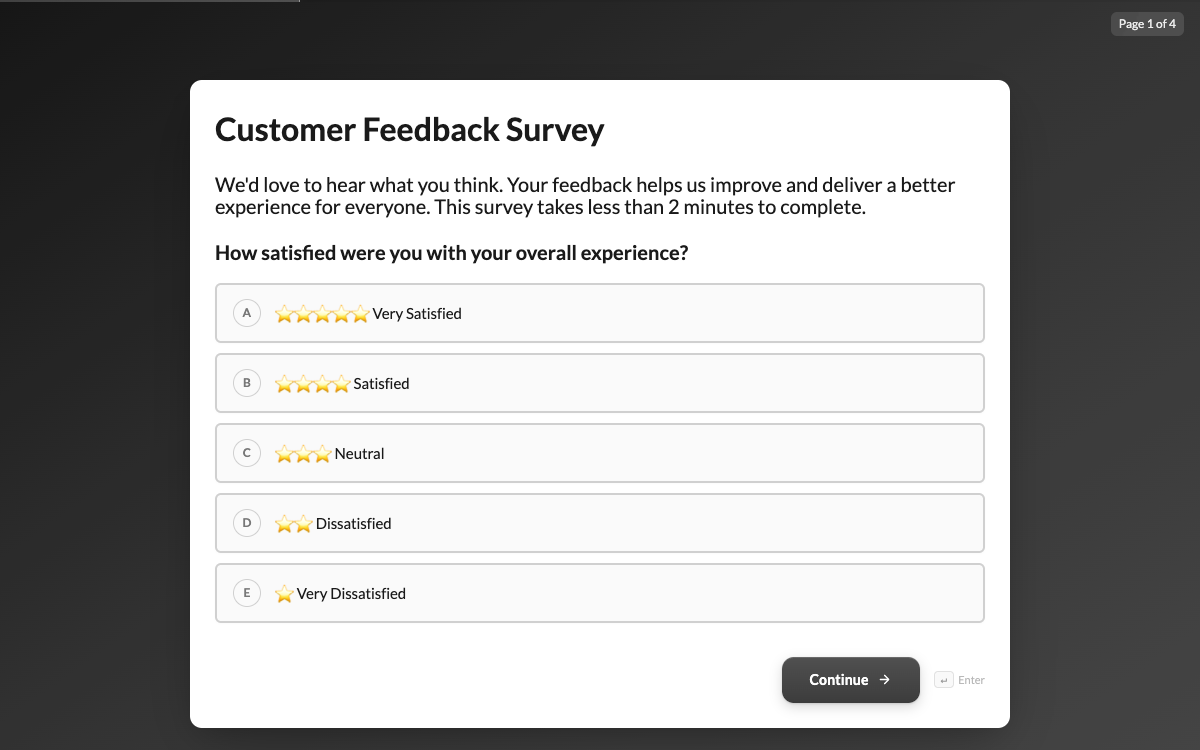 One question at a time keeps people moving instead of scrolling.
The experience is built for phones too, so the link works just as well from a social bio, a QR code, or a text message.
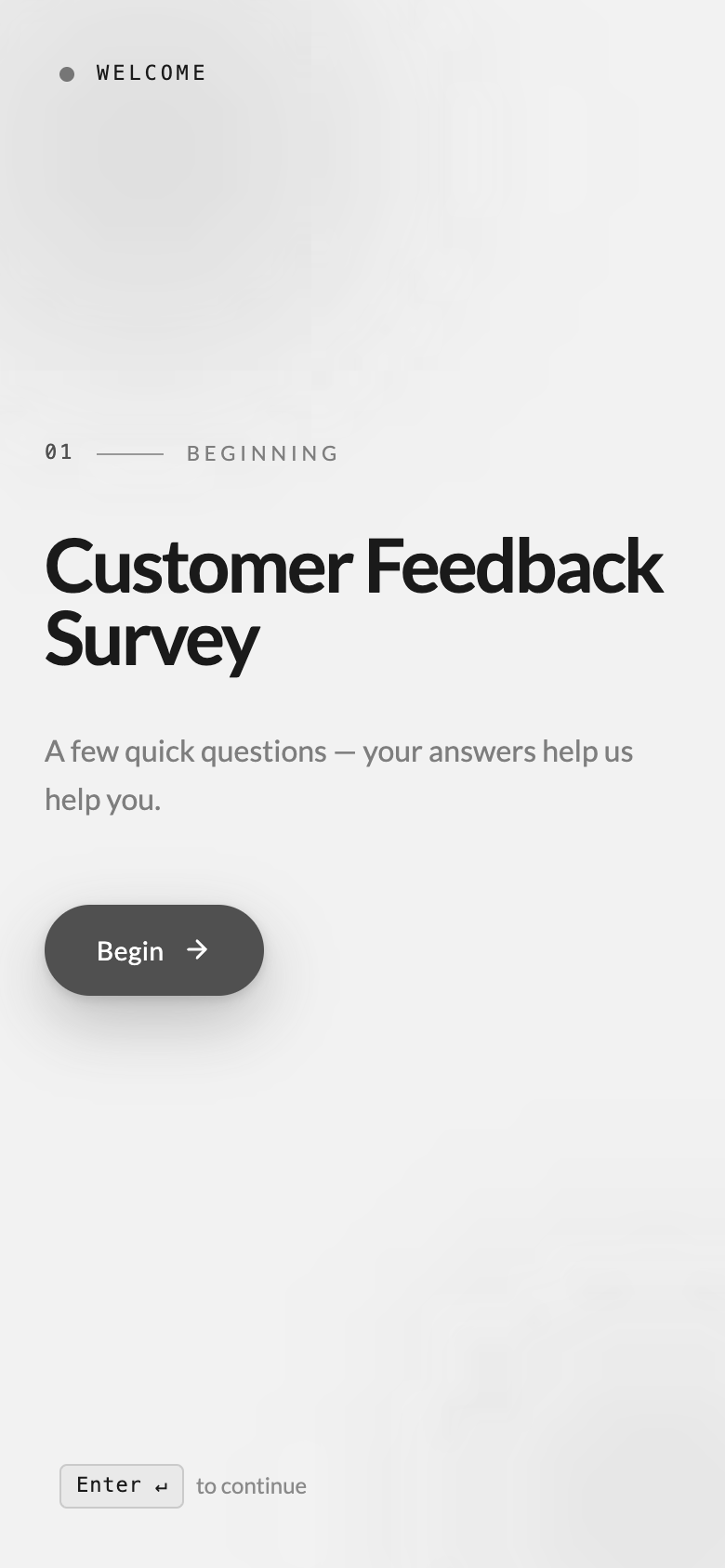 The same form, just as comfortable on a phone.
View and export your responses
Every completed conversation lands in the same responses table as any other form. On the dashboard, once your form is published, its card gets a Responses option in the card menu. Each answer gets its own column, and you can open a single response in full or export everything as a CSV.
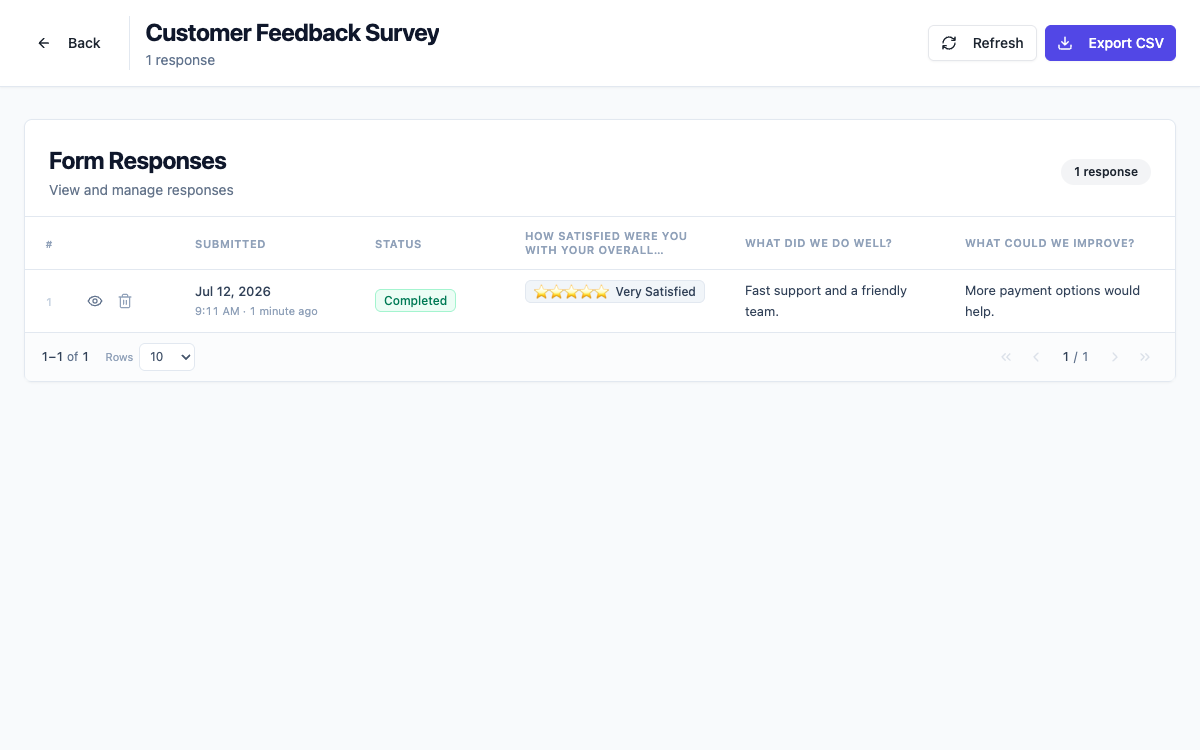 Answers arrive in one table, ready to review or export.
Ready to try it yourself?
Start free. Describe what you need and let AI do the first draft.
Get startedMore forms tutorials
- Add e-signatures with multiple signers Add signature fields to a form, choose how each signer's email is collected, set the order people sign in, and collect legally clear, time-stamped signatures.
- Automate your form with add-ons Connect webhooks, get instant email alerts for new submissions, and send people to your own page after they submit.
- Classic vs conversational forms Understand the two ways to present a form, all fields on one page or one question at a time, and choose the right one for your audience.