Add voiceover, captions and music to a video
Give every scene its own narration in the language and voice you pick, turn on captions, and add a music track that ducks under the voice automatically.
Videos 2 min read Updated
This guide shows you how to give a video its sound: narration for every scene in the voice and language you choose, captions that follow the words, and music that knows when to get out of the way.
Sound is half the video. The good news is none of it needs a microphone, a studio, or an audio editor.
Write each scene’s narration
Every scene carries its own voiceover, so the narration always lines up with what’s on screen. Click the voiceover chip under a scene to open Scene voiceover, and type what the narrator should say in that scene.
If you turned Voiceover on when generating the video, every scene already has a script and a generated voice, and this dialog is where you refine each line.
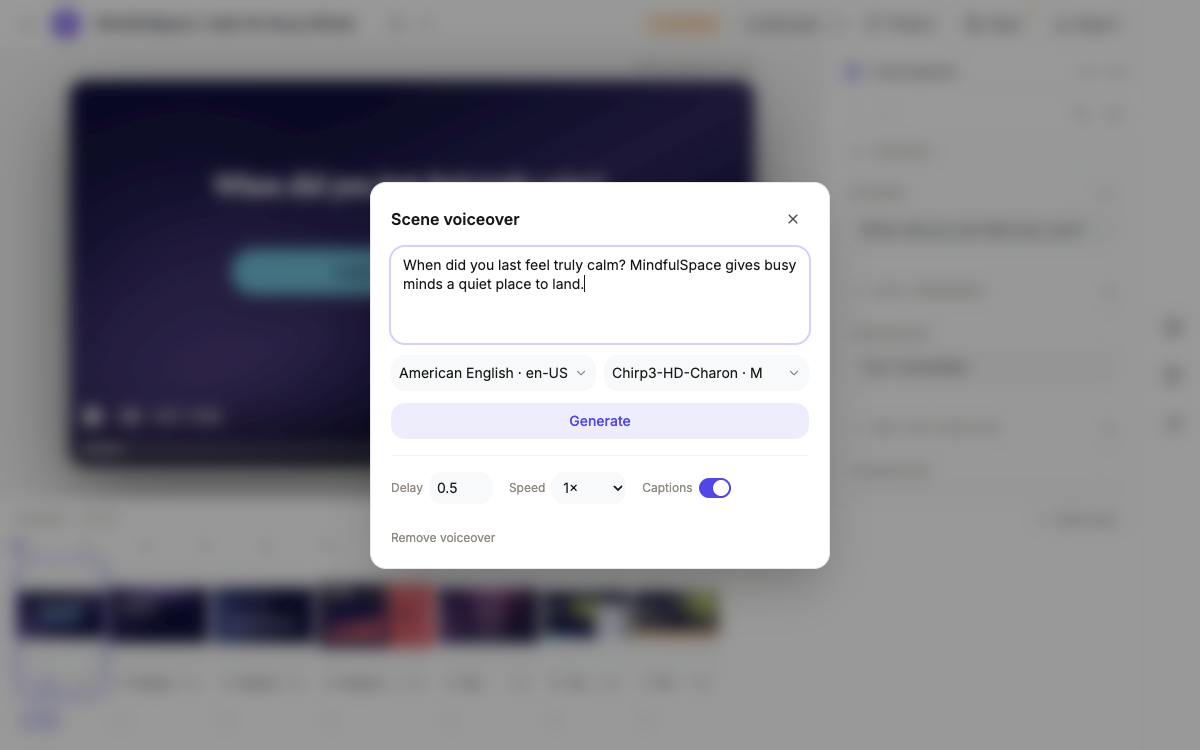 One script per scene. The narration always matches what’s on screen.
Pick the language and the voice
Below the script, pick the language, around fifty to choose from, then pick a voice for it, with dozens of voices that sound natural in each language. Hit Generate and the audio is created in seconds. Changed the script later? The button becomes Regenerate, and a fresh take replaces the old one.
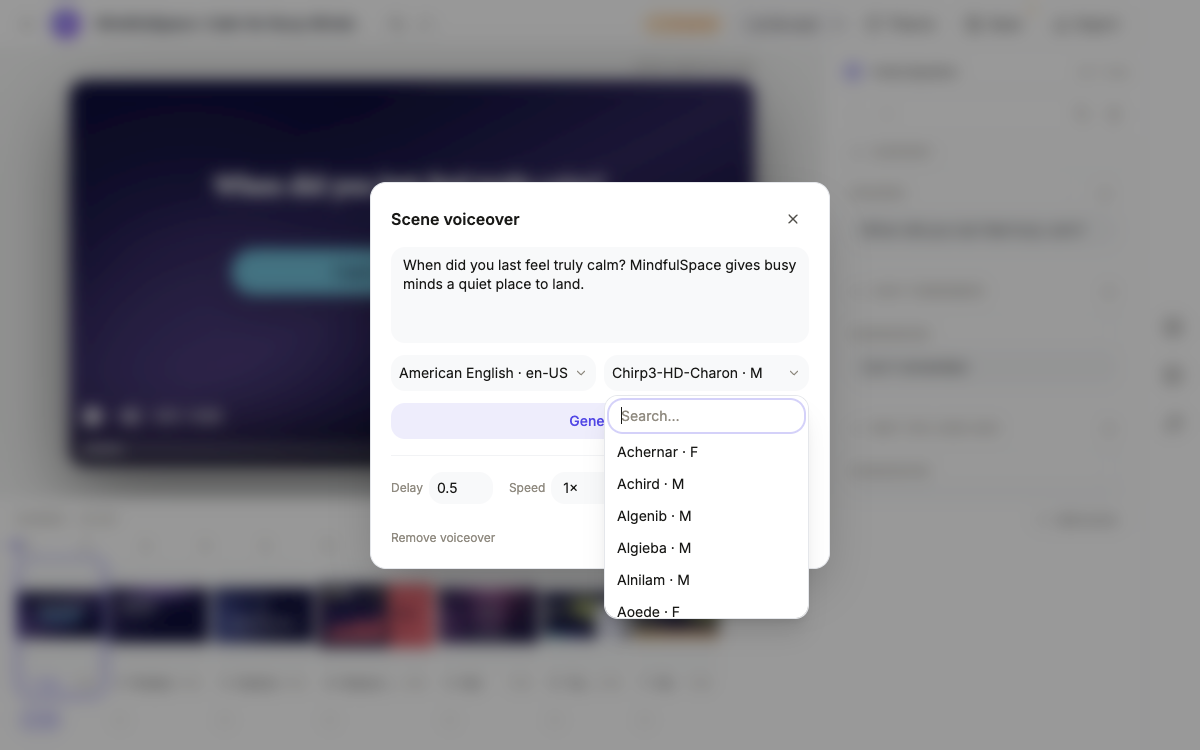 Pick a language, then a voice. Generate again any time the script changes.
Tune the timing, speed and captions
Under the script sit three controls that do a lot of work:
- Delay holds the narration back a beat, so a line can land after the visual appears.
- Speed runs from 0.85× for a calmer read to 1.25× when the cut is tight.
- Captions keeps the spoken words on screen, typed on in sync with the voice. They’re on by default, and they earn their place: most social video plays muted.
Add music that ducks under the voice
Open Music in the right rail. Pick from the built-in library, calm tracks like Ambient and Soft Breeze, corporate ones like Modern Business, or upbeat ones like Reels Energy, or upload your own clip. Set the volume with the slider and you’re done: the track loops over the whole video and automatically ducks under the narration, dropping while the narrator speaks and swelling back between lines.
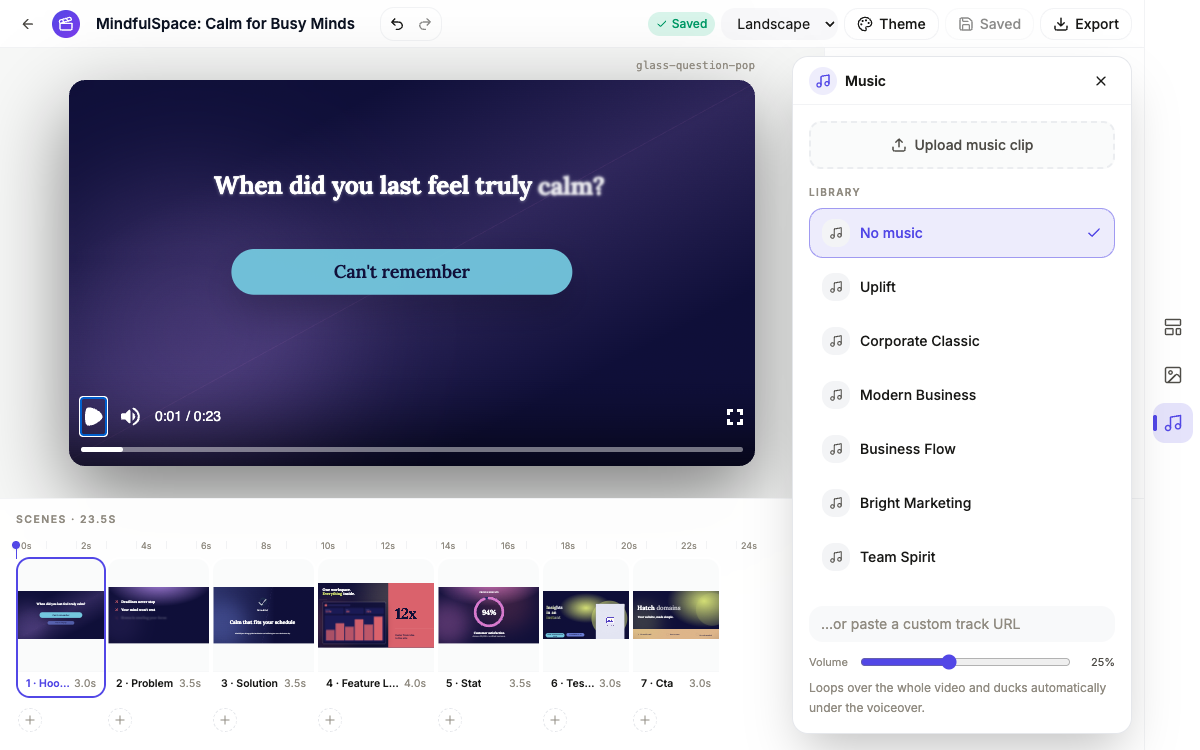 Pick a track and set the volume. Ducking under the narration is automatic.
Press play in the preview to hear the full mix, narration, captions and music together, then export when it sounds right.
Ready to try it yourself?
Start free. Describe what you need and let OneCraft do the first draft.
Get startedMore videos tutorials
- Export one video for YouTube, Reels and TikTok Build the video once, then switch between landscape and vertical and export an MP4 for each platform. Your edits are kept per format, so nothing breaks.
- Make a how-to video with AI Pick the Tutorial video type, describe the steps, add your own screenshots, and AI builds a narrated walkthrough video you can edit and export.
- Make a promo video with AI voiceover Describe your idea, let OneCraft build a styled video with scenes and a voiceover, then add scenes, tune the narration, and export a finished clip.