Export one video for YouTube, Reels and TikTok
Build the video once, then switch between landscape and vertical and export an MP4 for each platform. Your edits are kept per format, so nothing breaks.
Videos 2 min read Updated
This guide shows you how to get one video ready for every platform: landscape for YouTube, vertical for Reels, TikTok and Shorts, all from the same project.
Making a video twice for two screen shapes is how most teams lose an afternoon. Here the project holds a layout for each shape, so switching is one dropdown, not another edit.
Switch the format in the toolbar
Open your video in the builder and find the format dropdown in the top toolbar. Landscape is 1920×1080, the 16:9 shape YouTube expects. Vertical is 1080×1920, the full screen 9:16 shape for Reels, TikTok and Shorts. Pick one and the preview redraws in that shape immediately.
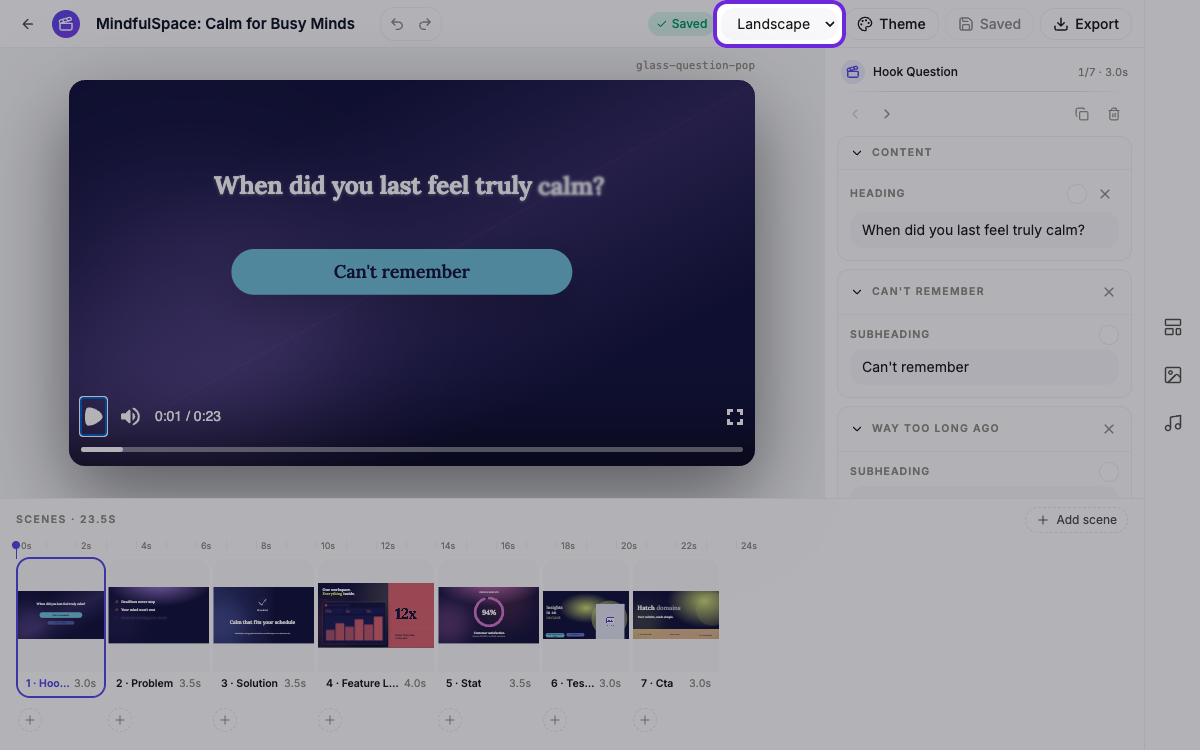 The format lives in the toolbar. Switching redraws the whole preview in the new shape.
What actually changes when you switch
This is not a crop or a stretch. Every scene template carries a real layout for each format: text sizes, positions and alignment are set separately for landscape and vertical, so a headline that sits beside an image in landscape can stack above it in vertical. Even the captions move to sit clear of each platform’s UI.
Your own edits are safe too. When you nudge or resize something, the change is saved for the format you’re in, so polishing the vertical cut never disturbs the landscape one.
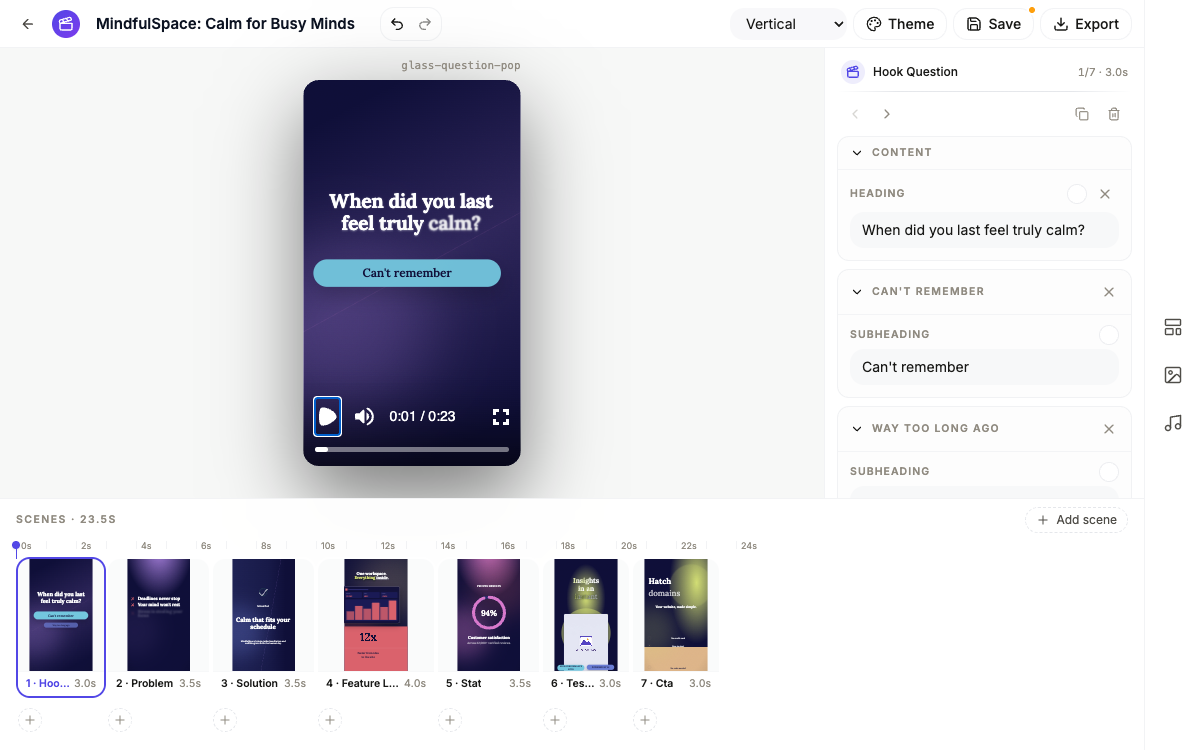 The same scene, laid out again for vertical. Nothing is cropped or stretched.
Step through the scenes
Before exporting, play the video once in each format. Most scenes need nothing, but it’s worth a pass: check that long lines still fit, and that any image you swapped in works in the new shape. Anything you adjust applies only to the format you’re viewing.
Export one MP4 per platform
With the format set, click Export. The video saves first, then renders in the cloud, which takes a few minutes, and the finished MP4 opens in a new tab ready to download. Then switch the format and export again. Same scenes, same narration, same music, in the other shape.
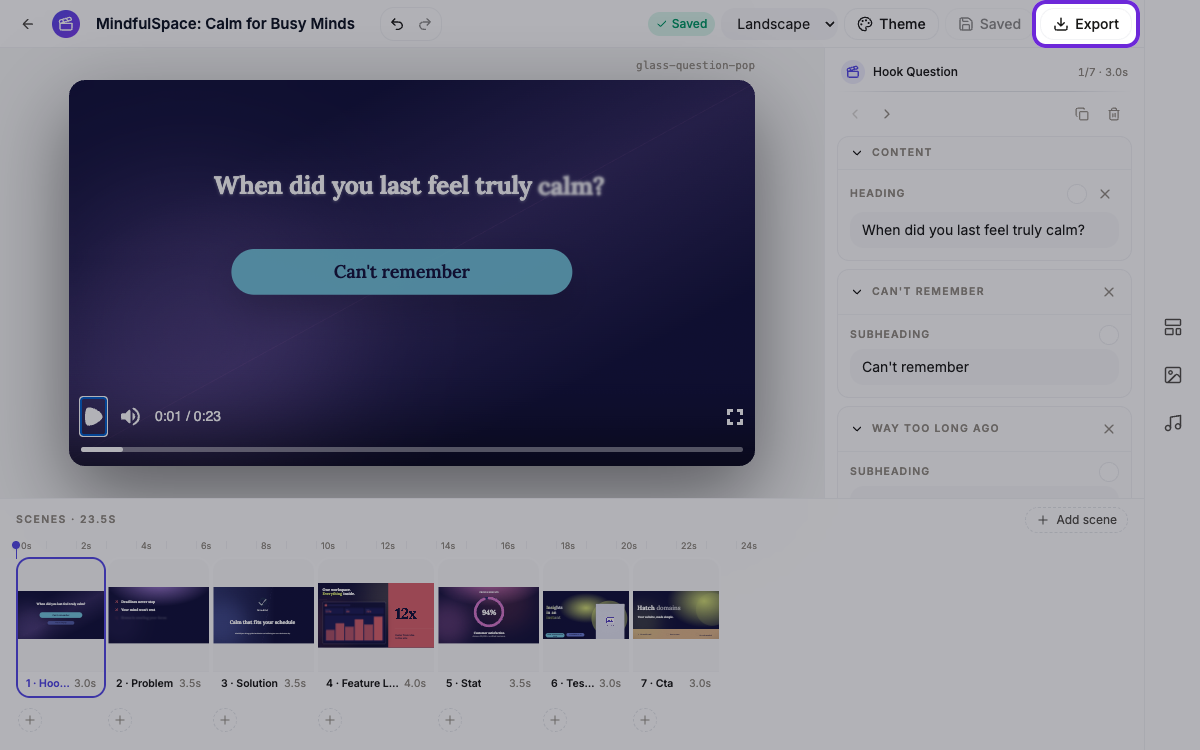 One Export per format. The rendered MP4 opens in a new tab when it’s ready.
Upload the landscape file to YouTube, and the vertical one to Reels, TikTok or Shorts. If you later change a line or a scene, the fix lands in both versions, just export each format again.
Ready to try it yourself?
Start free. Describe what you need and let OneCraft do the first draft.
Get startedMore videos tutorials
- Add voiceover, captions and music to a video Give every scene its own narration in the language and voice you pick, turn on captions, and add a music track that ducks under the voice automatically.
- Make a how-to video with AI Pick the Tutorial video type, describe the steps, add your own screenshots, and AI builds a narrated walkthrough video you can edit and export.
- Make a promo video with AI voiceover Describe your idea, let OneCraft build a styled video with scenes and a voiceover, then add scenes, tune the narration, and export a finished clip.