How to
Export a presentation to PowerPoint or PDF
Three ways out of the builder: a PDF for sending, a PowerPoint that looks exactly right, and an editable PPTX where text, tables and charts are still real PowerPoint objects.
Presentations2 min readUpdated
This guide shows you the three ways to get a presentation out of OneCraft, what each file is actually made of, and which one to pick.
Open the Export menu
Click Export in the top right of the builder. The menu has three items, each with a line describing what it gives you.
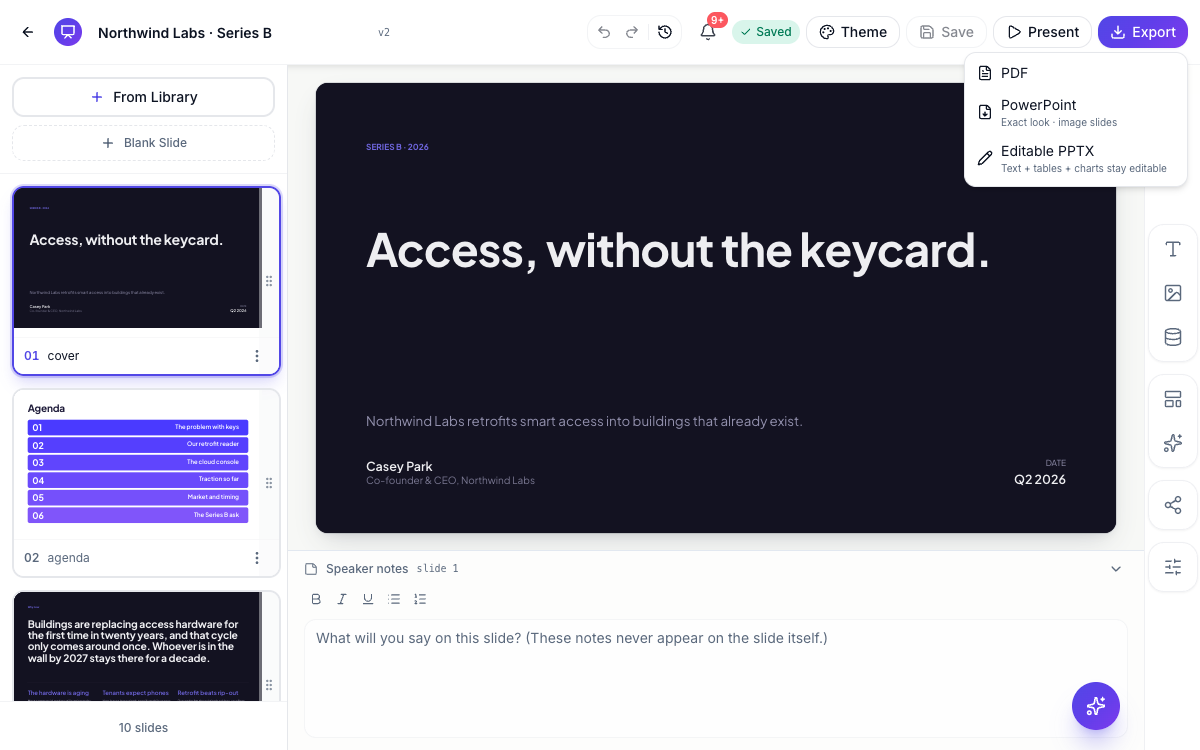 Three formats. The lines under each one tell you what you’re getting.
The one to send. Every slide at full size, your fonts embedded, your logo on it, ready to email, print or attach to a proposal. Nothing shifts, nothing needs the right software to open. Available on every plan.
PowerPoint — “Exact look · image slides”
A .pptx where each slide is the finished picture of your slide. It opens in PowerPoint, Keynote or Google Slides and looks exactly like the original, with no font substitution and nothing reflowed.
The trade is that the contents aren’t editable, because each slide is one image. Pick this when the person receiving it needs to present it, not change it. Needs the Starter plan or above.
Editable PPTX — “Text + tables + charts stay editable”
The one people usually want. Your deck is rebuilt as native PowerPoint objects: headings and body text as real text boxes, lists as real lists, images as images, tables as PowerPoint tables and charts as PowerPoint charts. The rest of the design, the shapes and decorative work that PowerPoint has no equivalent for, sits behind them as the slide’s background.
So your colleague opens it, clicks a headline and types. They can fix a number in a table or restyle a chart with PowerPoint’s own tools. Needs the Starter plan or above.
What happens when you click
Every export renders on our servers, not in your browser tab. That means three things worth knowing:
Your deck is saved first. The export always matches the saved version, so unsaved edits are written before the render starts. There’s no way to accidentally export a stale deck.
You can keep working. Long decks take a moment. If it’s slow you’ll see “Export is processing” and get a notification when the file is ready.
The same export isn’t rendered twice. Ask for the same format of the same version again and you get the same file back straight away.
If something goes wrong the message says which format failed, and trying again is safe.
Choosing
| You want to… | Use |
|---|---|
| Email it, print it, attach it | |
| Hand it to someone who will present it as-is | PowerPoint |
| Hand it to someone who will edit it | Editable PPTX |
| Let people flip through it in a browser, always current | A share link |
| Send a narrated walkthrough | A recording |
Ready to try it yourself?
Start free. Describe what you need and let OneCraft do the first draft.
Get startedSee it in the product
More presentations tutorials
- Add and generate images in slidesReplace any picture on a slide. Upload your own, describe one and let AI make it, reuse an image you already have, then set its corners, frame and shadow.
- Add charts, maps and diagrams to slidesPut real data on your slides. Ten chart types, world maps, Gantt timelines, flowcharts and classic frameworks like SWOT and Venn, all editable and styled by your theme.
- Add, reorder and restructure slidesAdd slides from a library of 353 designs or start blank, drag slides into a new order, duplicate or delete them, swap a slide's layout without losing its content, and set how each one enters.