How to
Make a flyer from a PDF or a photo
Attach the menu, price list or old flyer you already have and OneCraft reads the words out of it, then designs a new flyer around them. Up to five files, 25 MB each.
Flyers2 min readUpdated
This guide shows you how to turn a menu, a price list or an old flyer into a new designed flyer, without retyping any of it.
The details are already written down somewhere. Retyping them into a brief is busywork, and it is where prices and dates get copied wrong.
Attach the file you already have
In the flyer generator, click Build from files and choose your file. It takes PDF, TXT, PNG, JPG, JPEG, WebP and GIF, up to five files per flyer and 25 MB each. The file appears as a chip under the box, with a small × if you picked the wrong one.
Photos work as well as documents. A snapshot of a printed menu is read with text recognition, so the words come through even though the file is pixels.
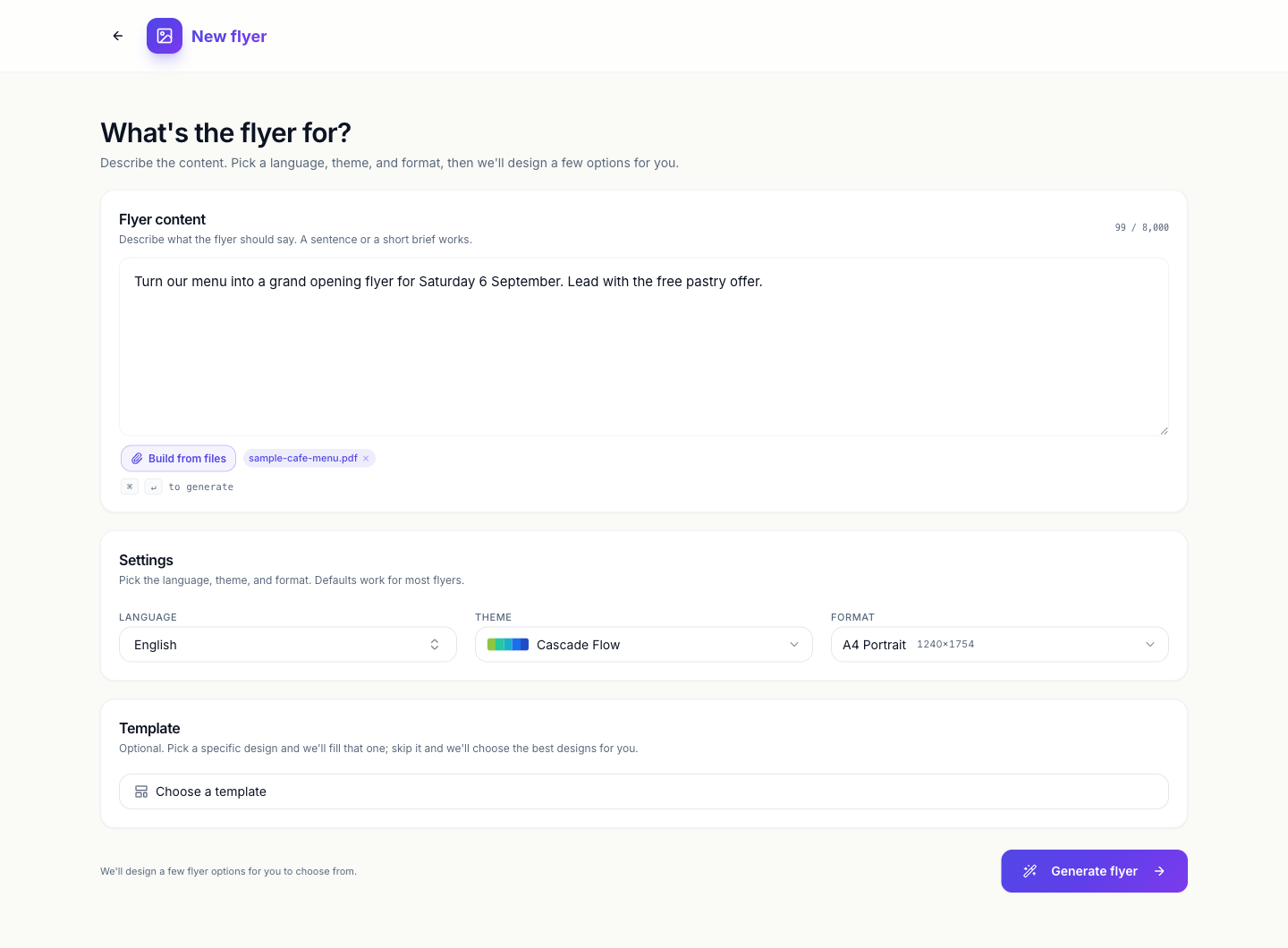 The attached file sits under the box as a chip. Add a line of brief to steer it.
Building from files needs the Starter plan or above. On the free plan the button shows a padlock and offers the upgrade.
Say what you want out of it
The file gives OneCraft the facts. Your brief tells it the job. “Turn our menu into a grand opening flyer for Saturday 6 September, lead with the free pastry offer” is enough to decide what goes big and what goes small.
You can generate from a file with no brief at all, but then OneCraft has to guess which parts of your document matter most.
What it does, and what it does not do
It reads the words, not the design. Your prices, opening hours, addresses and offers come through. The layout, fonts and colours of your original are not copied. What comes back is a new flyer wearing the theme you picked.
That is the right behaviour for a menu or a price list. If you are redesigning an old flyer and want something close to the original shape, pick a template that resembles it in the Template section before you generate, which is covered in choose the template, theme and size for your flyer.
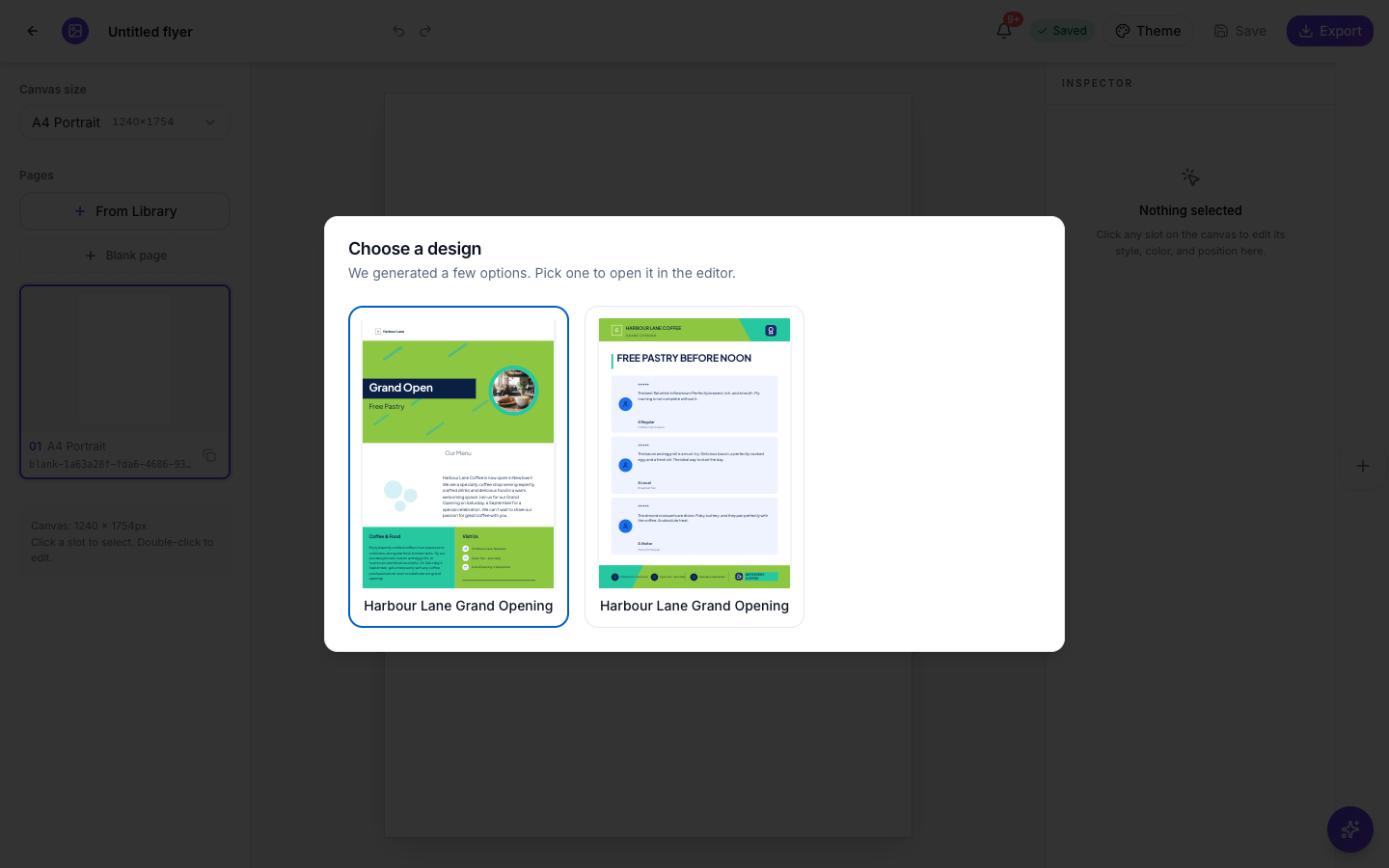 The opening date, the address, the hours and the kitchen items all came straight out of the PDF.
Check the details before you print
Text recognition is good but not perfect, especially on a photo taken at an angle or on a fax-quality scan. Read the prices, dates and phone numbers on the finished flyer against the original once, then fix anything that drifted by clicking the text on the canvas and typing over it.
From here, create a flyer for Instagram and print covers editing and exporting the flyer you just made.
Ready to try it yourself?
Start free. Describe what you need and let OneCraft do the first draft.
Get startedSee it in the product
More flyers tutorials
- Add charts and diagrams to a flyerPut real data on a flyer. Ten chart types, SWOT and 2x2 matrices, funnels, Venn diagrams, org charts, Gantt timelines and world maps, all editable and styled by your theme.
- Add or replace the images in a flyerDescribe the photo you want and OneCraft generates it at the right shape for the slot, or upload your own. Every image you make stays in the flyer to reuse.
- Change a flyer's colours and fonts with themesOne click recolours the whole flyer. 21 themes over 88 palettes, plus 27 fonts you can swap independently, and every element restyles together instead of one box at a time.