How to
Make a multi-page or double-sided flyer
Add a back page from the template library or start one blank, duplicate and delete pages, and export the set as one PDF for the printer.
Flyers2 min readUpdated
This guide shows you how to add a back page to a flyer, and what to export when you want both sides printed.
A single side is enough for a poster. A takeaway flyer usually needs two: the offer on the front, the detail on the back.
The Pages panel
The left side of the flyer builder lists your pages under Pages. Each page shows a thumbnail, a number, its canvas size, and the id of the design it uses. The page you are editing has a highlighted border.
Two buttons sit above the list. From Library opens the full flyer template library. Blank page adds an empty page you build yourself.
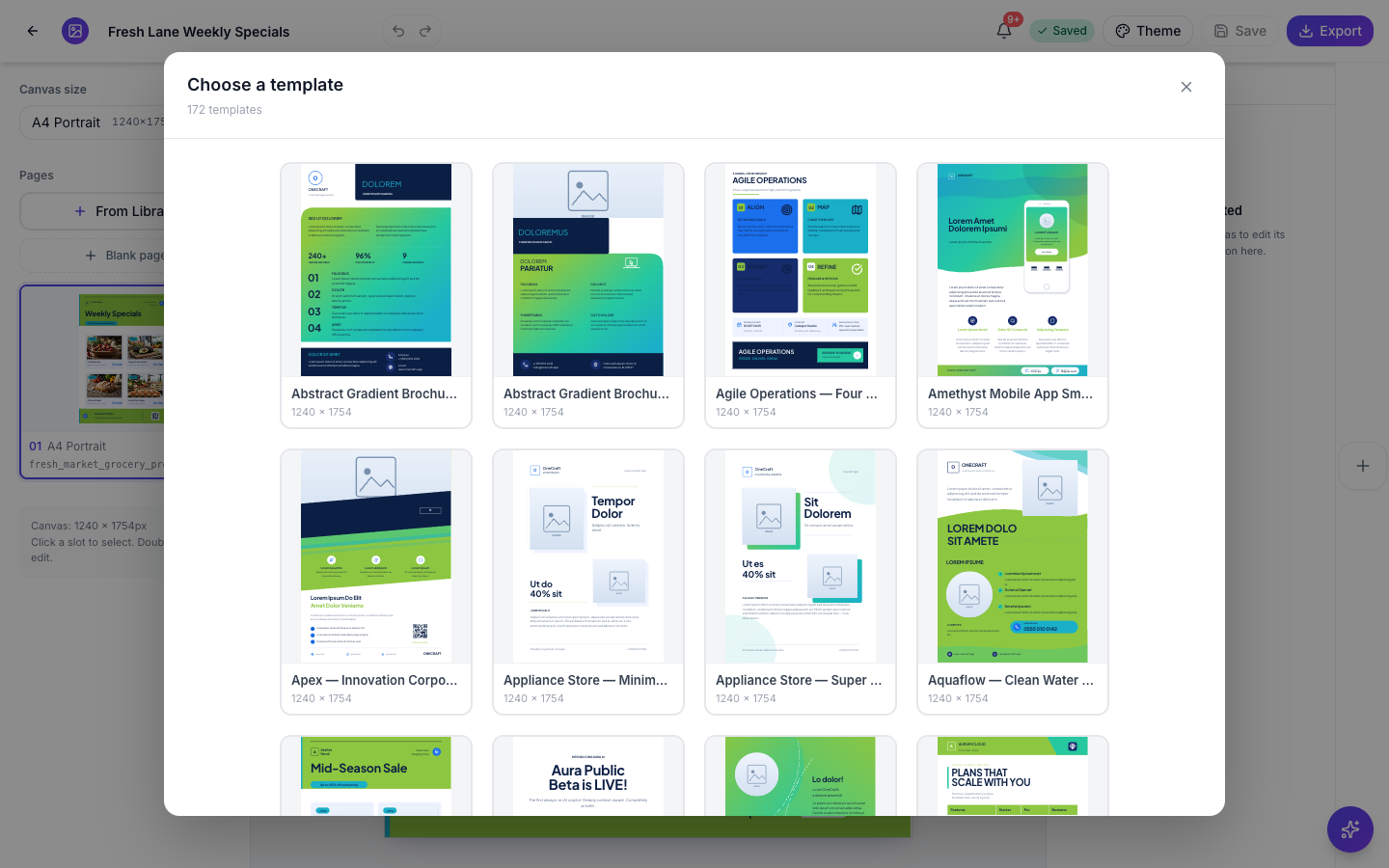 From Library is the same catalogue the generator uses, and every preview already wears your theme.
Add the back page
Click From Library and pick a design that does the job the back of your flyer needs: a price list, a programme, a map and opening hours. Every preview is rendered in your flyer’s theme, so what you see is what lands on the page.
The new page comes in at the same canvas size as the page you were on and joins the end of the list. It arrives holding the design’s placeholder content, which you replace the same way you edit page one.
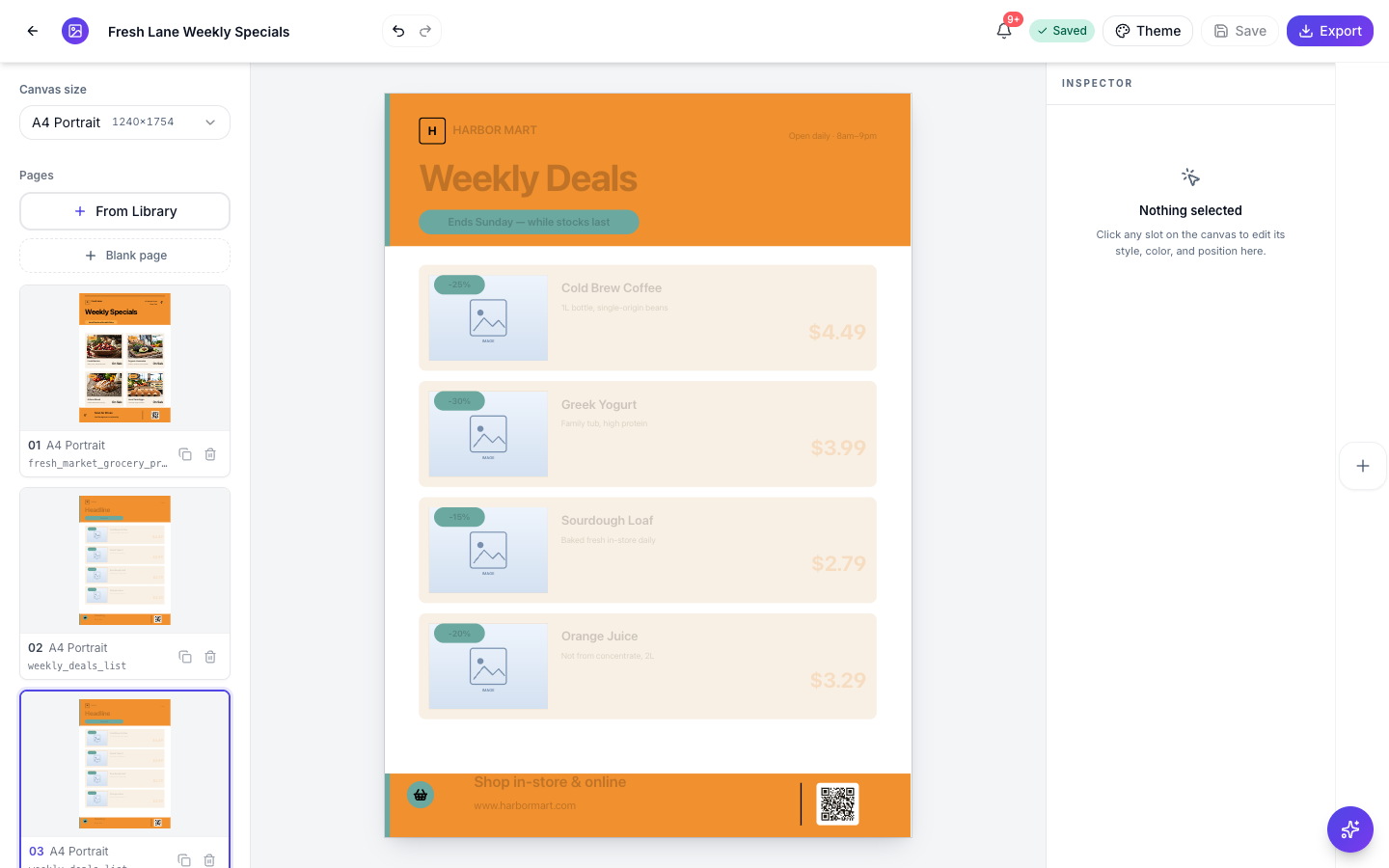 Page 01 is the front, page 02 the back. Both wear the same theme.
Each page in the list has two small buttons: Duplicate page, useful when the back is a variation of the front, and Delete page, which only appears once you have more than one page.
There is no drag to reorder, so add pages in the order you want them.
Sizes are per page
The Canvas size menu changes the page you are on, not the whole flyer. That is deliberate, and it cuts both ways.
It means you can keep an A4 front and a story-sized version of the same content in one file. It also means that if you want both sides at A4, you have to check each page is A4, because switching size on page one leaves page two where it was.
Export both sides
Open Export in the top bar and choose PDF. The PDF carries every page in order, which is exactly what a printer wants for a double-sided job.
PNG and JPG export only the page you are looking at. That is the right behaviour for posting a single side to Instagram, but it is the usual reason a “missing” back page never reaches the printer. For a two-sided run, always send the PDF.
Ready to try it yourself?
Start free. Describe what you need and let OneCraft do the first draft.
Get startedSee it in the product
More flyers tutorials
- Add charts and diagrams to a flyerPut real data on a flyer. Ten chart types, SWOT and 2x2 matrices, funnels, Venn diagrams, org charts, Gantt timelines and world maps, all editable and styled by your theme.
- Add or replace the images in a flyerDescribe the photo you want and OneCraft generates it at the right shape for the slot, or upload your own. Every image you make stays in the flyer to reuse.
- Change a flyer's colours and fonts with themesOne click recolours the whole flyer. 21 themes over 88 palettes, plus 27 fonts you can swap independently, and every element restyles together instead of one box at a time.