How to
Record a presentation with voiceover
Present your finished deck and record it as a video, your voice and camera over your slides, with pause and resume, then download it to share anywhere.
Presentations2 min readUpdated
This guide shows you how to record your presentation as a video, with your voice and your camera over the slides, then download it to share.
Sometimes you cannot get everyone in a room. A recorded walkthrough means people watch whenever it suits them, and your explanation comes with it.
Open your presentation in present mode
Open a presentation you’ve already built and click Present. The recorder lives in the top corner of present mode, so there’s nothing to rebuild or export first. You present exactly as you normally would, and the recording captures what your audience sees.
Recording needs the Starter plan or above; on the free plan the record button isn’t shown.
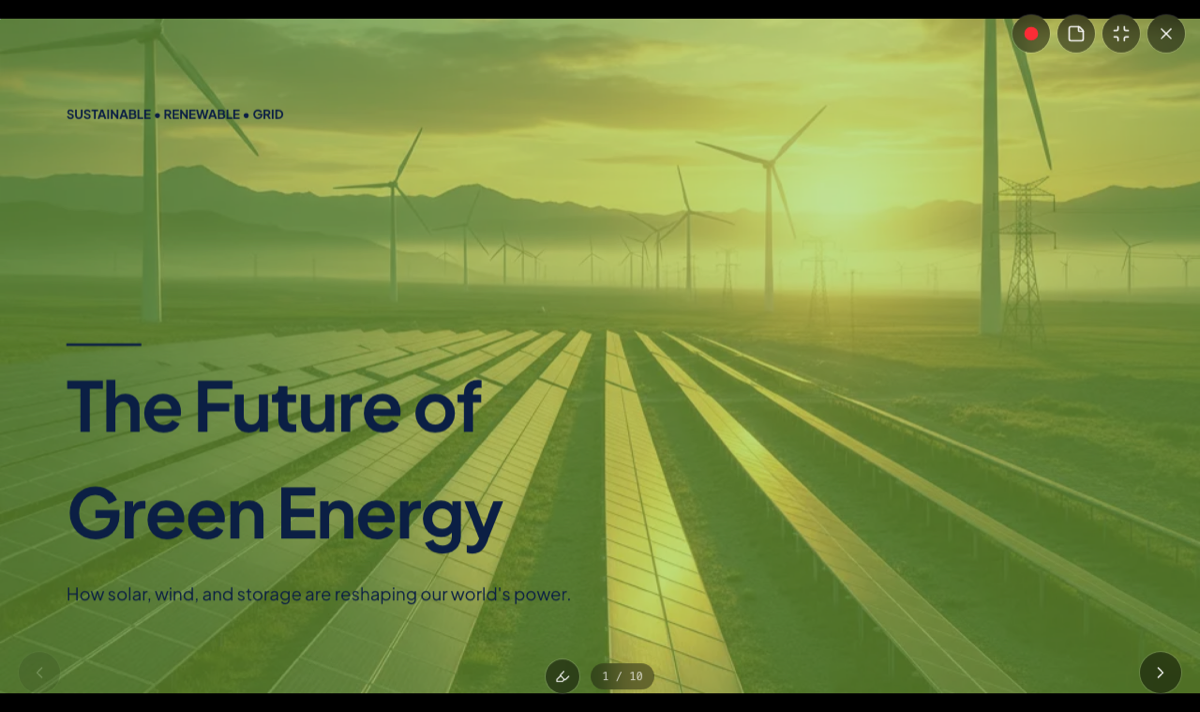 Present mode. The record button lives in the top corner.
Choose camera, microphone and quality
Click the record button to open the recording settings:
- Camera, adds you as a small overlay on top of the slides. Drag it anywhere and resize it, or turn it off to record voice only.
- Microphone, captures your narration as you talk through the deck.
- Quality, pick Medium, High, or Best, up to 4K, depending on where the video will be watched.
The recording streams to private storage in your browser while you present, so long takes are fine.
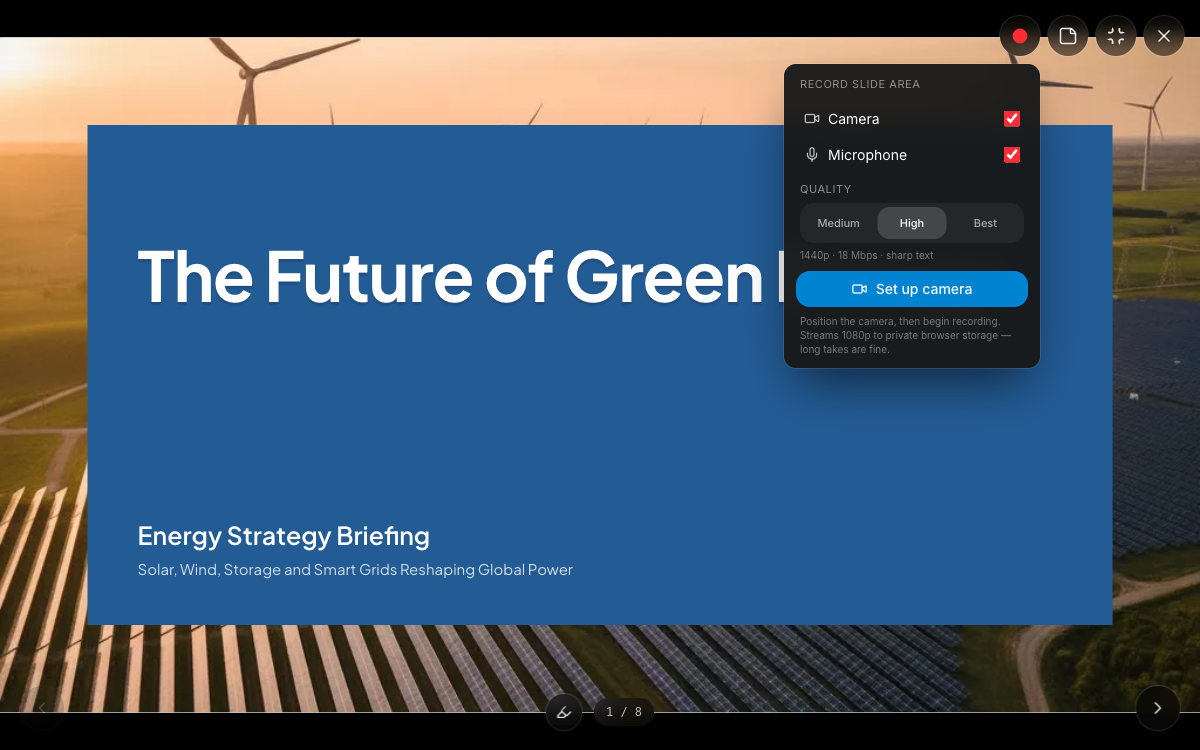 Camera, microphone and quality, set once before you start.
Record your walkthrough
Click Set up camera, position your camera bubble where you want it, and hit Begin recording. A 3-2-1 countdown gives you a beat to get ready, then the timer starts and you simply present: advance slides, use the pen to mark things up, and talk.
Need a break or lost your train of thought? Pause the recording and resume when you’re ready. The pause never shows up in the final video.
 Recording in progress: the REC timer runs in the top bar, with pause and stop one click away.
Download the recording as a video
When you’re done, hit stop and the recording is saved. Click Download and you get a video file of the whole walkthrough, your slides, your voice, and your camera overlay, ready to drop into an email, Slack, or anywhere people watch videos. Not happy with the take? Discard it and record again.
Ready to try it yourself?
Start free. Describe what you need and let OneCraft do the first draft.
Get startedSee it in the product
More presentations tutorials
- Add and generate images in slidesReplace any picture on a slide. Upload your own, describe one and let AI make it, reuse an image you already have, then set its corners, frame and shadow.
- Add charts, maps and diagrams to slidesPut real data on your slides. Ten chart types, world maps, Gantt timelines, flowcharts and classic frameworks like SWOT and Venn, all editable and styled by your theme.
- Add, reorder and restructure slidesAdd slides from a library of 353 designs or start blank, drag slides into a new order, duplicate or delete them, swap a slide's layout without losing its content, and set how each one enters.