How to
Share a presentation with a link
Send one read-only link instead of a file. Viewers open the deck full screen in a browser, always see your latest saved version, and can never edit it.
Presentations2 min readUpdated
This guide shows you how to share a presentation as a link: what viewers can and can’t do, and why the link never needs to be re-sent.
A file is a snapshot. The moment you fix a typo, the version in someone’s inbox is wrong. A link isn’t a snapshot, which is the whole reason to use one.
Generate the link
In the rail on the right of the builder, click Generate link. The dialog Share this deck opens with your link already made.
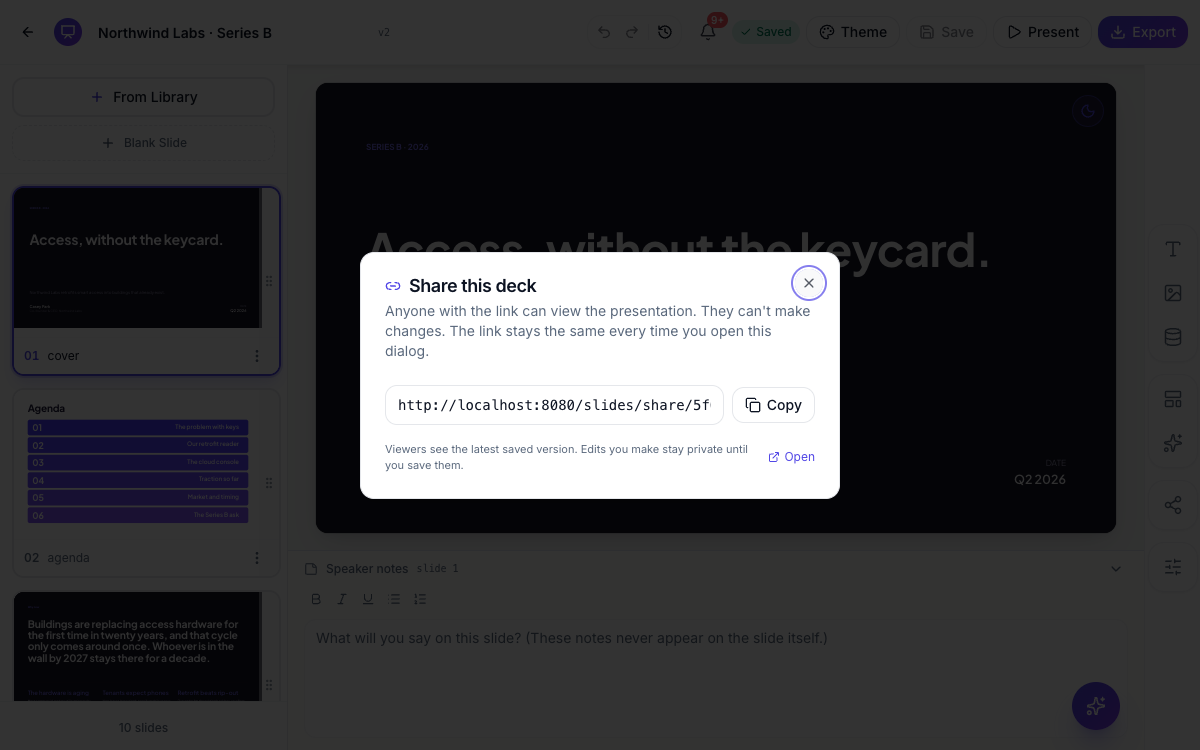 One link per deck. It’s created the first time and stays the same after that.
Copy puts it on your clipboard. Open opens it in a new tab so you can see exactly what the other person will see.
The link is the same every time you open this dialog. There’s no “regenerate”, nothing expires, and you don’t manage a list of links.
What the viewer gets
The link opens the deck full screen in their browser, on any device, with nothing to install and no account to make. They move through it the way you would: click, arrow keys or the space bar, with a slide counter in the corner.
What they can’t do is change anything. There’s no editor behind that link, only the deck.
Two things to know before you send it. Speaker notes travel with the deck, so a viewer who opens the notes panel can read them. And the link isn’t listed anywhere or indexed by search engines, but anyone who has it can open it, so treat it as unlisted rather than private.
Viewers always see your latest saved version
The link shows the deck as of your last save. Edits you’re in the middle of stay private until you hit Save, and the moment you do, everyone holding the link sees the new version. Same link, no re-send.
That makes it the right choice for a deck still in motion: a proposal a client is reviewing, a plan a team keeps commenting on, a deck you’ll tidy the night before.
Your logo is the one thing that doesn’t come along. The brand mark from Slide defaults shows in the builder, in present mode and in every export, but not on the shared link.
Link, file, or live
| Situation | Best option |
|---|---|
| They should always have the current version | This link |
| They need a file to attach, print or archive | |
| They’ll edit it in PowerPoint | Editable PPTX |
| You’re in the room, or on the call | Present mode |
| They’ll watch it whenever suits them | A recording |
To take the link out of circulation, disable the presentation from your dashboard: the link stops working immediately, and nothing is deleted. Enabling it again brings the same link back.
Ready to try it yourself?
Start free. Describe what you need and let OneCraft do the first draft.
Get startedSee it in the product
More presentations tutorials
- Add and generate images in slidesReplace any picture on a slide. Upload your own, describe one and let AI make it, reuse an image you already have, then set its corners, frame and shadow.
- Add charts, maps and diagrams to slidesPut real data on your slides. Ten chart types, world maps, Gantt timelines, flowcharts and classic frameworks like SWOT and Venn, all editable and styled by your theme.
- Add, reorder and restructure slidesAdd slides from a library of 353 designs or start blank, drag slides into a new order, duplicate or delete them, swap a slide's layout without losing its content, and set how each one enters.