Videos
Turn images into a video
Upload eight pictures and eight different decisions get made. Some become scenes. Some are grouped so they play together in one. Some are judged to be references you uploaded to explain the video rather than to appear in it, and those are read for their content and then deliberately kept off screen.
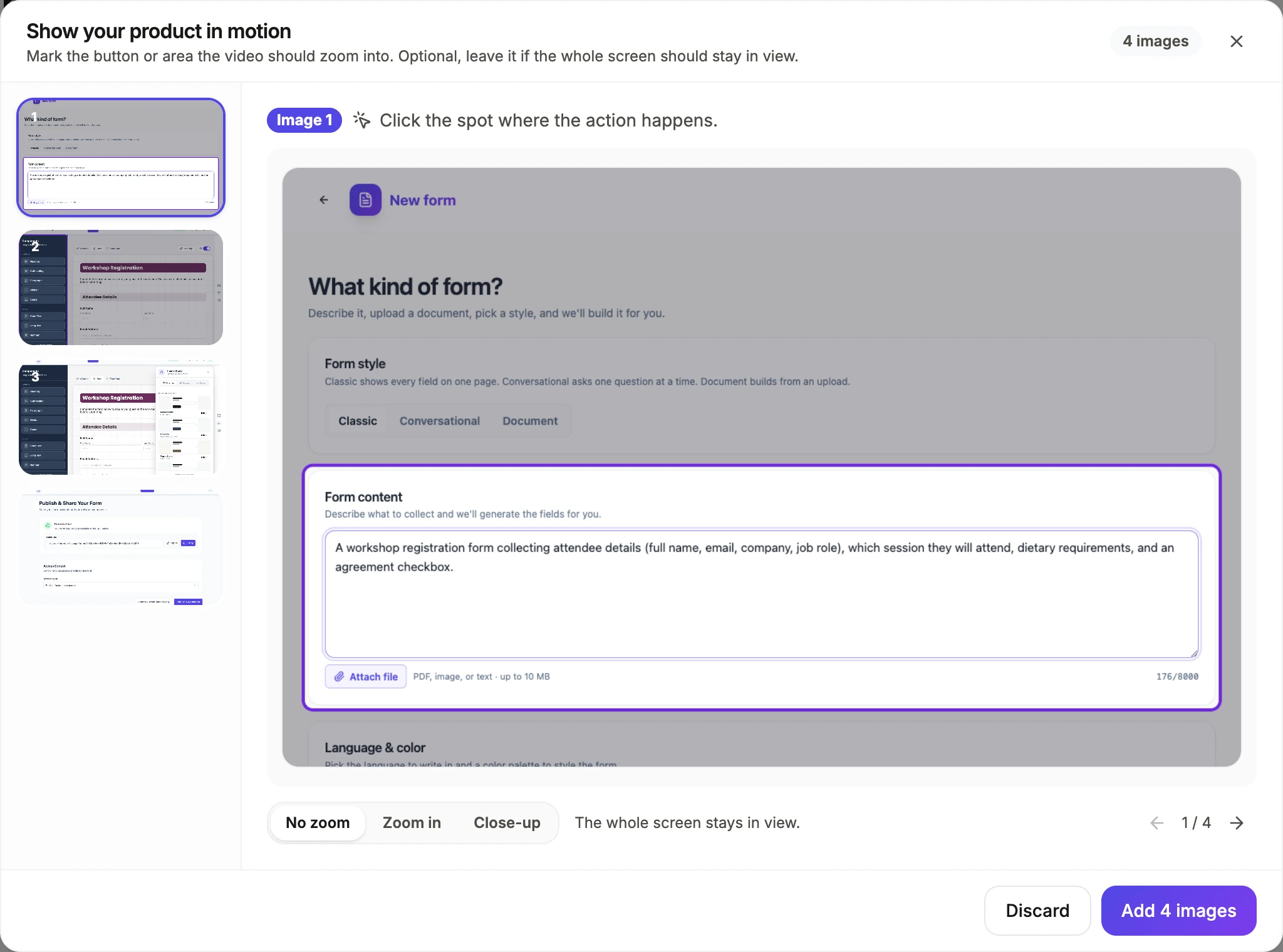
Pass one: what is this picture
Each upload is looked at on its own and comes back with a kind, a summary that names what it actually is, a transcription of every word visible in it, the concrete things on screen as short points, and any sequence evidence such as a step number or a breadcrumb. Its real pixel size is read from the file header rather than guessed, and turned into a shape of wide, square or tall.
Pass two: asset or instruction
This is the one people do not expect. Each image is also judged against your brief for whether it is a real asset to display or a reference you attached to guide the video. A mockup, a sketch, a screenshot of a written plan, a competitor's poster you want the style of, all come back as references. Those are pulled out of the picture pool, their transcribed content is folded into the brief as extra context, and they never appear on screen.
Pass three: what belongs together
A separate cheap pass looks across all the remaining images at once, because the per image analysis cannot see beyond its own picture. It returns groups with a short reason, such as steps of the checkout flow, and an index may only appear in one group. An image that stands alone is left out of every group. Grouped images are then shown in a single scene, in the order given.
One picture, one scene
After the script is written, a deduplication step runs over the scenes. If the director assigned the same image to more than one scene, it is kept in whichever scene uses the fewest images and removed from the others, along with that image's frame narration line and shape setting. A scene also uses either your uploads or generated illustrations, never both, so a picture is never sitting next to a fabricated one pretending to be from the same set.
How it works, in three steps
Step 1
Say which pictures are references
Write it in the brief. That is what the asset or instruction judgement reads, and it is the only way to keep a picture out of the video reliably.
Step 2
Upload in the order they should play
Display order is the index the director works with, and groups are played in the order they are listed.
Step 3
Fix the shape per image if a crop looks wrong
The inspector has a shape toggle per picture: the scene's own box, the biggest square inside it, or the biggest tall box.
The full walkthrough with screenshots is in the guide Make a promo video with AI voiceover.
Limits worth knowing
- Eight images per generation, up to 15 MB each, in PNG, JPG, WebP or GIF.
- Pictures are never upscaled, apart from a hero slot filling at least 60 percent of the canvas and even then by no more than 2.5 times.
- A scene either shows your uploads or generated images, never a mixture of both.
- Nothing is cropped to remove a background, a watermark or a face. The picture goes in as it arrives.
Questions people ask
Why was one of my images left out?
Three possibilities. It was judged a reference rather than an asset, it was dropped as a duplicate or low quality, or it appeared in two scenes and the deduplication step kept the copy in the tighter scene. The first is the most common surprise.
How many pictures fit in one scene?
Gallery layouts hold between two and eight. Most hold three or four, and the tilted wall layout takes more to imply a big library. Showcase layouts are for a single hero image.
Can I use images without any voiceover?
Yes. Turn the voiceover switch off in the generator and you get a silent video with on-screen copy. Captions come from the narration, so with no narration there are none.
Do the images have to be related?
No, but the grouping pass works better when some of them clearly are. A set with three obvious pairs produces a tighter video than eight unrelated pictures, which tend to get one scene each.
Make your own video
The button opens the generator with this use case already described. Change the wording to match yours, generate, then edit anything you like.
Create a video with OneCraftRelated pages
AI images for video scenes
Some scene layouts want a photograph and you do not have one. A generated image fills that gap, and the interesting part is the rule around it: it is only allowed where the picture is genuinely generic. Faking your own interface, your logo or a real person is explicitly forbidden.
AI product video maker
If you sell a physical thing you already have the raw material: the photographs from the listing. The work is deciding which shot opens, which ones group together, which scene can hold four of them at once, and how each picture sits in its box without being cropped through the subject.
AI video length settings: short, standard and long
The video generator's length setting picks a scene budget, not a target duration: short, standard or long. Each setting fixes how many scenes the director builds, and the seconds follow from the video type. Three to six scenes is a different video from six to twelve, regardless of the clock, because it is a different number of things you get to say. So when the question is how long should my video be, count the points you need to make first, then pick the setting that gives each one a scene.
More finished work of this kind is on the video examples hub.
Written and checked by the OneCraft team. Last checked .