Videos
Turn a script into a video
If you already have an approved script, the default behaviour will annoy you. The promo director rewrites for pace, aiming at five to eight words a scene, because that is what fits a two and a half second cut. Getting your own wording through is possible, but it takes a deliberate second step.
Why it rewrites by default
The instruction the promo director works under is explicit about length: write a short voiceover line, aim for five to eight words, and only use more when a scene genuinely has to explain something, in which case raise that scene's duration so the line still fits. Tutorial mode uses a different budget, ten to twenty five words a step, because a viewer is following along. Either way, a fifty word paragraph handed in as one scene's script will be condensed rather than honoured.
The narration text is the thing to edit
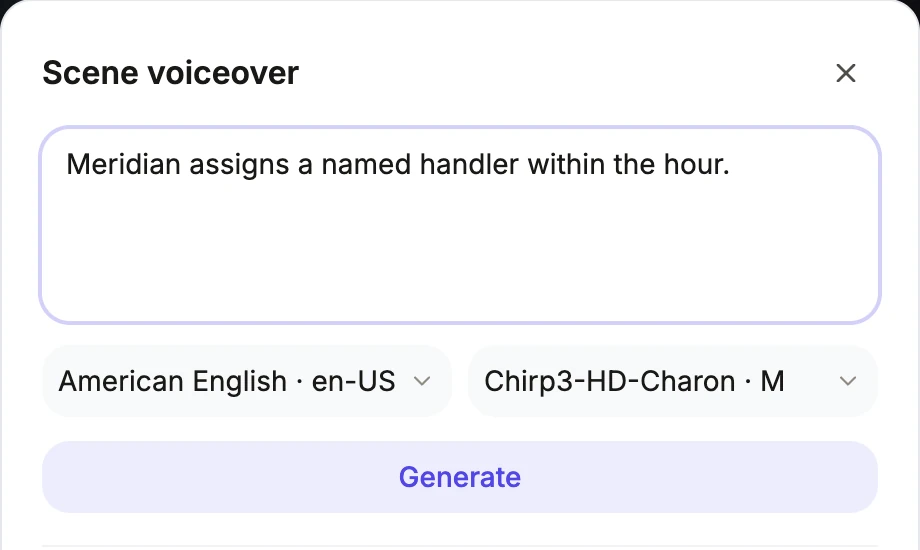
Each scene carries its own narration string, and that string is the single source of truth for the spoken audio, the captions and the composition length. Open a scene's voice dialog, replace the text with your line, and press generate. The scene stretches to fit the new audio, adding the delay and dividing by the playback speed, and it remembers the duration it had before, so a shorter rewrite shrinks it back instead of leaving silence.
Scenes that reveal several beats take a line each
Where a scene walks through several pictures one at a time, the narration is a list rather than a string, index aligned to the beats. When any entry in that list has audio it replaces the scene level narration entirely. So a five line script section can live inside one scene as five short lines, each spoken over its own picture, rather than as one long line running across the whole thing.
Match the line count to the scene budget first
The most common mistake is bringing a script with twenty lines to a short video that allows three to six scenes. Count your lines, pick the length setting that matches, and accept that anything beyond twelve scenes has to become two videos. Doing that before generation saves rewriting the whole thing after.
How it works, in three steps
Step 1
Count your lines and choose the length
Short allows 3 to 6 scenes, standard 4 to 9, long 6 to 12. Bring a script that fits, or split it into two videos before you start.
Step 2
Ask for your wording in the brief
Say plainly that the script is final and the lines are to be used as written. It improves the first pass, though it does not guarantee it.
Step 3
Replace each line in the voice dialog
Go scene by scene, paste your line, press generate. This is where the final text lives, and the captions follow it automatically.
The full walkthrough with screenshots is in the guide Add voiceover, captions and music to a video.
Limits worth knowing
- Each voiceover you generate in the builder is billed by length, so replacing every short line on a twelve scene video uses about six credits.
- There is no script import format. The script goes into the 8,000 character brief box as plain text.
- Speech has no emphasis or pause markup. Delay, playback speed and rewriting the sentence are the only pacing controls.
- On dynamic pace a scene only grows to one and a half times its authored length, and the rest of the line runs over the next cut.
Questions people ask
Can I stop it rewriting entirely?
Not in the generation step, but it does not matter much. Whatever it writes, you replace scene by scene in the voice dialog, and that text is what is spoken and captioned. Treat the first pass as a scene plan rather than as a draft of your script.
How many words is a video actually?
A short promo of six scenes is around forty words of speech. A long tutorial of twelve scenes at ten to twenty five words a step is two hundred or more. Scripts are usually far longer than people expect a video to hold.
Will the on-screen copy match my script?
It is written to be consistent with the narration without repeating it, and headlines are held to two to five words. So the screen carries a compressed version of your line rather than the line itself.
Can I keep my script and change the pictures?
Yes, and that is the sensible order. Fix the narration first, since it drives the timing, then swap images and adjust the layout, because those do not disturb the length.
Make your own video
The button opens the generator with this use case already described. Change the wording to match yours, generate, then edit anything you like.
Create a video with OneCraftRelated pages
AI video script generator
A video script that reads well on a page usually plays badly. The reason is that the page has no timing. Here the script is produced scene by scene, and every line arrives attached to a duration, an on-screen headline and a layout that has already been chosen.
Add captions to a video
Most tools transcribe the audio to make captions, which means the captions inherit whatever the speech recogniser heard. Here they come from the other direction: the narration text you wrote is the source, the speech is synthesised from it, and the captions are generated from the same string.
Text to video with voiceover
To make a text to video with voiceover, paste the text into the video generator as a brief, leave the voiceover switch on, and the director splits it into scenes with a narration line and captions for each. The spoken track is synthesised from those lines and the picture is fitted around it. The interesting problem is timing: a spoken line and a visual cut are two different clocks, and here the voice is treated as one continuous track that the scenes adjust to.
More finished work of this kind is on the video examples hub.
Written and checked by the OneCraft team. Last checked .