Videos
Text to video with voiceover
To make a text to video with voiceover, paste the text into the video generator as a brief, leave the voiceover switch on, and the director splits it into scenes with a narration line and captions for each. The spoken track is synthesised from those lines and the picture is fitted around it. The interesting problem is timing: a spoken line and a visual cut are two different clocks, and here the voice is treated as one continuous track that the scenes adjust to.
One voice track, not one clip per scene
Narration is assembled into a single track laid over the scene sequence, and that track is the source of truth for timing, for the captions and for the length of the finished composition. It is not a set of clips each trapped inside its own scene. That distinction is what stops a video full of unnatural pauses where a line finished early and the cut had not arrived yet.
Dynamic stretches a little, calm stretches fully
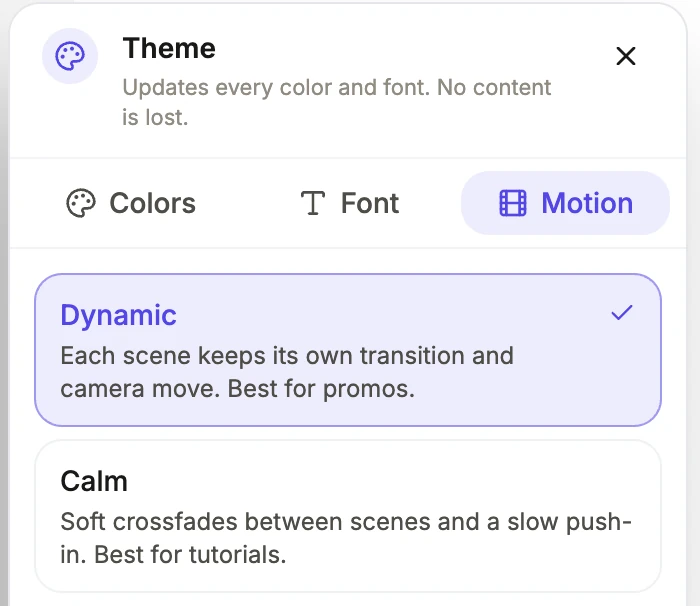
The two pace settings resolve the clash differently. On dynamic, a scene grows by at most one and a half times to accommodate its line, and whatever is left of the line simply flows over the next cut, which is how ad editing actually works. On calm, the scene stretches to fit the whole line before cutting, which is what a tutorial needs because the viewer is following along on their own screen.
Per scene control once it exists
Every scene has its own narration text, its own language and voice, a delay in seconds before the voice starts, a playback speed of 0.85, 0.9, 1, 1.1 or 1.25 times, and a caption toggle. Regenerating narration grows the scene to fit the new audio and remembers the original duration as a base, so a shorter rewrite shrinks the scene back rather than leaving dead air at the end.
What the AI picks and what it does not
Your text becomes the script and the on-screen copy, but the model also makes editorial choices around it: which template to use, the order of the scenes, how long each one runs and which scene role carries each part of the message. Those choices can differ between runs, so the same text generated twice can come back as two different videos. What the model never touches is the machinery: layouts, motion, timing curves and rendering are fixed code. So editing a narration line afterwards retimes its scene but does not rearrange the video around it.
Which languages get a voice
The voice is chosen from the language of the brief. 56 languages have a mapped voice, most of them on Google Chirp 3 HD, with Malay, Filipino and Traditional Chinese on an older voice tier. A language with no mapping gets no voiceover at all rather than falling back to English, although the on-screen text is still written in that language. Tutorials are always given the instructional voice style, whatever the brief asks for, because a calm steady read suits a viewer following steps.
How it works, in three steps
Step 1
Paste the text as a brief
Up to 10,000 characters. Write it as what you want said, not as a description of a video, and the director will divide it into scenes.
Step 2
Pick the pace deliberately
Dynamic for anything promotional, calm for anything instructional. It changes how narration and cuts negotiate, not just how it looks.
Step 3
Fix the lines that run long
Open the voice dialog on any scene that feels rushed, shorten the line or drop the speed to 0.9, and the scene retimes itself.
The full walkthrough with screenshots is in the guide Add voiceover, captions and music to a video.
Limits worth knowing
- Narration is synthesised text to speech. There is no emphasis markup, no pause tags and no per word control beyond delay and speed.
- Captions are derived from the narration text, so editing an on-screen caption does not change what the captions say.
- Each voiceover clip you generate in the builder is billed by length, about half a credit for a typical line.
- The brief box takes 10,000 characters, which is a long script but not a document.
Questions people ask
Will the video narrate my exact words?
Not automatically. In promotional mode the director rewrites for pace, aiming at 5 to 8 words a scene. If you need your wording preserved, say so in the brief and then correct each scene's narration in the voice dialog, which is where the final spoken text lives. Captions follow the narration, so fixing the line there fixes the caption too.
How many words of text fit in a short video?
Fewer than you think. A promo scene carries roughly 5 to 8 words, so a six scene short video is about 40 words of speech. A tutorial step takes 10 to 25 words, which is why tutorials run so much longer for the same scene count. Trim a long text to its three strongest points before pasting it, rather than letting the director do the cutting.
Can the voiceover be turned off entirely?
Yes. The generator has a Voiceover switch, and with it off you get a silent video carried by on-screen copy and music. Captions are built from the narration, so with no narration there are no captions either. That suits a feed where most viewers watch muted and read the screen. You can still add narration to single scenes later in the voice dialog.
Does a bulleted list become one scene per bullet?
Usually not. A list tends to become a feature list, a checklist or a how it works scene rather than one scene per bullet. Those scene roles are built to carry three or four items at once, which usually makes a better video than four near identical cuts. If each bullet deserves its own moment, say one scene per point in the brief.
Why does the same text give a different video each time?
Because the model chooses the template, the scene order and the durations on every run, and those choices are not fixed. The layouts and motion code are deterministic, but what gets fed into them changes. If you like a result, keep it and edit it rather than regenerating. Each generation uses about 20 credits, so a second run is a new draft, not a repeat.
Can the narration voice be changed after the video is made?
Yes, per scene. The voice dialog lets you pick any voice from the live Google catalogue, not only the eight the director chooses between, and set the language, a delay before the line starts and a speed from 0.85 to 1.25 times. Regenerating a line is billed by its length. Using the same voice on every scene keeps the video from sounding like several speakers.
Make your own video
The button opens the generator with this use case already described. Change the wording to match yours, generate, then edit anything you like.
Create a video with OneCraftRelated pages
AI voiceover languages
Language here does two separate jobs, and they can come apart. It tells the director which language to write every line in, and it selects the locale the synthesised voice comes from. The writing side accepts anything you type. The voice side has a fixed map of 56 entries.
Turn a one line idea into a video
A single sentence is a legitimate input, and it is worth knowing exactly how much is being invented on your behalf when you use one. The answer is: the arc, the scene roles, every word on screen, every spoken line, the voice, the tone and often the format as well.
Faceless video maker
A faceless video maker builds a finished video with nobody on camera: moving type, drawn graphics, your screenshots or stock clips, a synthesised voice and captions burned into the picture. Faceless is a constraint you accept for a reason. Nobody has to be available, nothing has to be filmed twice when a price changes, and the same video can be reissued in another language without anybody appearing to speak it. The trade is that every second has to be carried by type, motion and voice.
More finished work of this kind is on the video examples hub.
Sources
Written and checked by the OneCraft team. Last checked .