Videos
AI video script generator
A video script that reads well on a page usually plays badly. The reason is that the page has no timing. Here the script is produced scene by scene, and every line arrives attached to a duration, an on-screen headline and a layout that has already been chosen.
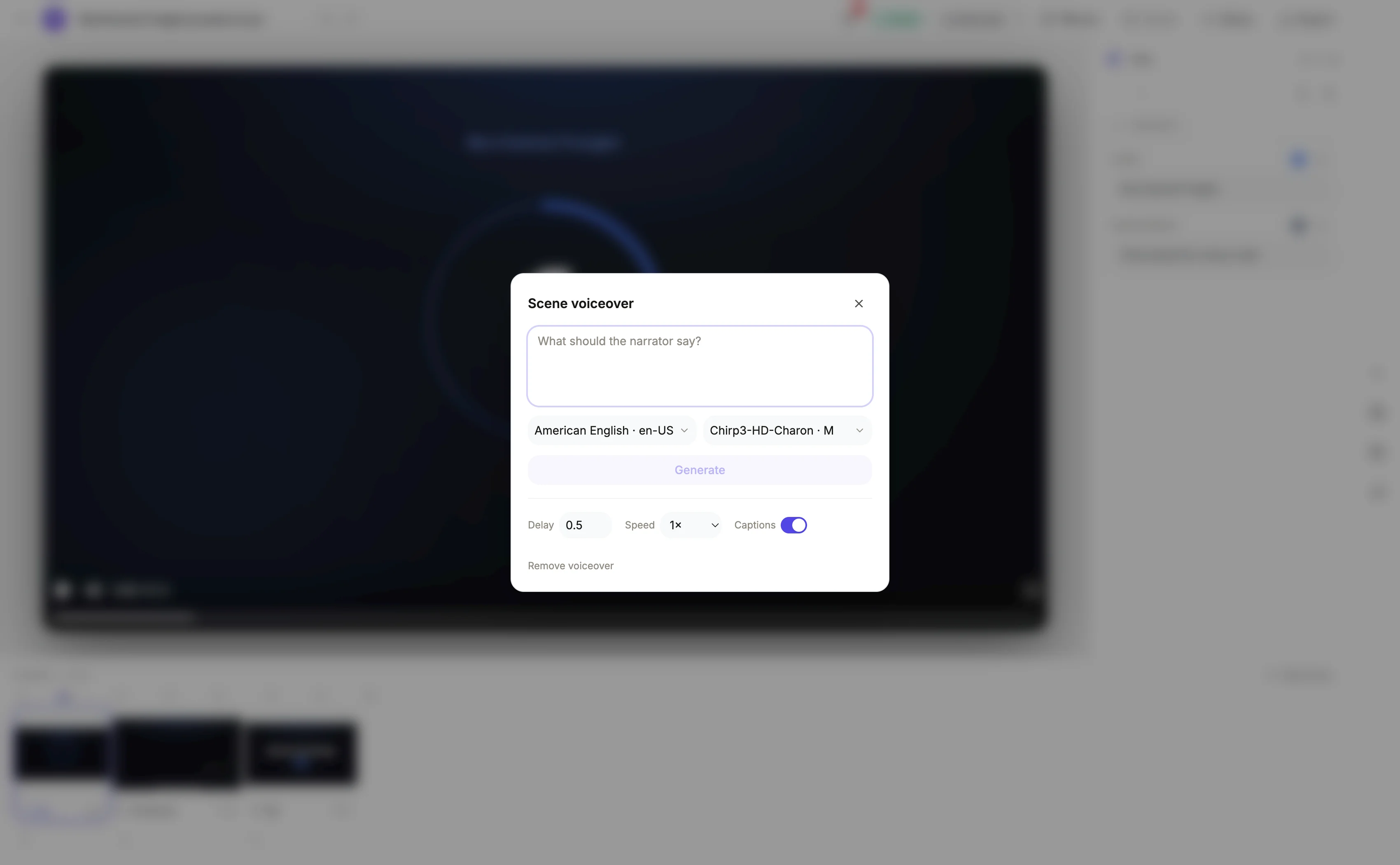
What one scene of the script holds
Not just a line. Each scene carries its role, the specific layout variant chosen for it, its narration line, its duration in seconds, which uploaded images it uses and in which shape, and final copy for every text box on that layout. That is why the script cannot be written separately and pasted in: the spoken line and the words on screen are decided together, against a layout whose text boxes have known lengths.
It is written as one spoken script, not a set of lines
The instruction is explicit about this. The lines together are one script: natural spoken language with contractions and direct address, the product named early, each line picking up from the one before, and each line talking about what its own scene actually shows, its numbers, its pictures, its steps, never generic filler. The director is told to read the lines in sequence before answering, and that the last line must land the ending.
The word budgets, and what happens when you exceed them
A promotional line is five to eight words. Only a scene that genuinely has to explain something may run longer, and then the duration must be raised so the line still fits. A tutorial step is ten to twenty five words and names the real button or menu. Sentences must be complete rather than clipped, and nothing may be padded to fill. On screen, a headline is two to five words and a supporting line is under eight.
What the script is forbidden from doing
Inventing a number is the big one: it either researches a figure or writes no figure. Corporate clichés are named and banned, specifically unlock, seamless, take it to the next level and in today's world. Em dashes are banned in narration and on screen copy. Markdown and emoji are banned. And in tutorial mode it may not say step three, because the badge already numbers the step.
How it works, in three steps
Step 1
Give it the closing line
Write the exact sentence you want spoken last. It becomes the closing scene copy and the final line, which is the part worth controlling.
Step 2
Read the whole script in sequence
Open each scene's narration in order. Written per scene, a script can still lose its thread, and reading it end to end is where you catch that.
Step 3
Edit narration and copy separately
The spoken line lives in the voice dialog, the on-screen words in the inspector. Changing one does not change the other.
The full walkthrough with screenshots is in the guide Make a promo video with AI voiceover.
Limits worth knowing
- The script is not delivered as a document. It lives in the scenes, one narration string and one set of copy per scene.
- Copy is fitted to layout boxes with target lengths, so a longer rewrite may wrap in a way the original did not.
- For scenes that reveal several frames, narration is a list of short lines rather than one string, and each is written for its own frame.
- Regenerating a scene's voice after editing its line is billed by length, about half a credit for a typical line.
Questions people ask
Can I get the script before the video?
Not as a separate step. Scene planning, layout choice and writing all happen in one pass, because the copy has to fit boxes whose sizes come from the layout. What you can do is read and rewrite it once the video exists.
Does it write different copy for the screen and the voice?
Yes. The instruction is to keep on-screen copy consistent with the narration without simply repeating it, so the screen carries the compressed version and the voice carries the full sentence.
How does it know how long a line takes?
It works to a word budget rather than timing the audio. The real timing happens afterwards: the narration is synthesised and the scene grows to fit the clip, which is why a long line stretches its scene.
Will it write in another language?
Yes. Setting the language in the brief makes the director write all the narration and on-screen copy in that language, and the voice is resolved to the matching locale.
Make your own video
The button opens the generator with this use case already described. Change the wording to match yours, generate, then edit anything you like.
Create a video with OneCraftRelated pages
Turn a script into a video
If you already have an approved script, the default behaviour will annoy you. The promo director rewrites for pace, aiming at five to eight words a scene, because that is what fits a two and a half second cut. Getting your own wording through is possible, but it takes a deliberate second step.
Background music for video
Music here is one track laid across the whole video, looping to fill it and automatically dropping out of the way whenever anybody speaks. That is a deliberately simple model, and knowing where its edges are saves you fighting it.
Slideshow video with narration
The reason most photo slideshows are unwatchable is that every picture gets the same three seconds and one voiceover runs across the lot. The interesting shot flies past, the filler lingers, and the narration is talking about image two while image five is on screen.
More finished work of this kind is on the video examples hub.
Written and checked by the OneCraft team. Last checked .