Videos
Countdown offer video
Urgency in a video is a scene, not a widget. A countdown scene sets a deadline in type large enough to read in a feed at arm's length, and it will not be built at all unless your brief contains a real date. What it never does is count down against a live clock, which is worth understanding before you plan a campaign around it.
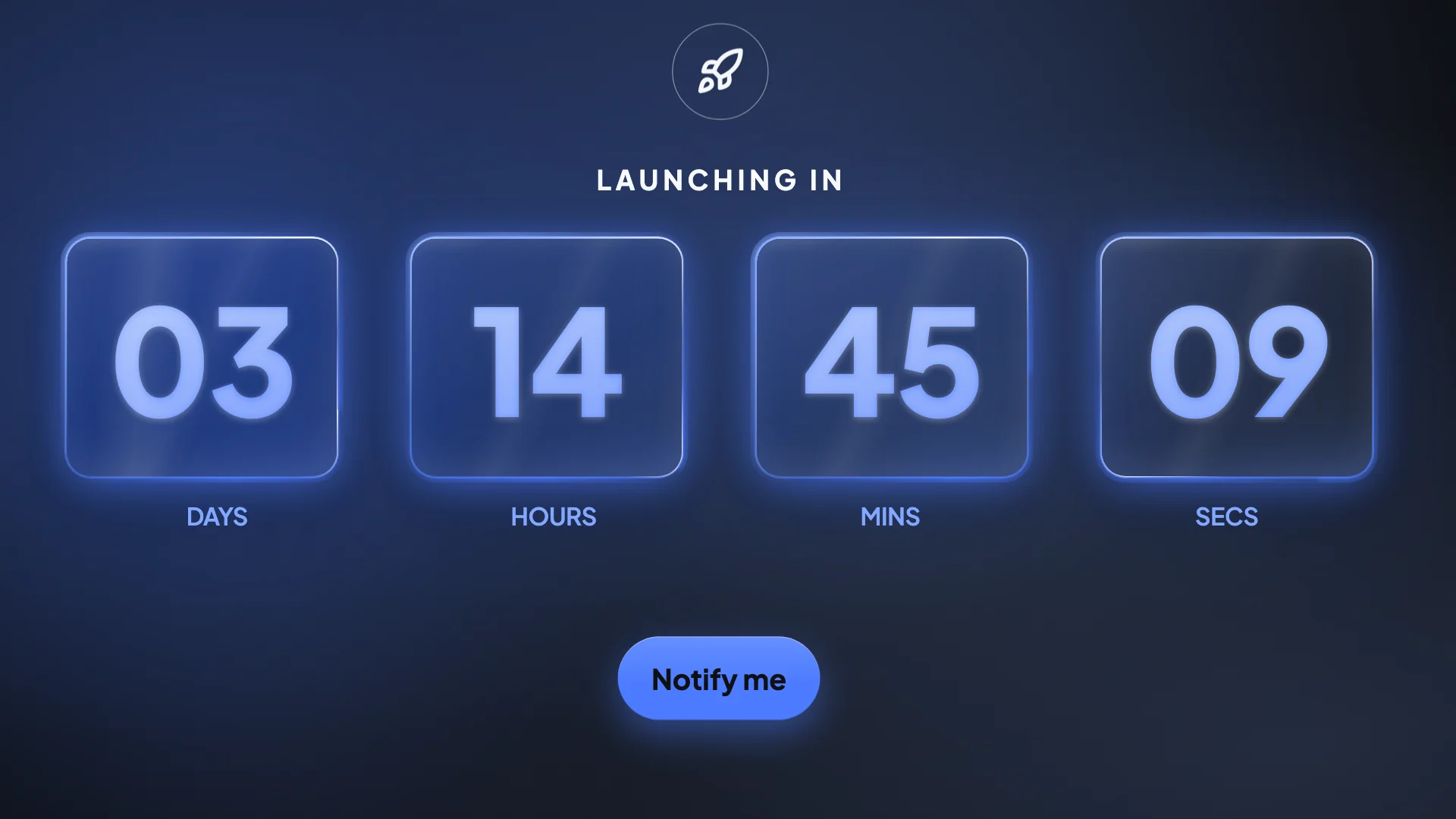
Three layouts, all built around one number
A launch banner setting the date in enormous type across a brand colour band. A single deadline line capped at about fourteen characters, which is why Ends Sunday works and This offer ends on Sunday the fourteenth does not. And an animated three two one neon count, which is the option for a launch moment rather than an expiry. All three carry very short copy by design, because the whole scene is one piece of information.
No real date, no scene
The role's own definition says to use it before an event, launch or the end of an offer, and only with a real date or deadline. Combined with the standing rule that the director must never invent a number, that means a brief with a vague sense of urgency produces no countdown scene at all. Write the actual date or the actual day and it appears; write act fast and it does not.
It is rendered text, not a live timer
The most important honest limit here. Whatever the deadline says is drawn into the video file when it exports. It does not recalculate, it does not know today's date, and it will still say the same thing next month. There is also a closing scene layout with four tiles for days, hours, minutes and seconds, and that too is a picture of a countdown rather than a running one.
Where it sits in the video
Immediately before the close, after the offer. The sequence that works is the deal, then the deadline, then the ask, because the ask is what the urgency is meant to push. A countdown at the front is a scene about a date the viewer has no reason to care about yet, and a countdown after the closing scene is a scene nobody reaches.
How it works, in three steps
Step 1
Write the date exactly
The day, or the date, in the form you want it read. It is copied through, so an ambiguous date in the brief becomes an ambiguous date on screen.
Step 2
Keep the deadline line very short
One layout caps at roughly fourteen characters. Ends Sunday, Until 14 Sept, 3 days left. Anything longer needs the banner layout instead.
Step 3
Diarise the export
Because the date is baked in, put a note in the calendar to pull the video down when it expires. Nothing does that for you.
The full walkthrough with screenshots is in the guide Make a promo video with AI voiceover.
Limits worth knowing
- The countdown is rendered text. It does not tick, does not know the current date and does not expire itself.
- A countdown scene is refused unless the brief carries a real date or deadline.
- Countdown layouts are text only. They will not take an image.
- One deadline layout is limited to around fourteen characters, so long phrasing forces a different layout.
Questions people ask
Can it count down to a date automatically?
No. The export is a fixed video file, so every frame is decided at render time. A live counter would require the player to compute it, and a downloaded MP4 has no way to do that.
Should I say the deadline out loud as well as showing it?
Yes, and for ticketed events in the United States there are rules about it. The FTC's fee rule requires a disclosure to appear in both the visual and audible parts of an advertisement, so a price or total spoken in narration cannot be qualified only by an end card.
What about the offer itself?
That is a separate scene role, with layouts for a promo code chip, a price tag, a filled circle, a confetti announcement and a hard colour split. Offer states the deal, countdown states when it ends.
Can I reuse the video for the next sale?
Yes, by editing the same video rather than copying it, since there is no duplicate action. Change the date and the offer copy, save and export again. The layout, look, images and voice stay as they were, so a recurring promotion is cheap to reissue. Export the old version first if you want to keep its file.
Make your own video
The button opens the generator with this use case already described. Change the wording to match yours, generate, then edit anything you like.
Create a video with OneCraftRelated pages
AI video ad maker
The awkward part of running a video ad is never the first cut. It is the second one, at a different shape, for a different placement, without redoing the work. Every slot in every scene here carries a separate position for each canvas, so changing the aspect ratio reflows the design instead of stretching it.
Agency video maker
The recurring failure in agency reels is that a viewer cannot tell what the agency actually did. Every shot is somebody else's brand, no role is credited, the strongest piece sits at fifty seconds behind a logo animation, and it ends fading to black. It proves you have good taste in other people's work.
AI product video maker
If you sell a physical thing you already have the raw material: the photographs from the listing. The work is deciding which shot opens, which ones group together, which scene can hold four of them at once, and how each picture sits in its box without being cropped through the subject.
More finished work of this kind is on the video examples hub.
Written and checked by the OneCraft team. Last checked .