Proposals
Automatic invoice reminders, set per invoice
Automatic invoice reminders email the client before and after the due date until the invoice is paid, so chasing money stops depending on you remembering. The schedule should be firm enough to get paid and polite enough to keep the client.
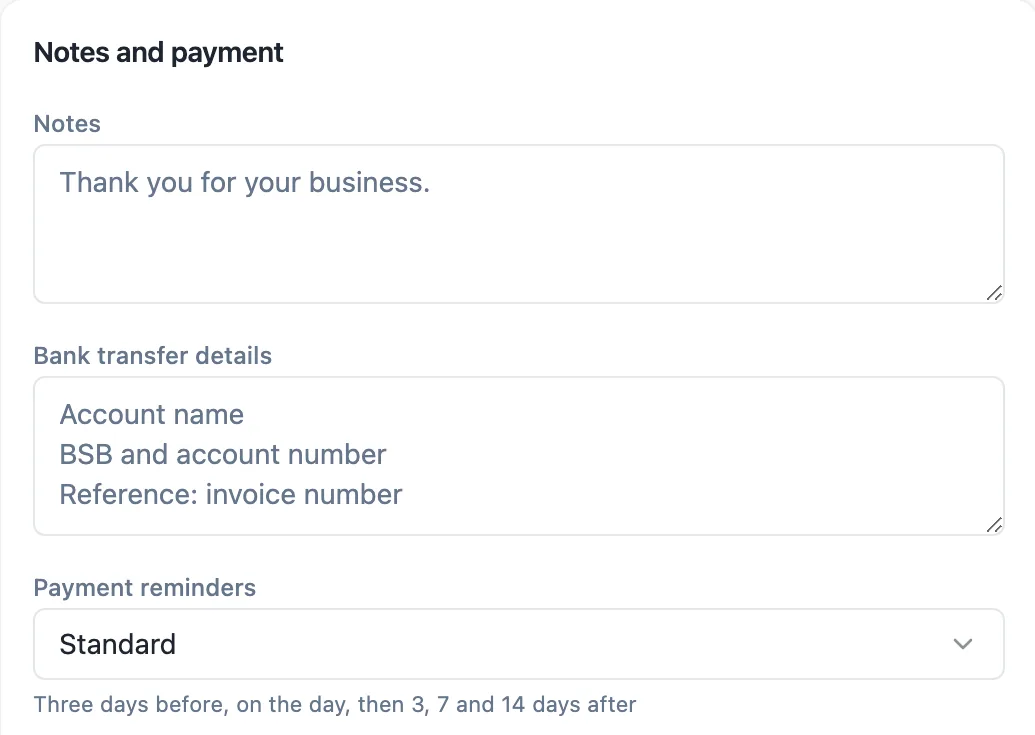
Four presets
Every invoice has a Payment reminders setting with four choices. Off sends nothing. Gentle sends on the due date and a week later. Standard, the default, sends three days before the due date, on the day, and then 3, 7 and 14 days after. Firm sends three days before, on the day, and then 2, 5, 9 and 14 days after. Pick per invoice: a long standing client might get gentle, a new one standard.
Rules that keep it reasonable
No invoice gets more than six reminders, and two reminders are never sent less than 20 hours apart. Reminders stop when the invoice is paid, whether by card through Stripe or marked paid by hand, and a void invoice gets none. An invoice turns overdue the day after its due date, which is when the after due reminders begin.
What the client receives
Each reminder is an email about the invoice with its pay link, worded for where it falls: before the due date, on the day, or late. The tone recorded on the proposal timeline reads before, due or late. A client who has already paid by bank transfer will still get the next one until you mark the invoice paid, so record transfers promptly.
Changing the preset
On a draft, the preset saves with the rest of the form. Once an invoice is issued, changing the preset saves straight away, so you can soften the schedule for a client who has called to arrange payment, or switch to firm for one who has gone quiet. Remind now in the invoice editor sends a reminder immediately, outside the schedule, for sent, viewed and overdue invoices.
Reminders and Australian payment times
Clear terms do more than reminders. State the due date and the late payment consequences on the invoice and in the proposal terms. Large Australian businesses report their payment times to small suppliers under the Payment Times Reporting Scheme, and the Small Business Ombudsman publishes guidance on getting paid. Reminders are the follow through on terms the client already agreed to.
How it works, in three steps
Step 1
Open the invoice
Open an invoice from the Invoices tab, or the one acceptance created.
Step 2
Pick a preset
Under Notes and payment, choose Off, Gentle, Standard or Firm. The hint shows the exact days.
Step 3
Let it run
Reminders go out on schedule with the pay link and stop when the invoice is paid.
The full walkthrough with screenshots is in the guide Send a proposal and get paid.
Limits worth knowing
- At most 6 reminders per invoice, at least 20 hours apart.
- The invoice needs a due date for reminders to be scheduled.
- Reminders stop only when the invoice is paid or void; mark bank transfers paid by hand.
- There are no late fees calculated automatically.
Questions people ask
Which preset should I use?
Standard suits most invoices: a heads up three days before, a note on the day, then three follow ups over two weeks. Gentle suits clients you know pay, with one note on the due date and one a week later. Firm suits clients with a history of paying late, with closer gaps after the due date. Off is for invoices you will chase personally.
Do reminders go out on weekends?
Reminders are scheduled by days relative to the due date, counted as calendar days, not business days. A reminder due on a Saturday goes on the Saturday. If that matters for your clients, choose a due date that keeps the key reminders on weekdays, such as a due date on a Tuesday.
Can I send a reminder right now?
Yes. Remind now in the invoice editor sends a reminder immediately for an invoice that has been sent, viewed or is overdue. It counts toward the limit of six and resets the 20 hour gap, so the scheduled reminder that would have followed within a day is skipped rather than sent twice.
Will the client be reminded after paying?
Not if the payment is recorded. A card payment through Stripe marks the invoice paid automatically and stops the schedule. A bank transfer does not reach the system on its own, so press Mark as paid when it arrives; until you do, the next scheduled reminder will still be sent.
Can reminders add a late fee?
No. Reminders do not change the amount due, and nothing calculates interest or fees automatically. If your terms allow a late fee, add it to the invoice yourself, or issue a separate invoice for it, and make sure the right to charge it was agreed in the proposal terms before the work began.
Make your own proposal
The button opens the generator with this use case already described. Change the wording to match yours, generate, then edit anything you like.
Create a proposal with OneCraftRelated pages
Email notification on a form submission
A responses table only works if somebody opens it. An email alert puts the submission where people already look, with the answers in the body, so an enquiry gets acted on the same day rather than the same week.
Profile slides
A profile slide answers who, and the honest version carries what each person actually did rather than a job title. Ten layouts cover the range, from a single headshot with a bio to a four by four directory grid and a team row over a strip of client logos.
An invoice with a pay link
An invoice with a pay link gives the client one place to see what they owe and pay it, instead of copying bank details from a PDF. The link can go in the invoice email, a text message or a chat.
More finished work of this kind is on the proposal examples hub.
Written and checked by the OneCraft team. Last checked .