Forms
Email notification on a form submission
A responses table only works if somebody opens it. An email alert puts the submission where people already look, with the answers in the body, so an enquiry gets acted on the same day rather than the same week.
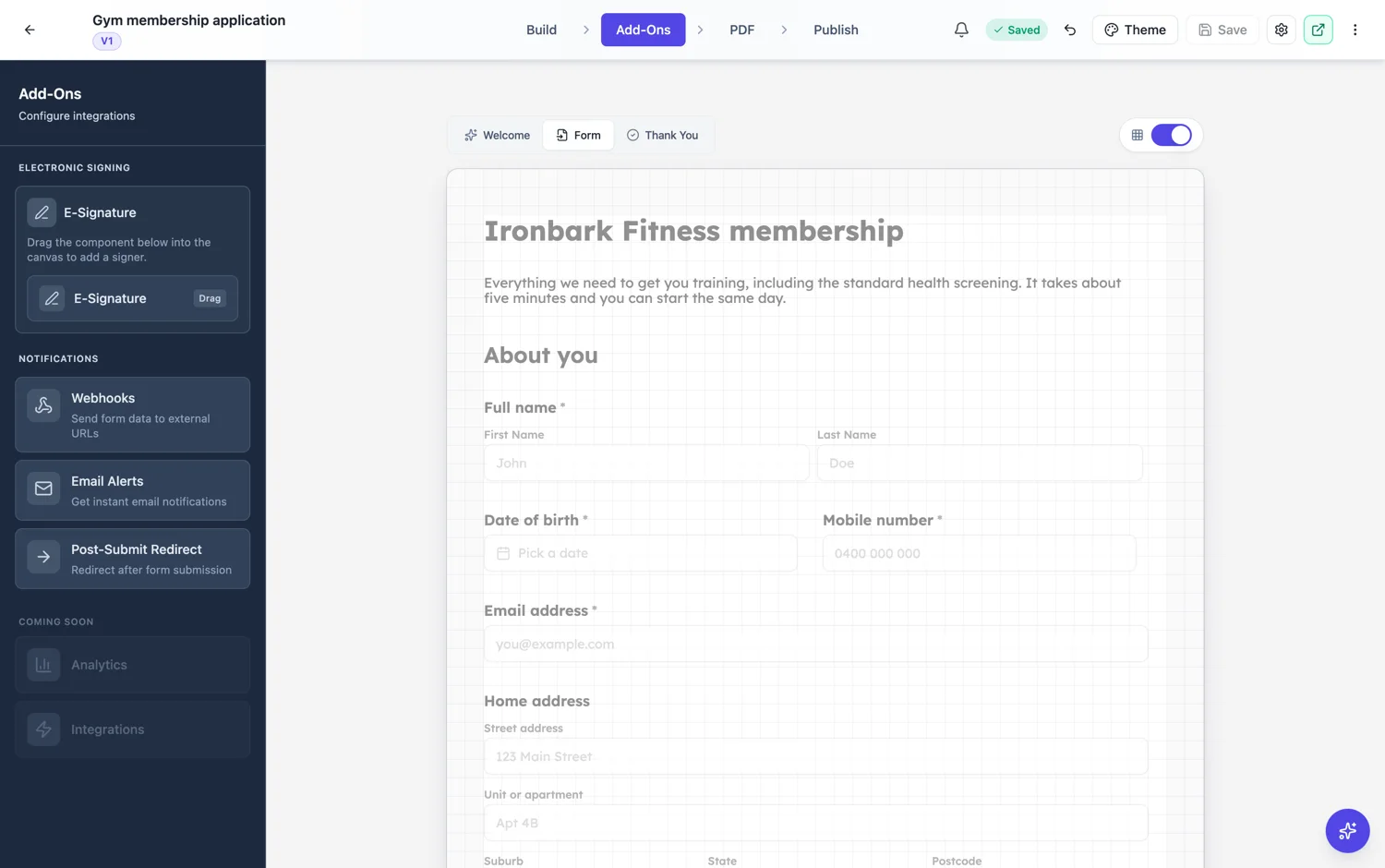
One address, every submission
The alert goes to a single email address you set. Point it at a shared inbox rather than a person, because a personal address means every enquiry is invisible the week that person is away. If your team uses a helpdesk, its intake address is the right destination and turns each submission into a ticket.
What the message says
The submitted values, formatted into the message body with each field and its answer. A choice with several answers is joined with commas. That means somebody can read the whole enquiry from a phone notification without opening anything, which is the entire value of the feature.
Put the answer-shaping fields early
Because the email reads top to bottom in form order, the first three fields decide whether it can be triaged from the preview. Name, what they want and how urgent it is beats a form that opens with a consent checkbox and a marketing preference.
What an alert cannot do
It goes to one address, the same address, for every submission. It cannot route by answer, so an urgent request and a general question land in the same inbox looking identical. It also carries the answers and not the files, so an application with a CV attached arrives as text with the CV still sitting on the response. If you need routing, or the files, or a record that somebody acted on it, the webhook is the tool for that and the alert is just the nudge that something arrived.
Alerts are not a record
The email is a notification, not the data. The responses table is the record, the export is for analysis, and the response PDF is what you send onward. Treating an inbox as your form database is how submissions get lost, and it is a very common way to lose them.
Use it with the responses table, not instead of it
The pattern that works is an alert for awareness and the table for work. The email tells somebody within a minute that an enquiry exists. The responses table is where it gets read properly, where the files are, where the status lives and where the export comes from. Teams that treat the inbox as the system of record lose submissions, because an email that somebody archived is indistinguishable from one nobody read.
How it works, in three steps
Step 1
Turn on email alerts
It is one of the four add-ons on the form, alongside the webhook, the redirect and e-signing.
Step 2
Point it at a shared inbox
A team address or a helpdesk intake, not one person.
Step 3
Order the first fields for triage
The email follows form order, so the first three fields decide whether it can be judged from a preview.
The full walkthrough with screenshots is in the guide Automate your form with add-ons.
Limits worth knowing
- One notification address per form.
- The alert carries the submitted values, not the uploaded files.
- There is no per-answer routing. Every submission goes to the same address.
See it on a finished piece
Questions people ask
Can I send alerts to more than one address?
The setting takes one address, so use a shared inbox or a distribution list that your mail system fans out.
Do uploaded files come with the email?
No. The message carries the answers. Files stay with the response, and the response PDF merges them into one document.
Can different answers go to different people?
Not from the alert itself. For routing by answer, use the webhook and let the receiving system decide.
Make your own form
The button opens the generator with this use case already described. Change the wording to match yours, generate, then edit anything you like.
Create a form with OneCraftRelated pages
Form submission webhook
A webhook posts each submission to a URL you own as JSON, which is how a form becomes part of a system rather than a list you copy from. The important detail is that it fires once and does not retry.
Export form responses to CSV
The export gives you a CSV with a submitted-at column and one column per input field, covering every response rather than the page you are looking at. Knowing how the composite fields are written is what saves you an afternoon later.
Forms with photo upload
A form with photo upload uses the photo field, which takes one image per field and opens the camera or photo library on a phone. That sounds like a limitation and is actually what makes the results usable: one named field per shot you need, each landing next to the answers it belongs to.
More finished work of this kind is on the form examples hub.
Written and checked by the OneCraft team. Last checked .