Forms
Export form responses to CSV
The export gives you a CSV with a submitted-at column and one column per input field, covering every response rather than the page you are looking at. Knowing how the composite fields are written is what saves you an afternoon later.
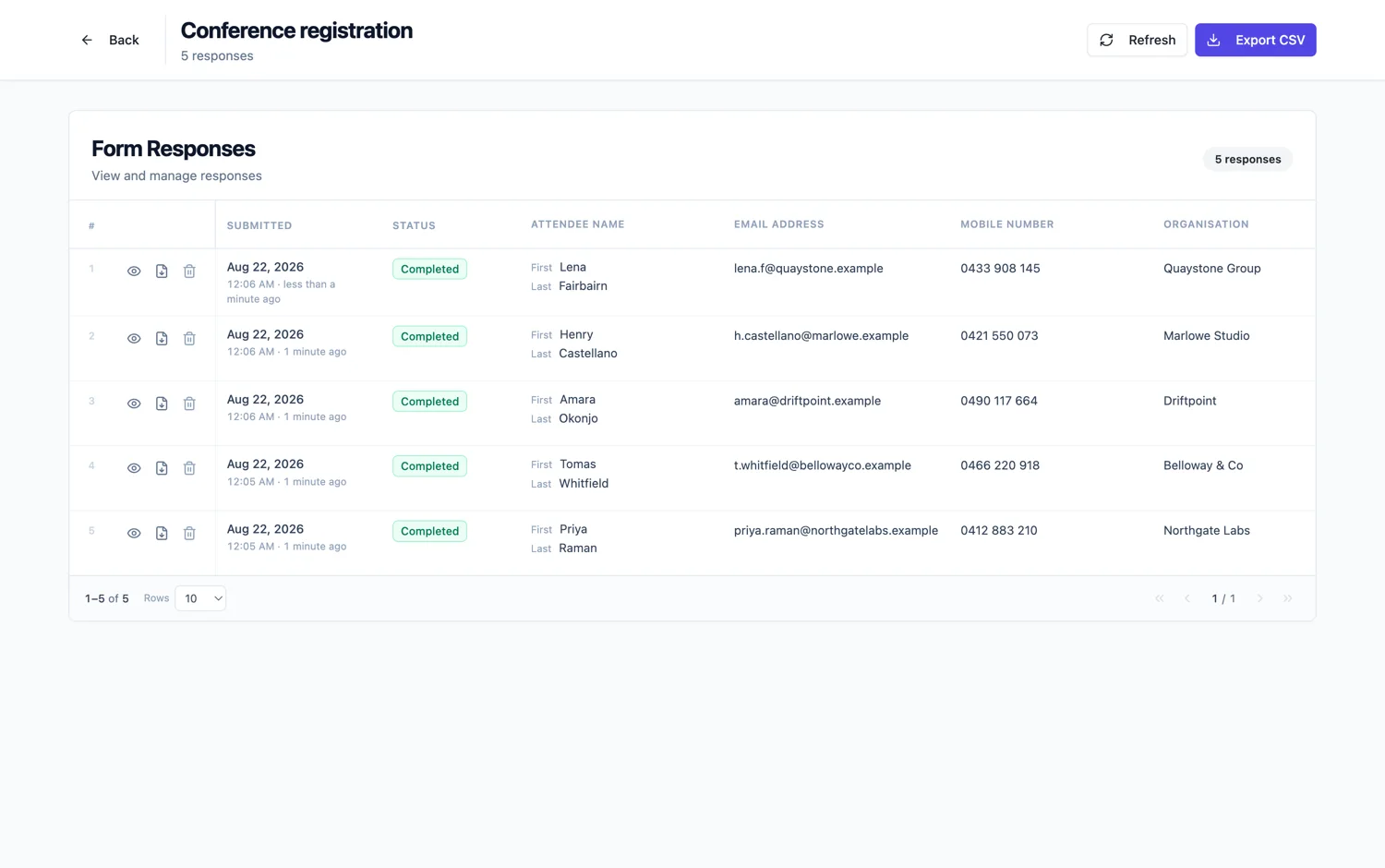
One column per field
Columns are named after your field labels, in form order, with Submitted At at the front. The export pages through the whole response set rather than exporting the current page, so a form with four thousand responses exports four thousand rows.
How composite fields are written
They are joined into their single column rather than expanded. A matrix becomes each statement and its answer separated by pipes. An address becomes its parts joined by commas. A full name becomes one name. A table becomes a JSON array of the filled rows. Fill in the blank becomes the blank values separated by pipes.
Uploads and signatures
A signature writes as the literal text marking a signature image, and a recording writes as a note that a recording was uploaded. Files are not in the CSV, because a CSV cannot hold them. Download them from the responses table or take the response PDF, which merges attachments in.
Design for the export
If a question will be counted or averaged, ask it as its own choice field rather than as a row in a matrix, because a single choice field is already its own column. A matrix is friendlier to fill in and harder to analyse, and knowing that before you build the form is worth more than any amount of spreadsheet work afterwards.
The first column and the paging
Submitted At is the first column, then one column per field in the order the form asks them. The export walks every page of responses rather than writing the page you happen to be looking at, so a form with four thousand answers comes down as one file with four thousand rows. That is worth knowing before you filter the table and press export expecting the filter to apply.
Labels, not stored values
A choice field exports the option label a person actually saw, not an internal id, so the CSV reads the way the form read. Dates come out in the format the field was set to display. The rule is that the export should be legible to somebody who never saw the builder, which is usually the person you are sending the file to.
Design the form for the export
The shape of the file is decided when you build the form, not when you press export. A long text field becomes one wide column nobody can read in a spreadsheet. A matrix becomes one column of pipe separated answers. Three separate questions become three columns you can sort and filter. If the answers are going into a spreadsheet to be counted, ask them as fields that count.
How it works, in three steps
Step 1
Name fields as you want the columns named
The field label becomes the column heading, so a label that reads well on screen and badly in a spreadsheet is worth changing.
Step 2
Export the whole set
The export pages through every response, not the page on screen.
Step 3
Split composites if you need to analyse them
Matrix and address columns are joined in a fixed order, so splitting them in the spreadsheet is reliable.
The full walkthrough with screenshots is in the guide View, export and manage your responses.
Limits worth knowing
- One column per field. Composite fields are joined, not expanded.
- Uploaded files are not in the CSV. Take them from the responses table or the response PDF.
- Signatures and recordings are noted as text, not embedded.
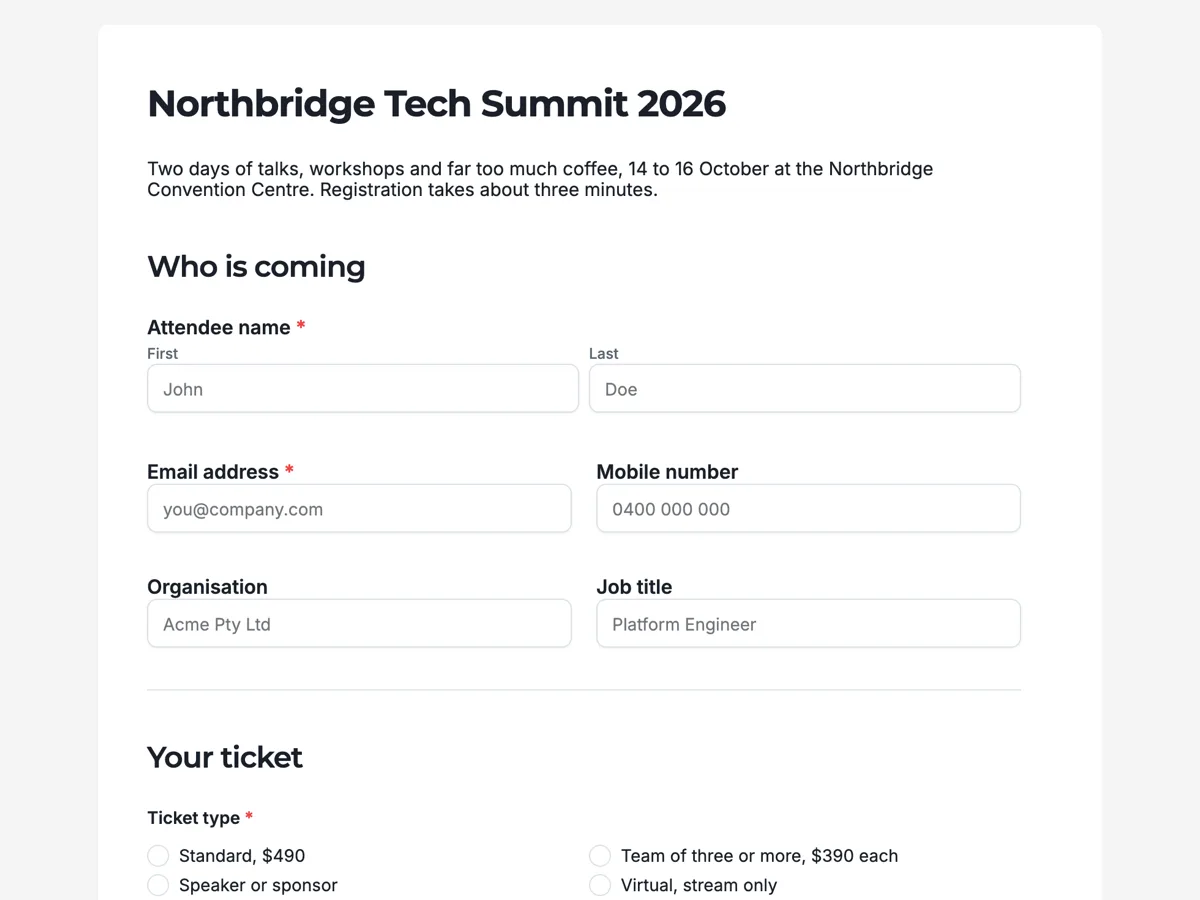
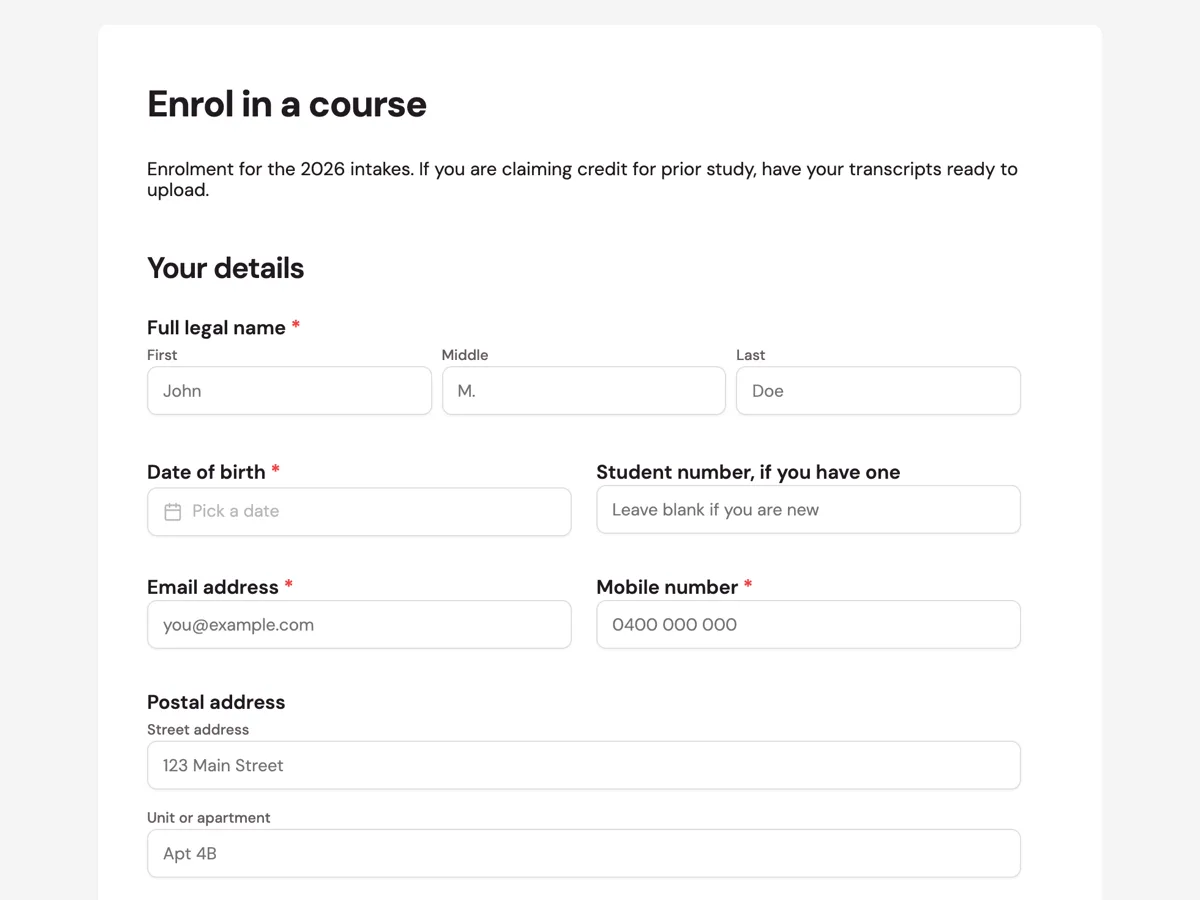
See it on a finished piece
Questions people ask
Does the export include every response or just the current page?
Every response. The export pages through the whole set in batches and writes them all into one file, so it does not matter which page of the table you are on or how many rows the screen shows. A filter you applied in the table does not narrow the file either.
How is a matrix exported?
As one column, with each statement and its answer separated by pipes. That keeps one response on one row, which is what makes the file usable. If you need to average a single statement across everybody, split that column in the spreadsheet after import, or ask that statement as its own field next time.
Where are the uploaded files in the CSV?
They are not in it. A CSV is text, so it cannot carry a file. Download uploads from the responses table where each row links to what was attached, or use the response PDF, which embeds them. The CSV column records that something was uploaded rather than the file itself.
Is there an Excel export?
CSV only. Every spreadsheet opens it, including Excel, Numbers and Sheets. If your columns contain commas or line breaks the quoting handles them, so the safest way to open it is through your spreadsheet's import step rather than by double clicking, which lets you set the encoding.
Do responses from an older version export together?
They come down in one file, so a form whose fields changed between versions produces columns that are populated for some rows and empty for others. That is the honest representation: a question nobody was asked has no answer. If the two versions are really two different forms, export before you republish.
Make your own form
The button opens the generator with this use case already described. Change the wording to match yours, generate, then edit anything you like.
Create a form with OneCraftRelated pages
Read and manage form responses
Every submission is a row, with a column per input field and the submission time at the front. Composite answers like a matrix, an address or a table are readable in the cell, so you can scan a page of responses without opening any of them.
Download a form as a PDF
Not everyone will use the link. A blank template PDF gives you the same form as a printable page, laid out properly rather than screenshotted, with a header, a footer and page numbers.
Make a fillable PDF from a form
A fillable PDF is a document with real form fields in it. People open it in any reader, type into the boxes, save it and send it back. It is what you need when the recipient will not use a link but will use a computer.
More finished work of this kind is on the form examples hub.
Written and checked by the OneCraft team. Last checked .