Forms
Read and manage form responses
Every submission is a row, with a column per input field and the submission time at the front. Composite answers like a matrix, an address or a table are readable in the cell, so you can scan a page of responses without opening any of them.
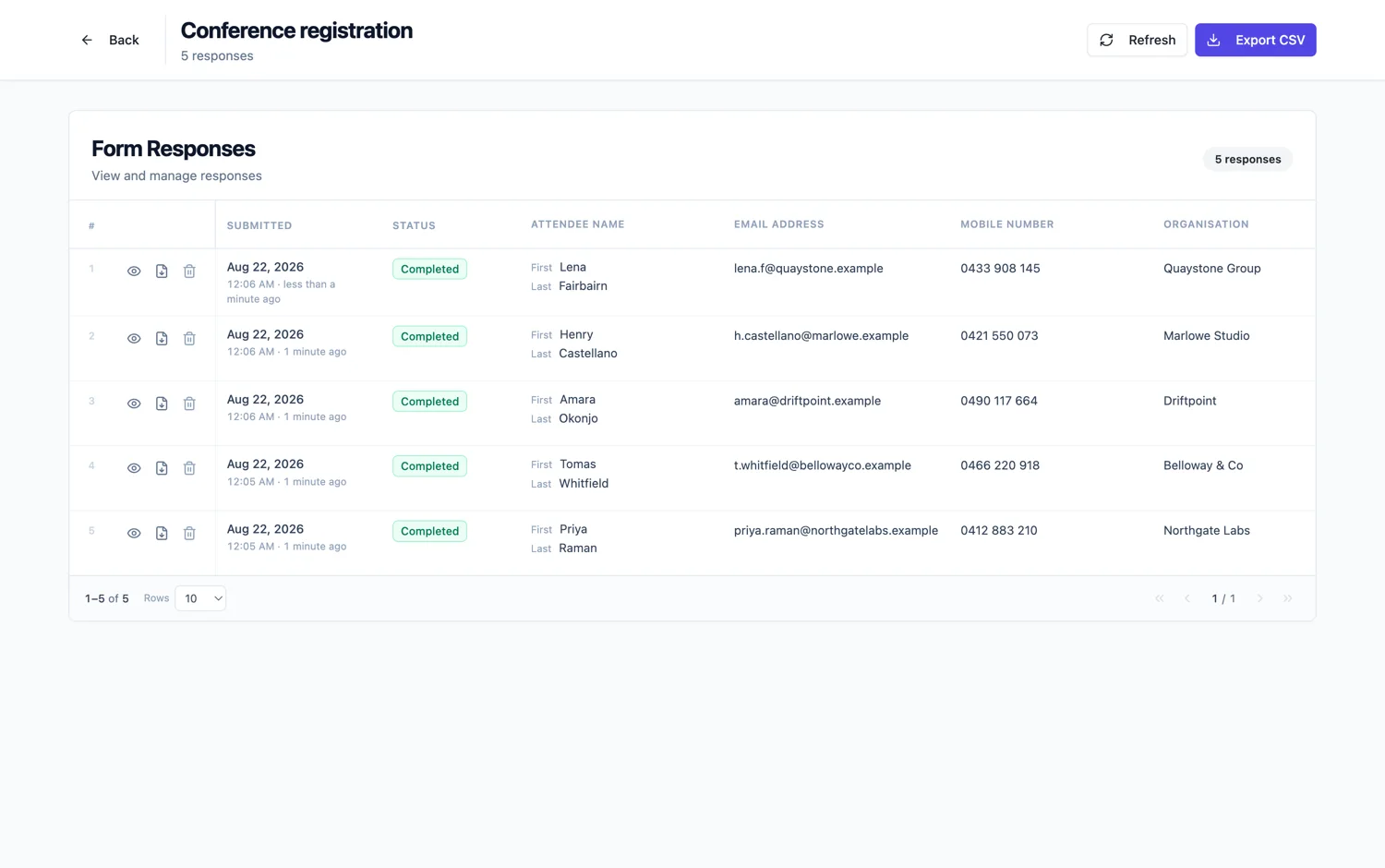
One row, one submission
Columns come from the input fields of the form, so headings, dividers and design blocks do not appear. Choice fields show the option label rather than the stored value, dates use the format you set on the field, and everything is ordered by submission time with the newest first.
Composite answers in one cell
A matrix reads as each statement with its answer. An address reads as its parts in order. A full name reads as one name. A table shows its filled rows. A signature is marked as a signature image and a recording as an uploaded recording. The point is that a cell tells you what you need without a click.
Versions are handled for you
If a form has been published more than once, responses from different versions are read against the version they were submitted under. That means an answer to a field you later renamed still shows under the label it had at the time, rather than being mislabelled or dropped.
What you can do to a row
Open it in full, download it as a PDF, get the files somebody uploaded, follow the signing status when the form collects e-signatures, and delete it. Deletion is permanent, so treat the table as a working list rather than an archive if you have a retention policy to keep to.
Signing status in the row
When a form collects an e-signature, the row carries where that envelope has got to rather than making you open another screen to find out. Sent, viewed, signed, declined: it reads in the table beside the answers it belongs to. That is the view you want when you are chasing the last three of forty, because the form and the signature are one record rather than two systems to reconcile.
What a deleted response does
Deleting a row removes it from the table and from any export you take afterwards. It is not an undo you can reach for later, so treat it the way you would treat deleting a file: use it for test submissions and genuine duplicates, and be careful with anything you might need to count. Exporting the CSV before a clean up costs nothing and gives you a copy.
How it works, in three steps
Step 1
Put the useful fields early
Column order follows form order, so the fields you scan daily should not be at the bottom of the form.
Step 2
Scan the table, open the exceptions
Composite cells are readable, so most days you only open the rows that look unusual.
Step 3
Export when you need to work on it
The CSV export pages through every response, not just the page you are looking at.
The full walkthrough with screenshots is in the guide View, export and manage your responses.
Limits worth knowing
- Columns come from input fields. Design blocks and headings are not columns.
- Deleting a response is permanent.
- The table is a list and a viewer. Analysis happens in the export.
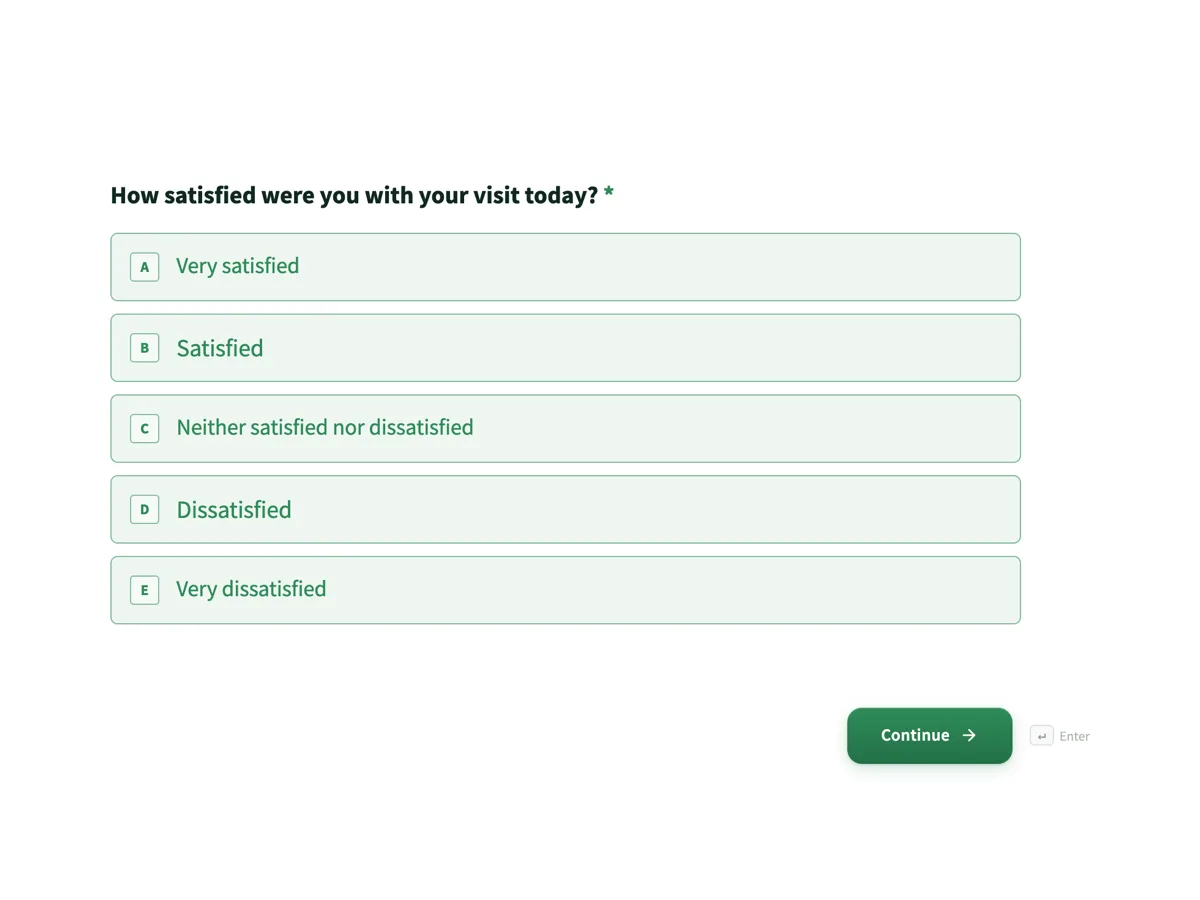
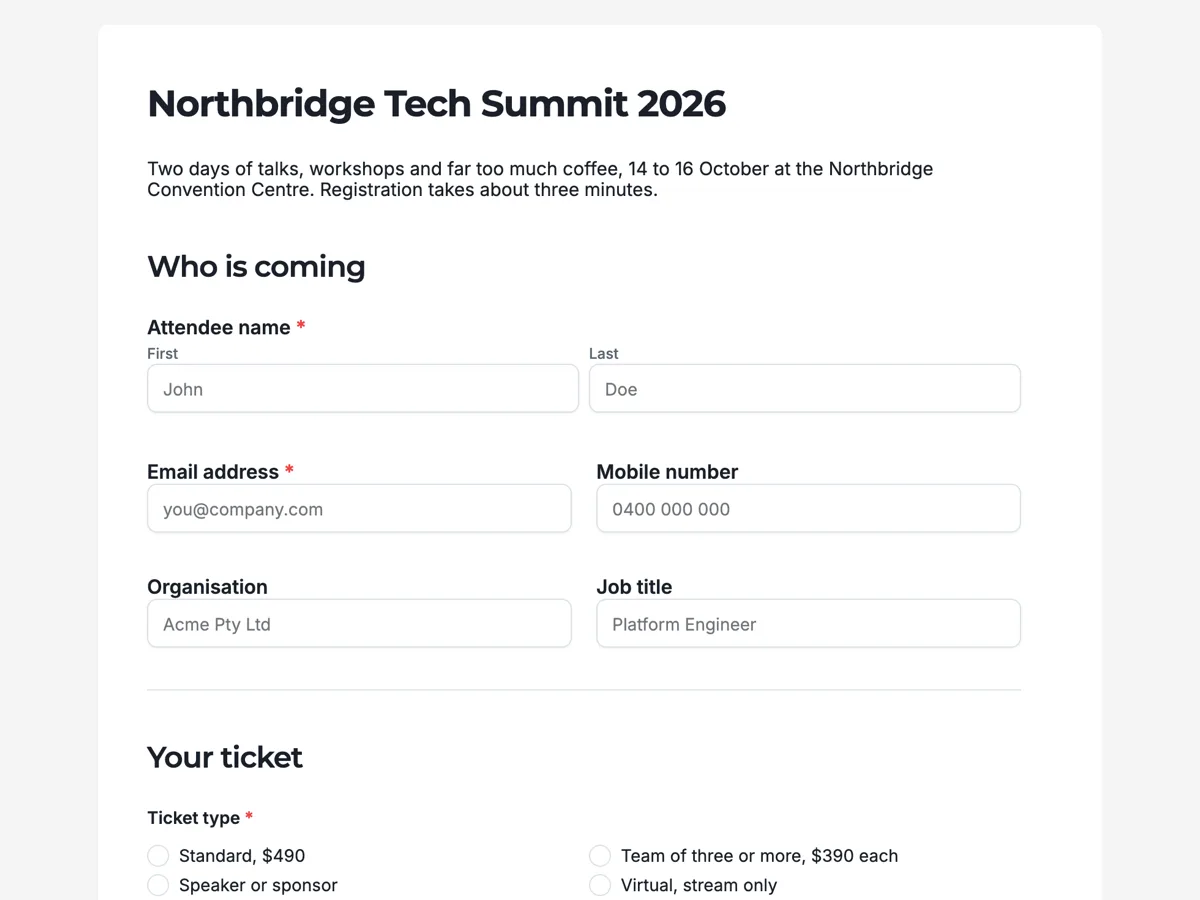
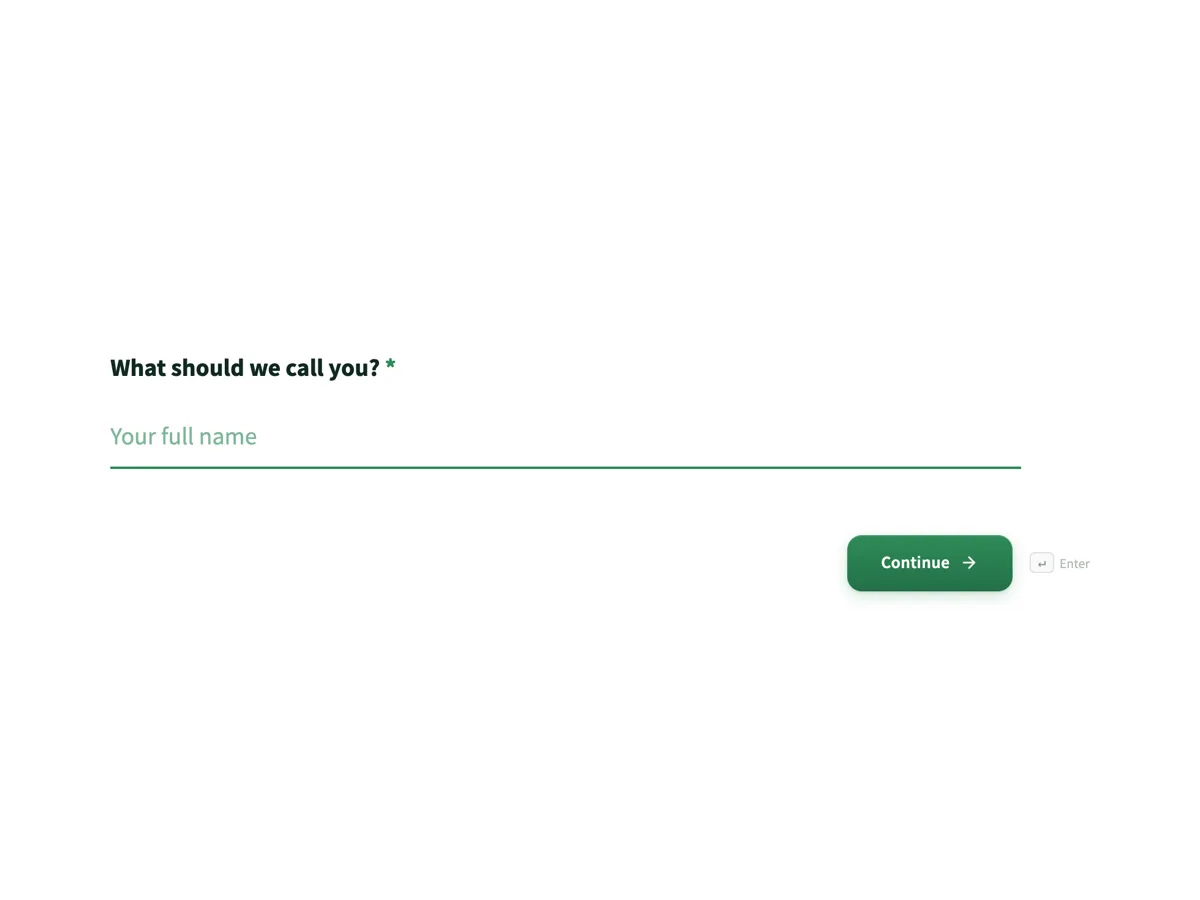
See it on a finished piece
Questions people ask
Can I see a whole matrix answer without opening the response?
Yes. Composite fields are formatted inside the cell, so a matrix reads as each statement with its answer beside it, separated by pipes, and an address reads as one line. You only need to open a response when you want the whole thing laid out or you need a file that was attached to it.
What happens to responses from an older version of the form?
They are read against the version they were submitted under, so answers keep the labels and options they had at the time. A question you later reworded still shows its old wording on the old rows, which is the only honest way to display an answer to a question that has since changed.
Can I get the files people uploaded?
Yes, from the row or from the opened response, and they are embedded in the response PDF as well. The CSV cannot carry them, because a CSV is text, so it records that a file was attached and the table is where you go to get it.
Can I filter or search responses?
The table is built for reading a submission in context rather than for slicing a dataset. For anything analytical, export the CSV and filter it in a spreadsheet, where you can sort by any column, pivot and chart. The table answers what did this person say; the export answers what did everybody say.
Can I see the version a response was submitted against?
Yes. Each response is read against its own version, and each version has its own URL, so you can open the exact form somebody was shown. That is the answer when a respondent says they were never asked something: you can look at what they actually saw.
Make your own form
The button opens the generator with this use case already described. Change the wording to match yours, generate, then edit anything you like.
Create a form with OneCraftRelated pages
Export form responses to CSV
The export gives you a CSV with a submitted-at column and one column per input field, covering every response rather than the page you are looking at. Knowing how the composite fields are written is what saves you an afternoon later.
Download a form response as a PDF
A response is a row in a table, which is right for you and useless for anyone downstream. The response PDF turns one submission into a document: the questions, the answers, the photos and the attachments in one file.
Form submission webhook
A webhook posts each submission to a URL you own as JSON, which is how a form becomes part of a system rather than a list you copy from. The important detail is that it fires once and does not retry.
More finished work of this kind is on the form examples hub.
Written and checked by the OneCraft team. Last checked .