Forms
Download a form response as a PDF
A response is a row in a table, which is right for you and useless for anyone downstream. The response PDF turns one submission into a document: the questions, the answers, the photos and the attachments in one file.
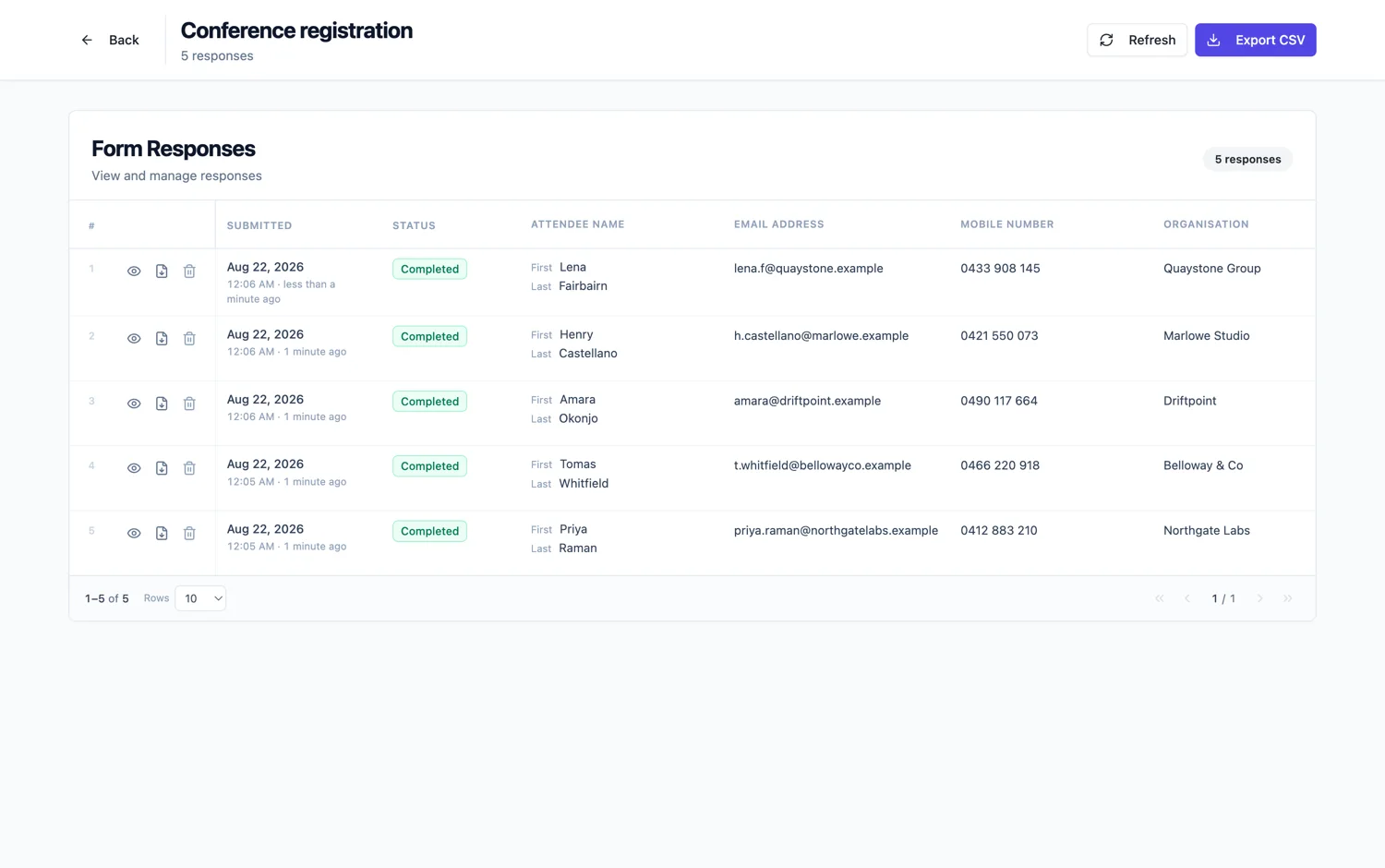
What is in it
The form as a document with the answers filled in, following the PDF layout rather than the screen layout. A photo field prints its shot inline, where the field sits in the form. Images sent through a file upload field are added as extra pages at the end, one image to a page, and uploaded PDFs are merged in the same way. So a report with four photos and a quote attached comes out as one document rather than five files in an email.
Why that matters
The person who needs this is almost never the person who built the form. An owner, an insurer, a client or a regulator wants a document they can file, not a link to a table they have no account for. One PDF per submission is the format every one of those people already handles.
One response, one file
The PDF covers a single submission rather than the whole set. That is the right unit for the people who receive it: an insurer wants the claim, not the claims register, and a client wants their own inspection, not everybody else's. When you do need the whole set, that is the CSV export, which gives you every response as rows and leaves the files behind.
Signatures and recordings
An inline signature prints as the mark it was drawn as. Recordings cannot print, so the PDF notes that a recording was uploaded rather than pretending otherwise. Plan around that: if a recording is important evidence, the PDF is not the whole record.
It follows the PDF layout
Reordering or hiding a field in the PDF layout changes the response PDF too. That is how you keep internal fields out of a document you send to a client while leaving them in the responses table where you can still see them.
Make it readable before you send the first one
Download one response with photos and an attachment before you build a process around it. Look for three things: a field that reads oddly on paper because its label only made sense on screen, an internal field a client should not see, and a signature block stranded at the top of a page on its own. All three are fixed once in the PDF layout and then every response after it comes out right.
How it works, in three steps
Step 1
Shape the PDF layout once
Hide internal fields and reorder anything that reads oddly on paper. It applies to every response PDF from then on.
Step 2
Open a response and download it
Generation runs in a queue, then downloads as a single file.
Step 3
Check a response with attachments
Download one that has photos and a PDF attached, so you can see the inline rendering and the merge before you rely on it.
The full walkthrough with screenshots is in the guide View, export and manage your responses.
Limits worth knowing
- Recordings cannot be printed. The PDF notes that one was uploaded.
- The PDF follows the PDF layout, including any fields you hid there.
- One response per PDF. There is no combined document for a whole batch.
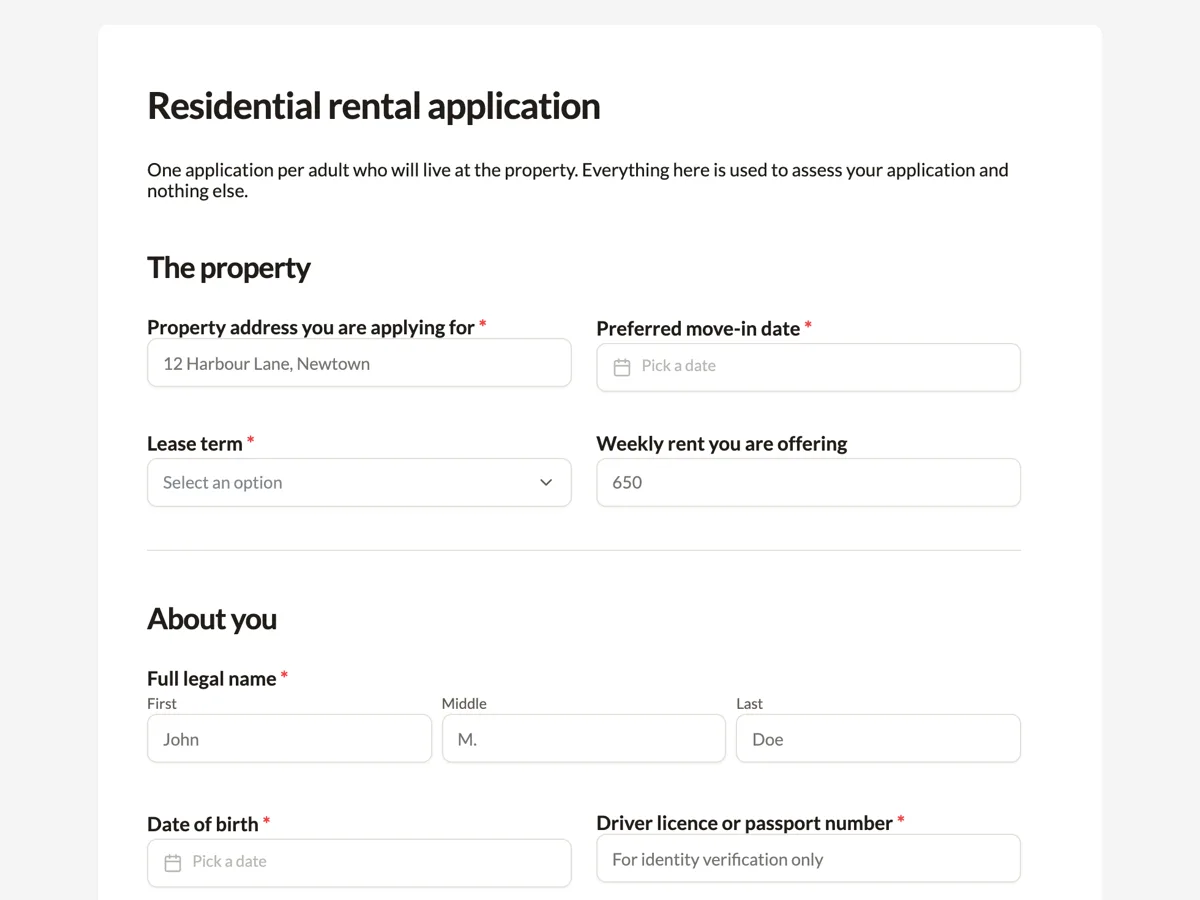
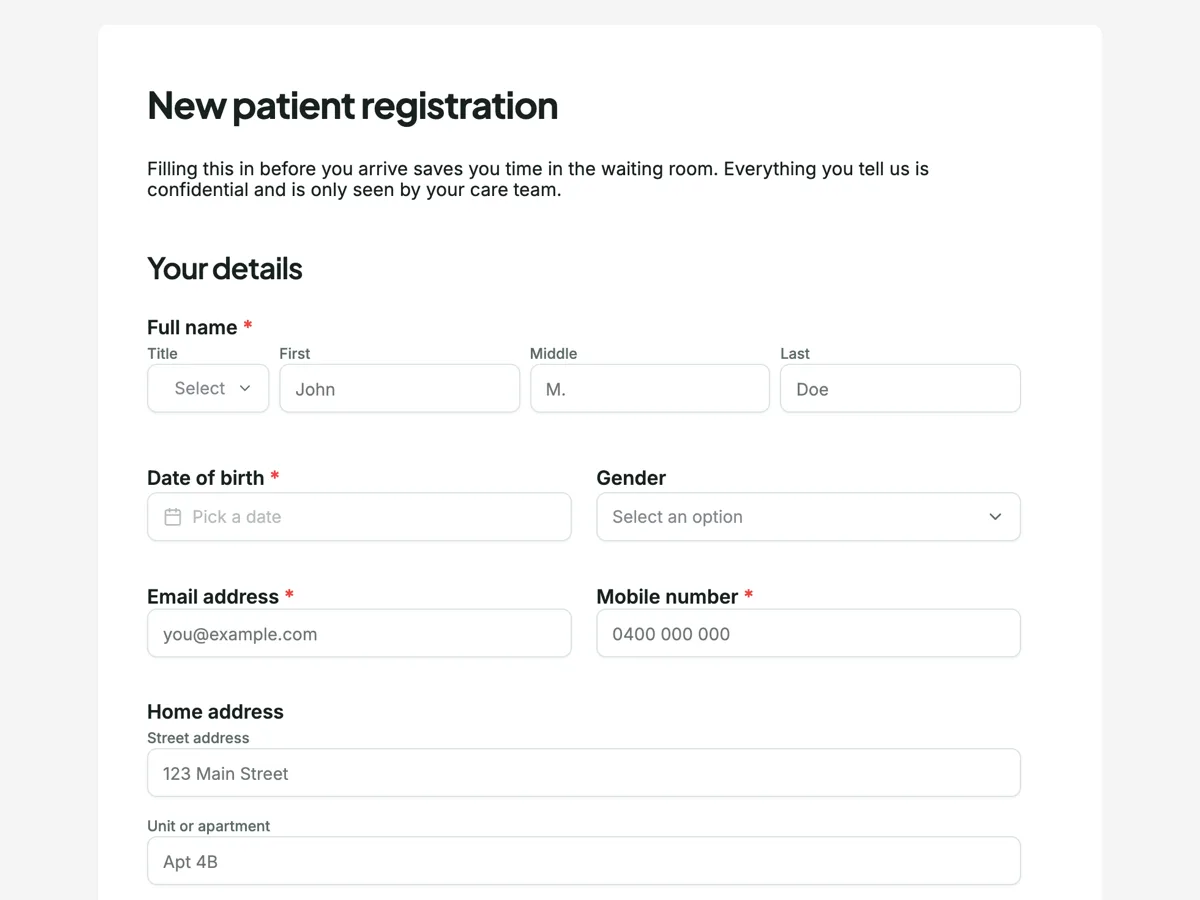
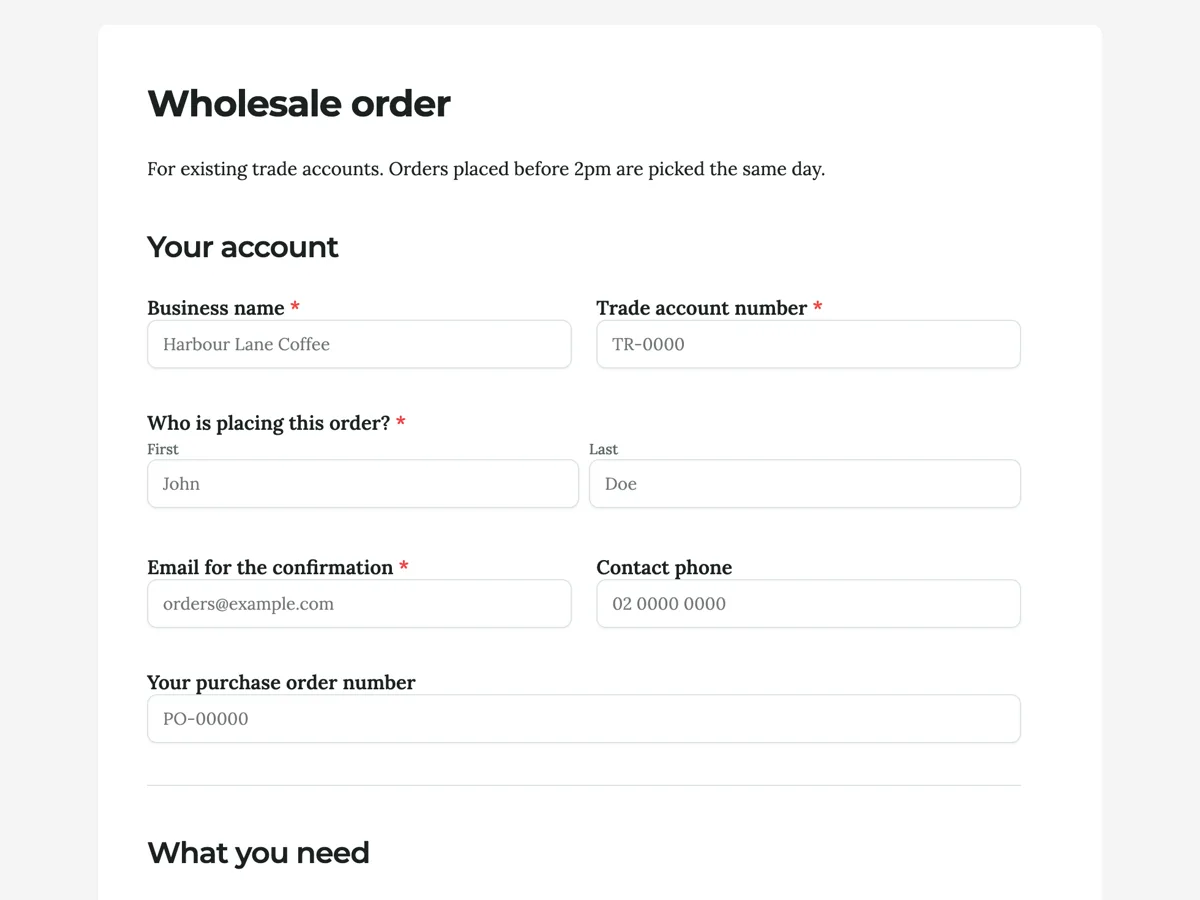
See it on a finished piece
Questions people ask
Do uploaded photos appear in the response PDF?
It depends on the field. A photo field prints its shot inline in the body of the PDF, in form order, beside the rest of the answers. An image sent through a file upload field is added as its own page after the form, scaled and centred, and an uploaded PDF has its pages merged in the same way. So the answers read first and the attachments follow.
Can I hide internal fields from the PDF?
Yes. Hide them in the PDF layout and they stay in the responses table, where you can still read and export them, but never appear in the document. That is the way to keep an internal reference, a staff note or a triage score out of a PDF you send to a client, while every response after the change comes out the same way.
Can I download every response as one PDF?
No, the PDF is per response, because the people who receive it usually need one submission rather than the register. For the whole set, export to CSV instead, which gives every response as a row with one column per field and the submission time first. The CSV leaves uploaded files behind, so download the PDF for any response whose attachments matter.
Make your own form
The button opens the generator with this use case already described. Change the wording to match yours, generate, then edit anything you like.
Create a form with OneCraftRelated pages
Make a fillable PDF from a form
A fillable PDF is a document with real form fields in it. People open it in any reader, type into the boxes, save it and send it back. It is what you need when the recipient will not use a link but will use a computer.
Download a form as a PDF
Not everyone will use the link. A blank template PDF gives you the same form as a printable page, laid out properly rather than screenshotted, with a header, a footer and page numbers.
Read and manage form responses
Every submission is a row, with a column per input field and the submission time at the front. Composite answers like a matrix, an address or a table are readable in the cell, so you can scan a page of responses without opening any of them.
More finished work of this kind is on the form examples hub.
Written and checked by the OneCraft team. Last checked .