Forms
Forms with photo upload
A form with photo upload uses the photo field, which takes one image per field and opens the camera or photo library on a phone. That sounds like a limitation and is actually what makes the results usable: one named field per shot you need, each landing next to the answers it belongs to.
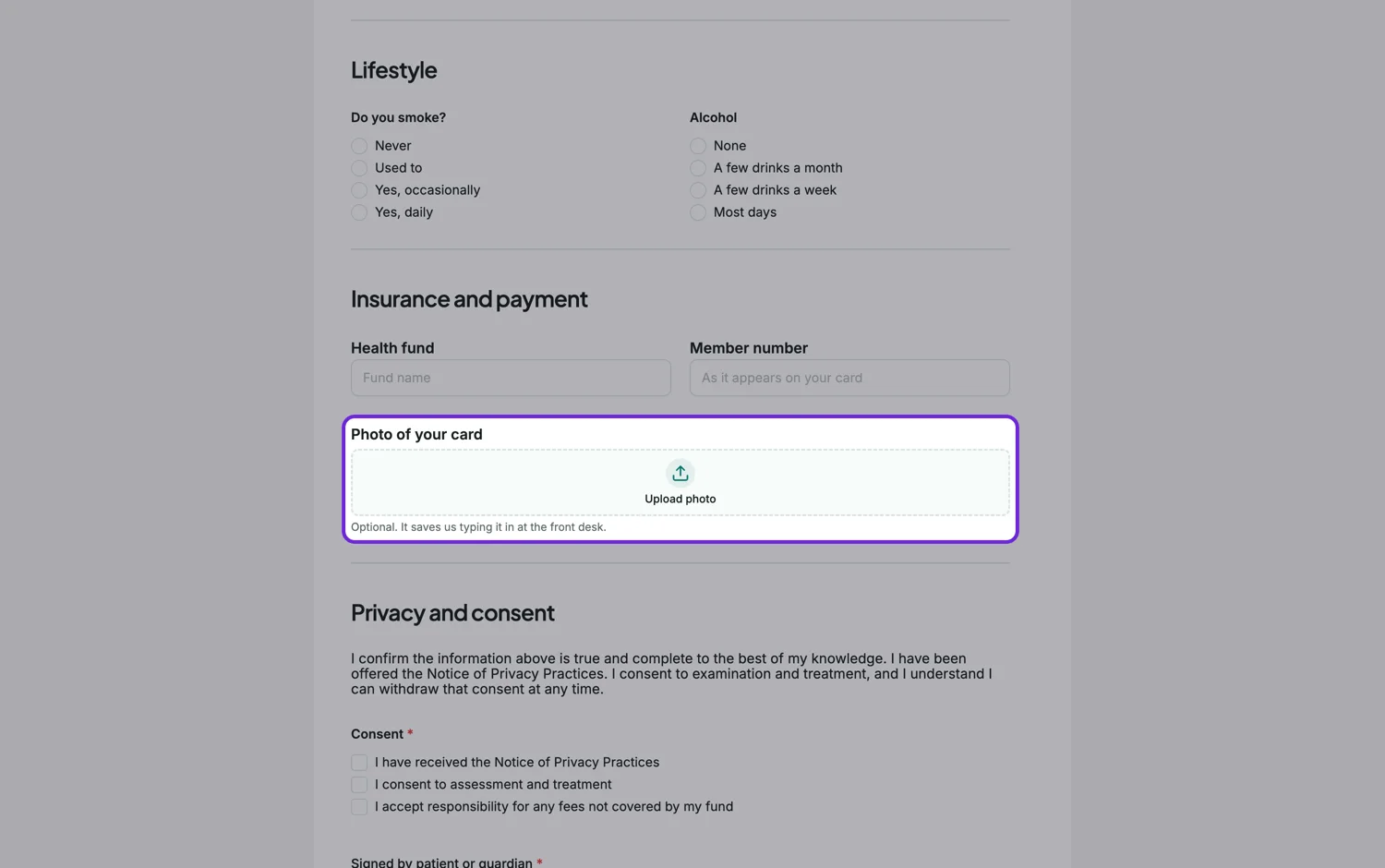
One photo per field, on purpose
The photo field is a single image component. Any older setting asking for several photos in one field is ignored. That pushes you into naming each photo you want, which is what turns a pile of images into a report. "Wide shot of the room" and "Close up of the damage" get you two useful photos. A field called "photos" gets you four pictures of the same corner.
Taking them on a phone
On a phone the field opens the camera or the photo library, so someone standing in front of the problem can take the shot and carry on. That is the whole reason to collect photos in a form rather than by email: the photo is captured while the person is still at the scene, attached to the right answers, with a timestamp on the submission.
Size
Each photo field has a size cap, defaulting to ten megabytes a photo, and the field tells the respondent the limit under the upload area. That covers a phone photo comfortably. There is no quality or compression choice, so what the phone captures is what you receive. Keep the cap at ten unless a camera in your workflow produces larger files, because a bigger allowance mostly means slower uploads on a weak signal and heavier PDFs later.
What you get back
Photos arrive with the response. The responses table shows them in the row, opening a response shows them full size, and the response PDF renders them inline in the order of the form. That last part is what makes this useful for insurance, maintenance and inspection work: one PDF with the answers and the pictures in sequence.
Write the shot list into the labels
The label is the only instruction a respondent reliably reads, so make it a shot description rather than a noun. Wide shot of the whole room from the doorway. Close up of the damage with a coin for scale. Photo of the serial number plate. On a classic form, a photo field is one of the two fields that also prints its description under the upload area, so use the description for the extra detail, such as good light, no flash on glass. On a conversational form every question prints its description.
Privacy and what you ask for
A photo of a person, an identity document or the inside of a home is personal information in most jurisdictions, so ask only for the shots you will use, say why in the form, and decide how long you keep them. Uploaded photos are stored with the response and count against the storage on the form owner's plan. For identity checks, ask for the document and nothing around it, and delete the response once the check is done.
How it works, in three steps
Step 1
Add one photo field per shot
Name each field after the photo you want. Three named fields beat one field that asks for three photos.
Step 2
Keep the size cap sensible
Ten megabytes a photo suits phone cameras. There is no quality setting to choose, so the cap is the only file control.
Step 3
Read the response as a PDF
Download the response PDF and the photos render inline, in form order, next to the answers they belong to.
The full walkthrough with screenshots is in the guide Every form field and when to use it.
Limits worth knowing
- The photo field holds one image. For several photos, add several fields or use a file upload field set to images.
- Images only, up to the size cap you set, ten megabytes by default. To collect a photo and a PDF in the same place, use a file upload field.
- There is no quality or compression setting.
- There is no annotation or drawing on a submitted photo.
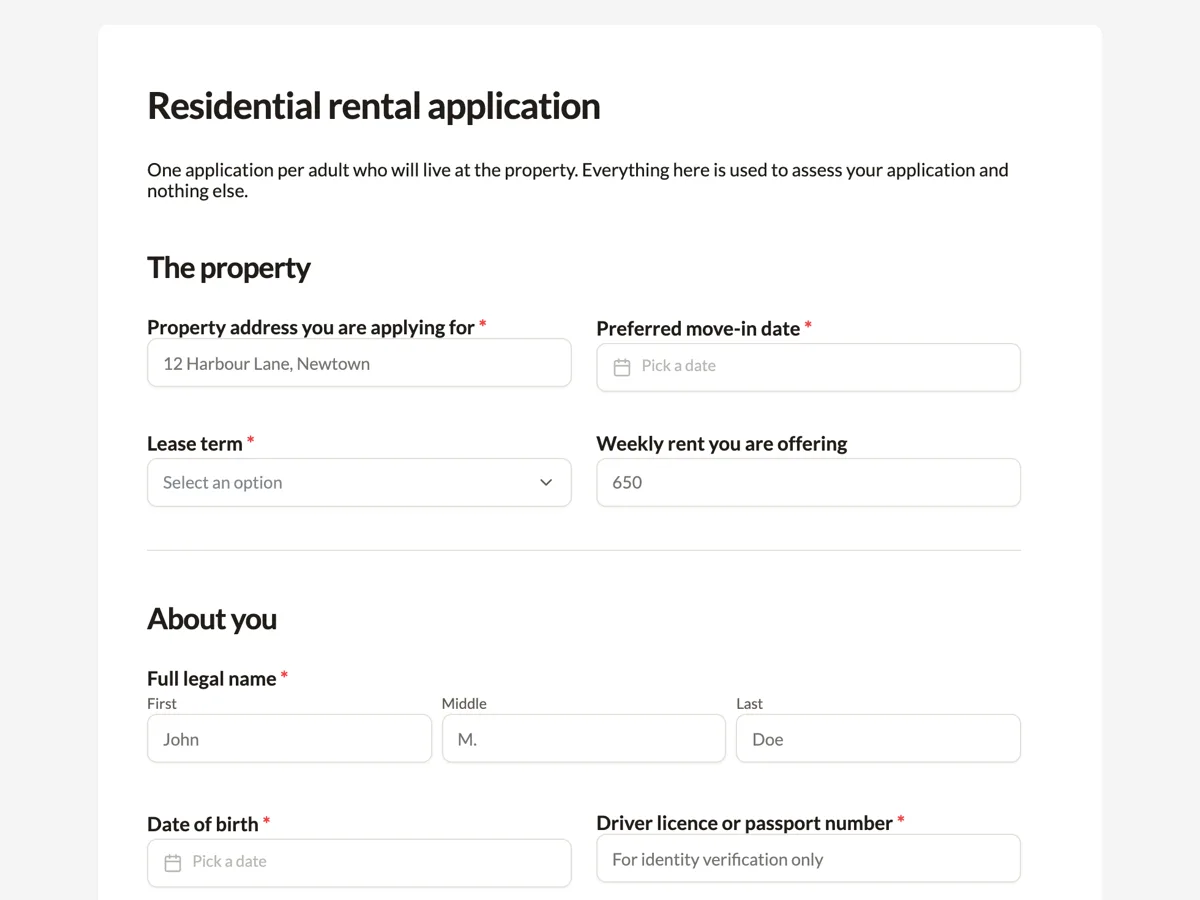
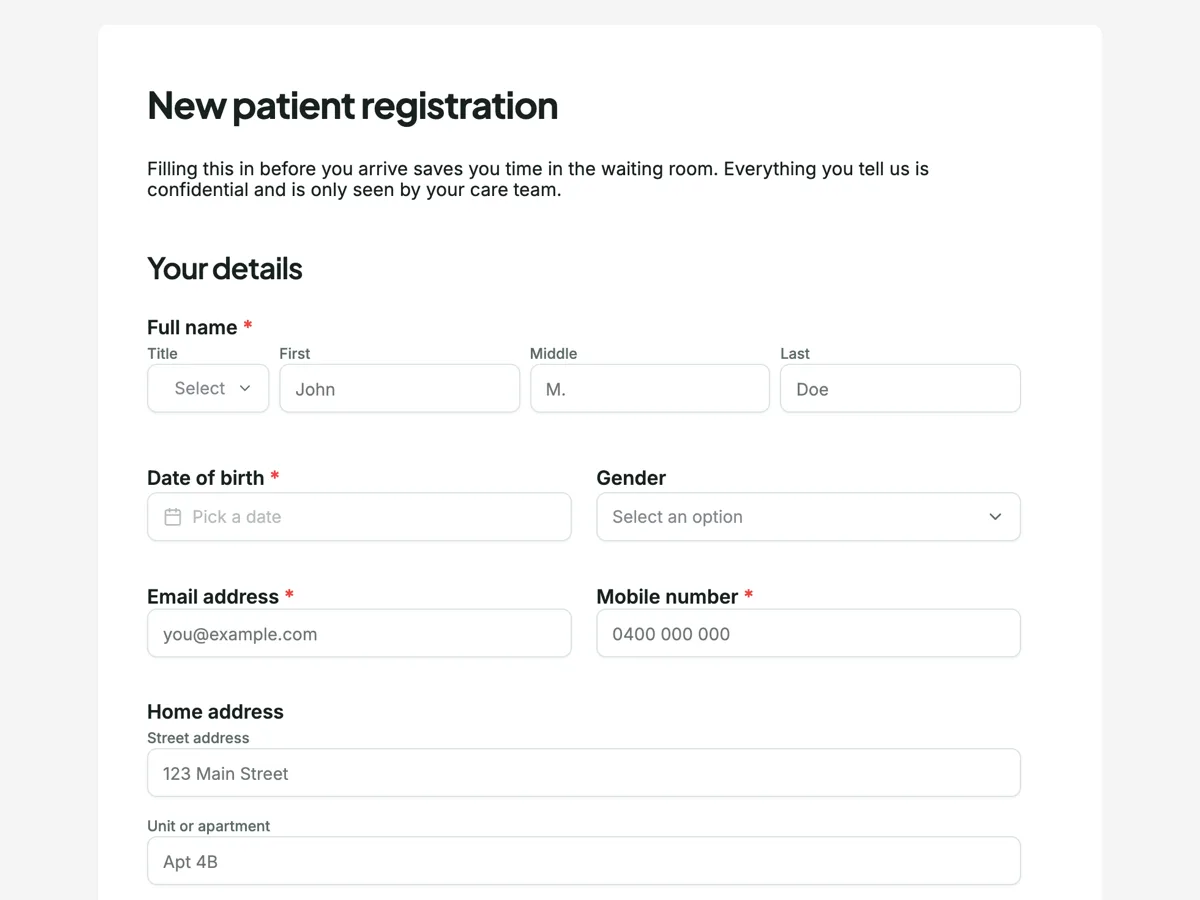
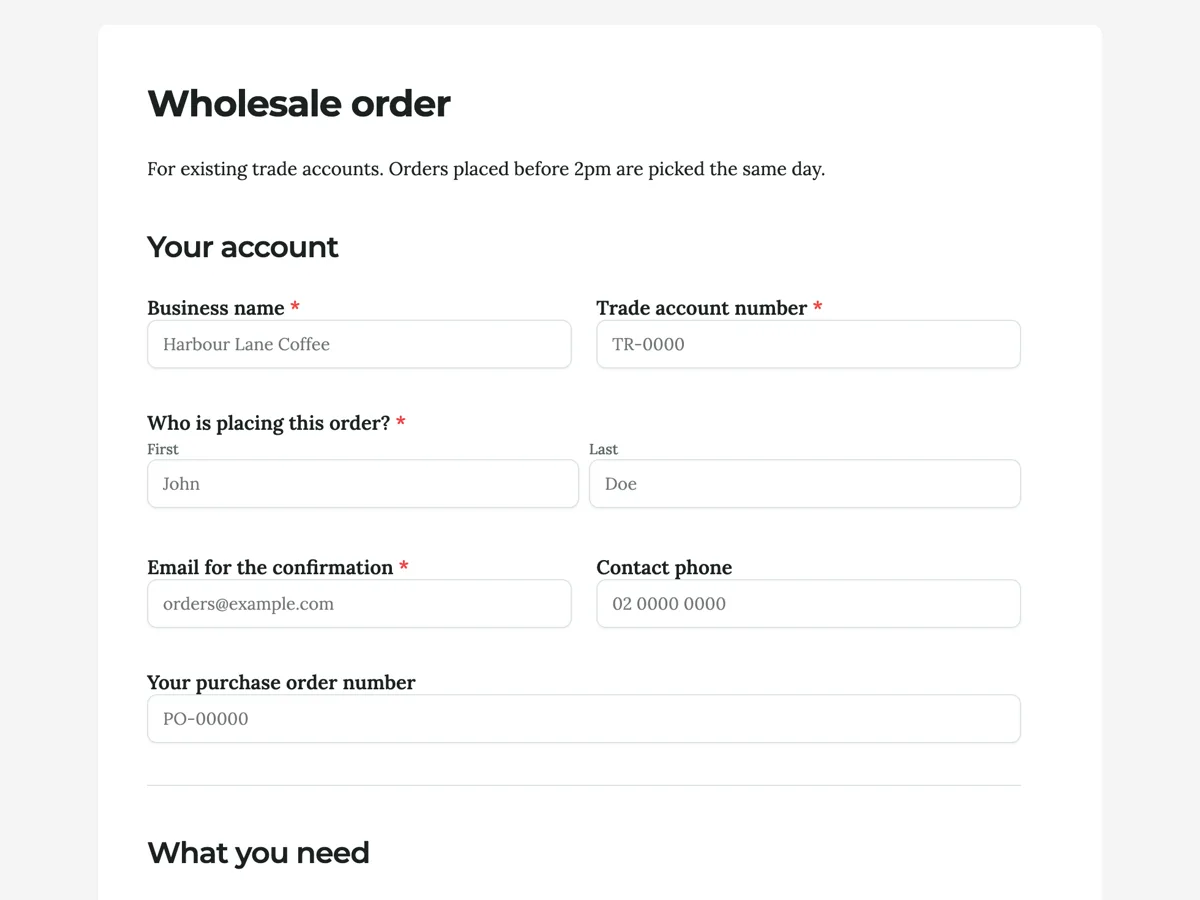
See it on a finished piece
Questions people ask
Can one photo field take several photos?
No. The photo field is one image by design, and older settings asking for more are ignored. Use one field per shot you need, which also gives every picture a label saying what it shows. If the count really is open ended, such as every room in a house, use a file upload field restricted to images instead, which accepts up to ten files.
Does a photo field open the camera on a phone?
Yes. On a phone, tapping the field offers the camera as well as the photo library, so someone standing in front of the problem can take the shot and carry on with the form. On a laptop it opens the file picker. Either way the field accepts image files only, so a PDF or a document cannot be dropped in by mistake.
Do the photos appear in the response PDF?
Yes. Photos render in the body of the response PDF, inline and in form order, next to the answers they belong to, so the finished file reads as a report rather than a list of attachments. Files from a file upload field are handled differently: they are added as attachment pages after the form, not in the body.
Can I choose the photo quality?
No. There is no standard or high quality option on the photo field, and nothing compresses the image on the way in. What the phone captures is what you receive, up to the size cap. If you need lighter files, lower the cap, and respondents with larger photos will be told the limit and can resize or take the picture again.
How do I collect a photo of an ID document?
Add one photo field labelled with exactly what you need, for example Front of your driver licence, fully in frame. Use the description, which a classic form prints under a photo field, to ask for good light and no glare. Say in the form why you need it and how long you keep it, and delete the response once the check is complete.
Make your own form
The button opens the generator with this use case already described. Change the wording to match yours, generate, then edit anything you like.
Create a form with OneCraftRelated pages
Online form with file upload
An upload field turns a form into a way of collecting documents. You set how many files, how large each may be, and whether you want images, PDFs or both, and the files arrive attached to the response rather than in your inbox.
Images and video inside a form
Some questions cannot be asked in words. Which of these three finishes do you want, does this match the damage you are reporting, did you watch the briefing. Image and video blocks put the thing itself on the page.
Date and time pickers in a form
A form with a date and time picker uses two separate fields: a date field that opens a calendar and stores a real date, and a time field on a 12 or 24 hour clock. A date typed into a text box is a guess about format; a date field sorts correctly in your spreadsheet, which is the difference between a booking list and a puzzle.
More finished work of this kind is on the form examples hub.
Written and checked by the OneCraft team. Last checked .