Forms
Images and video inside a form
Some questions cannot be asked in words. Which of these three finishes do you want, does this match the damage you are reporting, did you watch the briefing. Image and video blocks put the thing itself on the page.
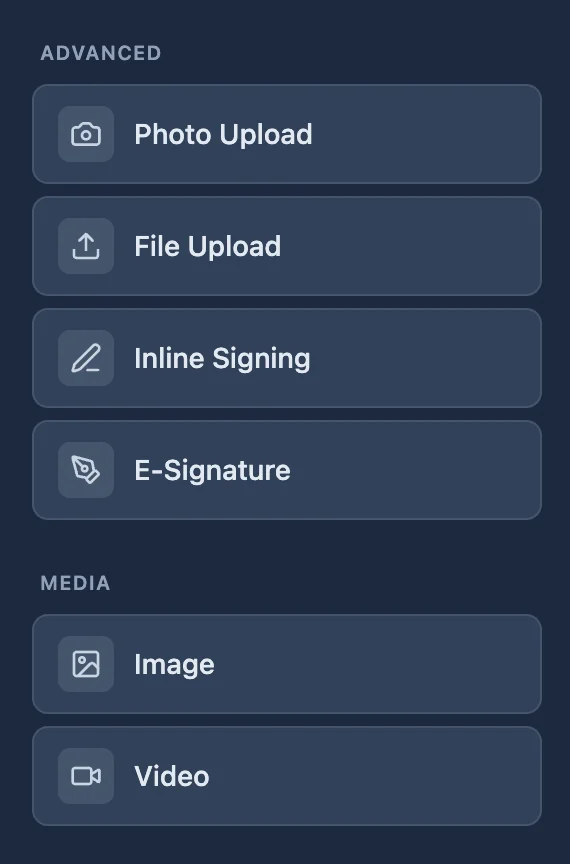
Two blocks, not two fields
The image and video blocks are things you show, not things you collect. They sit in the form like a heading does. If you want the respondent to give you a picture, that is the photo or file upload field instead, and the two are easy to mix up when you are building quickly.
Video playback options
Four toggles: autoplay, loop, muted and show controls. The combination that works for a form is muted autoplay with controls visible: it starts without a click, it does not surprise anyone with sound, and someone who wants to hear it can unmute. Autoplay with sound on is the one combination to avoid, because most browsers block it anyway and the ones that do not will annoy people.
Border styles
There are ten border treatments, from none through simple, elegant, bold, soft, floating, frame, polaroid, accent and modern. On a form the useful ones are none and simple, because the picture is evidence rather than decoration. Polaroid and frame belong on a form that is deliberately playful, like an event RSVP.
Weight matters
Every image and video is loaded before someone can answer. A form that opens with a large hero video will lose people on a phone connection before the first question. Keep the media to what the question needs, and put anything long after the first few fields rather than before them.
Ten border styles, named
A media block takes one of ten borders: none, simple, elegant, bold, soft, floating, frame, polaroid, accent and modern. They are named rather than numbered because each one carries an intent: floating and soft lift a picture off the page, frame and polaroid make it feel like an object, accent picks up your theme colour, and none is right more often than people expect. Pick one and use it for every image on the form; ten styles on one page is not a design.
Video plays with the controls you set
Autoplay, loop, muted and controls are four separate toggles. Autoplay only works while muted, because every current browser blocks sound that starts by itself, so an autoplaying video with sound simply will not start on a phone. So the combination that behaves everywhere is the one above: muted on, autoplay on, controls visible, so the clip starts silently and the person can unmute when they want sound.
How it works, in three steps
Step 1
Add the block where the question needs it
Directly above the question it supports, so the two read as one thing.
Step 2
Set video playback
Muted, autoplay on, controls visible is the safe combination for a form.
Step 3
Pick a border
None or simple for evidence, one of the decorative ones only if the form is meant to feel informal.
The full walkthrough with screenshots is in the guide Every form field and when to use it.
Limits worth knowing
- Image and video blocks display media. They do not collect it.
- Autoplay with sound is blocked by most browsers.
- Media loads before the form is usable, so heavy files cost you responses on slow connections.
See it on a finished piece
Questions people ask
Can I put a YouTube video in a form?
The video block plays a video that lives with the form rather than an embed from another site. For an externally hosted video, link to it from a paragraph block and let it open in a new tab. That is usually better anyway: a form that loads a third party player is slower and can be blocked by a corporate network.
Will a video autoplay on a phone?
Only if it is muted. Every current browser blocks autoplay with sound, so a video set to autoplay with sound just sits there looking broken. Set muted on and leave the controls visible, and the person can start it with sound themselves when they want to.
Is there a size limit on an image in a form?
The practical limit is patience rather than a hard cap. Anything that takes more than a second or two to appear costs you completions, and a form is usually opened on a phone on mobile data. Resize a photograph to about the width it will display at before you upload it, and the whole form loads faster.
Do these blocks appear in the PDF?
A media block is decoration for the screen, and the printed record is about the answers. Hide them in the PDF layout so the page carries the questions and the responses rather than a picture that made the form nicer to fill in. The PDF layout has a hide control per block for exactly this.
Can I put an image in a conversational form?
Yes. The conversational toolkit has image and video blocks under Media, so a picture can sit on the same screen as the question it supports. The welcome screen can also carry one on the split layout, where the picture takes half the screen. Keep an image on the question's own page rather than on a page of its own, which is a screen somebody has to click past.
Make your own form
The button opens the generator with this use case already described. Change the wording to match yours, generate, then edit anything you like.
Create a form with OneCraftRelated pages
Fill in the blank forms
Sometimes a question is really a sentence with holes in it. A declaration, a statement of intent, a short contract clause. The inline text field lets you write that sentence and drop real inputs into the gaps.
One block for name, email, phone and address
Contact details are the boring part of every form, and in a one question at a time form they cost four screens. The profile field puts them on one screen, so the questions worth asking get the attention instead.
Date and time pickers in a form
A form with a date and time picker uses two separate fields: a date field that opens a calendar and stores a real date, and a time field on a 12 or 24 hour clock. A date typed into a text box is a guess about format; a date field sorts correctly in your spreadsheet, which is the difference between a booking list and a puzzle.
More finished work of this kind is on the form examples hub.
Written and checked by the OneCraft team. Last checked .