Forms
Online form with file upload
An upload field turns a form into a way of collecting documents. You set how many files, how large each may be, and whether you want images, PDFs or both, and the files arrive attached to the response rather than in your inbox.
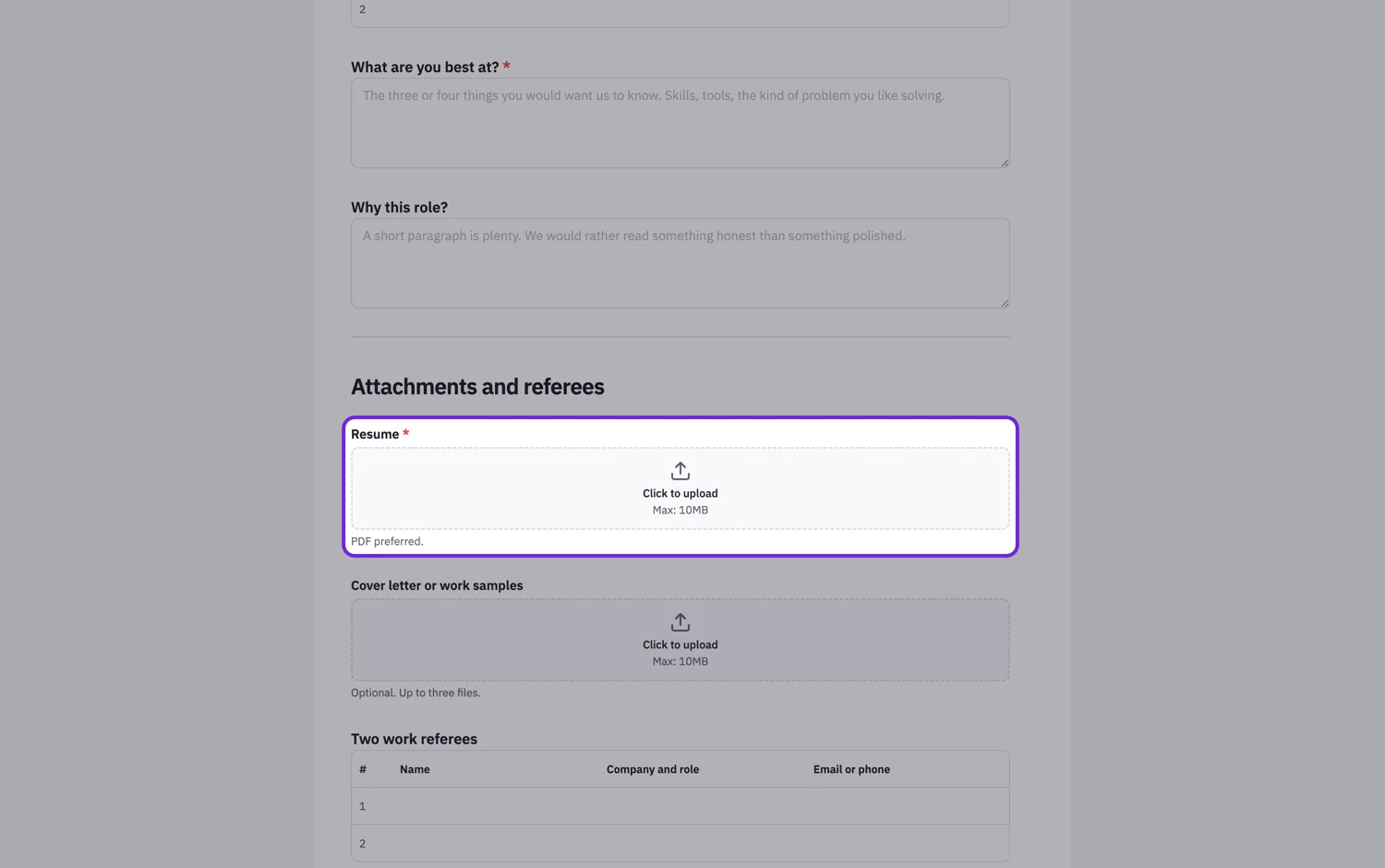
The three settings that matter
Maximum files, from one to ten. Maximum size per file, from one to a hundred megabytes, defaulting to ten. And the allowed types, which is where the honest limit sits: there are two toggles, images and PDF documents. You can allow either, or both, and that is the whole list. A form cannot accept a spreadsheet or a Word file directly, so ask for a PDF export when that is what you need.
What the respondent sees
A drop area that also works as a click to browse, with the size cap printed under it. Files upload as they are chosen rather than at submit, so a large file does not fail the whole submission at the last moment. If you set a limit of one file, the field says so and replaces rather than appending.
Where the files go
Uploads are stored against the response, not emailed. In the responses table the cell shows the files, and opening a response lets you download each one. The response PDF renders uploaded images inline and merges attached PDFs into the document, so a single downloaded file can contain the answers and the evidence together.
Asking for fewer, better files
Two upload fields with clear labels beat one field that takes five files. "Photo of the damage" and "Repair quote" tell someone exactly what to attach and let you find each later. A single "attachments" field with a limit of five gets you five files in an unknown order.
How it works, in three steps
Step 1
Add the upload field
Drop a file upload field where the evidence belongs in the flow, which is usually after the question it supports.
Step 2
Set the caps and the types
Choose the file count, the size cap and whether images, PDFs or both are allowed. Label the field with the document you actually want.
Step 3
Collect and download
Files arrive with the response. Download them individually, or take the response PDF with images inline and PDFs merged in.
The full walkthrough with screenshots is in the guide Every form field and when to use it.
Limits worth knowing
- Allowed types are images and PDF only. Word documents, spreadsheets and archives cannot be accepted.
- One to ten files per field, one to one hundred megabytes each.
- The photo field is a separate, single-photo component. For several photos, use several fields or a file upload field set to images.
- Files are attached to the response, not sent to your inbox as attachments.
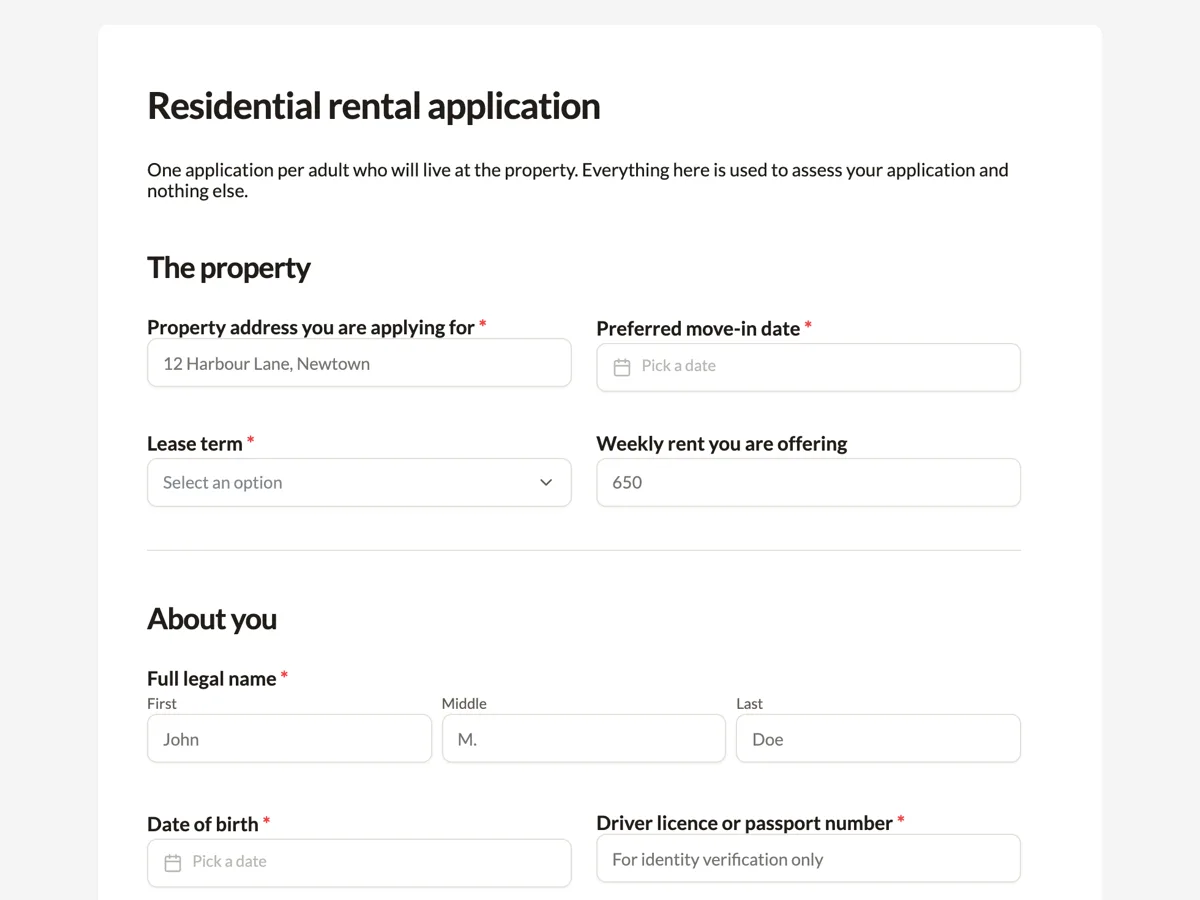
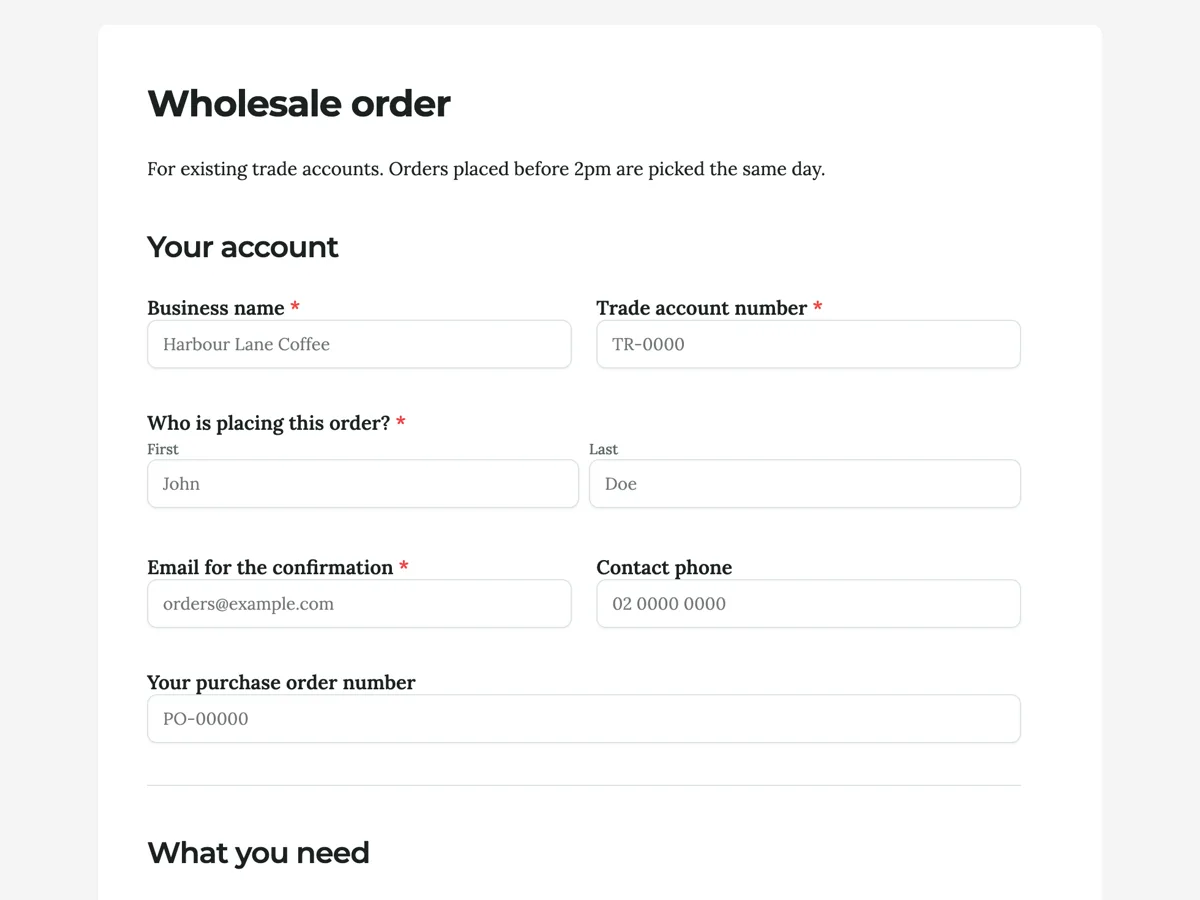
See it on a finished piece

Questions people ask
Can people upload a Word document?
No. The field allows images and PDFs, and those are the only two toggles. Ask for a PDF, which is also better for you because it looks the same on every machine.
How big can a file be?
You set the cap between one and a hundred megabytes per file, and it defaults to ten. Keep it as low as the job allows, because a big cap invites phone photos at full resolution.
Do uploaded files show up in the PDF of a response?
Yes. Images render inline and PDF attachments are merged into the response PDF, so one download carries the answers and the documents.
Can I require an upload?
Yes, the field can be marked required like any other. Be careful doing that on a phone-first form, because it forces people to have the file to hand before they can submit.
Make your own form
The button opens the generator with this use case already described. Change the wording to match yours, generate, then edit anything you like.
Create a form with OneCraftRelated pages
Fillable fields for signers
Fillable fields for signers are the boxes the other person completes on their way to the signature: a free text field, a confirmation checkbox, and labelled name, email, title and company boxes. A reference number, a job title, a mark against a clause. You decide which are compulsory; the signer supplies every value.
Date and time pickers in a form
A form with a date and time picker uses two separate fields: a date field that opens a calendar and stores a real date, and a time field on a 12 or 24 hour clock. A date typed into a text box is a guess about format; a date field sorts correctly in your spreadsheet, which is the difference between a booking list and a puzzle.
Forms that get signed by email
The e-signature field is for the party who signs after the form is submitted. Each signer gets their own private link, you decide the order they sign in, and the finished PDF comes back with a record of who signed and when.
More finished work of this kind is on the form examples hub.
Written and checked by the OneCraft team. Last checked .