Videos
Share a video link
The share link here is not a link to a file. It opens a page that plays your saved video by rendering it in the viewer's browser, from the same document the builder works on. That has one very useful consequence and one you need to know about before you send it to a client.
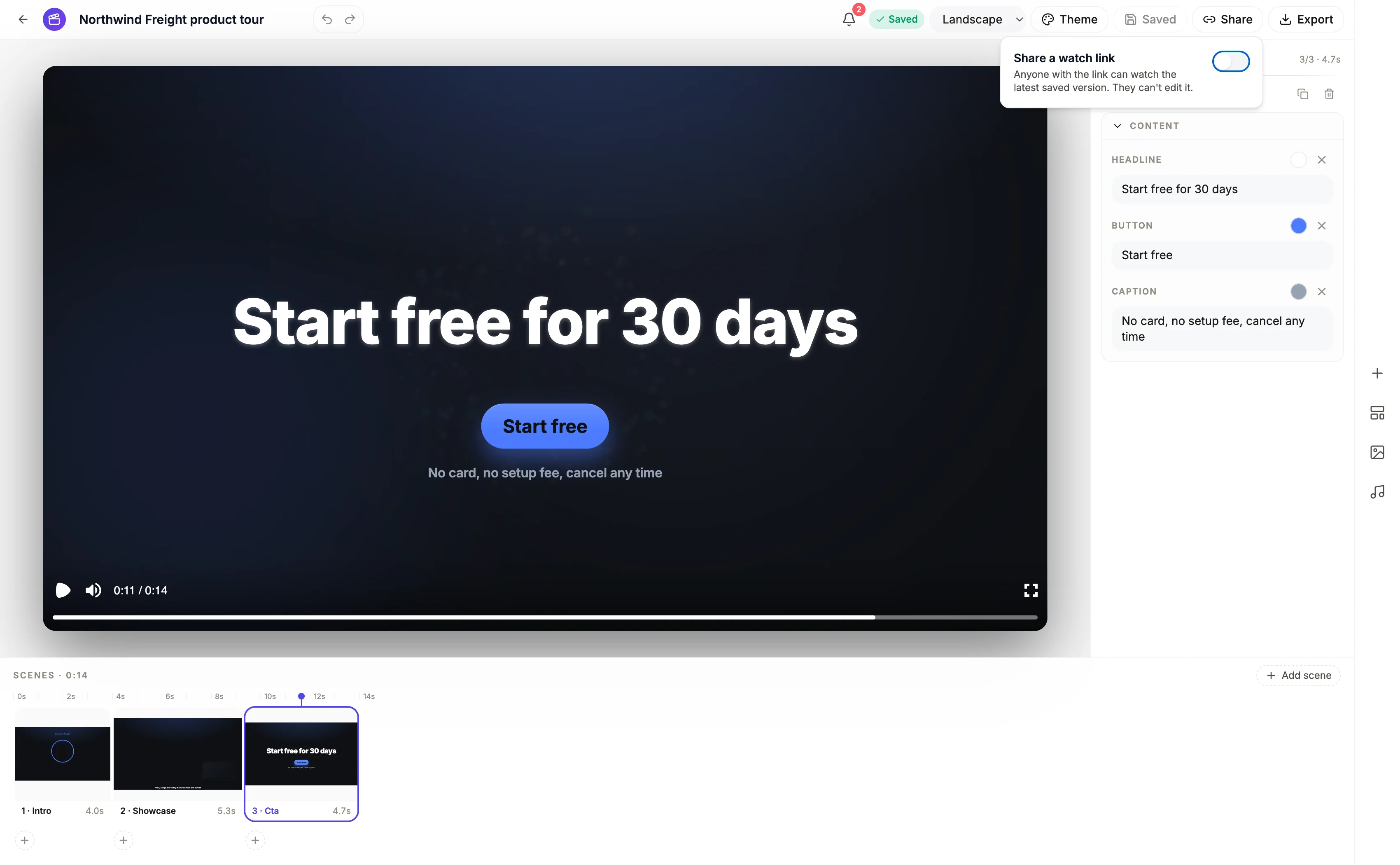
What the viewer gets
A read-only player page at a link ending in a random token. The page fetches the current version's document with freshly signed media links and plays it in a browser player, with no editing controls and no way to reach your builder. There is nothing to install and nothing to download. What they are watching is the video being drawn, frame by frame, in their own browser.
The useful consequence
The link always shows the current saved version. Fix a typo, swap an image, retime a scene, save, and the same link now plays the corrected video without you sending anything. That makes it the right thing to circulate for review, where a client or a colleague is going to come back with three changes and you would otherwise be re-exporting and re-sending an MP4 each round.
The thing to know before you send it
Turning sharing off clears the token. Turning it back on generates a new one, so the previous link is dead and anyone holding it gets a not found. Treat the toggle as one way: switch it on when you start sharing and leave it on until you genuinely want the link revoked. The same page also refuses to serve a video that has been disabled or that has never been saved.
When to send an MP4 instead
Whenever the video needs to be uploaded somewhere, embedded in a page, attached to an email, played offline, or handed to somebody who will put it in an ad platform. The share link is for review and for a quick look, not for distribution. Export gives you the file for everything else, and the two are independent, so a video can have a live link and an exported MP4 at the same time.
How it works, in three steps
Step 1
Save first
The link serves the current saved version, so anything unsaved is not in what the viewer sees.
Step 2
Turn sharing on and copy the link
The control sits in the toolbar and produces a link ending in a token. Copy it once and reuse it, because it stays stable while sharing is on.
Step 3
Keep editing
Every save updates what the link plays. There is no republish step and no second link to send.
The full walkthrough with screenshots is in the guide Export one video for YouTube, Reels and TikTok.
Limits worth knowing
- The share page plays the video, it does not offer a download. For a file, export an MP4.
- Turning sharing off destroys the token. Turning it back on creates a new link and the old one stops working.
- Anyone with the link can watch. There is no password, no expiry and no viewer list.
- A disabled video, or one that has never been saved, returns not found on its share link.
Questions people ask
Can I password protect the link?
No. The only control is on or off. The token itself is long and random, so the link is unguessable, but treat it as public to anyone who has it.
Does the viewer need an account?
No. The page is public and fetches the video by its token alone, so a client or a colleague outside your organisation can open it without signing in.
Will it play on a phone?
Yes, it is an ordinary web page with a player. Because the video is drawn in the browser rather than streamed as a file, a very long video on a slow device is more demanding than playing an MP4 would be.
Can I embed it on my website?
Export the MP4 and host it yourself. The share page is a whole page rather than an embeddable player, and it is built for review rather than for publishing.
Make your own video
The button opens the generator with this use case already described. Change the wording to match yours, generate, then edit anything you like.
Create a video with OneCraftRelated pages
Animated diagram in a video
A diagram scene draws a concept from a list of labels. It is the tool for structure, hierarchy and repeating loops, the things that have no photograph and no number, and the six shapes it offers are not interchangeable. Choosing the wrong one says something untrue about your idea.
Animated chart in a video
A chart scene exists for the case where the shape of the data is the point, rather than one headline figure. Bars racing to different heights, a line climbing, a waterfall building to a total. All of it drawn from numbers you actually supply, because the director is not permitted to make any up.
Countdown offer video
Urgency in a video is a scene, not a widget. A countdown scene sets a deadline in type large enough to read in a feed at arm's length, and it will not be built at all unless your brief contains a real date. What it never does is count down against a live clock, which is worth understanding before you plan a campaign around it.
More finished work of this kind is on the video examples hub.
Written and checked by the OneCraft team. Last checked .