Videos
Animated video backgrounds
Backgrounds here are applied one scene at a time, not once for the whole video, and every one of them is built from colour tokens rather than fixed hex values. So a background is not a picture you drop behind the content. It is a treatment that takes on whatever palette the video is using.
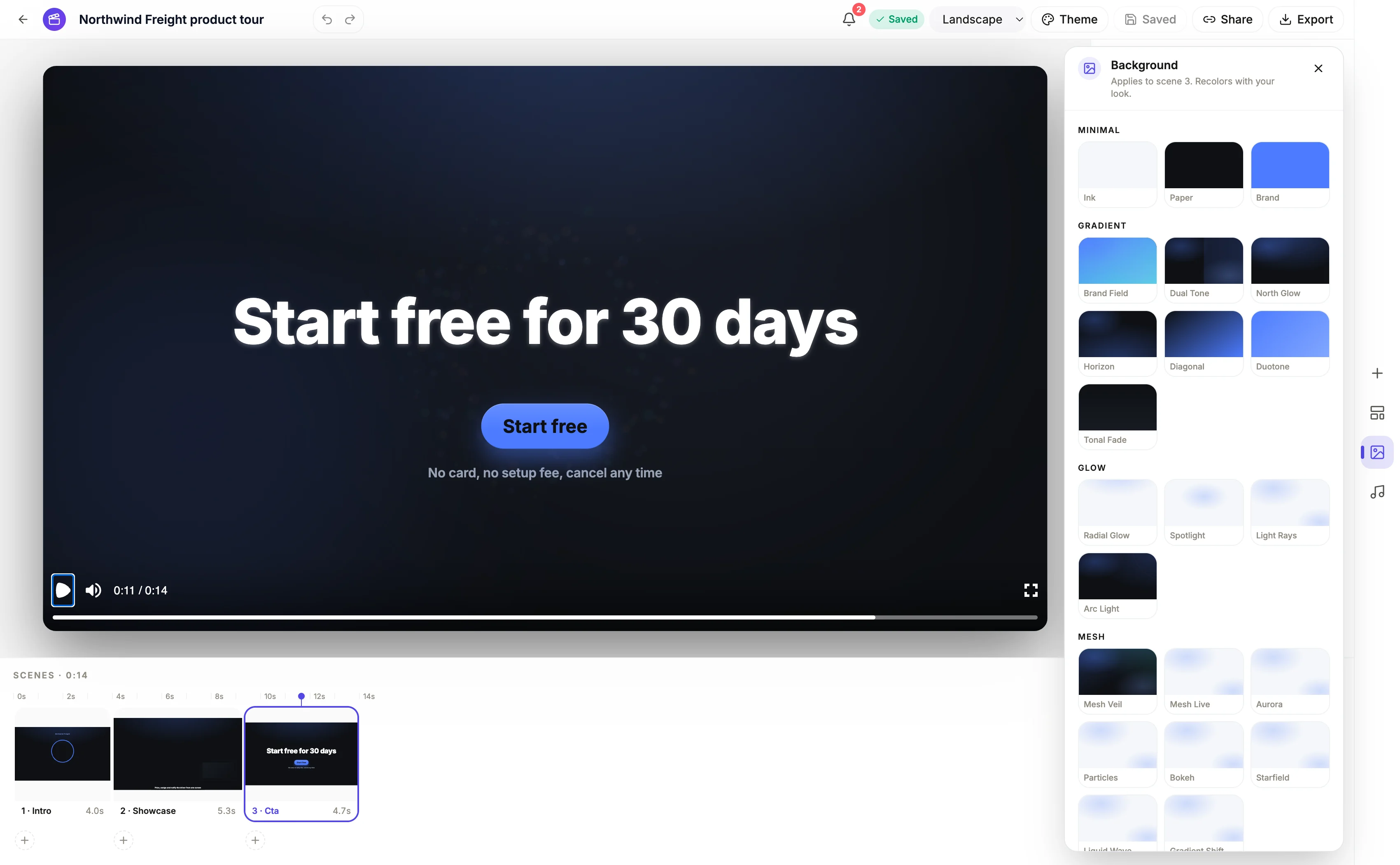
The seven categories
Minimal has three: Ink, Paper and a flat Brand colour, all with a little grain and a soft vignette. Gradient has seven, from a brand field and a dual tone through to a diagonal and a tonal fade. Glow has four: radial, spotlight, light rays and arc light. Mesh has eight and these are the alive ones: mesh veil, mesh live, aurora, particles, bokeh, starfield, liquid wave and gradient shift. Pattern has nine, including dot and line grids, a pulsing grid, geometric frames, code rain, orbit, beam and corner waves. Split has five. Light has three, made for light mode.
Token based, so nothing clashes
Every preset references tokens such as ink, surface, brand and brand secondary rather than a colour value. Switch the palette and the background follows. That is why the swatch grid in the panel previews each one in your current theme, and why you can pick a background on aesthetic grounds without worrying that it will fight the accent colour you chose in the brief.
Applied per scene, and remembered
The panel says which scene the background applies to and changes only that one. When you pick a background yourself, the scene is flagged as user chosen, so reloading the video keeps your choice instead of resolving the scene's authored default again. That flag is the difference between a deliberate change and one that silently reverts.
Restraint is the point
The presets carry small values on purpose: grain around three to five percent, vignettes around a fifth to a third, glows capped. A video already has moving type, entering elements and a camera push. A background that competes with all of that is the fastest way to make a scene unreadable, so the busiest presets, code rain, starfield, particles, are best used on the one scene that has almost nothing on it.
How it works, in three steps
Step 1
Select the scene first
The panel applies to the currently selected scene. With nothing selected it tells you so rather than changing anything.
Step 2
Pick from the swatch grid
Presets are grouped by category and each swatch renders live in your theme, so what you see is what that scene will look like.
Step 3
Use the loud ones sparingly
One alive background on an opener or a closer reads as deliberate. The same one on six scenes reads as a screensaver.
The full walkthrough with screenshots is in the guide Make a promo video with AI voiceover.
Limits worth knowing
- Backgrounds are presets. You cannot upload an image or a video loop as a scene background.
- There is no per scene colour override. A background takes the palette of the whole video.
- The three Light category presets are built for light mode and will look washed out on a dark look.
- Changing a scene's background does not change the slots on it, so a light background under text authored for dark still needs the mode switched.
Questions people ask
Can I put a video behind my text?
Not as a background. What you can do is use a scene with a clip slot, which plays an uploaded video with text and badges overlaid on top, or a scene whose layout puts a full bleed photograph behind a statement line.
Do animated backgrounds slow the export down?
They are drawn by the render engine like everything else, so they add work but not a different kind of work. A twelve scene video with alive backgrounds on every scene renders more slowly than a plain one.
Will the same background look right in both formats?
Yes. Backgrounds fill the canvas, so they adapt to either shape without needing a per format setting, unlike slots which carry a box for each.
Does the AI choose backgrounds?
Each scene layout carries its own authored background, so the generated video arrives already dressed. The panel is for overriding that on the scenes where you want something different.
Make your own video
The button opens the generator with this use case already described. Change the wording to match yours, generate, then edit anything you like.
Create a video with OneCraftRelated pages
AI video length settings: short, standard and long
The video generator's length setting picks a scene budget, not a target duration: short, standard or long. Each setting fixes how many scenes the director builds, and the seconds follow from the video type. Three to six scenes is a different video from six to twelve, regardless of the clock, because it is a different number of things you get to say. So when the question is how long should my video be, count the points you need to make first, then pick the setting that gives each one a scene.
Testimonial video scene
A quote lands harder with a face attached, and there is a scene role for exactly that. What it will not do is invent the person. The instruction is explicit: only claim a named person when the brief actually names one, so a testimonial from nobody in particular is a quote scene instead.
Animated diagram in a video
A diagram scene draws a concept from a list of labels. It is the tool for structure, hierarchy and repeating loops, the things that have no photograph and no number, and the six shapes it offers are not interchangeable. Choosing the wrong one says something untrue about your idea.
More finished work of this kind is on the video examples hub.
Written and checked by the OneCraft team. Last checked .