How to
Publish updates without breaking your live link
Understand the difference between your draft and the live form, choose between updating the current version and publishing a new one, and roll back from Version History when an edit goes wrong.
Forms4 min readUpdated
This guide explains the difference between your draft and your live form, and how to update a published form without breaking the link people already have.
The nervous moment with any live form is the first edit after you have shared the link. It turns out there is nothing to be nervous about, because the two things are kept apart on purpose.
Your draft and the live form are separate
Everything you do in the builder goes into a draft. Saving updates that draft and nothing else. The public link keeps serving whatever you last published.
So you can rewrite half the form, leave it overnight, come back and finish it, and nobody filling in the live form sees a thing. This also means the reverse is true and catches people out: an edit you are happy with is not live until you publish it. If a change does not show up on your public link, that is almost always the reason.
The AI assistant works the same way, which is why its panel reminds you to publish before the live form changes.
Check the draft in Preview first
Before you publish anything, open the overflow menu in the builder header and choose Preview. It opens your draft in the same runtime that serves the public form, so the spacing, the theme, the welcome screen and the validation all behave exactly as they will for a respondent.
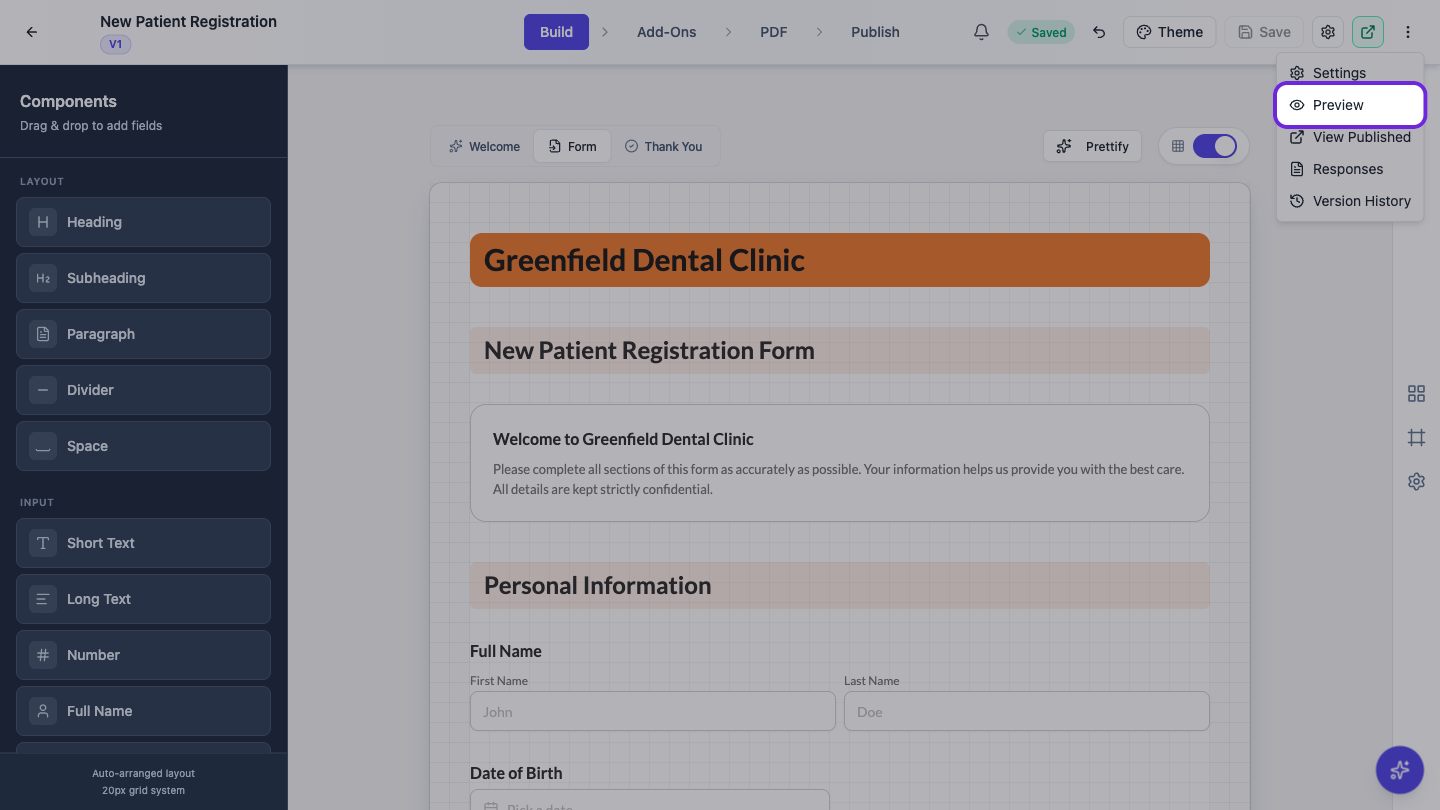 Preview renders your draft, not the published version, so it is the fastest way to check an edit.
Preview is yours alone: it needs your login, so it is not a link you can send to a colleague for review. To let someone else see the form, publish it and share the public link, or publish a new version and send that version link from Version History.
Two ways to publish
Open the Publish tab. Before a form has ever been published you get one button, Publish Form. Click it and the form goes live with version 1.
After that you get two buttons, and the choice matters.
Update Current Version overwrites the version people are already using. The version number does not move. Use it for a typo, a reworded label, a colour you got wrong: anything where there is no value in keeping the old copy.
Publish New Version creates the next version and makes it live, leaving the previous one intact in your history. Use it for real changes: new questions, removed questions, a restructured form. It costs you nothing and it is what gives you something to go back to.
When in doubt, publish a new version. Storage is not the constraint here, and a version you did not need is much cheaper than a version you did.
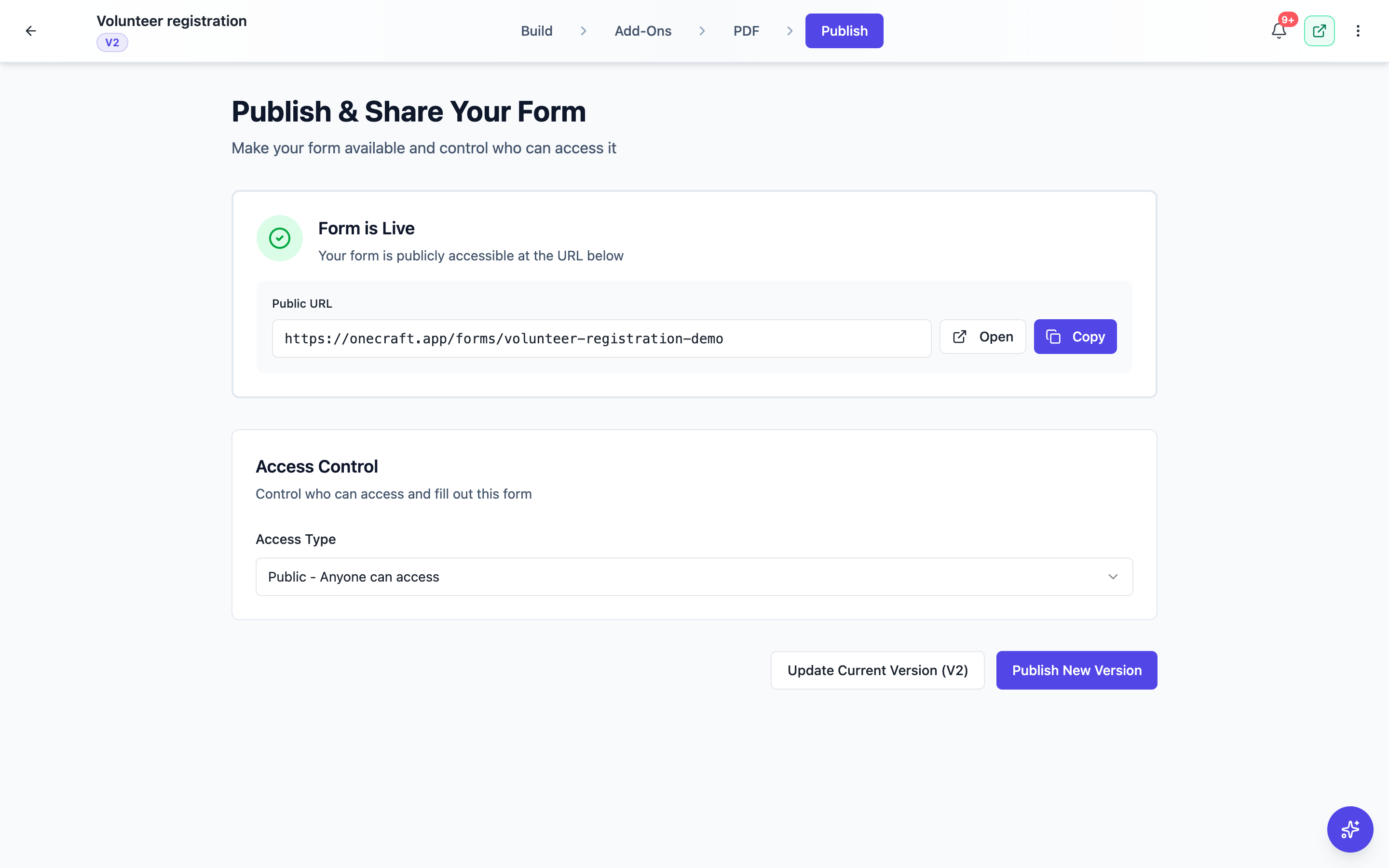 Two buttons once a form is live. The right one depends on the change.
Version History
Once a form is published, Version History appears in the overflow menu in the top bar, next to Preview and Responses. It lists every published version, newest first, with its number, when it was published, and a Current badge on the one that is live.
Each version gives you four things.
View opens that version in a new tab, exactly as it was when you published it. This is the fastest way to answer “what did this form look like in March”.
Copy URL copies a permanent link to that specific version. It keeps working after you publish newer ones, which is genuinely useful: attach it to a contract, or send it to somebody who needs the version they originally agreed to.
Revert to this version brings that version’s content back into your form. Nothing in your history is destroyed by it. You then publish again to put it live.
Delete version removes an old version. The current one cannot be deleted, which is the right guard.
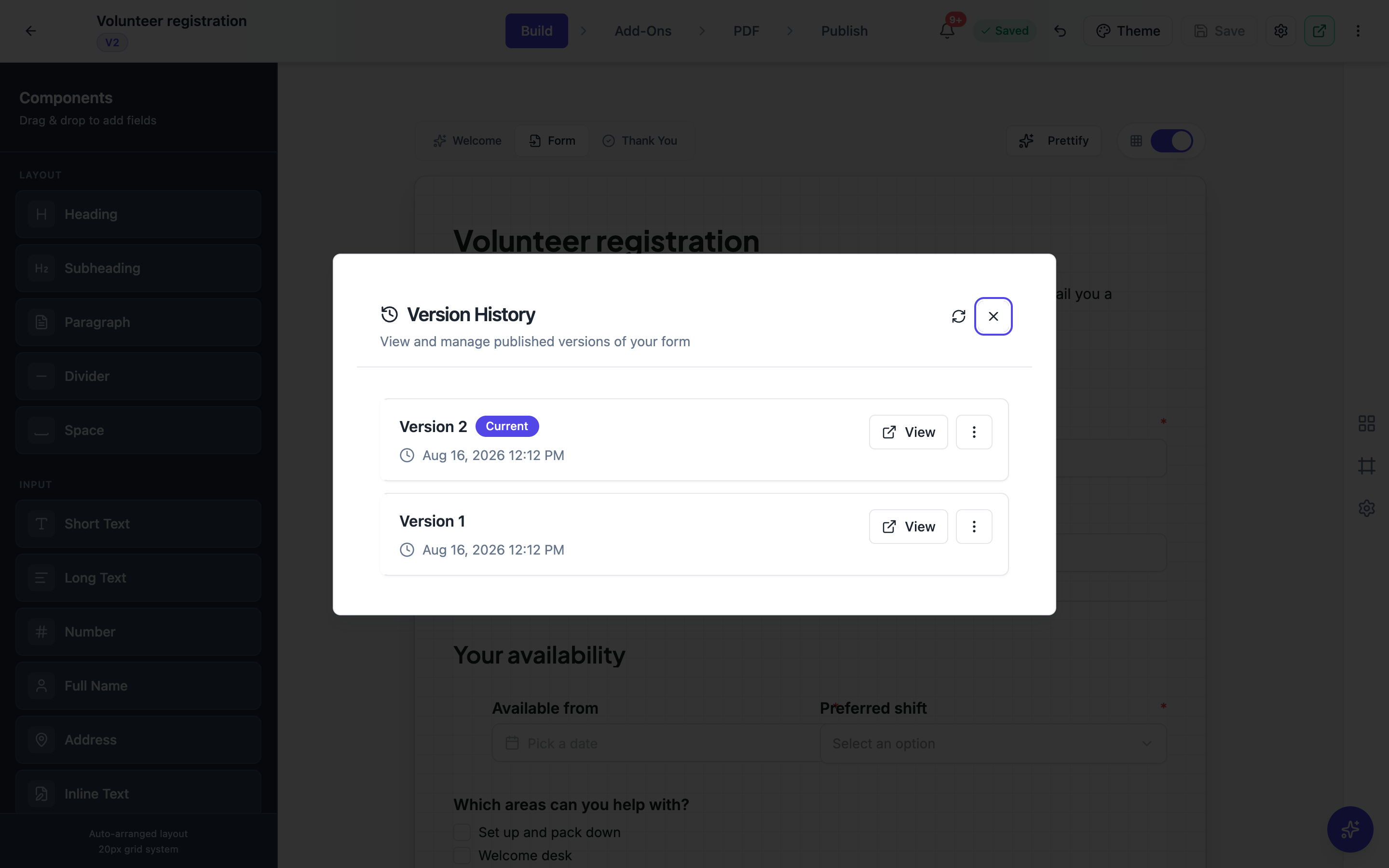 Every published version, with the live one marked Current.
Access rules travel with the version
One detail worth knowing. When you publish, your access control settings are copied onto that version, not just onto the form. That is what lets an older version keep the rules it was published under.
The practical consequence: after changing the access type, publish again so the live version carries the new rule. See Control who can fill in your form.
A habit worth having
Before you publish anything into a form that is already collecting responses, open Preview and walk the whole form once. Then publish, open the public link in a private window, and check the change is really there.
It takes a minute, and it is the difference between finding a broken required field yourself and hearing about it from the person who could not submit.
New responses keep arriving through all of this. See View, export and manage your responses.
Ready to try it yourself?
Start free. Describe what you need and let OneCraft do the first draft.
Get startedSee it in the product
More forms tutorials
- Add e-signatures with multiple signersAdd signature fields to a form, choose how each signer's email is collected, set the order people sign in, and collect signatures that are legally clear, with the date and time on record.
- Automate your form with add-onsConnect webhooks, get instant email alerts for new submissions, and send people to your own page after they submit.
- Build your own form themeStart from a built-in theme, or build one from scratch with your own layout, colours, fonts and effects, save it, and reuse it on every form you make.