Forms
AI form builder
You type a sentence about the form you need. What comes back is not a wireframe or a list of suggestions, it is a finished form with its fields chosen, labelled, ordered and marked required or optional, ready to publish on a link.
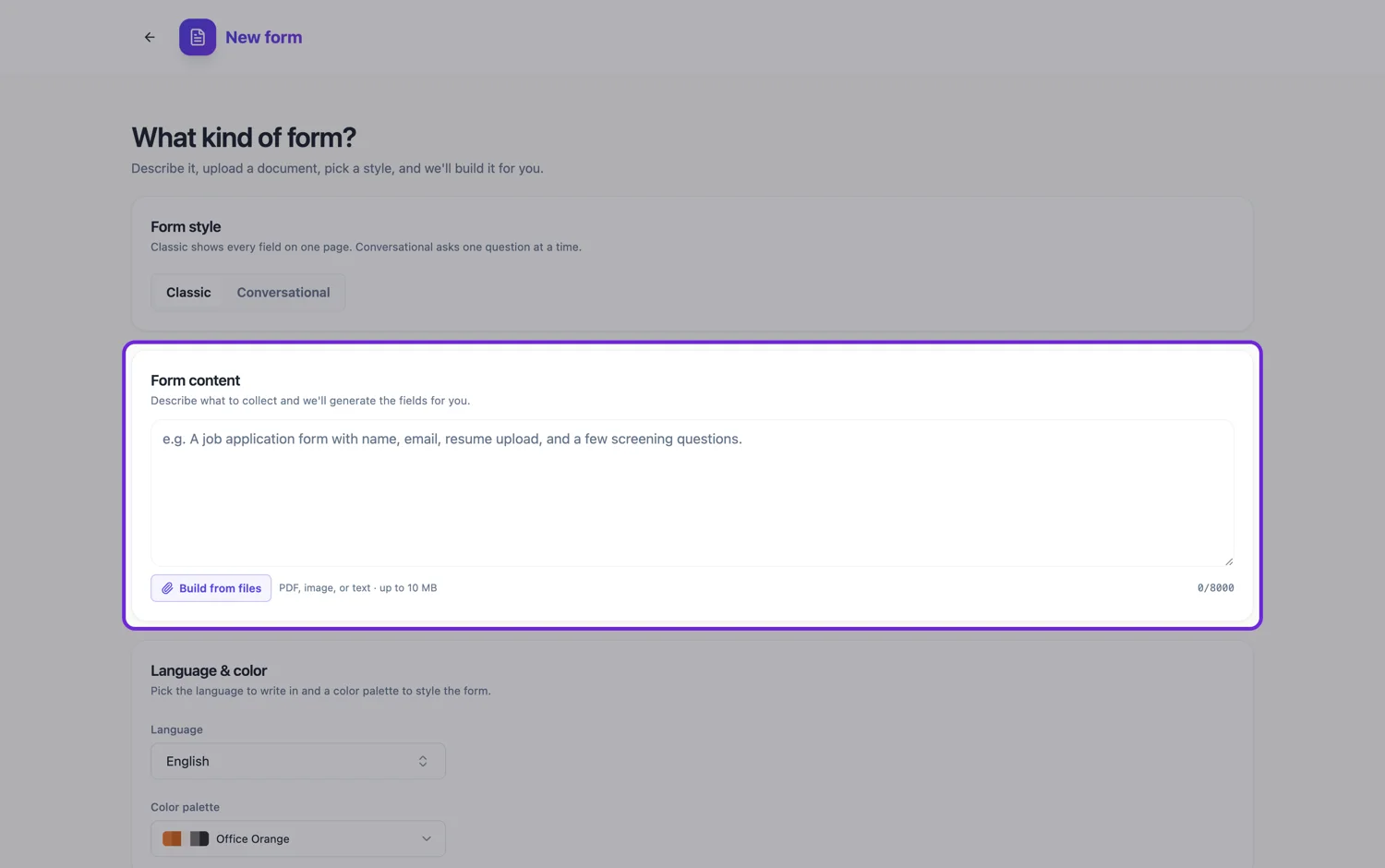
What the generator actually decides
Four things are chosen for you from the wording of your prompt. The field list, including fields you did not name but the form clearly needs, such as an email address to reply to. The field type for each one, so a date question becomes a date picker rather than a text box. Which fields are required, based on whether the form can be acted on without them. And the help text for a field, written only where a respondent could reasonably get it wrong; it shows under the question on a conversational form, while a classic form prints it only on file and photo uploads, so move anything important into the label there. You can change all four afterwards, and most people change two or three fields at most.
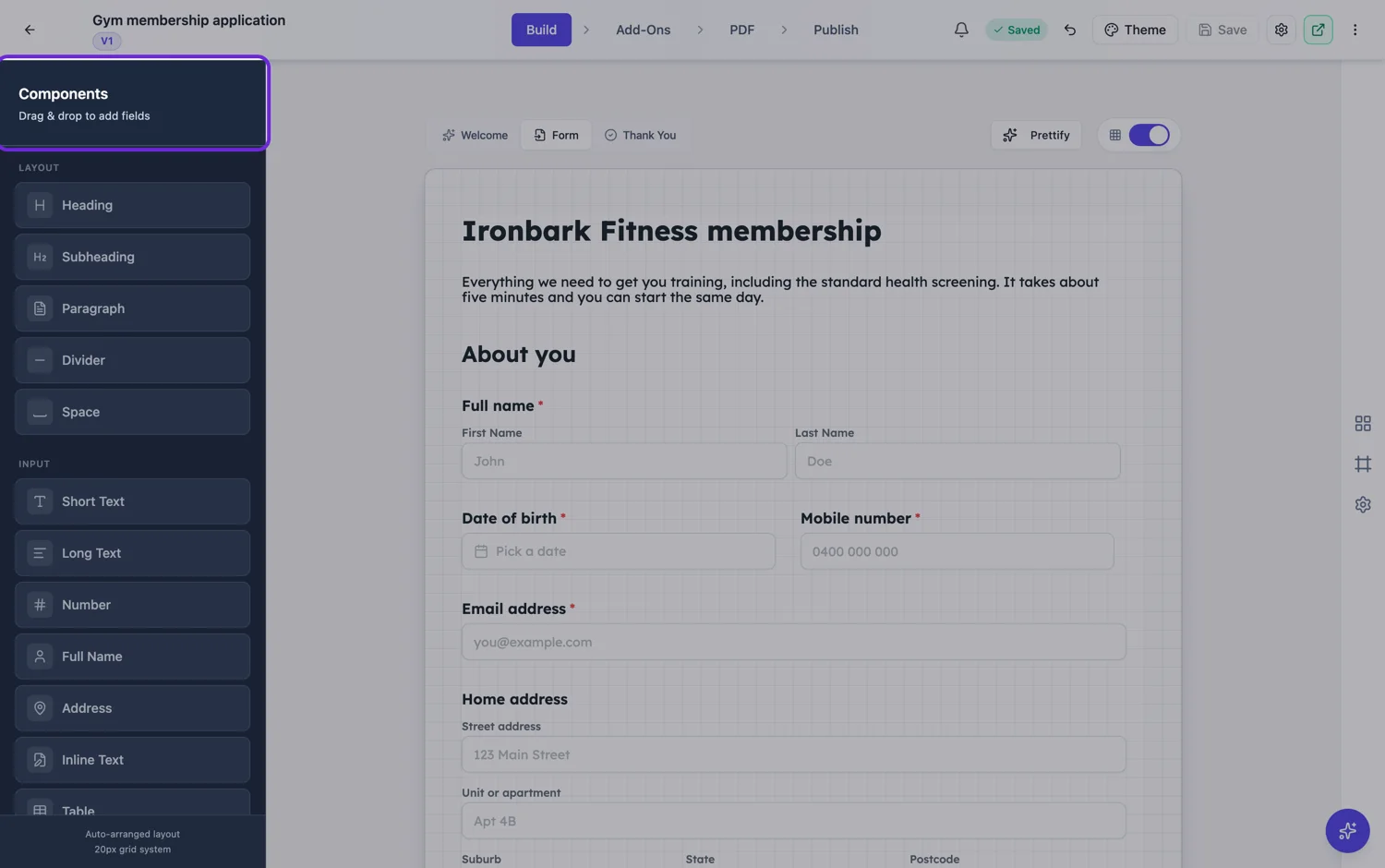
The prompt is the specification
A one line prompt gives you a short, sensible form. A prompt that names the sections, the choices in a dropdown and the things you must not ask gives you a form that is close to final. There is no penalty for detail: the prompt box takes 10,000 characters, which is about 1,200 words, and everything you put in it is used. If you already have the questions written down somewhere, paste them in rather than summarising them.
Three prompts, three forms
The same request written three ways produces three different forms. A one line prompt such as "a workshop booking form" gives a short, generic form: name, email, phone, which session, a comments box. The generator has to make up the session choices, so expect placeholder options you will replace. Name the sections and list the options, and the form usually comes back grouped the way you described, with your options used as given, so spell them the way respondents should read them. Then say what not to ask, such as "do not ask for date of birth". The generator usually follows an instruction like that, but it is a request to the model rather than a hard rule, so check the field list before you publish.
Paste the questions you already have
If the form exists on paper, in a spreadsheet or in an email thread, paste the questions rather than describing them. The generator infers the type from each question, splits comma separated choices into real options, and marks the ones that read as mandatory. That is usually the fastest route to a form you barely have to edit.
Two kinds of form, chosen before you generate
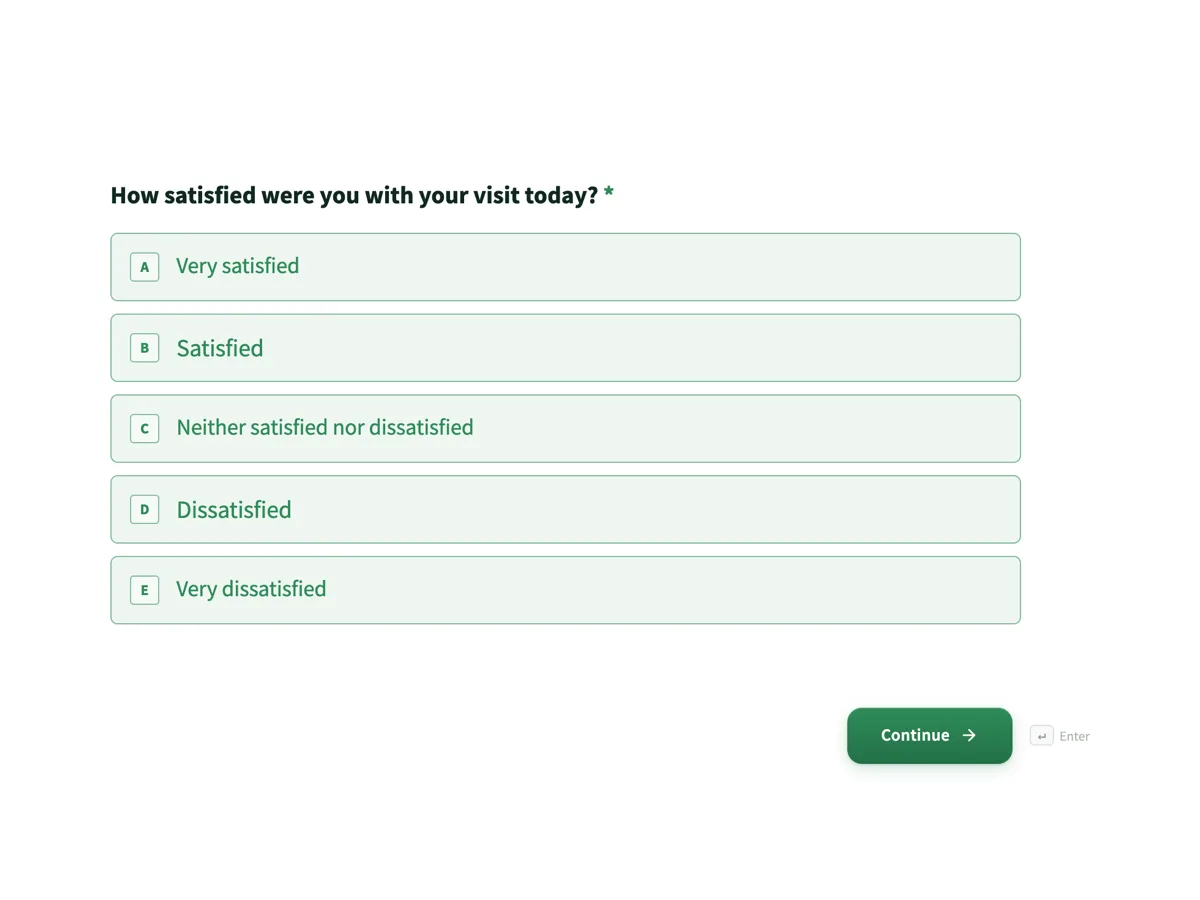
Classic lays every field out on one page you can arrange freely, which suits long forms, forms with uploads, tables or signing, and anything that has to print. Conversational asks one question at a time with a progress bar, which suits surveys, sign-ups, quizzes and anything where finishing rate matters more than density. You pick the kind at the top of the generator, and the choice changes the fields the AI reaches for, not just the styling.
After it generates
The form opens in the builder as a draft. You can drag fields, edit any label, change a field type, restyle the whole form with a theme, add e-signature or file upload fields, and set who is allowed to open it. Nothing is live until you publish, and publishing writes a version so you can roll back later without breaking the link you have already shared.
How it works, in three steps
Step 1
Describe the form
Type what the form is for and who fills it in. Name any fields you know you need and any you must not ask for. Pick classic or conversational, a language and a colour palette.
Step 2
Generate and review
Generation runs as a background job and opens the builder when it lands. Read the field list first, before you touch the design: that is where the mistakes are.
Step 3
Publish the link
Set the access type, publish, and share the link. The live link keeps serving the last published version even while you keep editing the draft.
The full walkthrough with screenshots is in the guide Create a form from scratch with AI.
Limits worth knowing
- The prompt box takes 10,000 characters. Anything longer is cut.
- Options you do not list are made up by the generator. Replace generic choices with your real session times or product names before you publish.
- Attaching a file to build from is a paid plan feature. On a free account the attach button opens the upgrade dialog.
- Attachments are capped at 5 files, 10 MB each, and must be PDF, plain text, PNG, JPG, WebP or GIF.
- Generation is a background job with a five minute ceiling. A prompt that times out is usually one that asked for several forms at once.
- The AI writes the form. It does not publish it, choose your access type, or connect your webhook.
- Language and colour are set with the two pickers under the prompt box, not by writing them into the prompt.
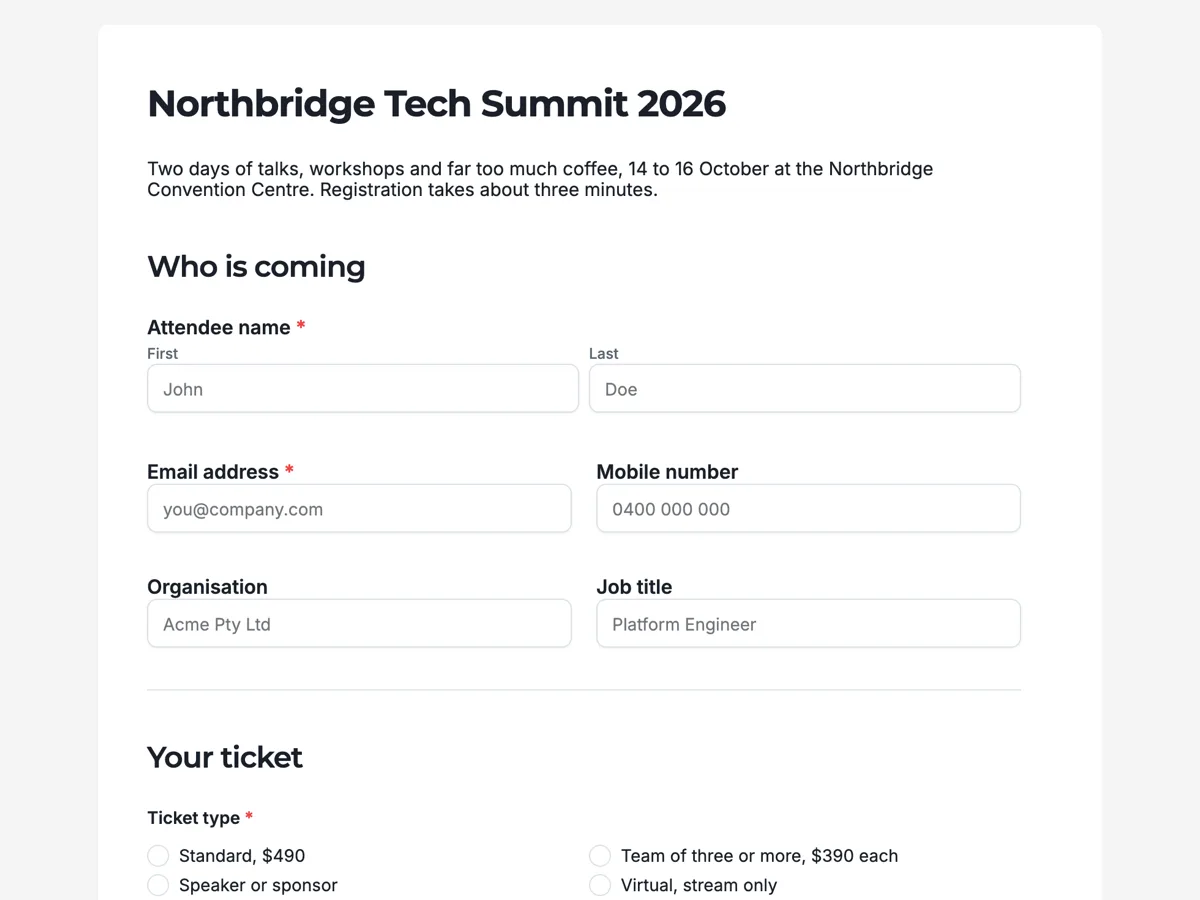
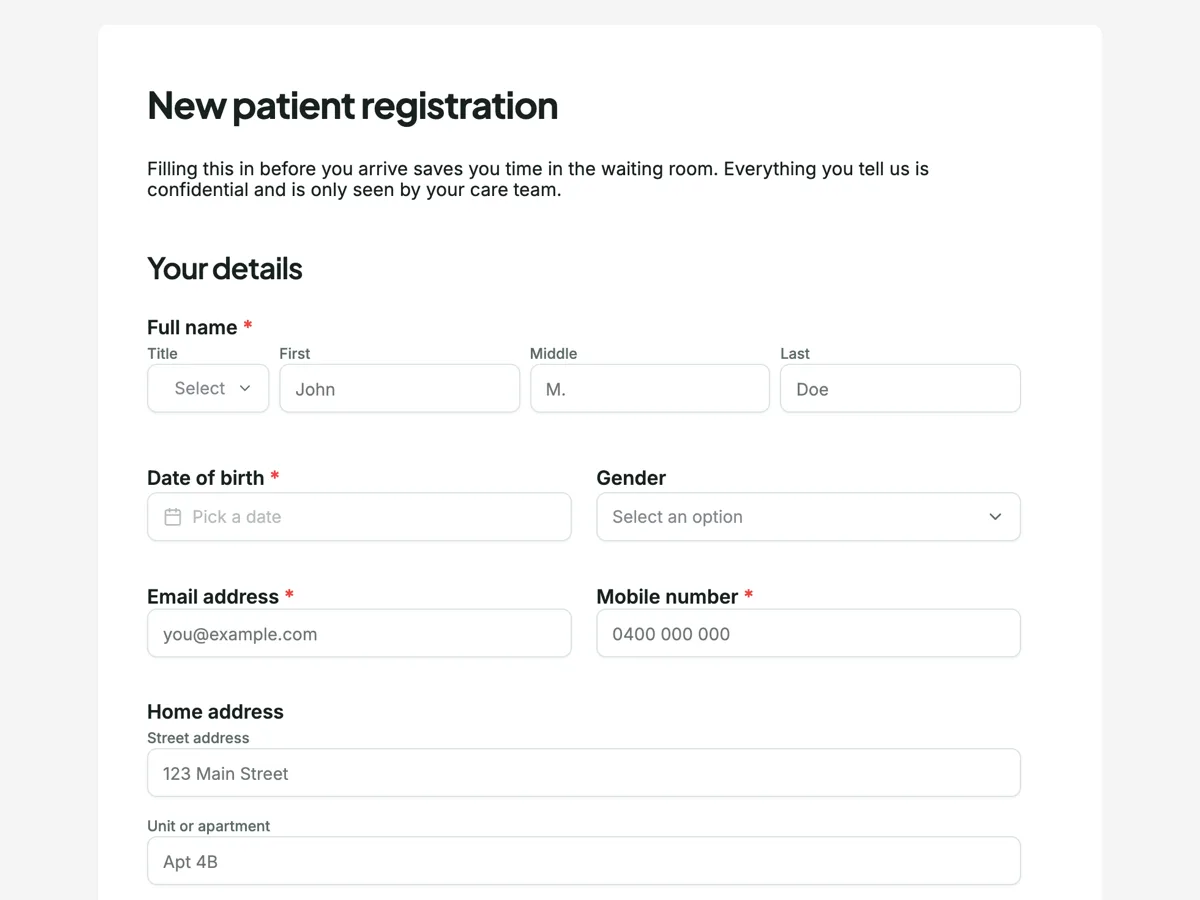
See it on a finished piece
Questions people ask
How long does it take to generate a form?
It runs as a background job with a five minute ceiling, and the builder opens with the form when it lands. A long prompt, an attached file or a request for many sections takes longer than a one line contact form. A prompt that asks for several forms at once is the usual reason a job runs out of time, so ask for one form per prompt.
Can I change the fields it picked?
Yes, all of them. Every field can be renamed, retyped, reordered, made optional or deleted, and you can add any of the 41 field types by hand from the builder. Most people change two or three fields at most, usually a label that needs their own wording or a dropdown whose options need replacing with real ones.
Does the generated form collect responses straight away?
Only once you publish it. Until then it is a draft that only you can see and edit. Publishing gives you a link and writes a version, and responses land in a table you can read, filter and export. Later edits stay in the draft until you publish again, so the shared link keeps working meanwhile.
What if the form it makes is wrong?
Edit it rather than regenerating. The field list is where errors show up, and fixing two labels or one field type is faster than describing the whole form again and hoping the second run lands closer. If the structure is wrong, such as sections in the wrong order, drag them into place in the builder instead of starting over.
How long should a form prompt be?
As long as the form is complicated. A contact form needs two lines, such as a contact form for a plumber asking name, phone, suburb and the job. An application form deserves a paragraph per section that names every field and lists every dropdown choice. The box takes 10,000 characters, and detail you leave out is detail the generator guesses.
Does the wording of a question carry through to the form?
Mostly. The generator rewrites labels into clear, specific questions and matches the tone you describe, so a rough note may come back reworded. Options you list are used as given, so spell them exactly as respondents should read them. If a label must be word for word, such as a legal declaration, check it after generation and paste it back in.
Make your own form
The button opens the generator with this use case already described. Change the wording to match yours, generate, then edit anything you like.
Create a form with OneCraftRelated pages
Turn a list of questions into a form
To turn a list of questions into a form, paste the list into the form generator's prompt box and say what the form is for. Each question comes back as a field with a type, options where you listed them, and a required flag, ready to publish on a link.
Types of form fields
There are 41 component types in total, 36 available in the classic builder and 25 in the conversational one. This is the reference: what each group is for, and which fields only exist on one side.
Design the PDF version of a form
A form on screen and the same form on paper want different things. The PDF layout is a second arrangement of the same fields, with its own order, its own header and footer, and the ability to hide anything that only matters online.
More finished work of this kind is on the form examples hub.
Written and checked by the OneCraft team. Last checked .