Forms
Design the PDF version of a form
A form on screen and the same form on paper want different things. The PDF layout is a second arrangement of the same fields, with its own order, its own header and footer, and the ability to hide anything that only matters online.
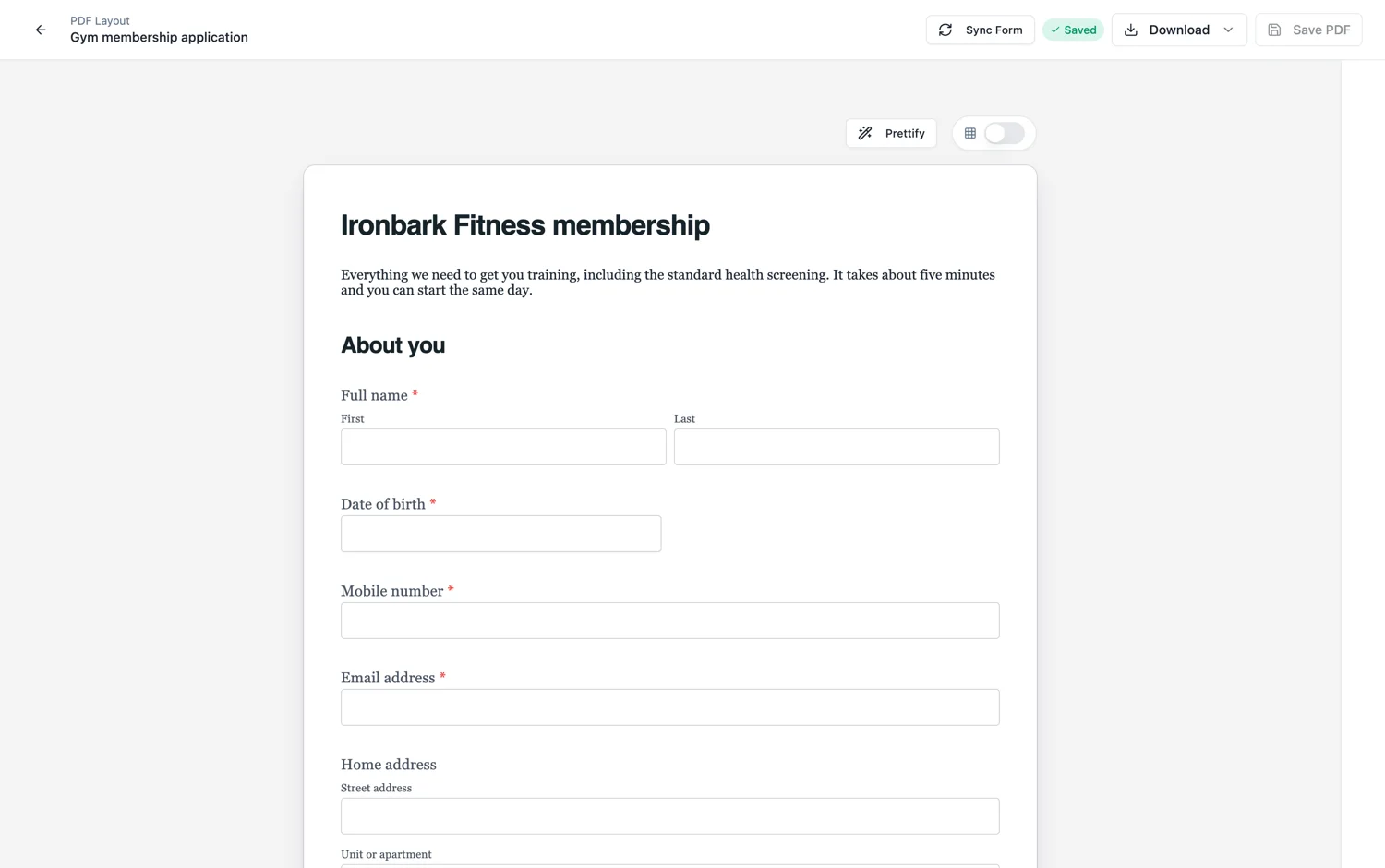
Seeded once, then yours
The first time you open the PDF layout it is seeded from the form as it stands. After that it is a separate arrangement. Reordering a field there does not move it on the form, and hiding one there does not remove it from the form. That separation is the whole point.
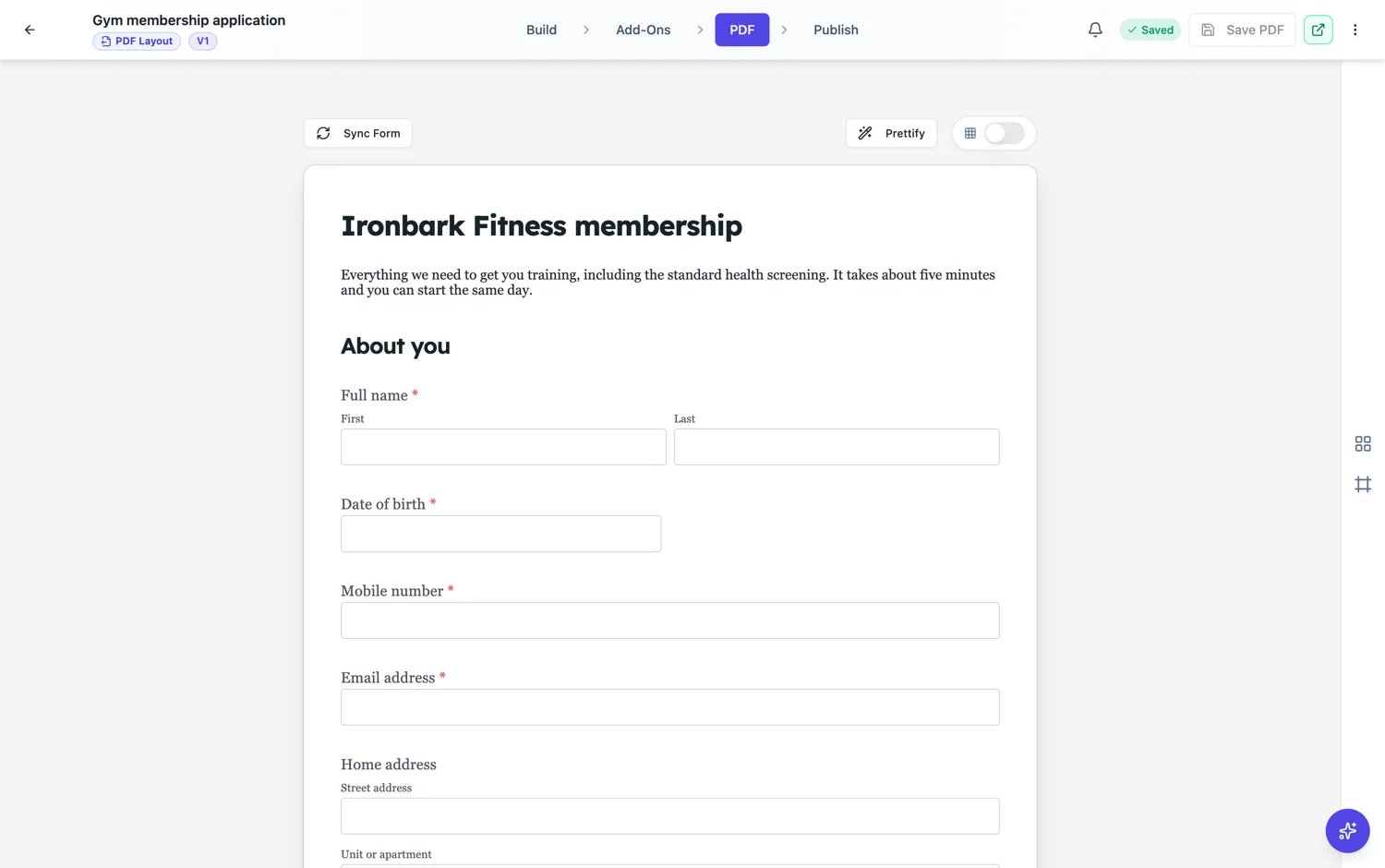
Hiding fields
The hide flag exists only in the PDF layout and is ignored on the main canvas. Use it for anything the respondent needs to see but the document does not: consent explanations, help text that only makes sense on a screen, internal reference fields, and the fields that exist to route a submission rather than to record anything.
Header and footer
The PDF header carries a logo and a company name, in a horizontal or vertical arrangement, on every page or only the first, with an optional rule underneath. The footer carries free text and a page number, on every page or only the last. Together they turn a form printout into something that looks like it came from an organisation.
Sync from form
When you add or remove fields on the form afterwards, the PDF layout does not follow automatically. There is a sync action that re-applies additions and deletions while keeping your manual reordering and hiding. Run it after any structural change, otherwise a new field will be missing from every PDF you generate.
The PDF layout is versioned with the form
There are two copies: a draft on the form, and the published one stored with the version. The editor loads the draft first and falls back to the published layout when there is no draft, which is what makes it safe to rearrange the printed form while people are still filling in the live one. Publishing writes the layout alongside everything else, so a version carries its own paper design rather than borrowing the current one.
Hidden on paper, kept online
Some fields only make sense on a screen: a file upload, a voice recording, a video answer, a signature pad. Hide those on the PDF and keep them on the form. The response still records them and the responses table still links to them; the printed page just stops carrying a box that could never hold the thing.
How it works, in three steps
Step 1
Open the PDF layout
It seeds from the form the first time and becomes independent after that.
Step 2
Reorder and hide
Put the document in the order a reader expects and hide anything that only makes sense on screen.
Step 3
Sync after structural changes
Adding a field to the form does not add it to the PDF. Run the sync action, which keeps your manual edits.
The full walkthrough with screenshots is in the guide Shape the PDF version of your form.
Limits worth knowing
- The hide flag applies only to the PDF layout and is ignored on the form canvas.
- New fields do not appear in the PDF layout until you sync.
- The PDF layout is for classic forms.
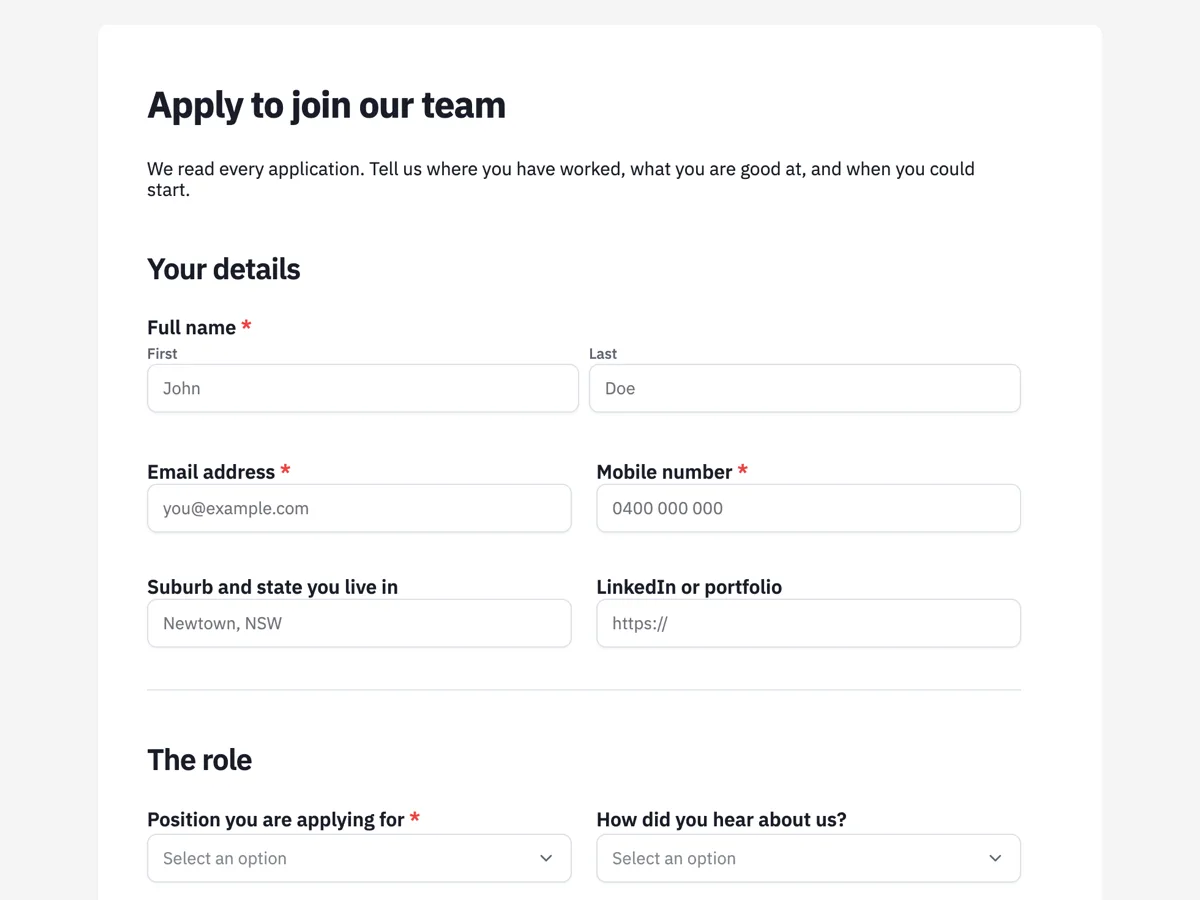
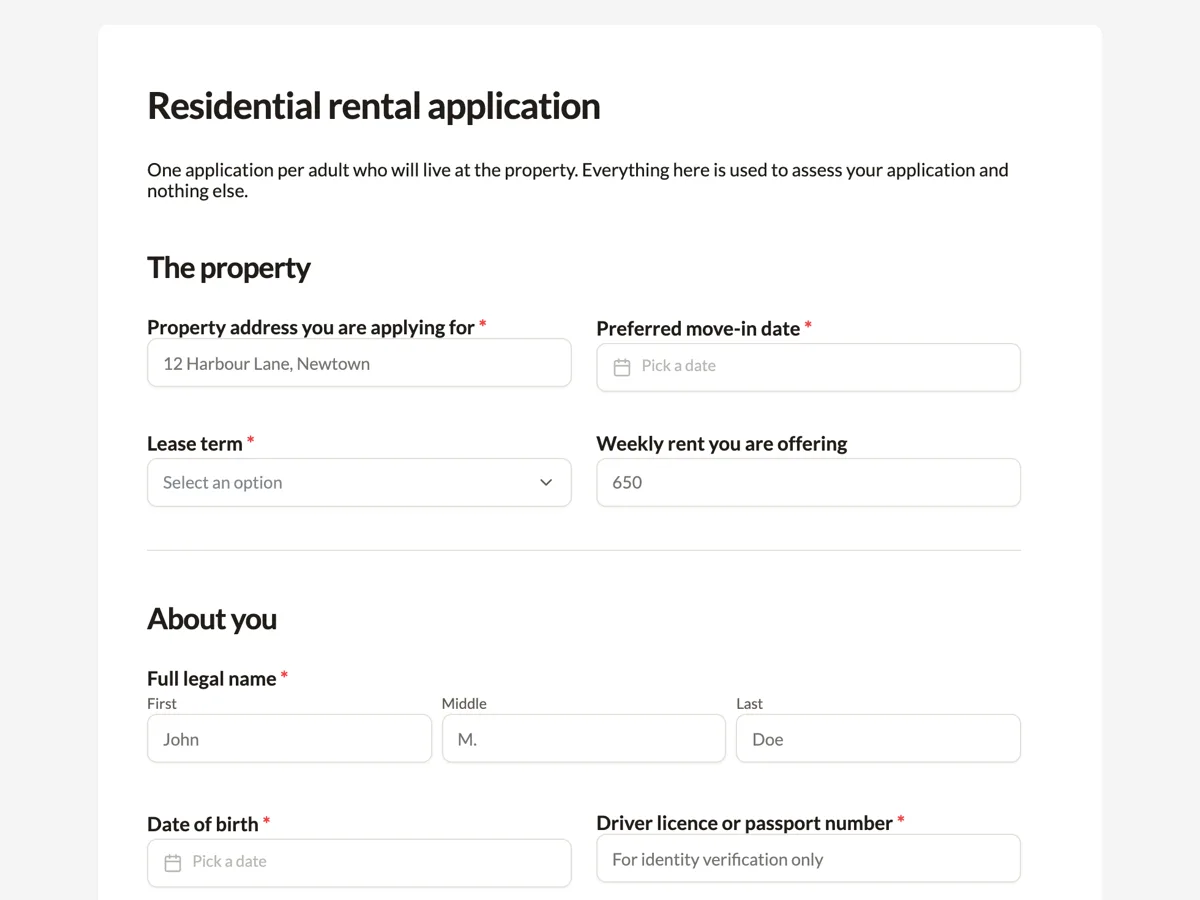
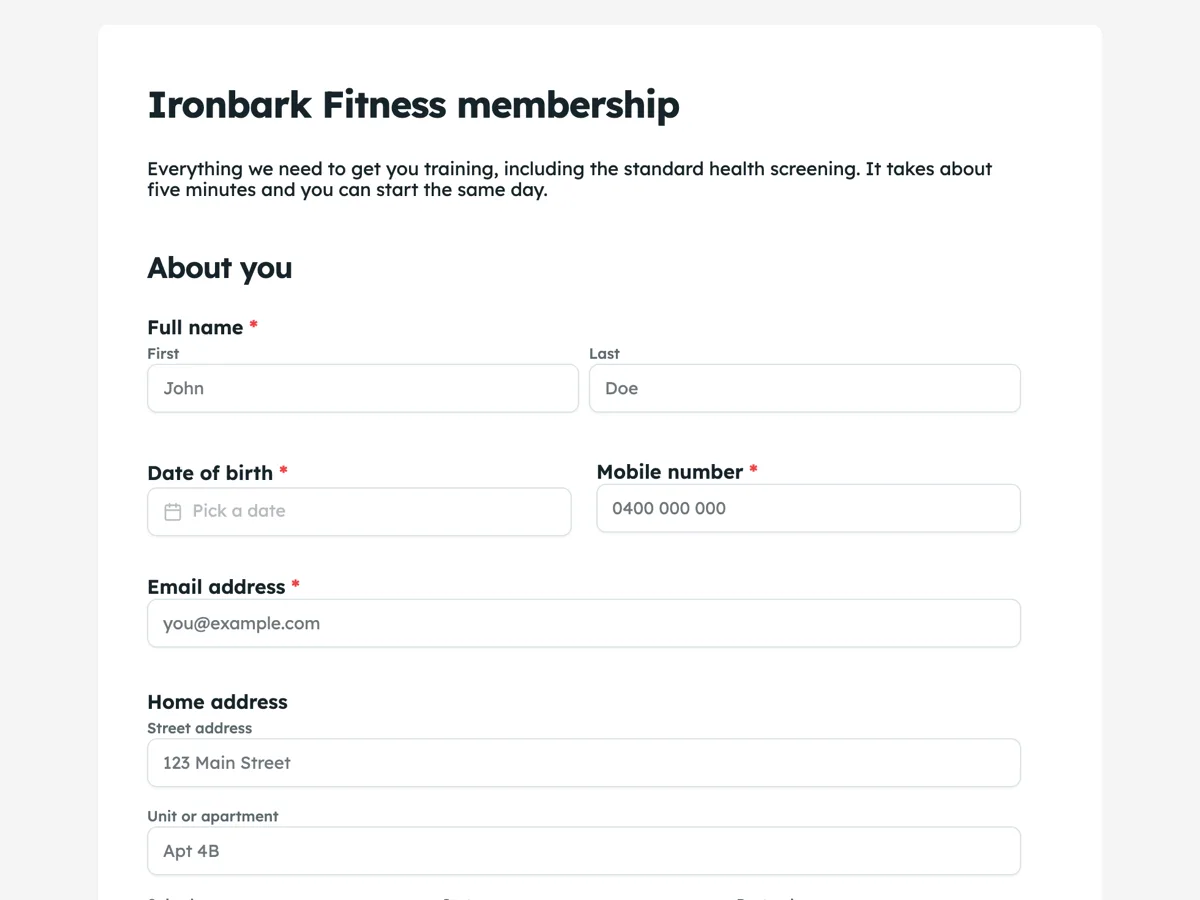
See it on a finished piece
Questions people ask
Does reordering the PDF change my form?
No. Once the PDF layout has been seeded from the form it is an independent document, so moving a block on paper leaves the on screen order exactly as it was. That independence is why a new field does not appear on the PDF by itself either.
I added a field and it is missing from the PDF. Why?
Because the PDF layout does not follow structural changes on its own. Use the sync action: it adds fields that are new and removes ones that are gone, while keeping the positions you set for everything else. Run it after any round of field changes and before you publish.
Can I have a letterhead on the PDF but not on screen?
Yes. The PDF header and footer are separate from the on screen branding, so a plain form can print onto a fully branded page. That is the usual arrangement: respondents see something clean and quick, and the record that goes into a file carries your name, address and reference lines.
Can the PDF use a different order from the screen?
Yes, and that is the point of a separate layout. A form asks questions in the order that keeps somebody typing; a printed record wants them grouped the way a person reading the file expects. Reordering the PDF does not touch the form, because the two layouts are independent once the PDF one has been seeded.
Can I have two PDF layouts?
One per form version. If you need two different printed outputs from the same questions, that is two forms, or one form and a second layout you switch to before publishing. Keeping it to one is what lets a response be rendered the same way every time it is printed.
Make your own form
The button opens the generator with this use case already described. Change the wording to match yours, generate, then edit anything you like.
Create a form with OneCraftRelated pages
Auto arrange form fields
A form that has been edited by hand for an hour drifts. Fields sit two pixels out, gaps vary, and the whole thing looks slightly wrong without any single thing being wrong. Prettify re-spaces it in one action.
Form version history
Publishing does not overwrite. Each publish writes a version holding the whole form as it stood, including its access settings, and one of those versions is marked current. Rolling back means making a different one current.
Types of form fields
There are 41 component types in total, 36 available in the classic builder and 25 in the conversational one. This is the reference: what each group is for, and which fields only exist on one side.
More finished work of this kind is on the form examples hub.
Written and checked by the OneCraft team. Last checked .