Forms
Form version history
Publishing does not overwrite. Each publish writes a version holding the whole form as it stood, including its access settings, and one of those versions is marked current. Rolling back means making a different one current.
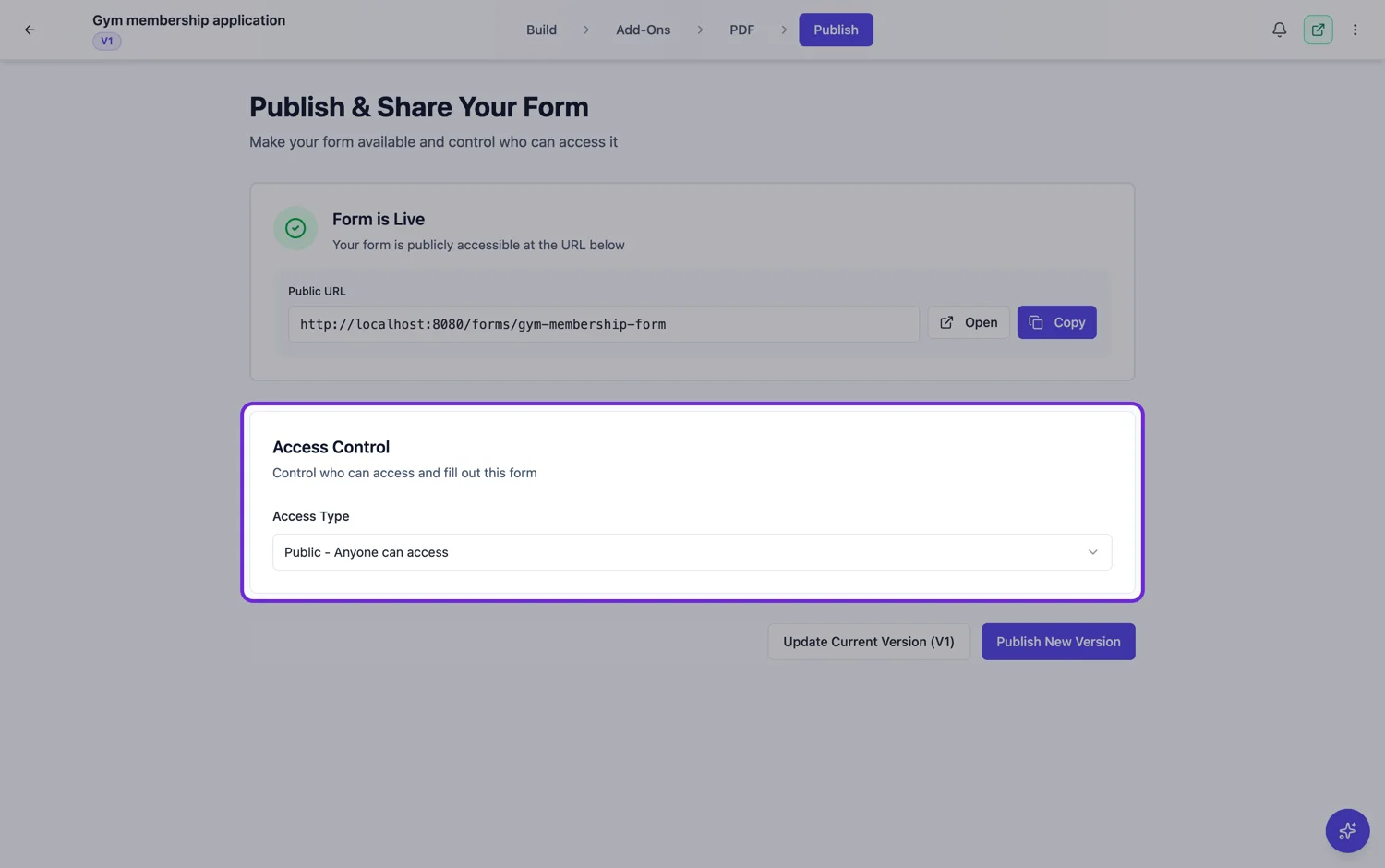
What a version holds
A complete snapshot: the fields, the layout, the theme, the PDF layout, and its own copy of the access settings. That last part is the one people miss. A version published while the form was public stays public even if the draft is now key protected, which is exactly why an access change needs a publish to take effect.
Every version has its own URL
Alongside the normal form link there is a per-version link. That is useful for two things: showing somebody what the form looked like when they filled it in, and testing a version before making it current. The version identifier stays stable once written, so a link you shared keeps pointing at the same snapshot.
What rollback does to responses
Nothing. Responses are not attached to the version machinery, so rolling back changes what new respondents see and leaves everything you have already collected untouched. If you removed a field two versions ago, the answers to it from before that are still in your data.
When to publish a new version rather than update
Updating the current version in place is right for a typo or a clearer help text. Publishing a new version is right whenever the change would make old and new responses mean different things: adding a required field, changing what an option means, or restructuring a section. The version boundary is what lets you explain a change in the data later.
Access settings travel with the version
Publishing writes the whole form into a version, and that includes the access type, the secret key, the allowed emails and the allowed domains. So a version is not only a set of questions: it is the questions plus who was allowed to answer them. Roll back to an older version and you roll back its access rules too, which is the one thing people are surprised by.
Rollback and responses
Every response keeps the id of the version it was submitted against, so rolling back does not rewrite history. An answer collected under version four is still read against version four, with the labels and options that existed then. Rolling back changes what the next person sees, and nothing about what the last person said.
Publishing is what writes a version
Nothing is versioned until you publish. Editing writes the draft, and the draft has no history of its own, so a day of edits produces one version when you publish at the end of it rather than a trail you can walk back through. If a particular state matters, publish it: that is the only way it becomes something you can return to.
How it works, in three steps
Step 1
Open the version list
Each entry is a published snapshot with its date.
Step 2
Preview before you switch
Open the version by its own URL and read it, rather than rolling back and checking afterwards.
Step 3
Make it current
The live link serves the current version from that point on. Responses already collected are untouched.
The full walkthrough with screenshots is in the guide Publish updates without breaking your live link.
Limits worth knowing
- Versions cover published snapshots. The unpublished draft is one working copy, not a history.
- Rolling back does not change or delete any response.
- Access settings are part of the version, so rolling back also rolls back who can open the form.
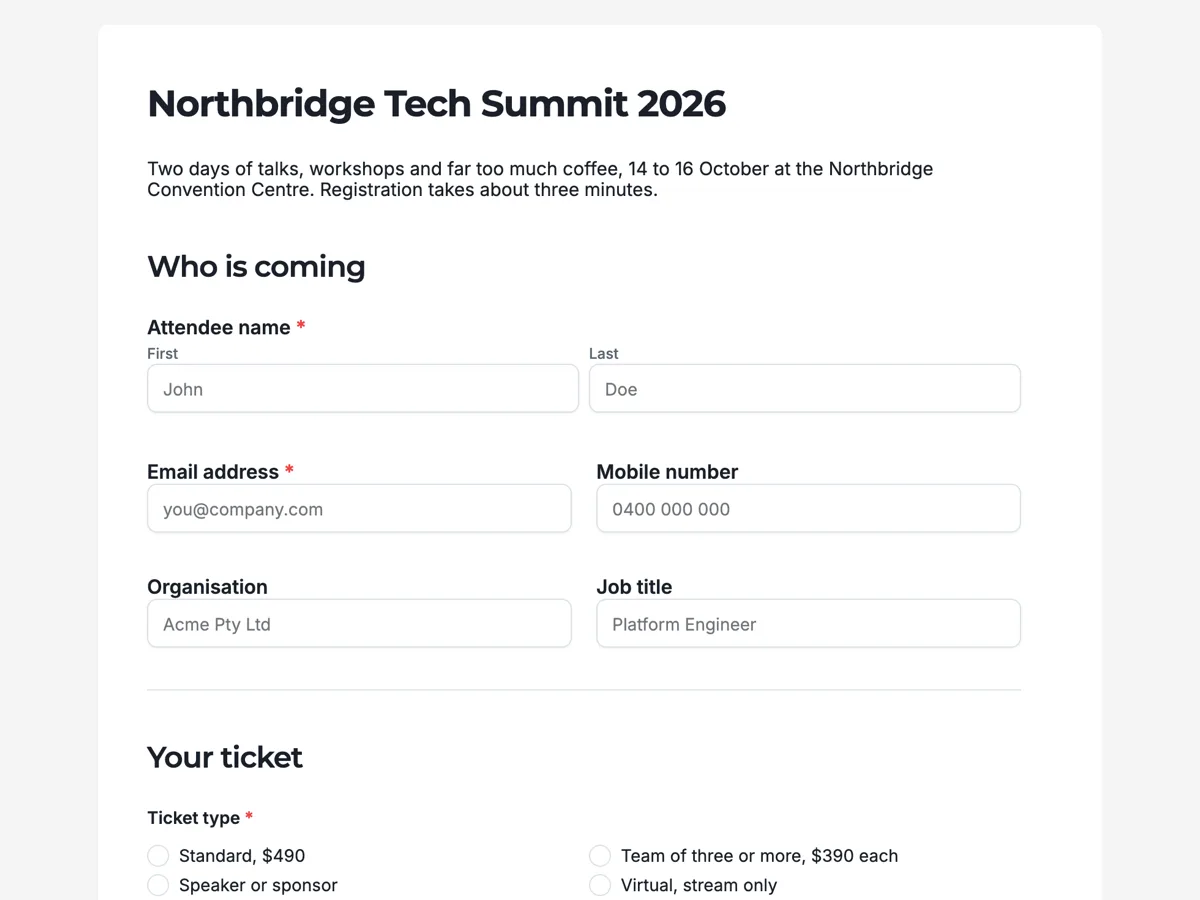
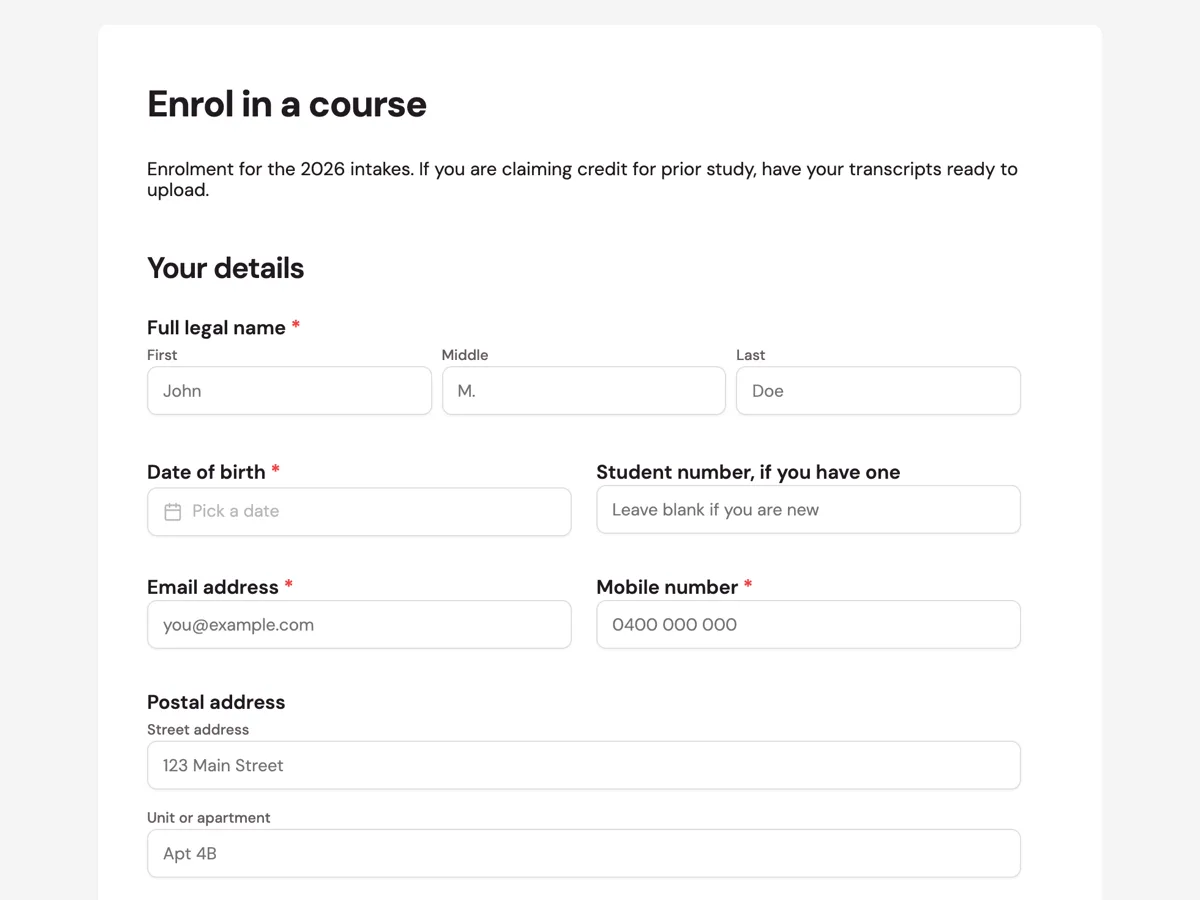
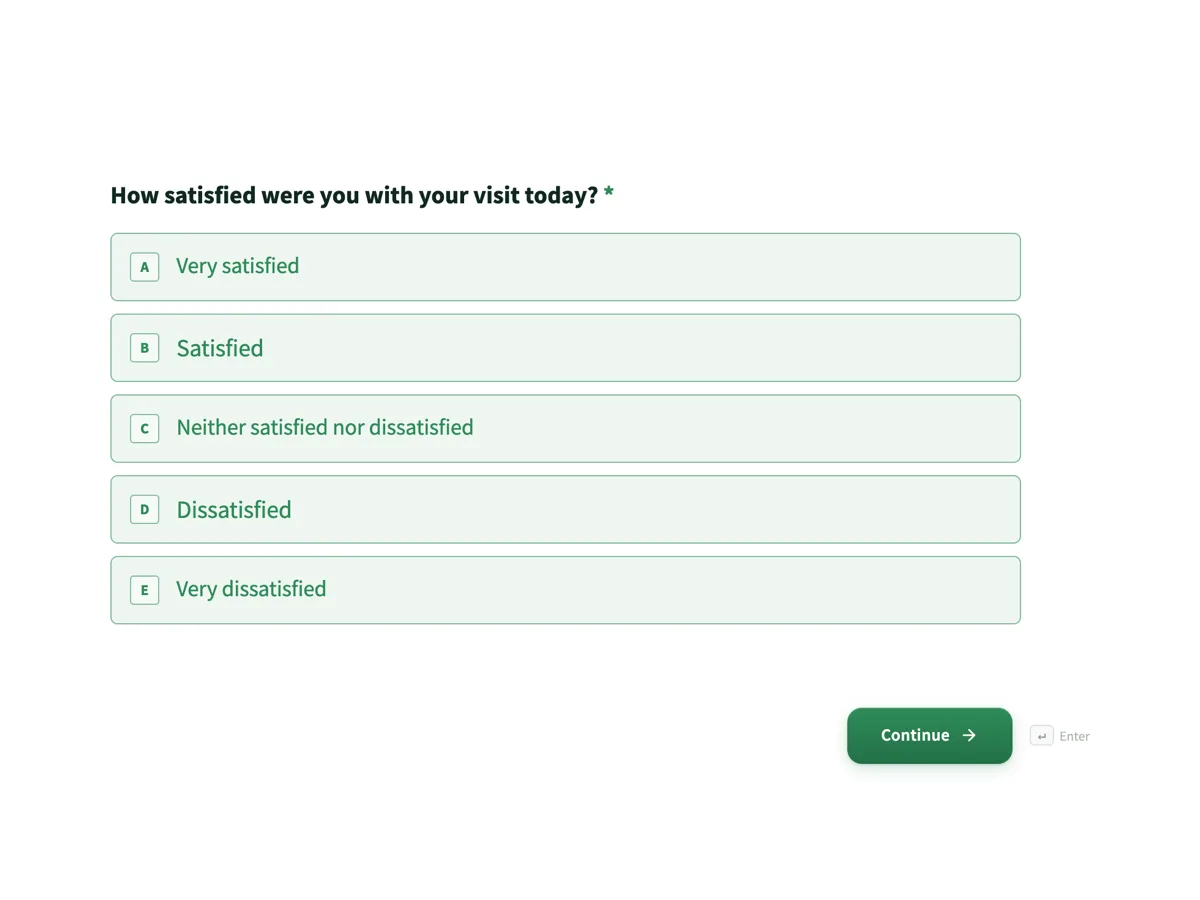
See it on a finished piece
Questions people ask
Do I lose responses if I roll back?
No. Responses are stored independently and each one remembers the version it was submitted against, so rolling back only changes what new respondents see. Your existing answers keep the labels and options they were collected with, which is what makes an export from a form that has changed still readable.
Does rolling back change who can open the form?
Yes, because each version carries its own access settings. Roll back to a version that was public and the form becomes public again, key and all. Check the access type of the version you are rolling back to before you publish it, not after.
Can I show somebody the version they filled in?
Yes. Every version has its own URL and the identifier stays stable once written, so you can send somebody the exact form they answered. That matters when a question changed wording between versions and somebody is querying what they were actually asked.
How many versions are kept?
Each publish writes a version and the earlier ones stay, so the history grows as you publish rather than rolling off after a fixed number. In practice the useful ones are the current version and whichever version your open responses were collected under.
Can I delete a version?
Deleting a version would orphan the responses that point at it and break the per version URL, so the answer to a version you no longer want is to publish a newer one rather than to remove the old. The history is a record, and a record you can edit is worth less.
Make your own form
The button opens the generator with this use case already described. Change the wording to match yours, generate, then edit anything you like.
Create a form with OneCraftRelated pages
Update a live form without breaking its link
Once a link is out in the world you cannot take it back, which makes editing a live form feel risky. It is not: saving only writes the draft, and the link keeps serving the last published version until you deliberately publish again.
Website contact form: every enquiry in one inbox
A website contact form turns a visitor question into a message you can answer, without publishing your email address for spammers to collect. What matters is that every message reaches you, bots do not, and you can see at a glance which ones still need a reply.
Forms that collect video answers
A recording field set to video asks someone to answer on camera. For screening candidates, collecting testimonials or checking a physical thing, it replaces a scheduling thread with a two minute recording.
More finished work of this kind is on the form examples hub.
Written and checked by the OneCraft team. Last checked .