Forms
Update a live form without breaking its link
Once a link is out in the world you cannot take it back, which makes editing a live form feel risky. It is not: saving only writes the draft, and the link keeps serving the last published version until you deliberately publish again.
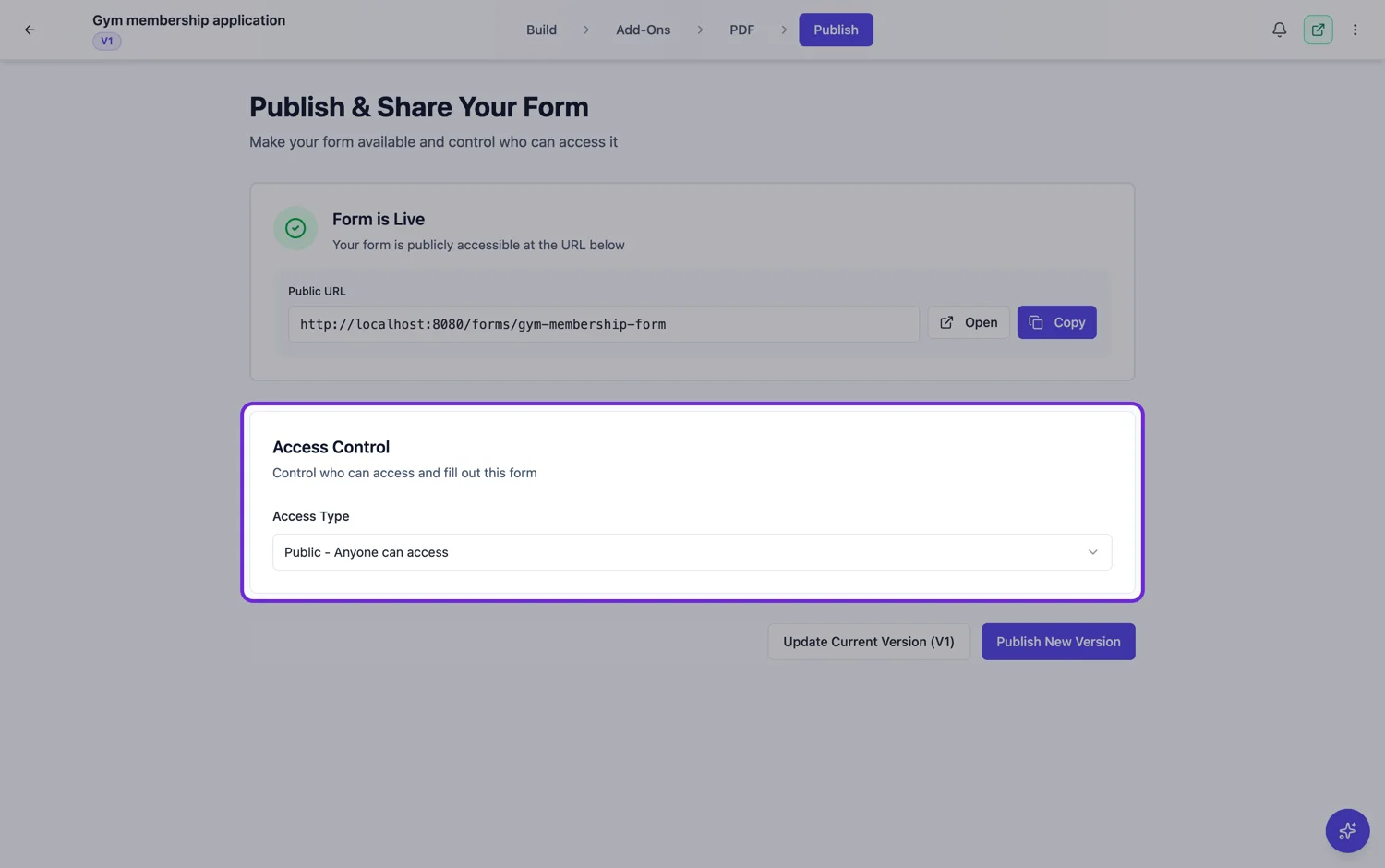
Two copies, one link
The form you edit is the draft. The form the link serves is the published version. They are separate records, and saving in the builder only writes the draft. That is why you can rewrite half a form during a campaign without anybody seeing a broken state, and it is why an edit you made yesterday might not be live yet.
Update in place, or publish a new version
Publishing offers two paths. Updating the current version in place changes what the link serves and keeps one version number. Publishing a new version leaves the old snapshot intact and makes the new one current. Neither changes the link itself, so the choice is only about how much history you want to keep.
Which one to pick
Update in place for anything that does not change what a response means: fixing a typo, clearing up a help text, swapping the theme. Publish a new version whenever old and new responses would answer different questions, which covers adding a required field, changing what an option means, or restructuring a section. That way the version number in your data explains the difference later.
The part people forget
Access settings are published with the version. So if you change a form from public to key protected and only save, the live link is still public. Any change to who can open a form needs a publish before it takes effect.
What updating in place cannot fix
Updating in place replaces what the live link serves without writing a new version. That is right for a typo and wrong for a change of meaning, because the responses you already have were answered against the old wording and nothing records that the question moved underneath them. Removing a field is the clearest case: the old answers stay in the export under a question the form no longer asks.
The access type is versioned too
Access settings live with the published version, so changing the access type in the builder does nothing to the live link until you publish. That catches people out in both directions: a form you thought you had locked is still open, or a key you changed is still the old one. If access changed, publish.
The link is the stable thing
Both routes keep the same URL, which is the reason to use either. A form printed on a poster, a link in an email signature or a QR code on a receipt keeps working across every change you make, because the address points at the form rather than at a version of it. That is worth protecting: once a link is out in the world you cannot recall it.
How it works, in three steps
Step 1
Edit freely
Saving writes the draft. The live link is untouched however much you change.
Step 2
Choose in place or new version
In place for wording and design. A new version whenever the meaning of a response would change.
Step 3
Publish, and check the access type
Access settings travel with the version, so confirm the published version has the access you meant.
The full walkthrough with screenshots is in the guide Publish updates without breaking your live link.
Limits worth knowing
- Saving does not make anything live. Publishing does.
- Access settings are part of the published version, so an access change needs a publish.
- The draft is a single working copy, not a history. Only published versions are kept.
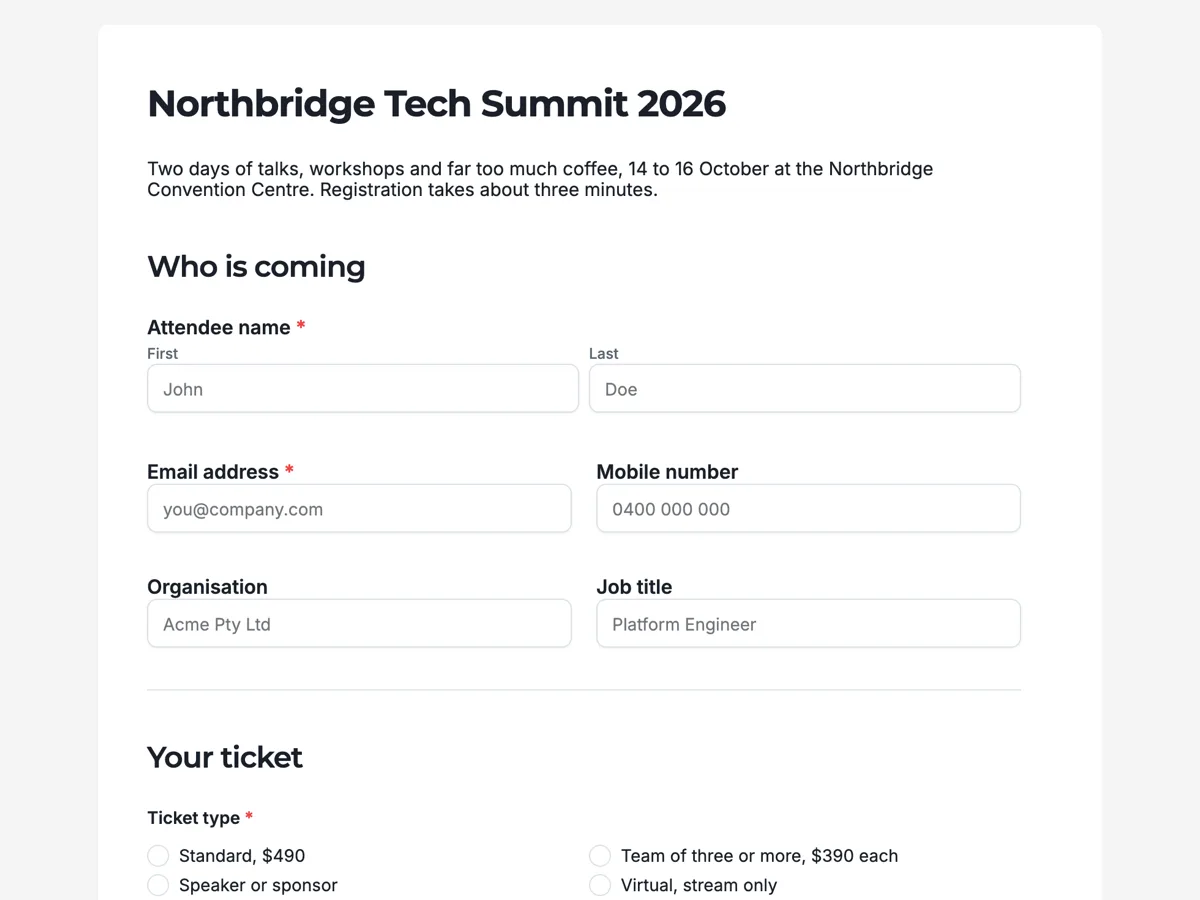
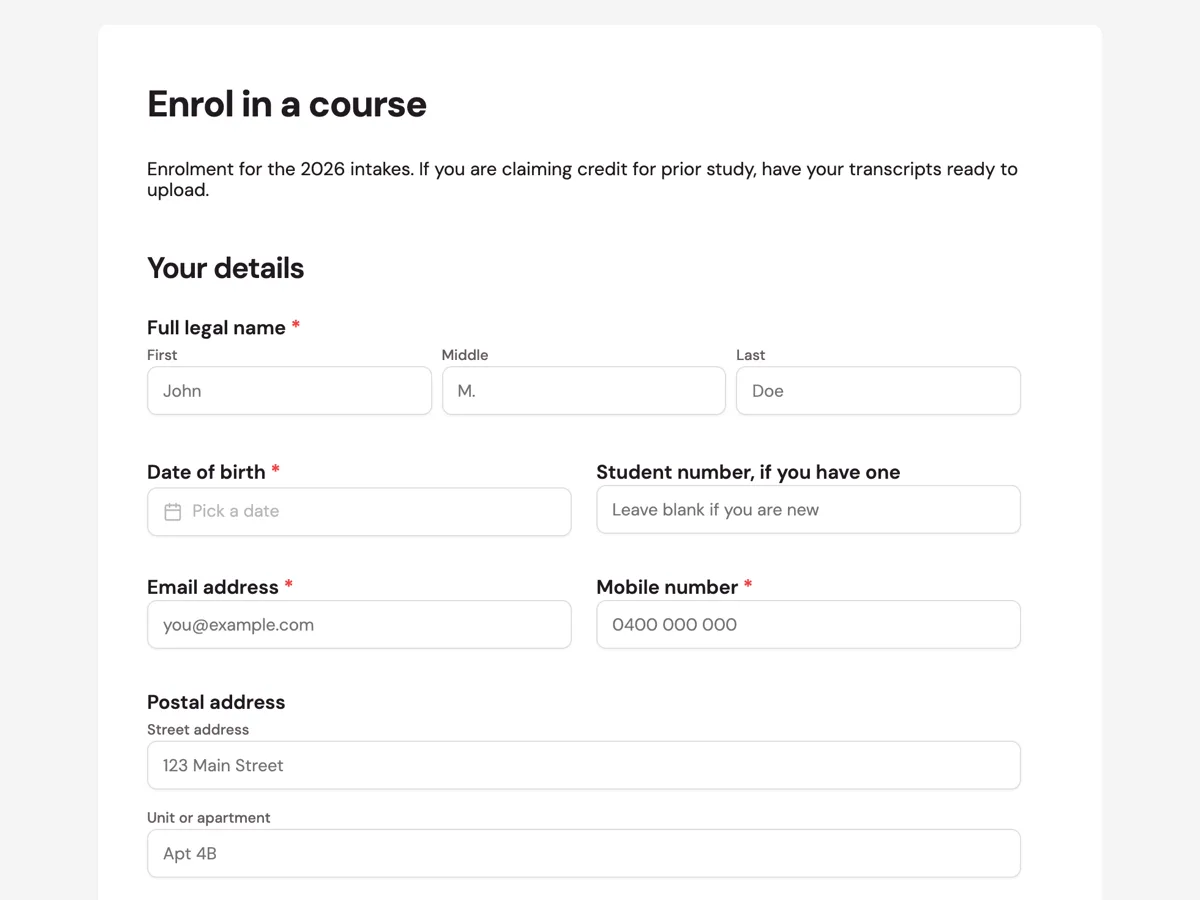
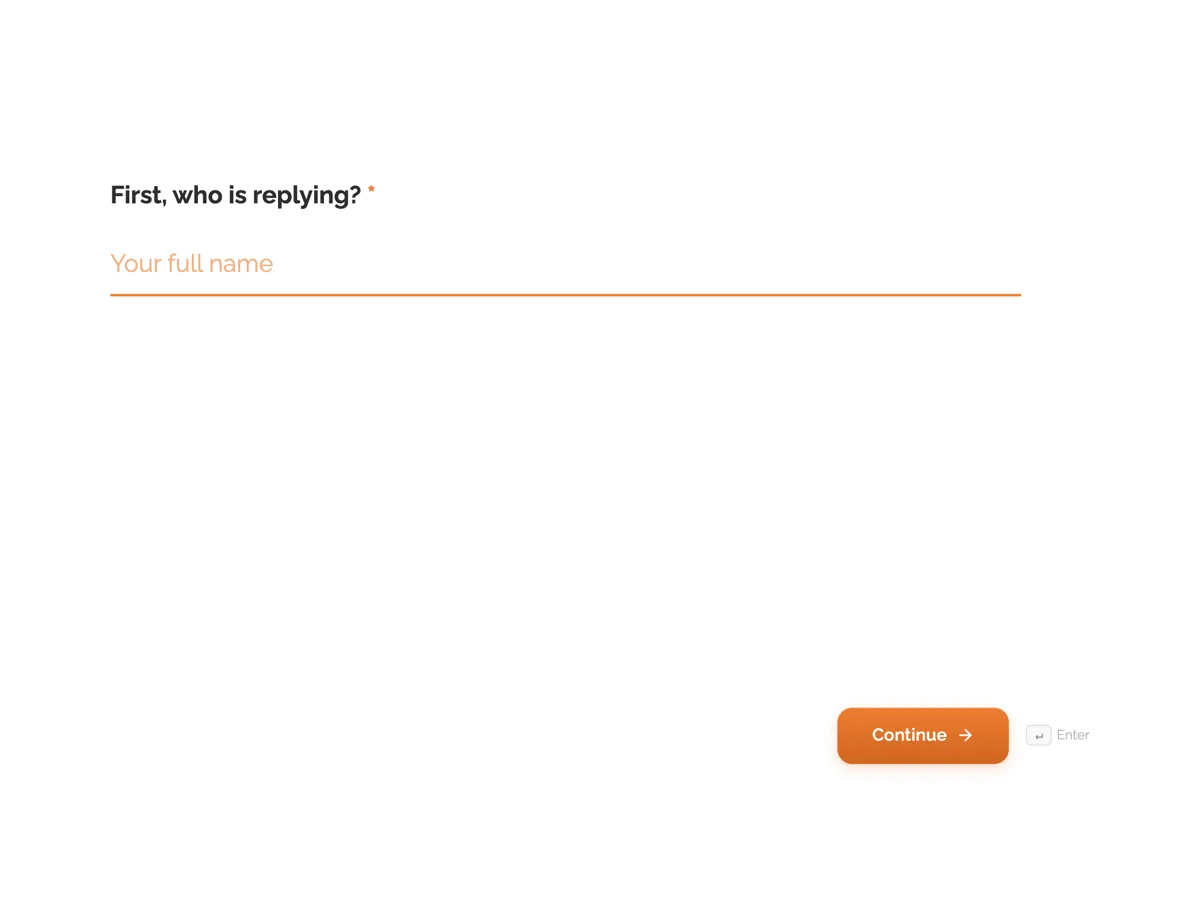
See it on a finished piece
Questions people ask
Will editing a live form break the link I already sent?
No. The link serves the published version and editing writes only the draft, so a form you are halfway through rewriting is not the form your respondents are seeing. The link itself never changes, whether you update in place or publish a new version.
When should I publish a new version instead of updating?
Whenever a response collected before the change would mean something different afterwards. Rewording a question, changing the options on a choice field, or removing a field are all cases where the old answers need the old form to be readable. Fixing a typo is not.
I changed the access type and nothing happened. Why?
Because access settings are stored with the published version, not with the draft. Publish the form and the live link picks up the new access type, the new key or the new allowed list. Until you do, the old rules are still the ones running.
Can I schedule a publish?
No. Publishing happens when you press it, so a change that has to go live at a particular time is a change you make at that time. For anything time sensitive, the reliable pattern is to prepare the draft in advance and publish it when the moment comes.
Can I preview the draft on the real link?
The live link serves the published version, which is the whole point of the split, so the draft is previewed in the builder rather than on the public URL. Look at it there, publish when it is right, and the same link starts serving it without the address changing.
Make your own form
The button opens the generator with this use case already described. Change the wording to match yours, generate, then edit anything you like.
Create a form with OneCraftRelated pages
Form version history
Publishing does not overwrite. Each publish writes a version holding the whole form as it stood, including its access settings, and one of those versions is marked current. Rolling back means making a different one current.
Website version history: three layers of going back
Website version history lets you put an earlier state of the site back online after a change goes wrong. It helps to know which layer you need: undo for the edit you just made, a restore for a publish you regret, or a code commit for a site written in code.
Forms only your people can open
Login required is the access type for when it matters who answered. A respondent has to be signed in, and you can limit that to a list of addresses or to everybody on a domain.
More finished work of this kind is on the form examples hub.
Written and checked by the OneCraft team. Last checked .