Websites
Website version history: three layers of going back
Website version history lets you put an earlier state of the site back online after a change goes wrong. It helps to know which layer you need: undo for the edit you just made, a restore for a publish you regret, or a code commit for a site written in code.
Undo for what you just did
In the builder, Undo and Redo in the header step through your edits to the draft: text, sections, pages and theme. A chat turn counts as one step. Undo covers the session you are in; it does not reach back to last week. The draft saves itself a second after each change, so there is no save button to forget.
Restore for a publish you regret
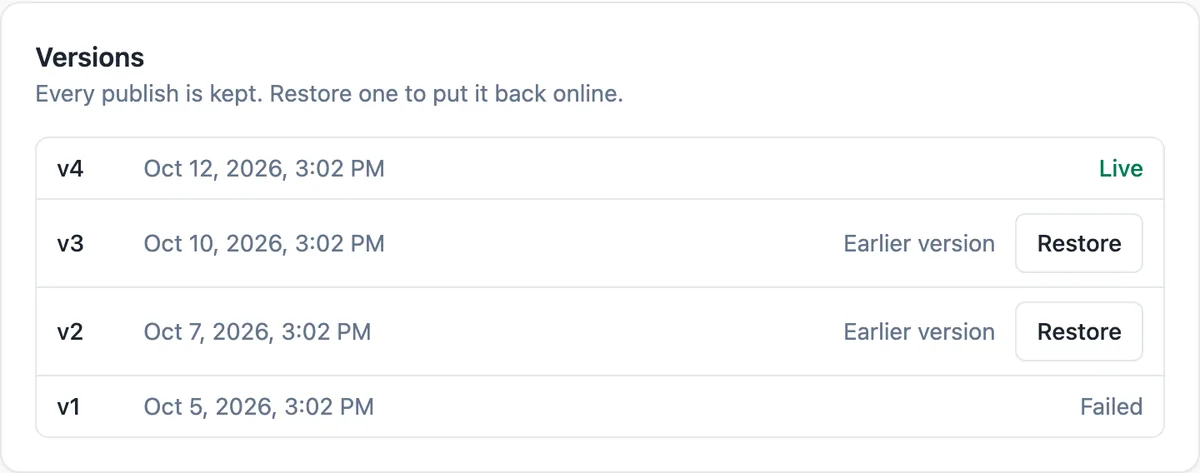
Every publish creates a numbered version. The Versions card in site settings lists the newest 50 with their dates, marks the live one, and shows Restore beside earlier versions whose files are still kept. Restore points the live site back at that version straight away, without changing your draft, so you can fix the draft calmly and publish again.
How long earlier versions last
When a new publish replaces a version, the old one is marked earlier. Its files are kept for 7 days after that, then deleted to save space; the row stays in the list as a record, but it can no longer be restored. In practice that means you can always restore the few publishes of the last week, which is when most mistakes are noticed.
Code mode keeps every commit
A site in Code mode is a git repository. Every AI change is a commit with a message, and the Versions panel lists the newest commits. Preview pins the builder preview to an older commit, and Restore commits that version files again as a new commit and builds it, so nothing is lost. Publishing can then put any green build live.
A habit that saves trouble
Publish in small steps rather than after a week of changes. A small publish is easy to check and easy to restore. Before a big change, such as a new theme or removing pages, publish the current state first so the last good version is the one just before the change.
How it works, in three steps
Step 1
Open Versions
In site settings, scroll to the Versions card to see every publish with its date.
Step 2
Restore
Press Restore beside the version you want; the live site switches back to it.
Step 3
Fix and publish
Correct the draft in the builder and publish again; the new publish becomes the next version.
Limits worth knowing
- The Versions card lists the newest 50 publishes.
- Earlier versions can be restored for 7 days after they are replaced; then their files are deleted.
- Restore changes the live site, not the draft in the builder.
- Builder undo covers the current editing session only.
Questions people ask
Does restoring a version change my draft?
No. Restore changes what visitors see, by pointing the live site at the earlier version files. Your draft in the builder stays as it was, including the changes you regretted, so you can fix them before publishing again. If you want the draft to match the old version, edit it back by hand.
Why can I not restore an older version?
Its files have been deleted. Versions replaced more than 7 days ago keep their row in the list but lose their files, and Restore only appears for versions whose files still exist. A failed publish never had files, so it cannot be restored either.
Is there a version history for the draft itself?
Not as a list of saved drafts. The builder has undo and redo for the session, and every publish is a version. If you want a checkpoint of the draft, publishing is the way to make one, or duplicate the important section before a large rewrite.
Can I see what changed between versions?
The Sections versions list shows the number, date and status, not a comparison. In Code mode each commit has a message describing the change, written by the AI for each chat turn, and you can preview any commit in the builder before restoring it.
Does a restore count as a publish?
Restoring points the site at an existing version and does not create a new numbered version. The next time you press Publish, a new version is created from your current draft. On the free plan, publishes are limited to 10 an hour across your sites.
What happens to the store when I restore?
Orders, stock and products live in the store tables, so a restore never changes them. The restored pages carry the catalogue as it was at that publish until the next product or stock change refreshes the live catalogue files, which happens within about half a minute of any catalogue edit.
Can I take the whole site offline instead?
Yes. Take offline in the danger zone of site settings unpublishes the site, so its address stops serving pages, while the draft and versions are kept. Publish again to bring it back. That is useful for a seasonal business or while you rebuild the site from scratch.
Make your own website
The button opens the generator with this use case already described. Change the wording to match yours, generate, then edit anything you like.
Create a website with OneCraftRelated pages
One page website maker: one scroll, one job
A one page website puts everything a visitor needs on a single scrolling page: what you offer, why to trust you, the details and one clear action. It suits a small offer, a launch or an event, and it falls short once people arrive looking for one specific thing among many.
AI website builder: describe the business, get the whole site
An AI website builder turns a short description of a business into a complete site: the pages, the sections on each page, the copy, a colour theme and photos. The good ones then give you a normal editor, so the AI writes the first draft and you decide what stays.
Form version history
Publishing does not overwrite. Each publish writes a version holding the whole form as it stood, including its access settings, and one of those versions is marked current. Rolling back means making a different one current.
More finished work of this kind is on the website examples hub.
Written and checked by the OneCraft team. Last checked .