Websites
Export website code: the whole project, one zip
Exporting website code means downloading the source files that produce the site, so you can read them, keep a copy or host the site somewhere else. It matters most as an exit route: knowing you can leave makes it easier to stay.
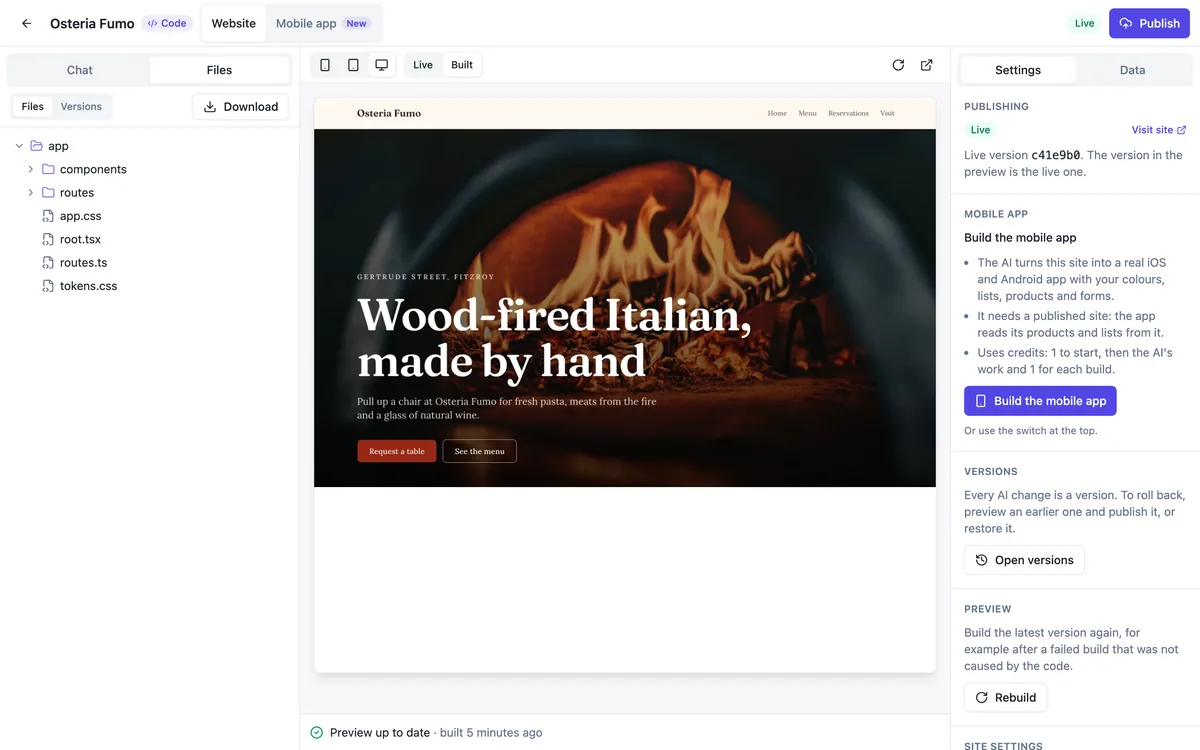
What the zip contains
Download builds a zip of every file in the project at its current version, inside a folder named after your site, without the git folder. That is the React Router app: routes, components, content files, styles and design tokens, the public folder with images and icons, and the project configuration. It downloads from a private link that lasts an hour.
Reading the code in the builder
Before downloading, the file tree lets you open any text file in a read only viewer with syntax highlighting; very large files show as plain text. The code follows the conventions the AI is held to: one component per file under app/components, logic in hooks, content arrays in a content folder, and names that say what they hold, which makes it readable for a developer.
Running it elsewhere
The project depends on the starter packages it was written against, React Router, Tailwind and shadcn/ui among them, listed in its package file, so a developer installs dependencies and runs the build to get static files. Data collections and store data are read from the OneCraft API; hosted elsewhere, those parts need replacing or keep calling that API while the site exists.
Section builder sites
A site made in the section builder is stored as a page description, not as code, so there is no code download for it. To get code, Eject to Code in site settings has the AI rebuild the site as a code project with the same pages, words, photos and colours; after that, the zip download is available. Ejecting is one way.
Version history comes too, in a way
The zip is one version. The full history lives in the builder, where every AI change is a commit you can preview or restore. Download a zip after each important change if you want your own archive of versions, and name the files by date so you can tell them apart later.
How it works, in three steps
Step 1
Open the Files tab
In the code builder, switch the left panel from Chat to Files.
Step 2
Press Download
A zip of the current version is prepared and downloaded through a link valid for an hour.
Step 3
Unzip and build
Install dependencies and run the build, or keep the zip as an archive.
Limits worth knowing
- Code export is for Code mode sites; Sections sites need Eject to Code first.
- The zip holds the current version only, without the git history.
- Downloads are limited to 5 a minute.
- Data collections and store data stay on the OneCraft API, not in the zip.
Questions people ask
Is the code mine?
The project is generated for your site and you can download, read and run it. Check the terms of use for the details, and note the open source packages it uses come with their own licences, listed in the package file, which allow commercial use in the usual way.
Can I import the code back after editing it?
No. There is no upload of your own code into a project; the builder only accepts changes made by the AI chat, which builds and checks each one. If you edit the zip, run it as your own project from then on, or describe your change to the AI instead.
Will the exported site work offline or without OneCraft?
The pages, styles and images build to static files that run on any static host. Parts that read data collections, the store catalogue or submit forms call the OneCraft API, so they work only while that site exists, or after a developer points them at another backend.
Can I export the mobile app code too?
Yes. The app builder for a Code mode site has its own zip download of the Expo project, with the app configuration filled in with your app name and bundle ID. The Sections app export is a separate Capacitor project download for store and menu sites.
Does exporting cost credits?
No. Downloading the zip is free, limited only to five requests a minute to stop runaway scripts. Credits are charged for AI work and builds, not for reading, browsing or downloading your files, so take a copy as often as you like, for example after every important change.
What does a developer need to know to take it over?
That it is a React Router project in framework mode with prerendered pages, styled with Tailwind and shadcn/ui components, built with Vite. The README from the starter explains the folders and scripts. Any developer familiar with React can read it, because the AI follows plain conventions rather than a custom framework.
Make your own website
The button opens the generator with this use case already described. Change the wording to match yours, generate, then edit anything you like.
Create a website with OneCraftRelated pages
AI website builder that writes code: a real project, edited by chat
An AI website builder that writes code produces the source files of a site, not a layout in a proprietary format. Here that means a React Router project with Tailwind and shadcn/ui, built and checked on every change, with a git history and a zip download.
Live preview while the AI builds your website
A live preview shows the site changing while the AI is still writing it, instead of a progress bar followed by a reveal. It is the fastest way to catch a misunderstanding early, before the AI spends the rest of the turn on the wrong idea.
AI mobile app builder: a real app project, written and edited by AI
An AI mobile app builder writes the code of a phone app from a description and lets you change it by chatting. The result here is a real Expo project, not a wrapped website, and the honest part is what comes after: you still build it with Expo tools and submit it to the stores yourself.
More finished work of this kind is on the website examples hub.
Written and checked by the OneCraft team. Last checked .