Websites
Live preview while the AI builds your website
A live preview shows the site changing while the AI is still writing it, instead of a progress bar followed by a reveal. It is the fastest way to catch a misunderstanding early, before the AI spends the rest of the turn on the wrong idea.
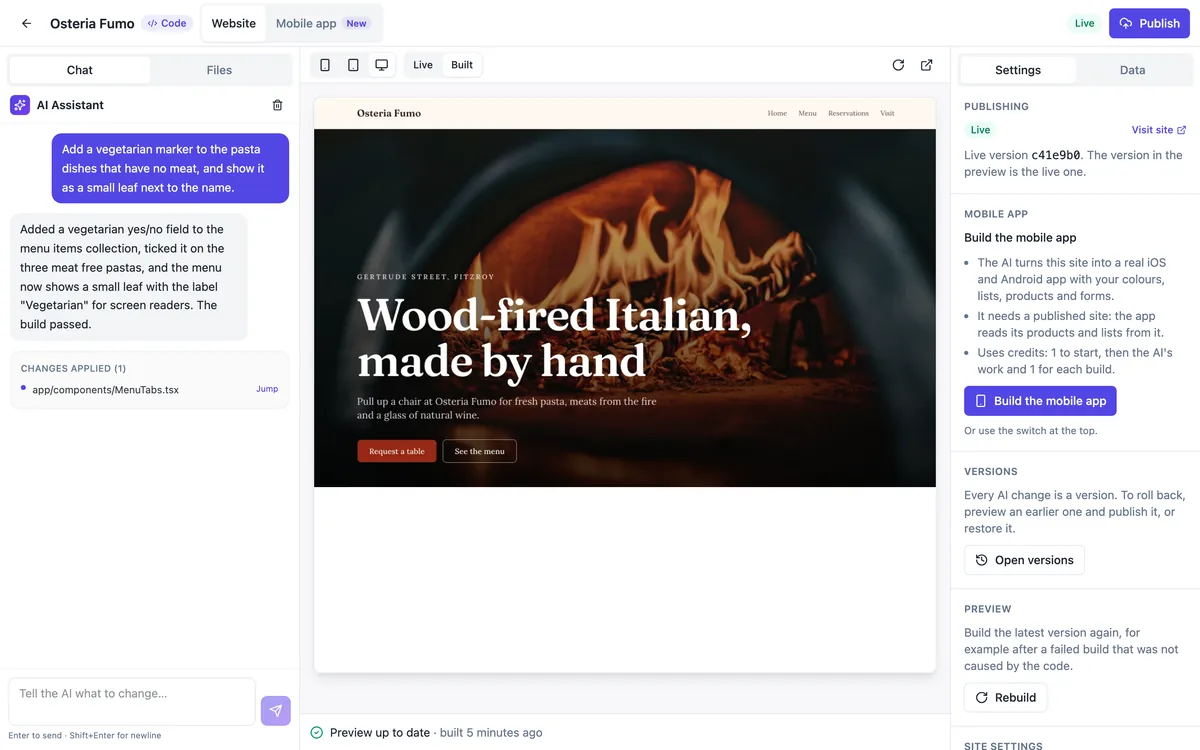
Live and Built
The preview header has two buttons. Live shows the site compiled in the browser from the files the AI is writing right now; it switches on by itself while a chat turn runs. Built shows the last green build, the same files that would be published. When the turn ends, the preview returns to Built unless you picked Live yourself.
How fast it updates
Each file the AI saves is streamed to the builder and applied to the live preview about a sixth of a second after the last change, in the order the AI wrote them. A missed update is caught up automatically, and if the connection drops the builder polls every few seconds instead, so the preview keeps pace on a patchy connection.
Reading the status line
Under the preview a single line tells you where things stand: updating while files arrive, the first compile error with its file and line if the live code does not compile, and built preview differs when the newest green build is not the latest version. After three failed renders in a row the preview falls back to Built with a notice.
Devices and versions
Switch the preview between phone, tablet and desktop widths at any time. Choosing an older version in the history pins the preview to that version and hides the Live and Built switch until you unpin it. Open in a new tab gives a full window preview through a short lived private link.
What the live preview is not
It is a fast approximation, compiled in the browser, and can differ slightly from the real build, which is why publishing always uses a green build. It applies to websites in Code mode; the native app builder shows its built web export only. Section builder sites update their preview instantly as you edit, without a build at all.
How it works, in three steps
Step 1
Send a chat message
Ask for a change in the code builder chat; the preview switches to Live while the turn runs.
Step 2
Watch and stop early
If the change heads the wrong way, note it and send a correction when the turn finishes.
Step 3
Check Built
When the build passes, the preview shows the built version, the one Publish would use.
Limits worth knowing
- The live preview is for Code mode websites; the app builder shows built exports only.
- Live rendering can differ slightly from the real build; publishing always uses a green build.
- Files over 2 MB are not streamed to the live preview.
- Preview links expire after 15 minutes and are renewed automatically while you work.
Questions people ask
Why does the live preview show an error the build does not?
The live preview compiles each file as soon as it arrives, sometimes before the AI has written the file that file depends on. A brief error during a turn is normal. If the build at the end is green, the Built preview is the one that counts.
Can I keep the live preview on all the time?
Yes. Pick Live in the preview header and it stays on, even between turns, until you pick Built or three renders in a row fail. Most people let it switch automatically, so the idle preview always shows exactly what would be published.
Can I share the preview with a client?
Open in a new tab gives a private preview link that lasts 15 minutes and is not indexed by search engines. For a client review over a longer time, publish the site with Hide from search engines on and share the address instead.
Does the live preview cost credits?
No. It shows files the AI is already writing during a chat turn that is billed for its model use and its build. Watching it, switching devices or opening it in a new tab costs nothing extra, and neither does pinning an older version to look at it.
Why is my preview behind?
If the status line says built preview differs, the newest green build is older than the latest version, usually because a build failed or is still running. Press Rebuild to build the latest version, or Let AI fix it when the line shows a build error.
Does the live preview work on a phone?
The code builder works on phones with tabs for Chat, Preview and Files, and the preview follows the turn the same way. On a small screen it is easier to send a message, switch to the Preview tab and watch the changes arrive, then switch back to read the reply.
Make your own website
The button opens the generator with this use case already described. Change the wording to match yours, generate, then edit anything you like.
Create a website with OneCraftRelated pages
Make your website installable as an app, without an app store
An installable website, often called a progressive web app, can be added to a phone home screen and opens full screen like an app. For a business with regular customers it gets you most of the benefit of an app, an icon on their phone, with none of the app store work.
AI website builder that writes code: a real project, edited by chat
An AI website builder that writes code produces the source files of a site, not a layout in a proprietary format. Here that means a React Router project with Tailwind and shadcn/ui, built and checked on every change, with a git history and a zip download.
Export website code: the whole project, one zip
Exporting website code means downloading the source files that produce the site, so you can read them, keep a copy or host the site somewhere else. It matters most as an exit route: knowing you can leave makes it easier to stay.
More finished work of this kind is on the website examples hub.
Written and checked by the OneCraft team. Last checked .