Websites
Make your website installable as an app, without an app store
An installable website, often called a progressive web app, can be added to a phone home screen and opens full screen like an app. For a business with regular customers it gets you most of the benefit of an app, an icon on their phone, with none of the app store work.
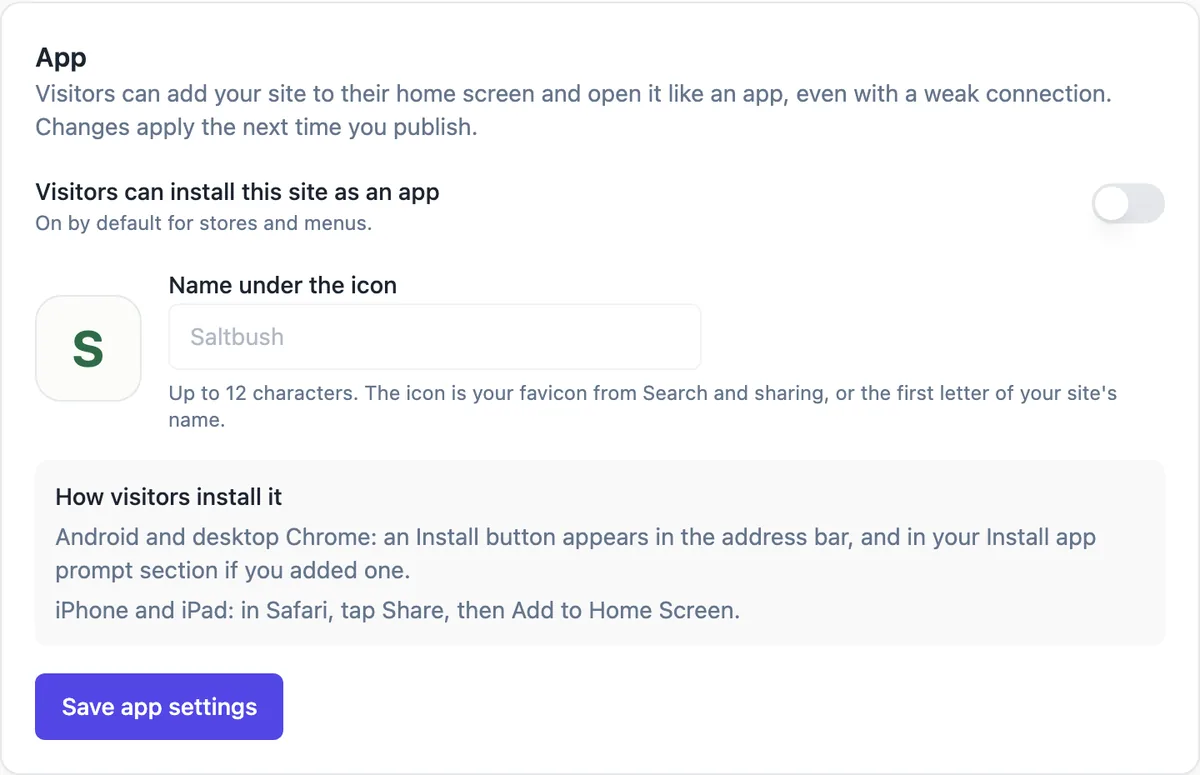
What publishing adds
With the switch on, each publish adds a web app manifest with the site name, colours and a start address, three icons including a maskable one, a service worker and an offline page, plus the tags iPhones read. The icons come from your favicon, or the first letter of the site name in your brand colour. Every publish installs a fresh worker so visitors get the new version.
On by default for stores and menus
Store and menu sites have installing switched on by default, because their customers come back to order. Other kinds start with it off; turn it on in the App card if your visitors return often, such as members of a club or parents of a sports team. The name under the icon is up to 12 characters, so pick a short version of the business name.
How visitors install it
On Android and desktop Chrome an install button appears in the address bar, and the Install app prompt section, if you add it to a page, shows an Install button when the browser offers one. On iPhone and iPad, Safari has no install prompt: visitors tap Share, then Add to Home Screen, and the prompt section shows that hint instead. Installed visitors appear as installed app in your visit stats.
What works offline
The service worker keeps the site styles, scripts, media and Google Fonts on the device, and loads pages from the network first, falling back to the offline page when there is no connection. The cart, checkout, thank you page, the catalogue file and anything from other sites always come from the network, so prices and stock are never served stale.
Installable site or a store app
An installed website covers icon, full screen and quick return. It does not appear in the App Store or Google Play and has no store listing. If you need a store presence for a shop or menu, the app export builds a Capacitor project of your live site that you submit under your own developer accounts, a much bigger job.
How it works, in three steps
Step 1
Open the App card
In site settings, switch on Visitors can install this site as an app.
Step 2
Set the name and icon
Type a short name of up to 12 characters; set a favicon in Search and sharing for the icon.
Step 3
Publish
The manifest, icons, service worker and offline page are added on the next publish.
Limits worth knowing
- The short name under the icon is up to 12 characters.
- iPhone and iPad visitors install through Share, then Add to Home Screen; Safari shows no install prompt.
- Cart, checkout and catalogue data always load from the network.
- An installed website does not appear in app stores.
Questions people ask
Does an installed site update itself?
Yes. Each publish creates a new service worker cache named after the version, so the next time an installed visitor opens the site with a connection, the new worker installs and the updated pages load. There is nothing for the visitor to update by hand.
Can I send push notifications to visitors who install it?
No. Push notifications here go to you, the owner, for new orders and messages. Installed visitors get the site on their home screen and the offline page, but there is no campaign or push messaging to customers from the site.
Why does no install button appear?
The browser decides. Chrome and Android show it only when the page links a manifest, which happens after a publish with the switch on, and only in a normal browser tab. Safari never shows one. The builder preview never offers installing, so test on the published site.
What icon will people see?
The favicon you set in Search and sharing, centred on your page background colour, at the sizes phones need, including a maskable version for Android shapes. Without a favicon, the first letter of the site name in your brand colour is used. A simple square logo works best.
Does installing work on desktop computers?
Yes, in Chrome and Edge, which show an install icon in the address bar. The site then opens in its own window. It is most useful on phones, where a home screen icon is the main benefit, but some customers like an ordering site in its own window.
Can I switch it off later?
Yes. Turn the switch off and publish. The manifest link is removed, and installed copies unregister their service worker the next time they load the site, so they behave like a normal website shortcut from then on. Visitors who want the icon gone remove it from their home screen as they would any app.
Make your own website
The button opens the generator with this use case already described. Change the wording to match yours, generate, then edit anything you like.
Create a website with OneCraftRelated pages
Turn your website into a mobile app: what the export builds and what is left
Turning a website into a mobile app usually means wrapping the site in a native shell that can be submitted to the App Store and Google Play. The wrapping is the easy part; the store rules about apps that only repeat a website, the developer accounts and the review are where the work is.
Website version history: three layers of going back
Website version history lets you put an earlier state of the site back online after a change goes wrong. It helps to know which layer you need: undo for the edit you just made, a restore for a publish you regret, or a code commit for a site written in code.
Multi page website builder: pages, menus and addresses that stay linked
A multi page website gives each service, audience or topic its own page with its own address and search listing. The work is less in making pages than in keeping the menu, the links and the addresses consistent as the site grows, which is what a builder should do for you.
More finished work of this kind is on the website examples hub.
Written and checked by the OneCraft team. Last checked .