Forms
Forms only your people can open
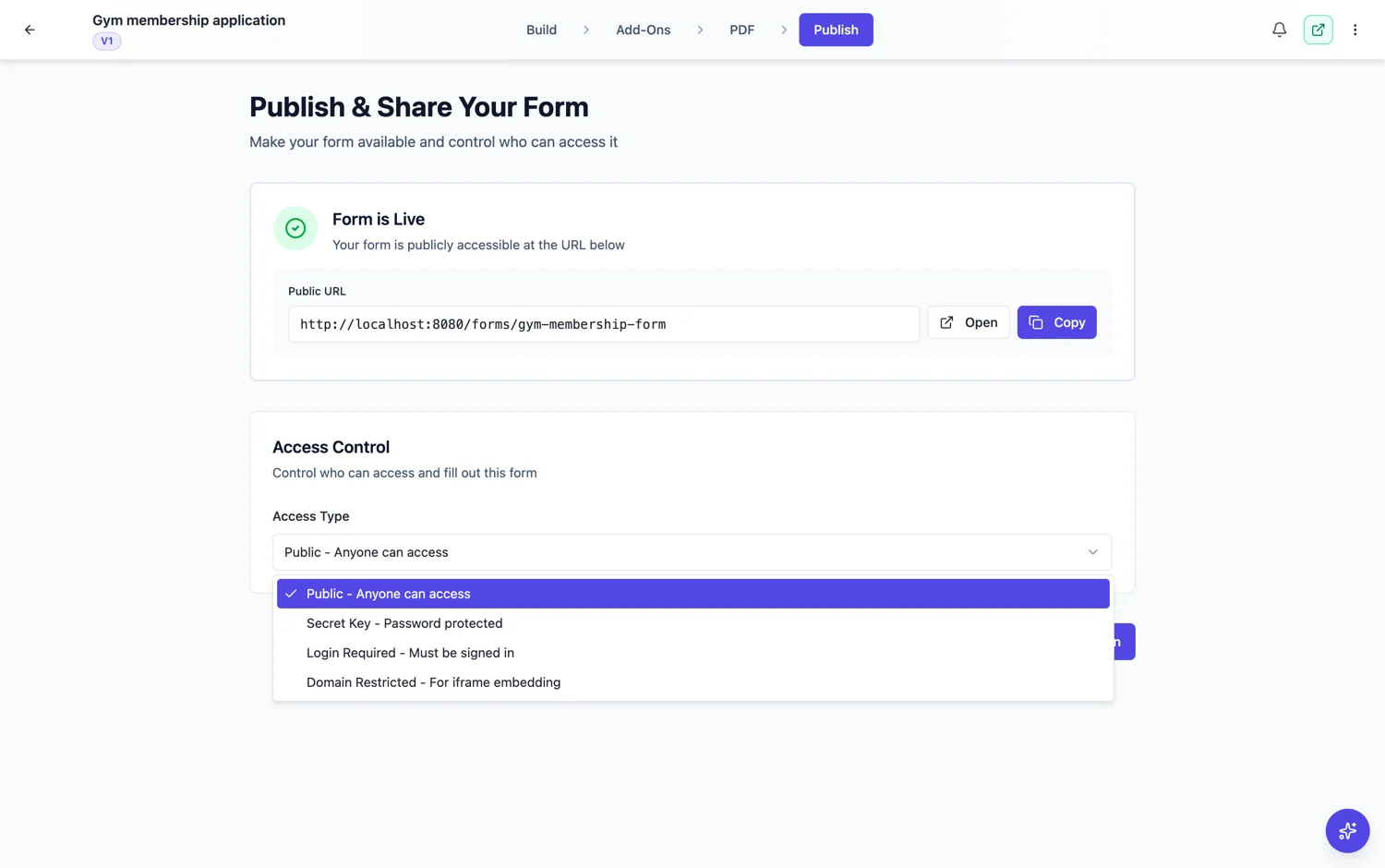
Login required is the access type for when it matters who answered. A respondent has to be signed in, and you can limit that to a list of addresses or to everybody on a domain.
Two ways to say who
A list of individual email addresses, for a small named group like a committee or a set of approvers. Or a whole domain rule, so anybody with an address at your company can open it. The domain rule is what you want for staff forms, because it keeps working when somebody joins without you editing the form.
What it buys you
Certainty about who submitted. That matters for approvals, for anything with a policy attached, and for any form where a response triggers something on somebody’s behalf. It also removes the field asking people to type their own email address, which is one fewer thing to get wrong and one fewer thing to fake.
What it costs you
A sign-in step, which is a real barrier for anyone outside your organisation. Never use login required on a form you send to customers or the public: you will lose most of them at the sign-in screen, and the people you do get will be the ones who already had an account.
Combining with the other three
The four access types are exclusive, so a form is public, key protected, login required or domain restricted, not a combination. If you need a public form that only certain people can complete, the honest approach is a public form with a reference number field you check afterwards.
What the response records
The check happens against the signed in account, so the response is tied to a real identity rather than to whatever somebody typed in a name field. That is the whole reason to use it: you can drop the "your email" question, and the answer to "did this person really submit this" stops being a matter of trust. It also means a respondent can only submit as themselves, which a typed email never guaranteed.
Login required with a domain rule is not single sign on
The accounts are this product's own. A domain rule says the signed in account's email has to end in your domain, not that your company's identity provider issued it. Nobody is checking against your directory, and turning off a leaver's work account does not close their account here. For a form that has to follow your directory, the honest answer today is that it cannot.
How it works, in three steps
Step 1
Choose login required
It is one of the four access types in the publish settings.
Step 2
Add addresses or a domain rule
A named list for a small group, a whole domain for staff. The domain rule survives people joining and leaving.
Step 3
Publish
Access settings are stored with the published version, so the live link picks the change up on publish.
The full walkthrough with screenshots is in the guide Control who can fill in your form.
Limits worth knowing
- The four access types are exclusive. A form has one of them.
- Login required is a real barrier for anyone outside your organisation.
- An allow-list is edited by hand, so it needs maintaining as people change.
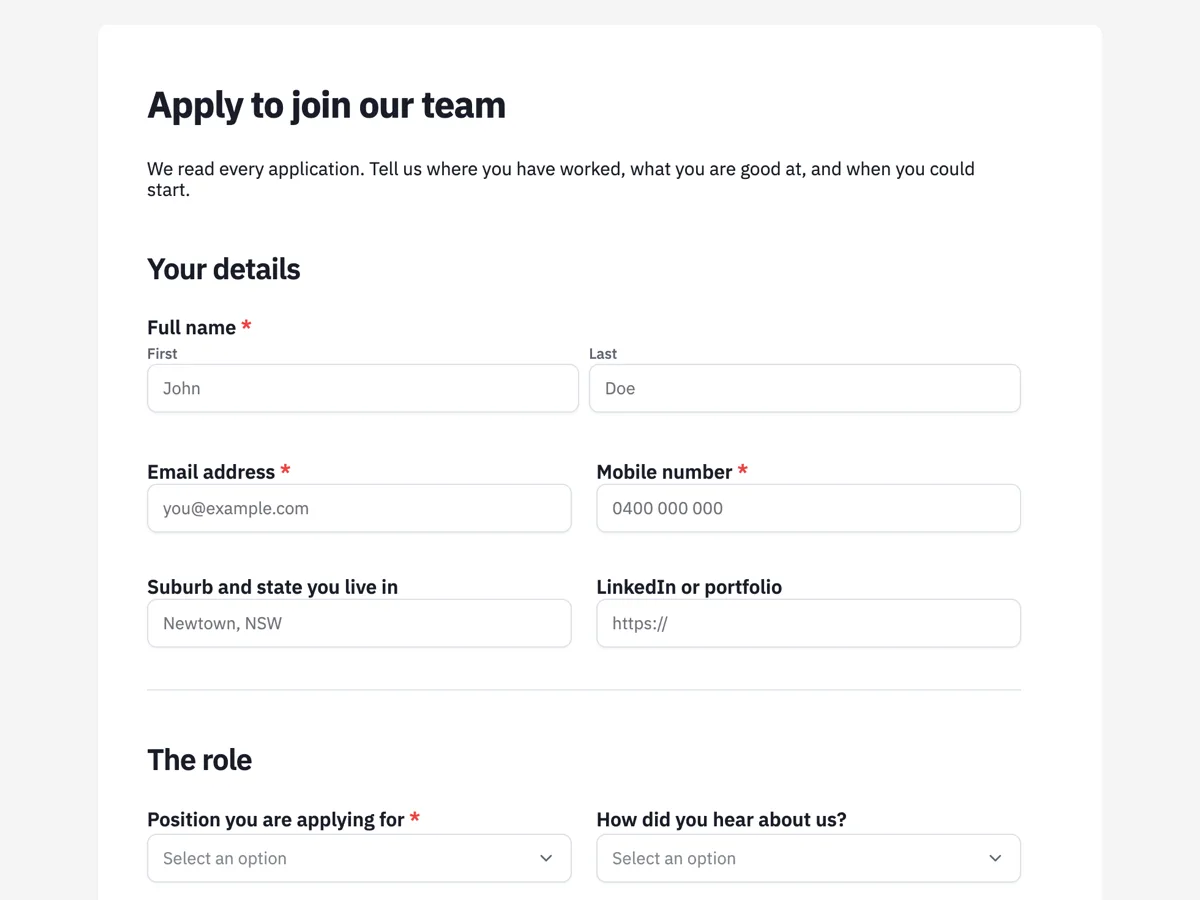
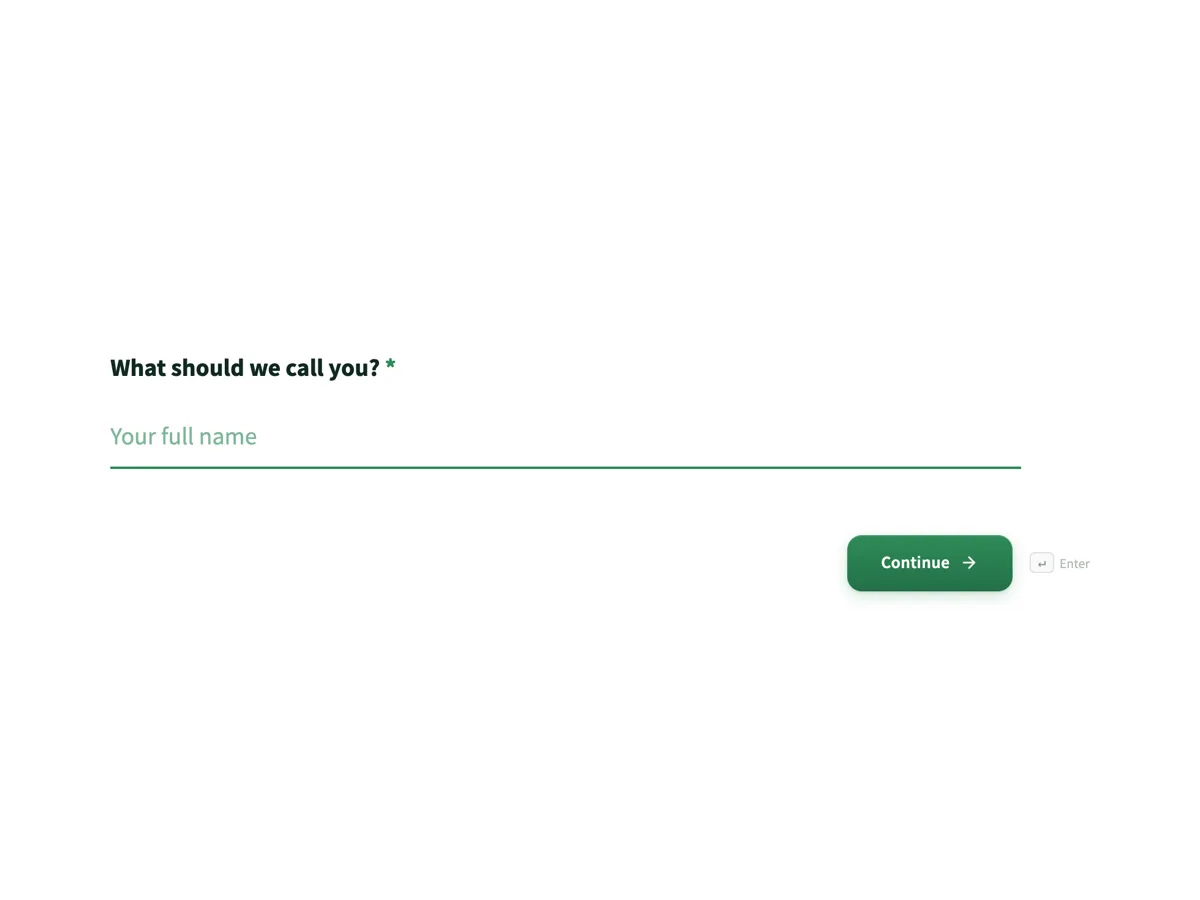
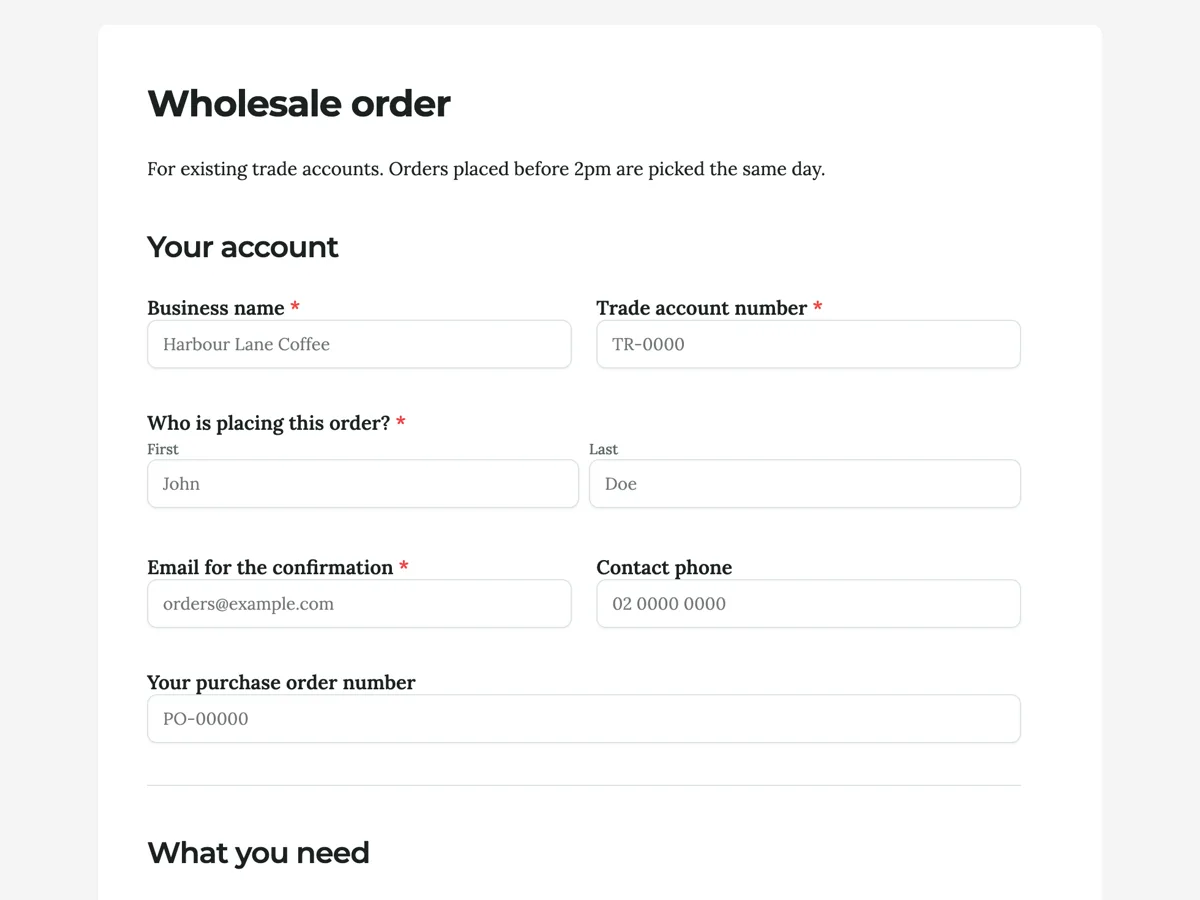
See it on a finished piece
Questions people ask
Can I allow everyone at my company?
Yes, with a domain rule, which checks that the signed in account's email ends in your domain. That is usually better than a list of names, because it keeps working as people join and leave and nobody has to maintain the list. Bear in mind it is a check on the email address, not a connection to your directory.
Should I use this for a customer form?
No. A sign in step loses most people who do not already have an account, and for a customer that is nearly all of them. Use public, or a secret key if you need some gate. Save login required for people who already have a reason to be signed in.
Does it record who submitted each response?
Yes, and that is the point of it. The signed in identity is attached to the response, so you can drop the field asking people to type their own name and email, and you can trust the answer to who sent this in a way a typed name never allowed.
Do respondents need to create an account first?
Yes. Somebody with no account will be asked to sign in, and signing in means creating an account if they do not have one. That is a real cost in completions, so use this only where the identity matters more than the drop off: staff forms, member forms, anything you would otherwise have to verify by hand.
Can I combine it with a secret key?
No. A form has one access type: public, secret key, login required or domain restricted. Login required with an allowed email list is the closest thing to combining the two, because it both proves who somebody is and limits it to a list you control.
Make your own form
The button opens the generator with this use case already described. Change the wording to match yours, generate, then edit anything you like.
Create a form with OneCraftRelated pages
Control who can fill in a form
A form has exactly one access type, and choosing it is a trade between how many people can get in and how sure you are about who they were. Here are all four, and the case for each.
Embed a form on your website
A form on its own link works. A form inside your own page works better, because people never leave your site to fill it in. The piece most people miss is restricting which sites are allowed to embed it.
Conversational form builder
A conversational form shows one question at a time on its own screen, with a progress bar and a keyboard shortcut to move on. It is the right shape when you are asking a stranger for something and the risk is that they stop halfway.
More finished work of this kind is on the form examples hub.
Written and checked by the OneCraft team. Last checked .