Forms
Control who can fill in a form
A form has exactly one access type, and choosing it is a trade between how many people can get in and how sure you are about who they were. Here are all four, and the case for each.
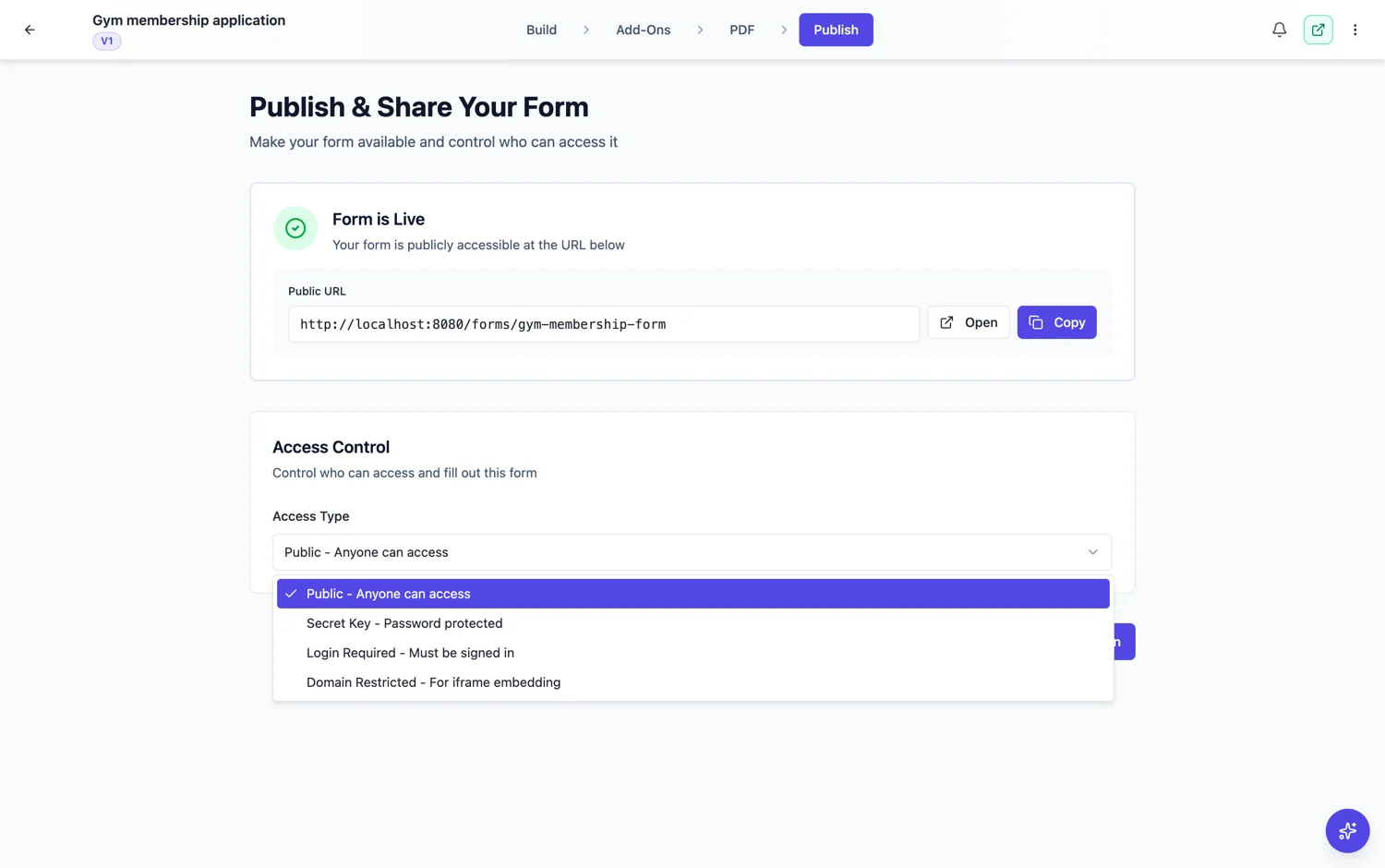
Public
Anyone with the link. It is the right default for anything you want responses to, which is most forms. The link is unguessable, so a public form is not indexed or discoverable, it simply does not check anybody at the door. Use it for enquiries, registrations, feedback and every form you would print and leave on a counter.
Secret key
A password in front of the form, shared with the group who should get in. It keeps a form off the open internet without asking anybody to have an account. It does not tell you who answered and the key can be passed on, so treat it as a lock rather than an identity check.
Login required
The respondent has to be signed in, and you can limit that to a list of addresses or to everybody on a domain. This is the only option that tells you who submitted. It is right for internal and approval forms and wrong for anything aimed at the public, because sign-in loses most people.
Domain restricted
Built for embedding. You name the websites allowed to frame the form, and a normal browser will not load it anywhere else. Use it whenever a public form is embedded in a page, because without it anybody can lift the frame onto their own site and still send submissions to you. The builder labels it a light safeguard, not strong security: it relies on the origin the browser reports, which technical users can fake with tools outside a browser, so avoid it for private or sensitive forms and use Secret Key or Login Required for real access control.
They are exclusive, and they travel with the version
A form has one access type, not a combination. And access settings are stored with each published version rather than only on the form, so changing an access setting needs a publish before the live link picks it up.
How it works, in three steps
Step 1
Start from public
Most forms should be public. Only tighten when there is a reason you can name.
Step 2
Ask what you need to be sure of
Keeping strangers out is a secret key. Knowing exactly who answered is login required. Protecting an embed is domain restricted.
Step 3
Publish after changing it
Access settings are stored with the version, so the live link updates on publish.
The full walkthrough with screenshots is in the guide Control who can fill in your form.
Limits worth knowing
- Exactly one access type per form. They do not combine.
- A secret key does not identify anybody and can be passed on.
- Login required is a hard barrier for anyone outside your organisation.
- Access settings live on the published version, so a change requires a publish.
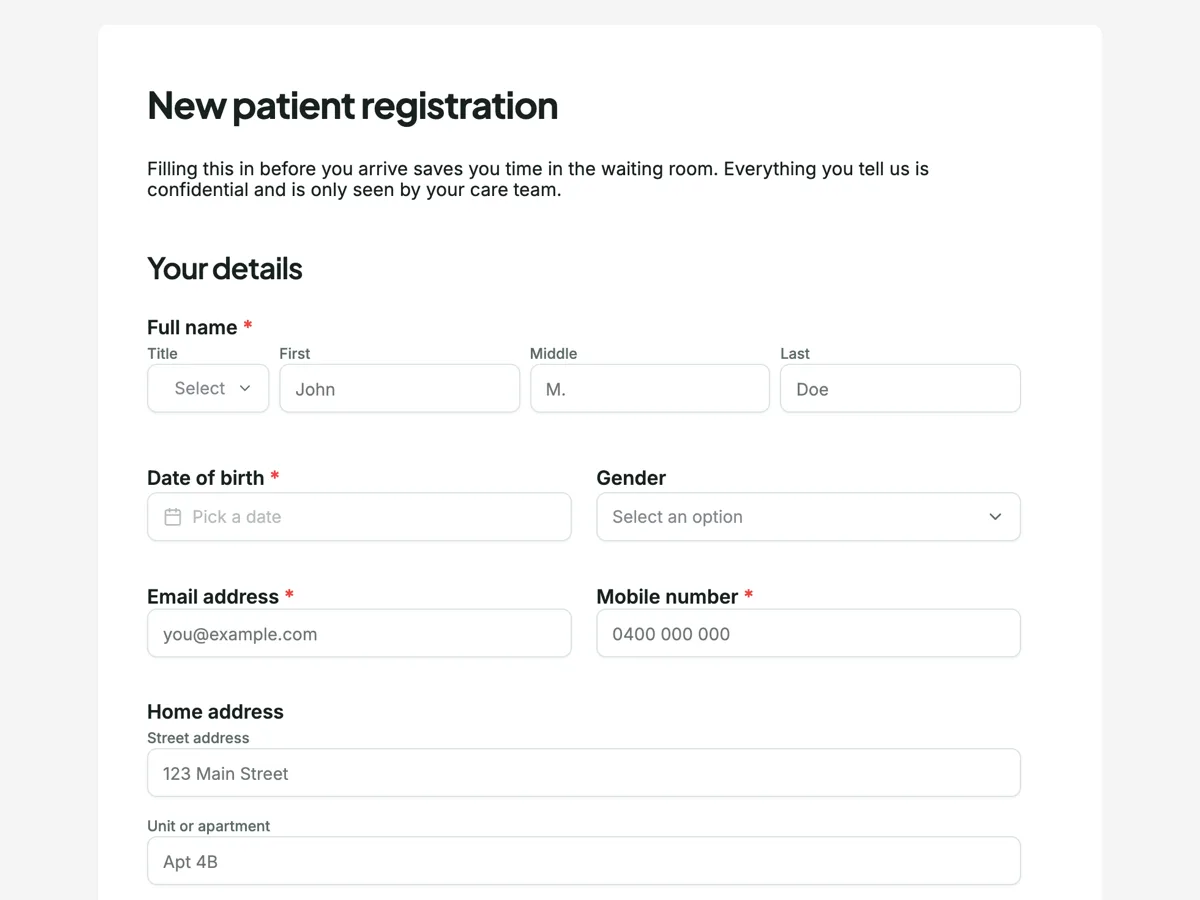
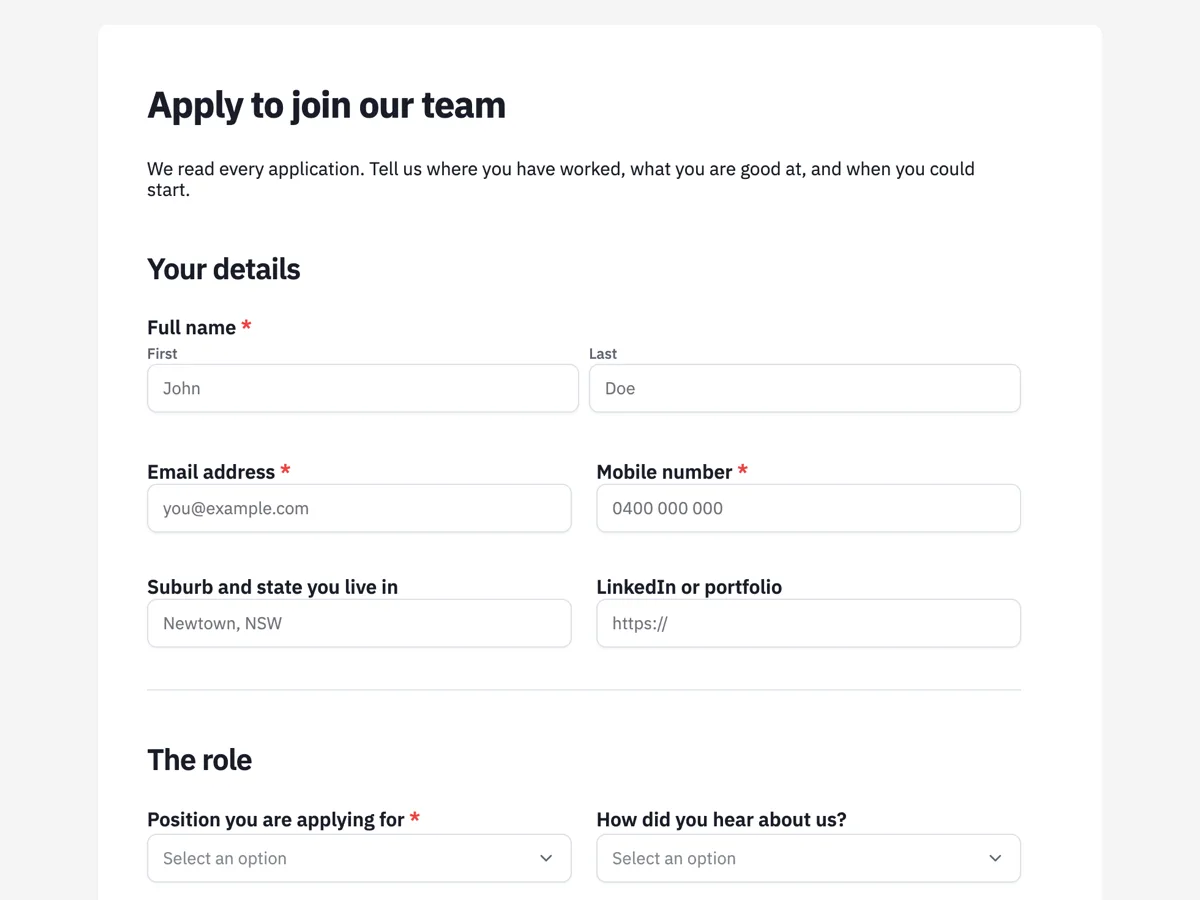
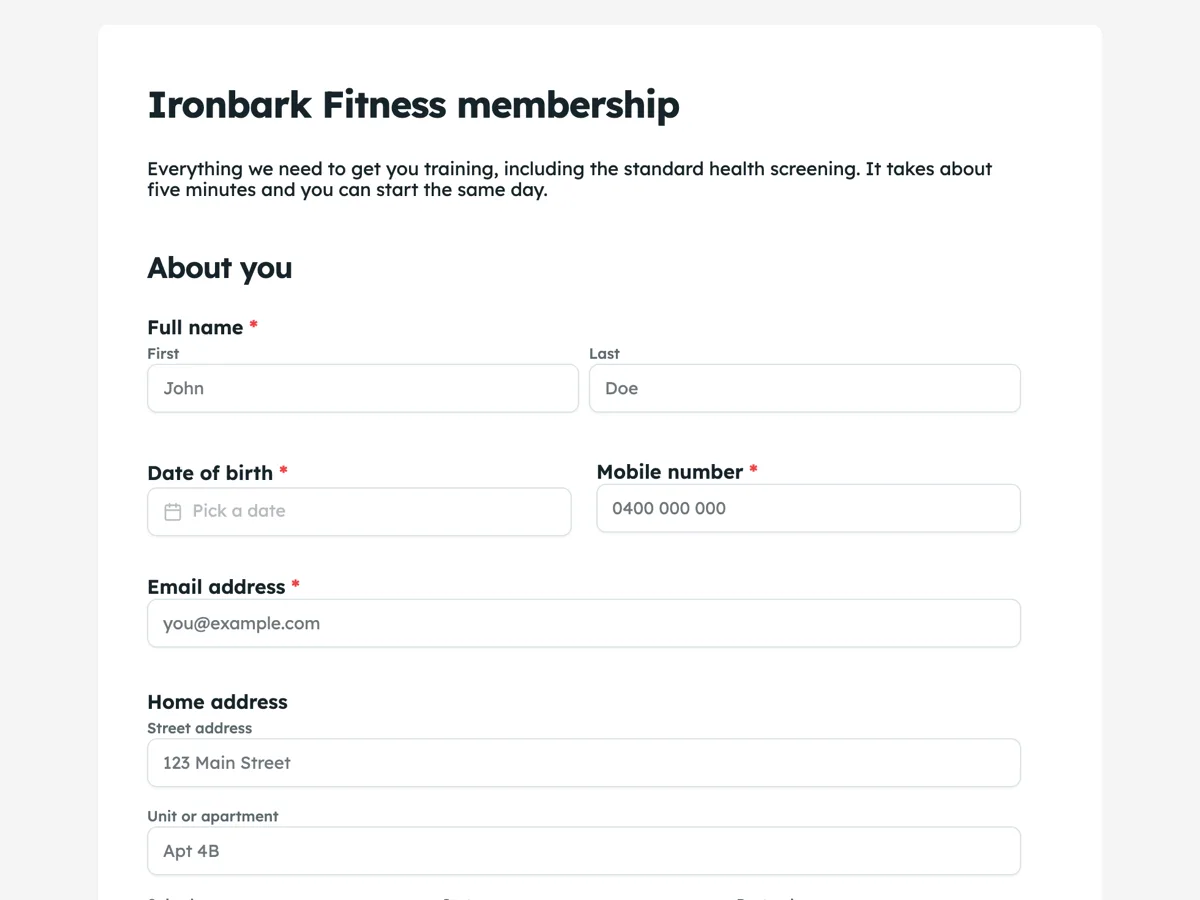
See it on a finished piece
Questions people ask
Which access type should I use by default?
Public. It is right for anything you actually want responses to, and the link is unguessable, so it is not discoverable.
Can I use a password and a login rule together?
No. A form has one access type. If you need both certainty and low friction, login required with a domain rule is usually the answer.
Why did my access change not take effect?
Access settings are stored with the published version. Publish the form and the live link picks them up.
Make your own form
The button opens the generator with this use case already described. Change the wording to match yours, generate, then edit anything you like.
Create a form with OneCraftRelated pages
Password protected forms
Secret key access puts a password in front of the form. Anyone with the link and the key gets in, anyone with only the link does not. It is the simplest of the four access types and the right one more often than you would think.
Forms only your people can open
Login required is the access type for when it matters who answered. A respondent has to be signed in, and you can limit that to a list of addresses or to everybody on a domain.
Embed a form on your website
A form on its own link works. A form inside your own page works better, because people never leave your site to fill it in. The piece most people miss is restricting which sites are allowed to embed it.
More finished work of this kind is on the form examples hub.
Written and checked by the OneCraft team. Last checked .