Forms
Password protected forms
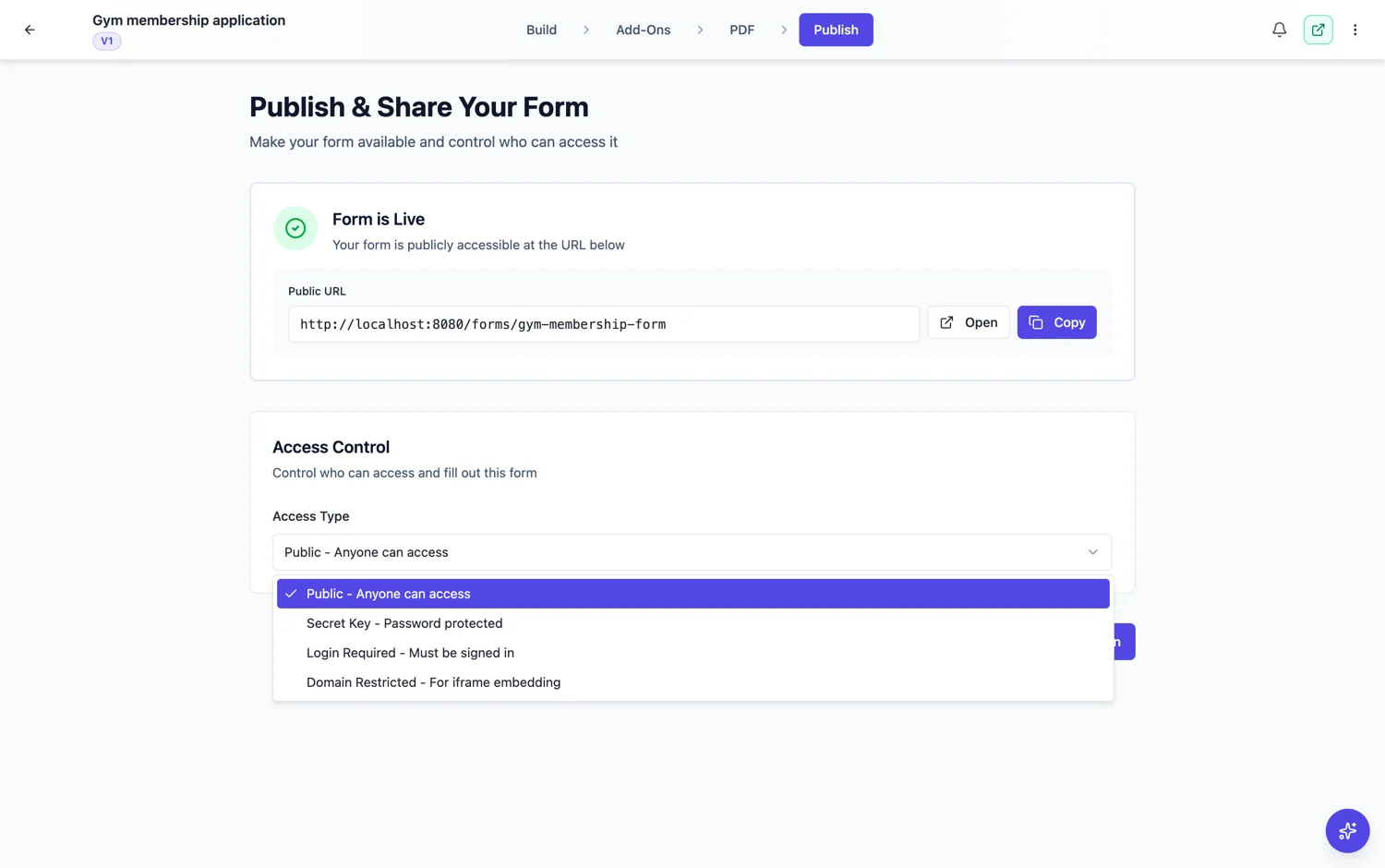
Secret key access puts a password in front of the form. Anyone with the link and the key gets in, anyone with only the link does not. It is the simplest of the four access types and the right one more often than you would think.
What it is good for
A group who all get the same key from you: a class, a team, a set of suppliers, the attendees of one event. You share one link and one key, and the barrier is enough to stop the form being filled in by whoever finds the URL in a forwarded email. It is a door with a lock, not an identity check.
What it is not
It does not tell you who filled the form in, and it cannot stop somebody passing the key on. If you need to know that a specific person answered, use login required with an allow-list instead. If you only need to keep the form off the open internet, the key is enough and it is far less friction.
Where to put the key
Never in the same message as the link, if the message might be forwarded. In practice most people do send both together and accept that, which is fine when the risk is casual rather than deliberate. If it matters, send the link by email and the key by another channel.
Access travels with the version
Access settings are stored with each published version, not just on the form. That means publishing a new version carries its access settings with it, and a specific historical version keeps the settings it was published with. Change the key and republish for the change to reach the live link.
The key is not a password per person
There is one key for the form and everybody uses the same one. It is stored hashed and compared in constant time, so it is handled properly, but it is still a shared secret: it says somebody knew the key, not who they are. Once you have sent it to forty people it is a key forty people have, and one forward puts it in a forty first inbox.
Changing the key
The key travels with the published version, so changing it means changing it in the publish settings and publishing again. That is worth knowing when somebody leaves or a link leaks: the change is not live until you publish, and until then the old key still opens the form. Publish first, then send the new key.
How it works, in three steps
Step 1
Set the access type to secret key
It is in the publish settings, alongside the other three access types.
Step 2
Set the key and publish
Access settings are stored with the published version, so publish after changing them.
Step 3
Share the link and the key
Separately if the form is sensitive, together if the risk is casual.
The full walkthrough with screenshots is in the guide Control who can fill in your form.
Limits worth knowing
- A key does not identify anybody. It only controls who gets in.
- A key can be passed on and cannot be revoked per person.
- Access settings live on the published version, so a change needs a publish.
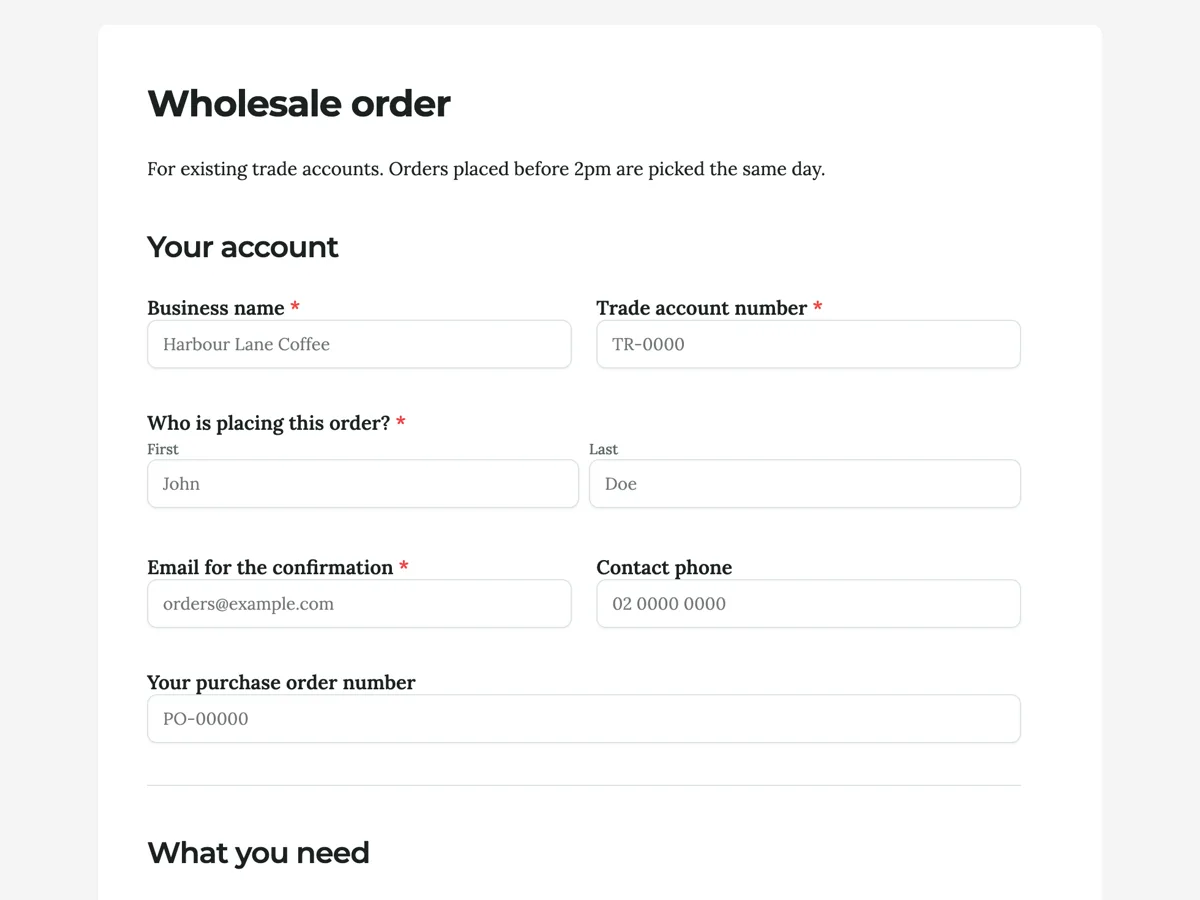
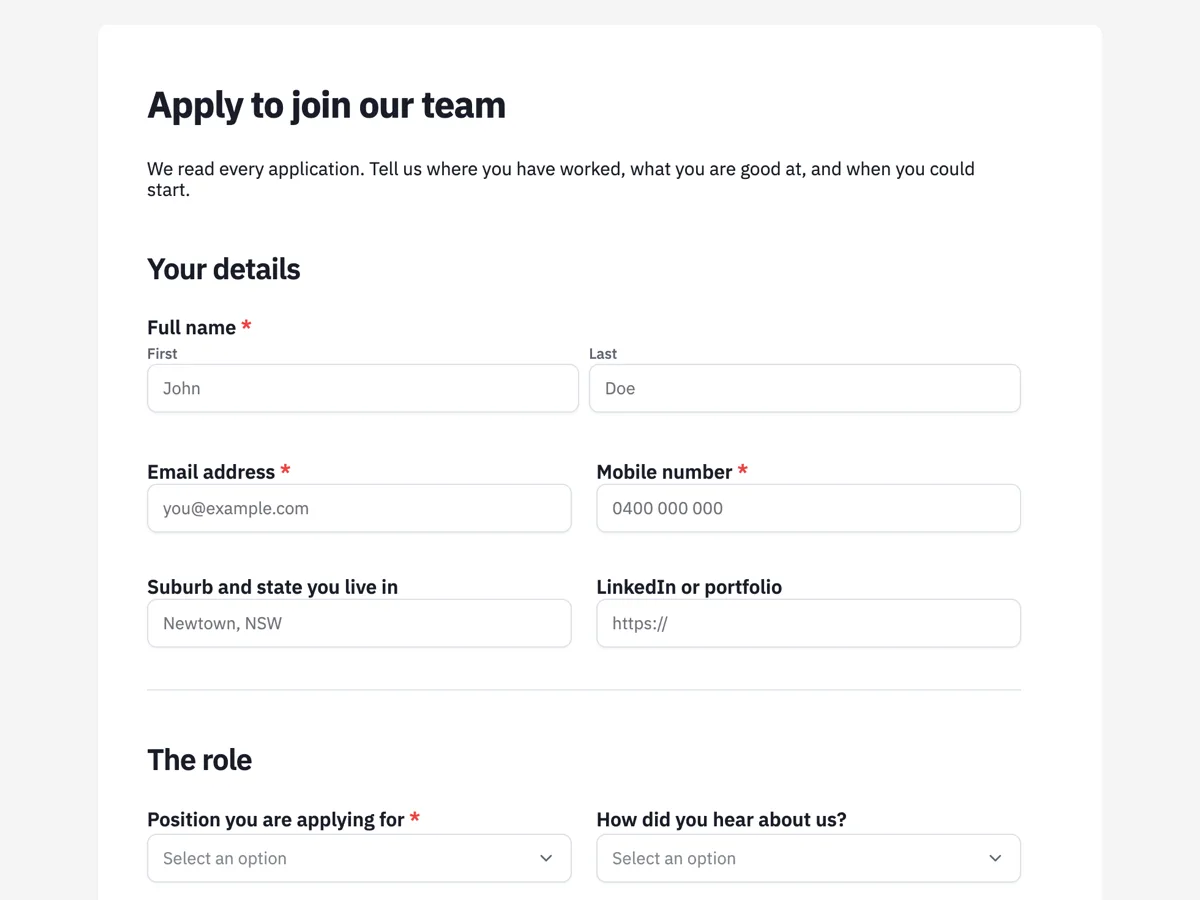
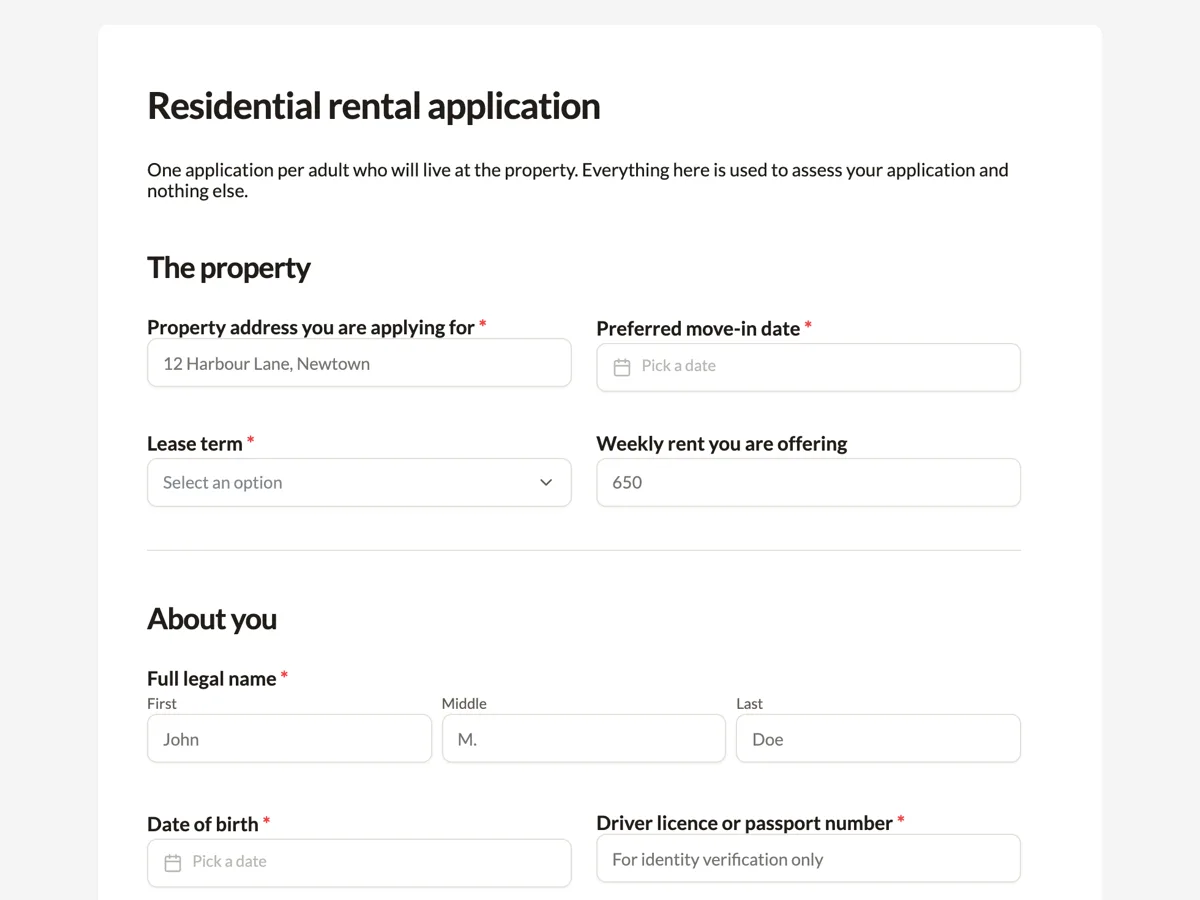
See it on a finished piece
Questions people ask
Can I see who used the key?
No. A key gates access, it does not identify anybody, so every response looks the same regardless of who opened it. If you need to know who submitted what, login required with an allowed email list is the access type that answers that, because it checks a signed in account rather than a shared string.
How do I change the key?
Change it in the publish settings and publish the form again. Access settings travel with the published version, so nothing changes on the live link until that publish happens. The practical order is publish the new key, then send it out, because the reverse leaves people locked out for a few minutes.
Is a secret key secure enough for confidential data?
Treat it as a shared password, because that is what it is. It is stored hashed and compared safely, but anybody who has it can open the form and nothing records who they were. For anything genuinely confidential, use login required with an allowed list.
Is the key visible in the link?
No. The key is sent when somebody opens the form and typed into the gate, not carried in the URL, so a link on its own is not enough to get in and a link pasted into a chat does not leak access. That also means you have to send the key separately, which is the small friction that makes it worth anything.
What happens to somebody halfway through when I change the key?
A form already open in a browser stays open. The gate runs when the form is loaded, so changing the key stops the next person rather than interrupting the one who is typing. If you need to cut access immediately, choose Disable on the form's card in the dashboard. The link then shows the form as unavailable, and even a copy already open cannot submit.
Make your own form
The button opens the generator with this use case already described. Change the wording to match yours, generate, then edit anything you like.
Create a form with OneCraftRelated pages
Control who can fill in a form
A form has exactly one access type, and choosing it is a trade between how many people can get in and how sure you are about who they were. Here are all four, and the case for each.
Forms only your people can open
Login required is the access type for when it matters who answered. A respondent has to be signed in, and you can limit that to a list of addresses or to everybody on a domain.
Embed a form on your website
A form on its own link works. A form inside your own page works better, because people never leave your site to fill it in. The piece most people miss is restricting which sites are allowed to embed it.
More finished work of this kind is on the form examples hub.
Written and checked by the OneCraft team. Last checked .