Forms
Auto arrange form fields
A form that has been edited by hand for an hour drifts. Fields sit two pixels out, gaps vary, and the whole thing looks slightly wrong without any single thing being wrong. Prettify re-spaces it in one action.
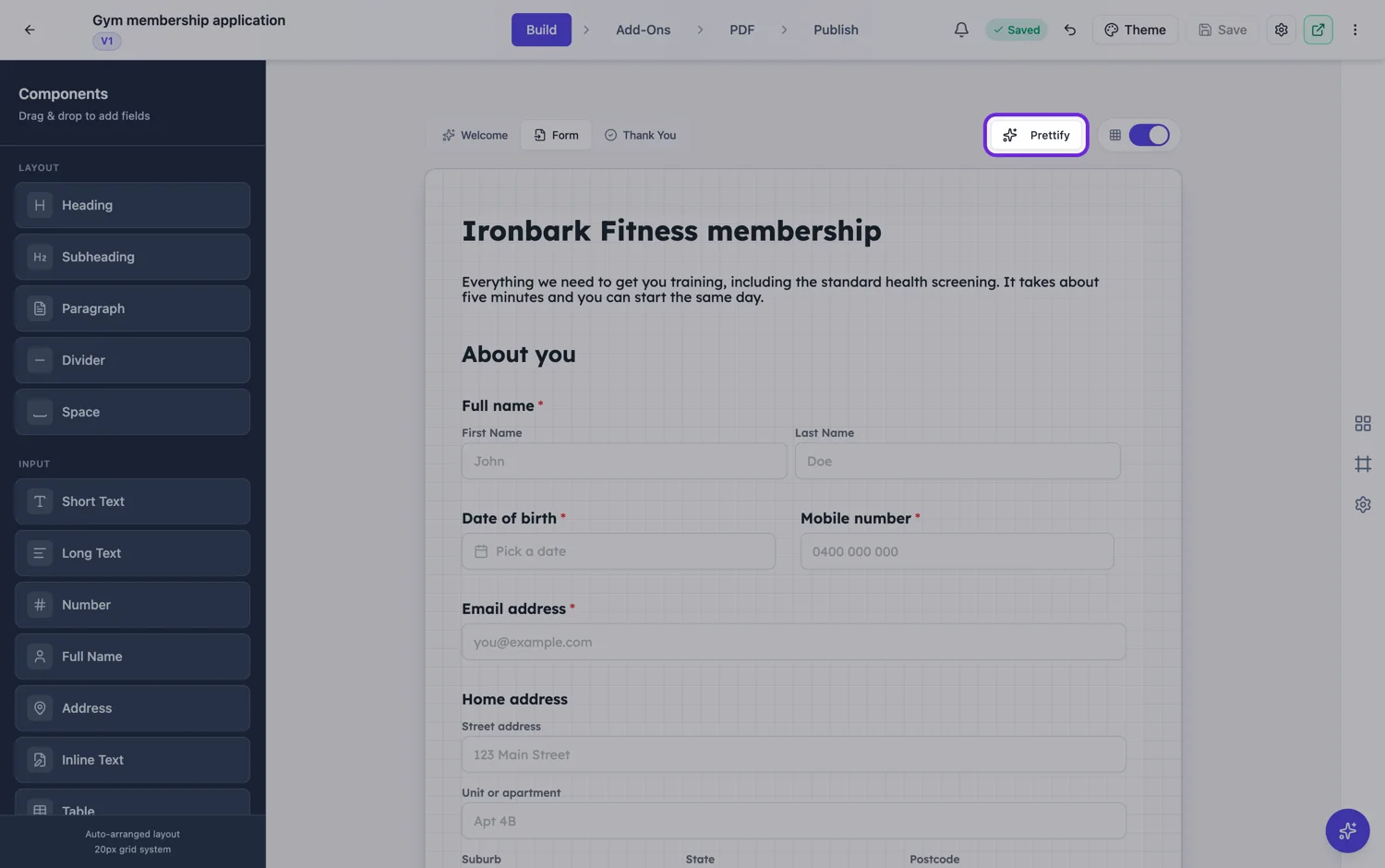
What it does
It walks the canvas in order and applies a consistent vertical gap for each component type, snapping to the twenty pixel grid the builder works on. Headings get more room above them than fields do, a paragraph sits closer to the field it explains, and a section boundary reads as a boundary. The rule is that the gap above a row belongs to that row, so moving a block moves its own spacing with it.
Why hand dragging drifts
Because you place things relative to what is already there, and every small error is inherited by everything below it. After twenty edits the top of the form is on a rhythm and the bottom is not. The eye reads that as untidiness long before anybody can say which field is out.
Setting your own spacing
The spacing can be set per component type on the form, using the same shape as the PDF spacing settings, so the same mental model applies on screen and on paper. Set it once for the form and prettify will use your values instead of the defaults, which is how you keep a house style across a set of forms.
When not to use it
On a form where you have deliberately put two fields side by side, prettify will preserve the order but not your intent about which things belong together on a row. Check the paired fields afterwards. On a single column form there is nothing to lose, because horizontal position is ignored there anyway.
How it works, in three steps
Step 1
Get the fields in the right order
Prettify fixes spacing, not sequence. Order first.
Step 2
Run it
The canvas re-spaces on the twenty pixel grid using per-type gaps.
Step 3
Check your paired rows
Fields you deliberately put side by side are the one thing worth looking at afterwards.
The full walkthrough with screenshots is in the guide Every form field and when to use it.
Limits worth knowing
- It re-spaces, it does not reorder or resize.
- Side by side pairs may need checking afterwards.
- The canvas grid is twenty pixels, so positions snap to that.
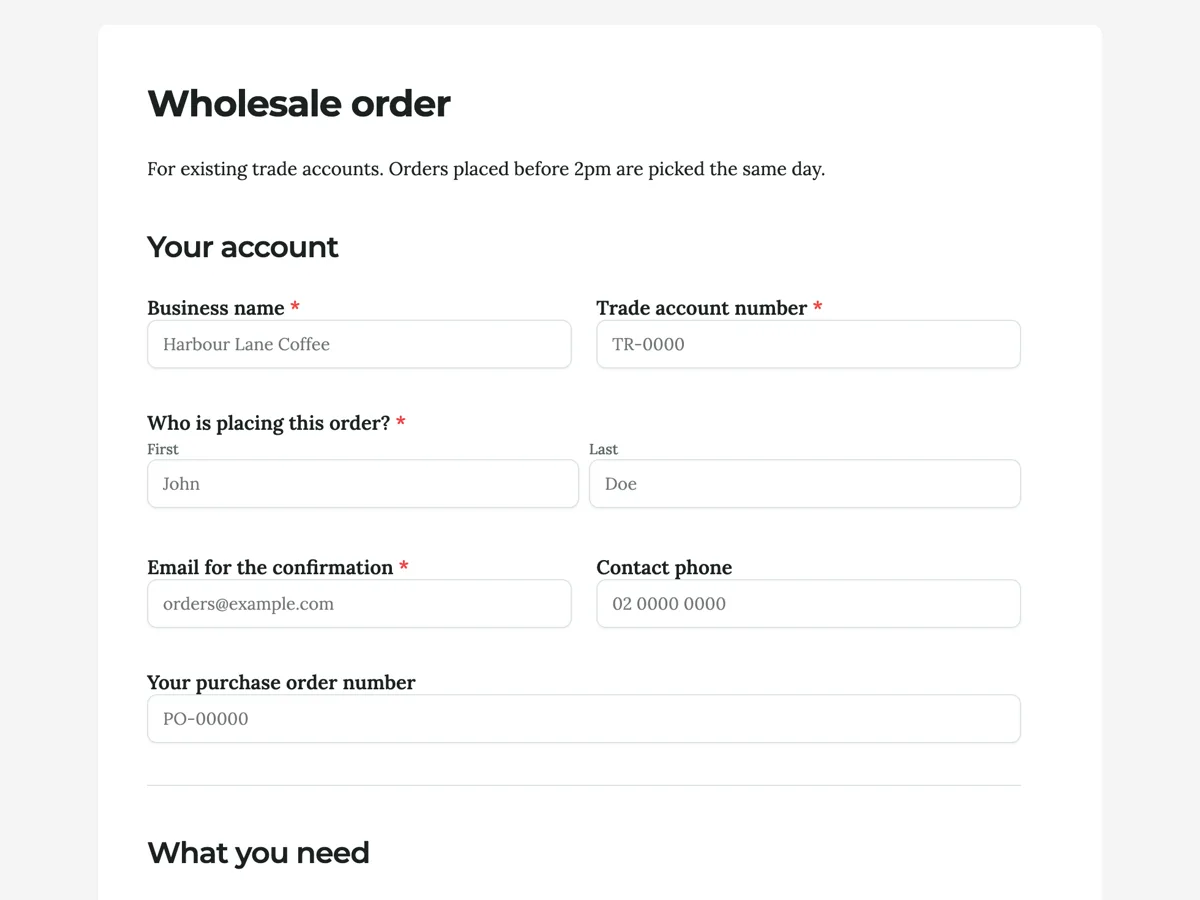
See it on a finished piece


Questions people ask
Will it move my fields around?
It changes vertical spacing, not the order. Fields stay in the sequence you put them in.
Can I set my own gaps?
Yes, per component type on the form, using the same shape as the PDF spacing settings. Prettify then uses your values.
Does it work on conversational forms?
Conversational forms lay themselves out one question per screen, so there is no free canvas to tidy. This is a classic form action.
Make your own form
The button opens the generator with this use case already described. Change the wording to match yours, generate, then edit anything you like.
Create a form with OneCraftRelated pages
Custom thank you page after a form submit
The thank-you screen is the one moment you have somebody’s full attention and nothing left to ask them for. Most forms waste it on the word Thanks. It can tell them what happens next, and send them somewhere useful.
Form welcome screens
The welcome screen is the only part of a form some people ever see. It has one job, which is to make starting feel small, and it does that with a clear title, one line of context and an honest estimate of how long this will take.
Build a custom form theme
When the palettes are close but not right, build the theme yourself. Theme Studio, the builder's theme panel, has Themes, Colors and Fonts tabs, and its Create Custom Theme card opens a theme builder in a new tab. The builder saves the result to your account and puts it alongside the built-in themes on every form you make afterwards.
More finished work of this kind is on the form examples hub.
Written and checked by the OneCraft team. Last checked .