Presentations
Turn rough notes into a presentation
To turn notes into a presentation, paste the notes into the slide generator as they are and add two lines saying who the deck is for and what you want from them. The planner expands the shorthand into sentences, orders the points into an argument and lays each one out on a slide. Notes are written for the person who took them, so the real work is inferring what the fragments mean, and that is where your two lines help most.
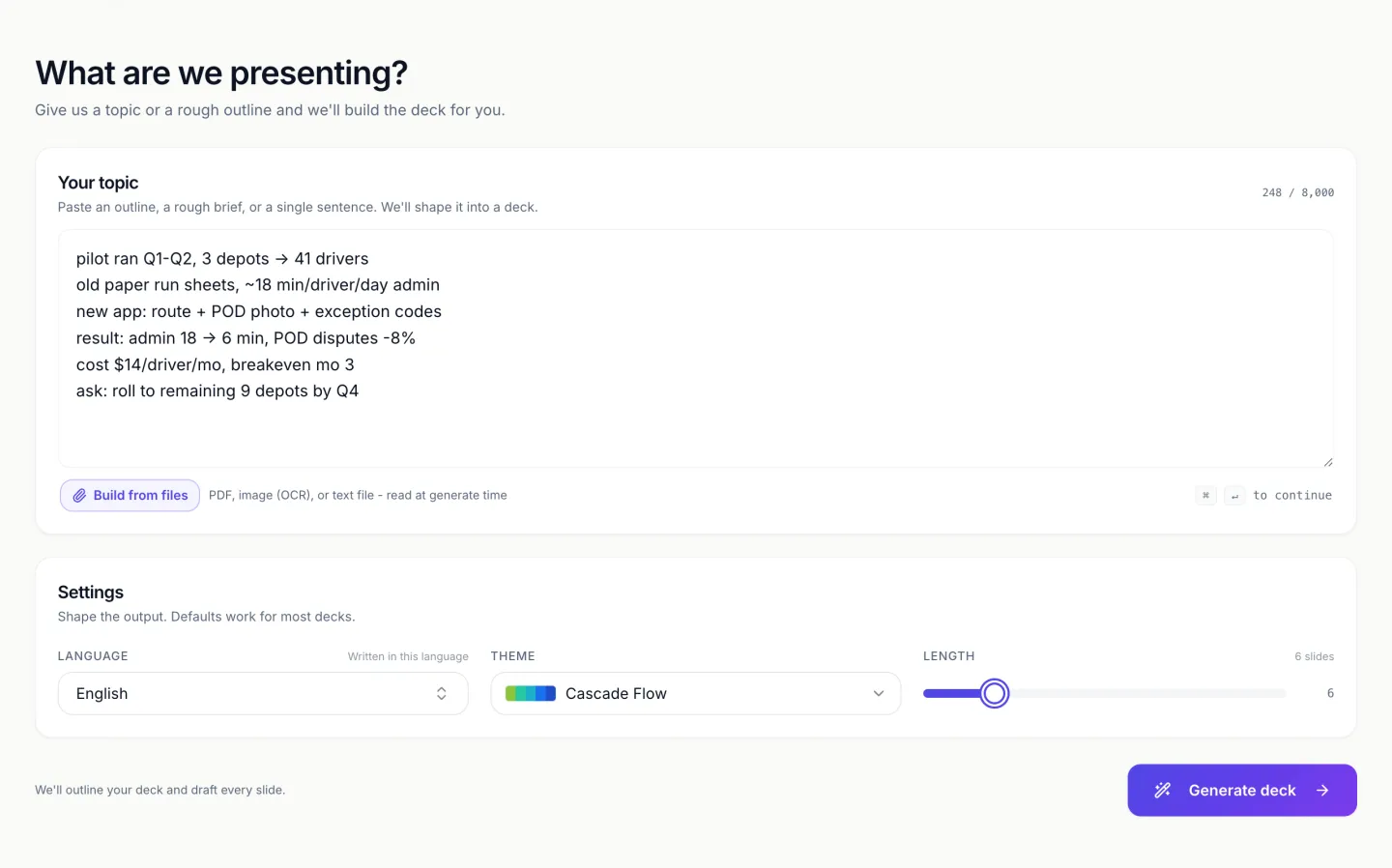
Shorthand is expanded, not quoted
An arrow becomes a change over time. A slash between two numbers becomes a rate. A line with no verb gets one. This is the part that makes notes usable, and it is also where a mistake is quietest, because an expanded sentence reads confidently whether or not the expansion was right. Read the first pass for meaning before you read it for wording.
It infers an argument from a list
Notes are usually in the order things were said, which is rarely the order they should be presented. The planner reorders into something that opens, builds and closes, so a decision buried in line nine of your notes tends to arrive near the end where a decision belongs. If your notes are already in presentation order, say so and it is left alone.
Two lines that fix most of the guessing
Name the audience and name the ask. Notes almost never contain either, so without them the deck defaults to an informative register when what you needed was a request for a hiring budget. Adding who is in the room and what you want signed off changes the closing slide, the emphasis on the numbers, and how much background gets included.
Abbreviations you use internally
Team shorthand, internal system names and project code names are kept as written, because inventing an expansion would be worse than leaving the term alone. If an outside audience is reading the deck, spell the term out once in your notes and the expansion carries through to the slide.
The slider decides how much the notes are squeezed
The length slider under the prompt box sets the slide count, from 3 to 20, and it starts at 8 (6 on the free plan); Auto lets the planner choose the count instead. The planner aims at that number exactly and flexes by one only when the story demands it, so a page of notes left on the default comes back as three dense slides. A free account can generate up to 6 slides and a paid one up to 20. Count the separate things your notes say, then set the slider to that count, or a little less if some points belong together.
Blanks stay blank
A note that says damage claims up without a figure produces a slide that says damage claims are up without a figure. Numbers are never invented to fill a gap, so a deck built from thin notes reads thin, which is the honest outcome. Fill the number in the note, not on the slide, and regenerate.
How it works, in three steps
Step 1
Paste the notes as they are
Do not tidy them first. Fragments and arrows are fine, and the raw order tells the planner what came up together.
Step 2
Add the audience and the ask
Two lines at the top. Who is in the room, and what you want them to agree to.
Step 3
Read the expansions before the design
Check that each shorthand line became the sentence you meant. Fix the ones that did not, then style.
The full walkthrough with screenshots is in the guide Make a pitch presentation with AI.
Limits worth knowing
- Notes go in the prompt box, which holds 10,000 characters.
- Figures missing from your notes are left missing. Nothing is invented to make a slide look complete.
- Slide count is capped at 6 on a free account and 20 on a paid one, so long meeting notes need editing down.
- Handwritten notes have to be photographed and attached as an image, which needs a Starter plan. The image is transcribed by a vision model, and handwriting reads less reliably than print.
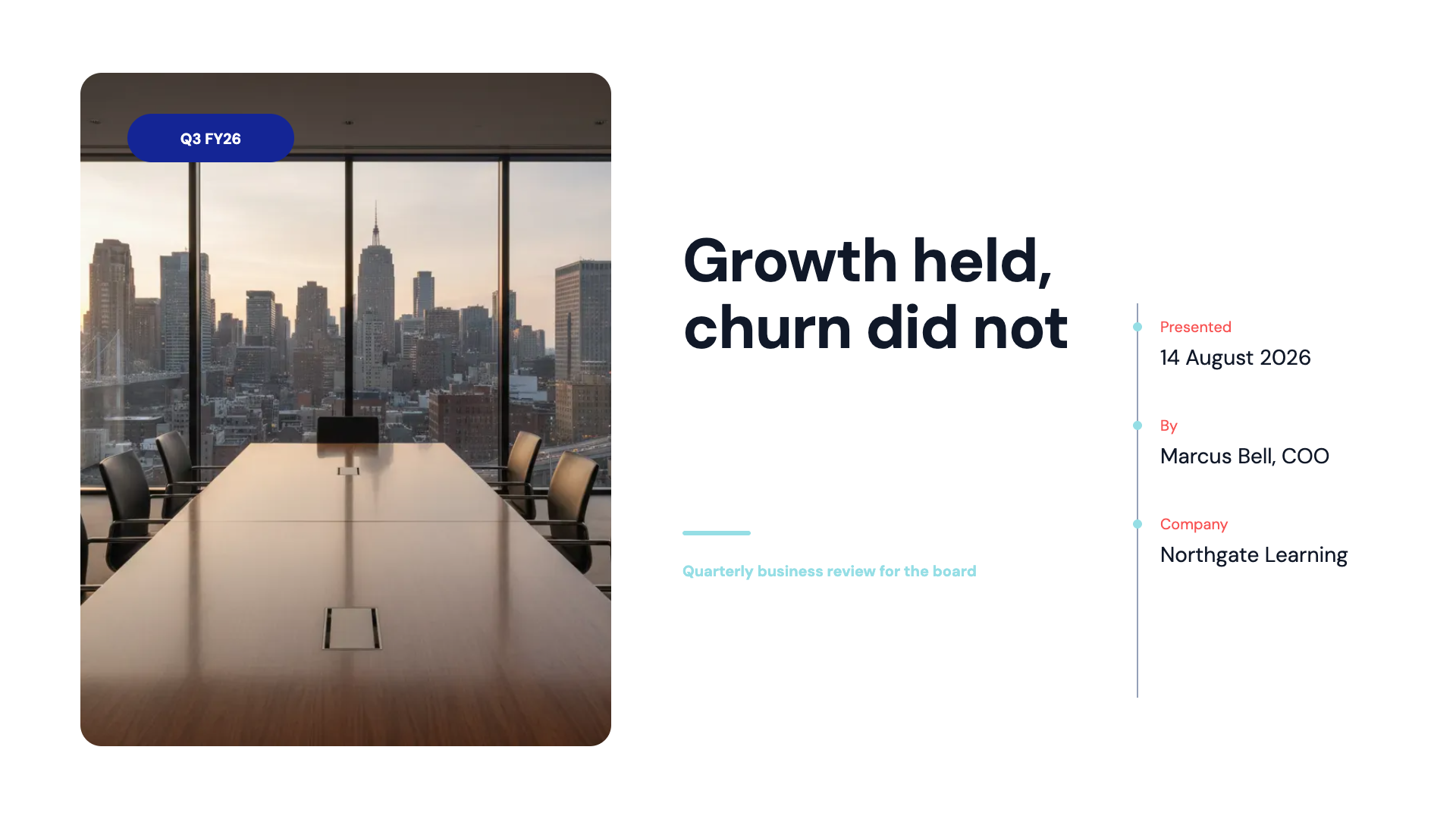
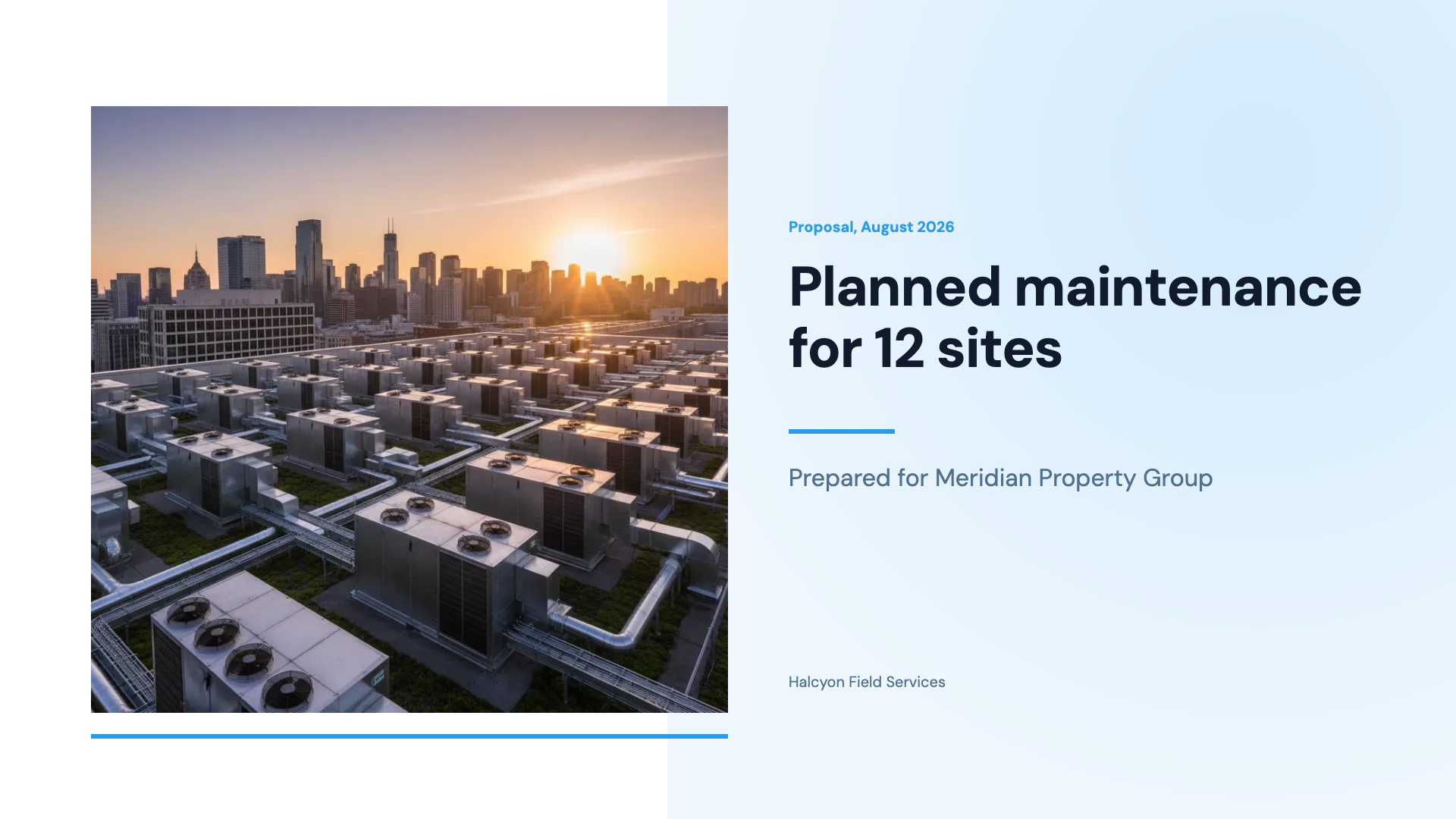
See it on a finished piece

Questions people ask
Do meeting notes need tidying before they go in?
No. Fragments, arrows, slashes and abbreviations are all handled, and tidying often does harm, because the raw order tells the planner which points came up together. The one edit worth making is to delete anything that should not reach the audience, such as a side remark about a colleague or a figure you have not confirmed yet. Everything in the box is treated as material for the deck.
Will internal jargon and code names survive into the slides?
Yes, as written. A term the planner does not recognise is kept rather than expanded into a guess, because a wrong expansion is worse than an unfamiliar word. If people outside the team will read the deck, spell the term out once in the notes, for example Project Kestrel, the new scanner rollout, and that expansion carries through to the slide that mentions it.
Can a photo of a whiteboard become slides?
Yes, on a Starter plan or higher. Attach the photo and its visible text is transcribed word for word, then treated as part of your prompt. Handwriting, glare and a steep angle all cost accuracy, so shoot the board straight on in good light and check every figure on the finished slides. Typing the numbers into the prompt as well removes the risk entirely.
How do I stop the planner reordering my notes?
Say keep my order, or build the slides in the order written, in the prompt. Explicit instructions like that are followed reliably. Without one, the planner assumes notes are in the order things were said and rearranges them into an opening, a middle and a close, which usually moves a decision or an ask from the middle of the notes to the final slides.
How many slides will a page of notes make?
As many as the length slider says, not as many as the notes suggest. The slider starts at 8 and goes from 3 to 20, and the free plan stops at 6. A typical page of meeting notes carries five to eight separate points, so set the slider to that range if you want one point per slide, or lower it and let related points share a slide.
Can notes from two meetings go into one deck?
Yes, as long as the combined text fits in the 8,000 character box. Put a short label above each block, such as Monday ops review and Wednesday vendor call, so the planner can tell the sources apart, and say whether the deck should keep them as two parts or merge them by topic. Without that line it merges them, which suits a summary but blurs who said what.
Make your own presentation
The button opens the generator with this use case already described. Change the wording to match yours, generate, then edit anything you like.
Create a presentation with OneCraftRelated pages
Make slides from screenshots
To make slides from screenshots, attach them to the slide generator with a line saying what each screen is for, and the deck is written from the words they contain. Then place the screenshots themselves on the slides in the builder, because the generator reads a picture and never pastes it. There are two different jobs hiding in this request, and mixing them up is why people are disappointed.
Outline to slides
To turn an outline into slides, paste it into the prompt box with one line per slide and set the length slider to the number of lines. Each line then becomes one slide, in your order, with a layout chosen for what that line is about. This is the case where you are not asking for ideas: the structure is settled, and an outline pasted this way is treated as a specification rather than a suggestion.
Convert a PDF to a presentation
To convert a PDF to a presentation, attach the PDF to the slide generator, set the slide count and say who the deck is for. The file is read for its content and the content is rebuilt as slides, so this is not a page for page conversion. A report argues in paragraphs and a deck asserts in headlines, which is why the result keeps the facts and rewrites the sentences.
More finished work of this kind is on the presentation examples hub.
Written and checked by the OneCraft team. Last checked .