Presentations
Convert a PDF to a presentation
To convert a PDF to a presentation, attach the PDF to the slide generator, set the slide count and say who the deck is for. The file is read for its content and the content is rebuilt as slides, so this is not a page for page conversion. A report argues in paragraphs and a deck asserts in headlines, which is why the result keeps the facts and rewrites the sentences.
The pages are looked at, not parsed
An attached PDF is never parsed as text. Each page is rendered as a picture at about 200 DPI, up to 100 pages, and the pictures go to a vision model that reports what the document is: its type, language, a short summary, the topics, the key points and every labelled field with its value. A PDF exported from a word processor and a scan of the same pages go down exactly the same path. What reaches the planner is that structured read, not a transcript of every sentence, and it is cached against the file so a second generation from the same attachment does not read it again.
Extracted text becomes part of your prompt
The planner receives the file's contents under a heading that tells it to treat this as what the user actually wrote, to quote and paraphrase it, and not to fall back on generic domain knowledge. That instruction matters: without it a model asked for a deck about supply chain resilience writes a deck about supply chain resilience in general rather than about the one in your report.
Six pages does not mean six slides
Report sections vary wildly in weight. A two paragraph introduction and a four page findings chapter are one section each on paper and are not one slide each on screen. The planner counts ideas, not headings, then spreads them across the slide count you set, and is instructed to vary the density deliberately rather than putting the same number of points on three slides in a row.
Tables and figures do not travel as images
Nothing is lifted out of the PDF as a picture. A figure that made it into the key points can be rebuilt as a real table or chart slot you can edit, but a table is not copied cell by cell, and a chart that existed only as artwork is not recovered. When one table has to arrive complete, screenshot it and attach the image as well, or paste its rows into the prompt box, since both of those routes keep the values as written.
Say what must not change
One sentence in the prompt does most of the work. Keep the section order. Lead with the numbers. Do not soften the risk section. The planner follows explicit constraints far more reliably than it guesses your intent, and this is where a converted deck goes from approximately right to usable.
When a screenshot beats the PDF
An attached image is handled differently from a PDF: the vision model is told to transcribe every visible word verbatim, in reading order. So a screenshot of a page preserves its wording better than the PDF of the same page. For a report where two or three pages carry the sentences that must survive, such as a findings summary or a list of recommendations, screenshot those pages, attach them alongside the PDF or instead of it, and keep the file count within five.
How it works, in three steps
Step 1
Attach the PDF
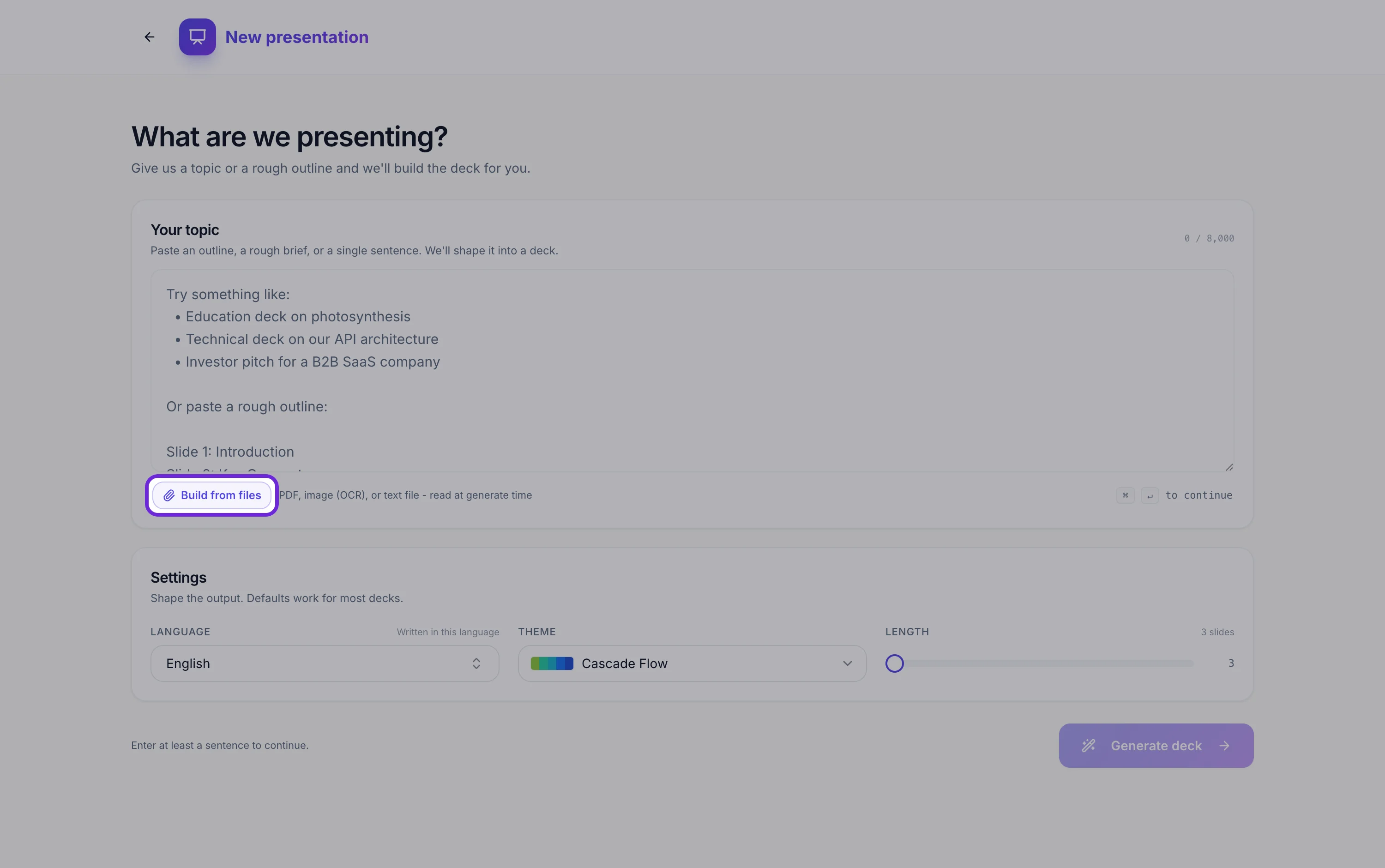
Build from files sits under the prompt box. Add screenshots of any page whose exact wording matters, up to five files in total.
Step 2
Add the framing
Who is in the room, what they have to decide, and anything that must stay in the order it is in.
Step 3
Check the numbers first
Open the slides carrying figures before you touch the wording. A value the read missed or rounded shows up there first.
The full walkthrough with screenshots is in the guide Turn a document into a presentation.
Limits worth knowing
- Attaching a file needs a Starter plan or higher. Five files, 25 MB each.
- A PDF is rendered page by page, up to 100 pages, and read by a vision model. It returns a summary, key points and fields, not a verbatim transcript.
- At most 50,000 characters of that read are kept per file.
- Nothing is copied out of the PDF as artwork. Images and drawn charts in the source are not carried across.
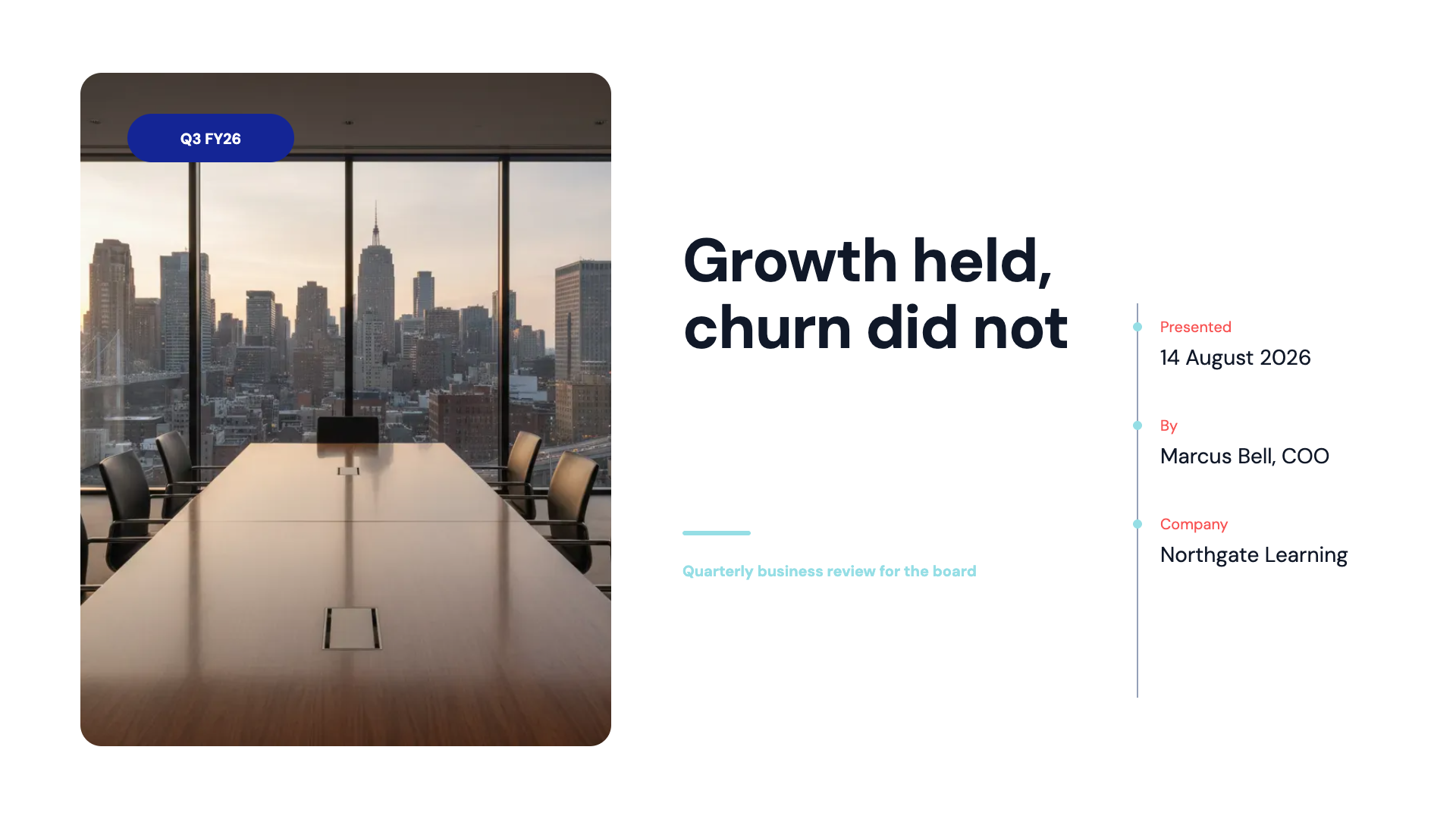
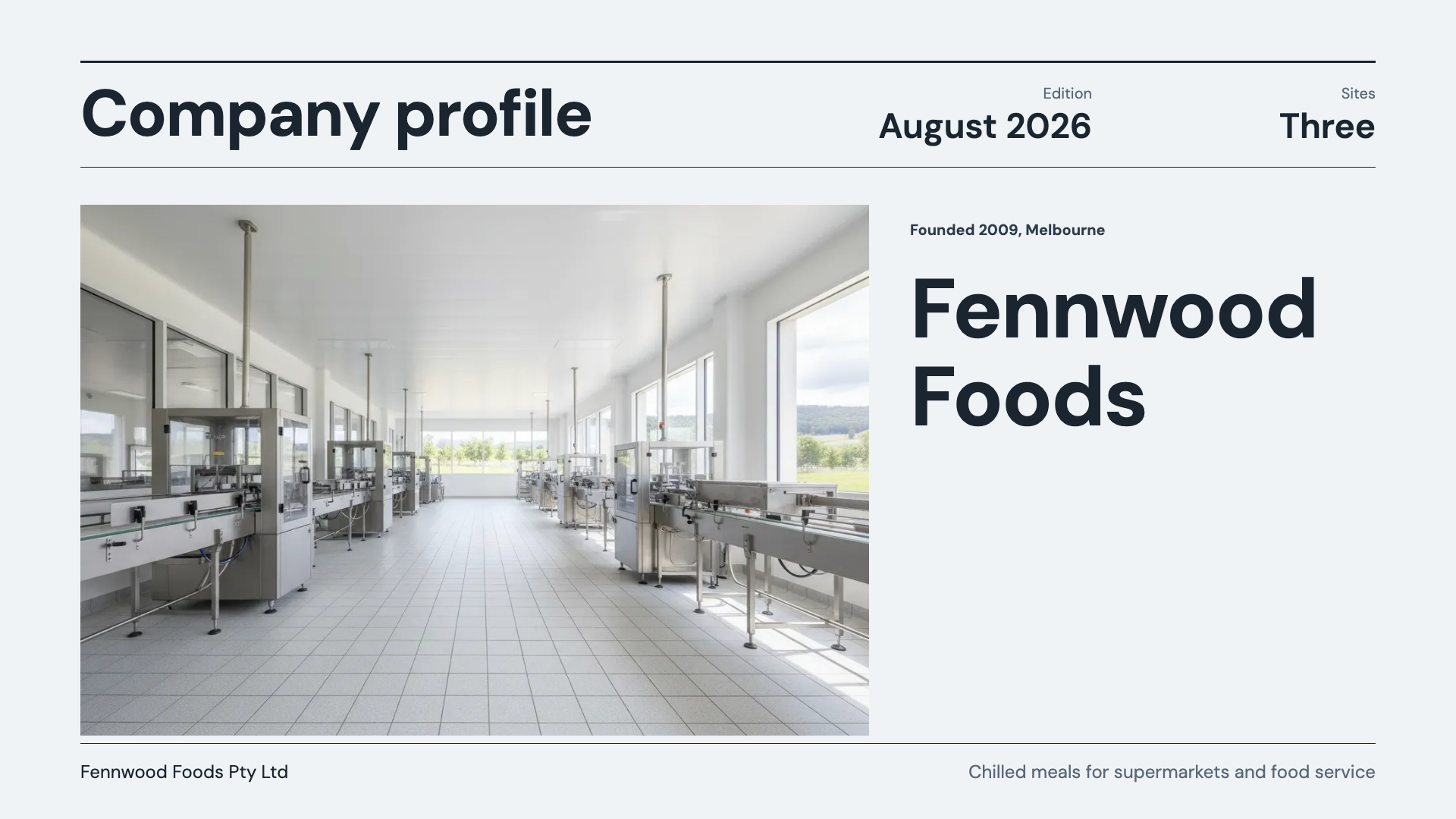
See it on a finished piece

Questions people ask
Does a deck converted from a PDF keep the report sentences?
It keeps the facts, names and figures the read picked up, but the sentences are rewritten. The PDF comes back as a summary and key points rather than a transcript, and slide text is budgeted per box anyway, so report prose would not fit. If a paragraph must appear word for word, paste it into the prompt box or attach a screenshot of that page.
Is there a page limit on the PDF I attach?
Up to 100 pages of a PDF are rendered and read, and each file can be up to 25 MB. At most 50,000 characters of the read are kept. For a long report, the better move is to attach only the chapter you are presenting, because a deck built from the right twenty pages is sharper than one built from a summary of two hundred.
Can several PDFs feed one presentation?
Yes, up to five files on a Starter plan or higher. Each one is read separately and all of them are handed to the planner together, marked as part of your prompt. Say in the prompt how they relate, for example the first is this quarter and the second is last quarter, or the planner may blend them into one story when you wanted a comparison.
Why did a table from the PDF come back as bullet points?
Either the read reported the table as key points rather than a grid, or the layout chosen for that slide had no table slot. Ask the AI assistant to swap that slide to a layout with a table, or drop a table element onto it, and paste the rows in. A screenshot of the table attached as an image keeps the cell values most reliably.
Is a scanned PDF worse than one exported from Word?
Not in this pipeline, because both are rendered to page pictures and read the same way. What matters is how legible the pages are at about 200 DPI: a crooked, faint or low resolution scan loses small print and table figures, while a clean one reads as well as an export. Rescan a poor copy flat and at a decent resolution before attaching it.
Does the finished deck cite the PDF as its source?
No. The planner uses the file as grounding, but slide sources are never printed on the slides, in the notes or in the exports. If the audience needs to know where the numbers came from, add a line to the closing slide yourself, or ask for a sources slide in the prompt and fill in the report title and date by hand.
Make your own presentation
The button opens the generator with this use case already described. Change the wording to match yours, generate, then edit anything you like.
Create a presentation with OneCraftRelated pages
Convert a PDF form to an online form
To convert a PDF form to an online form, attach the PDF to the form generator and it rebuilds the questions as fields you can publish on a link. The PDF is read as page images, so an exported PDF and a scanned one go down the same path.
Export a presentation to PDF
PDF is the export that works everywhere and needs nothing installed, which is why it is the one available on every plan. It is a faithful picture of your deck, and understanding that it is a picture is the difference between using it well and being disappointed by it.
Turn rough notes into a presentation
To turn notes into a presentation, paste the notes into the slide generator as they are and add two lines saying who the deck is for and what you want from them. The planner expands the shorthand into sentences, orders the points into an argument and lays each one out on a slide. Notes are written for the person who took them, so the real work is inferring what the fragments mean, and that is where your two lines help most.
More finished work of this kind is on the presentation examples hub.
Written and checked by the OneCraft team. Last checked .