Presentations
Export a presentation to PDF
PDF is the export that works everywhere and needs nothing installed, which is why it is the one available on every plan. It is a faithful picture of your deck, and understanding that it is a picture is the difference between using it well and being disappointed by it.
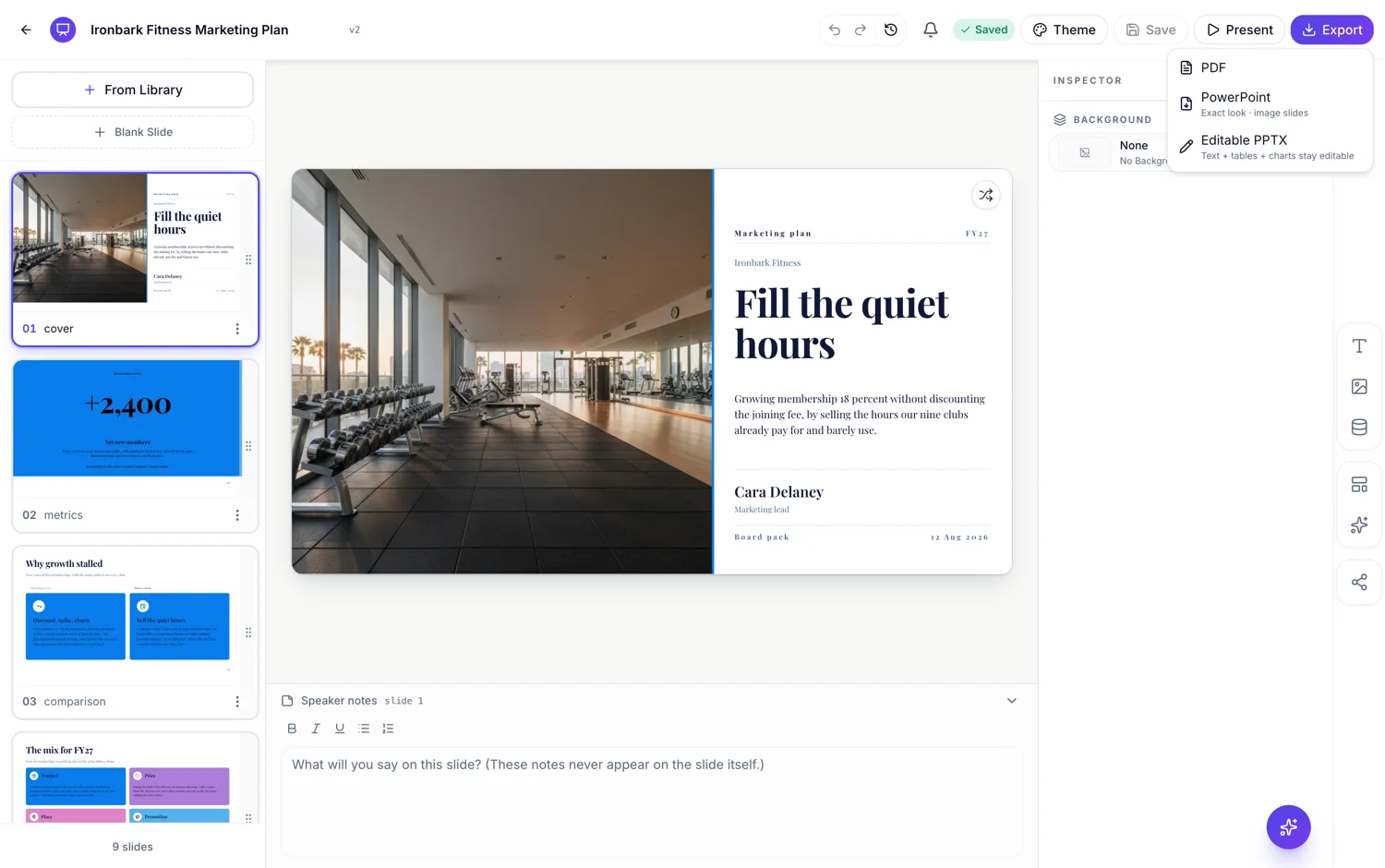
One page per slide, at the full canvas
Every slide becomes one landscape page at 1920 by 1080, which is 16 by 9. Nothing is reflowed, split or scaled to A4, so the file opens looking exactly like the deck rather than like a document that used to be a deck. On screen it fills a laptop display; printed, it centres on the paper with margins top and bottom.
Rendered on the server, from your saved version
The export does not happen in your browser. Pressing it saves any pending edits, then a headless browser on the server opens the saved version, waits for every font and image to settle, and captures each slide. That is why a slow connection or a busy laptop does not affect quality, and why what you get always matches a specific saved version rather than whatever your screen happened to be showing.
The text is not selectable
Each page is a high resolution image of the slide, captured at twice the canvas size for print sharpness. It looks correct in every reader and there is no font substitution to worry about, because the fonts were rendered before the capture. The cost is that nobody can select, copy or search the text, and no screen reader can read it. If a searchable file matters, the editable PowerPoint export is the one that keeps real text objects.
The same file is reused
An export is keyed to the deck version it was made from. Export the same saved version to PDF twice and you get the same file back immediately rather than waiting for a second render, and you are not charged twice. Save a change and the next export renders fresh, because it is now a different version.
What does not come across
Transitions, because a PDF has no motion. Speaker notes, because notes are not written into any export. Drawings made while presenting, because those live only in the presenting session. What does come across is everything visible on the slide: charts, tables, diagrams, maps, images, your logo and the footer.
How it works, in three steps
Step 1
Open the download menu
Top right of the builder. PDF is the first entry and carries no plan restriction.
Step 2
Wait for the render
It saves, then renders on the server. A long deck takes a moment and you get a notification when the file is ready.
Step 3
Check page one
The cover is where a missing image or an unfinished slide shows up first.
The full walkthrough with screenshots is in the guide Export a presentation to PowerPoint or PDF.
Limits worth knowing
- Pages are images, so the text cannot be selected, copied, searched or read by a screen reader.
- Page size is fixed at the 16 by 9 slide canvas. There is no A4 or Letter option.
- Speaker notes and transitions are not included.
- The export renders the saved version, so unsaved edits are saved first as part of pressing it.
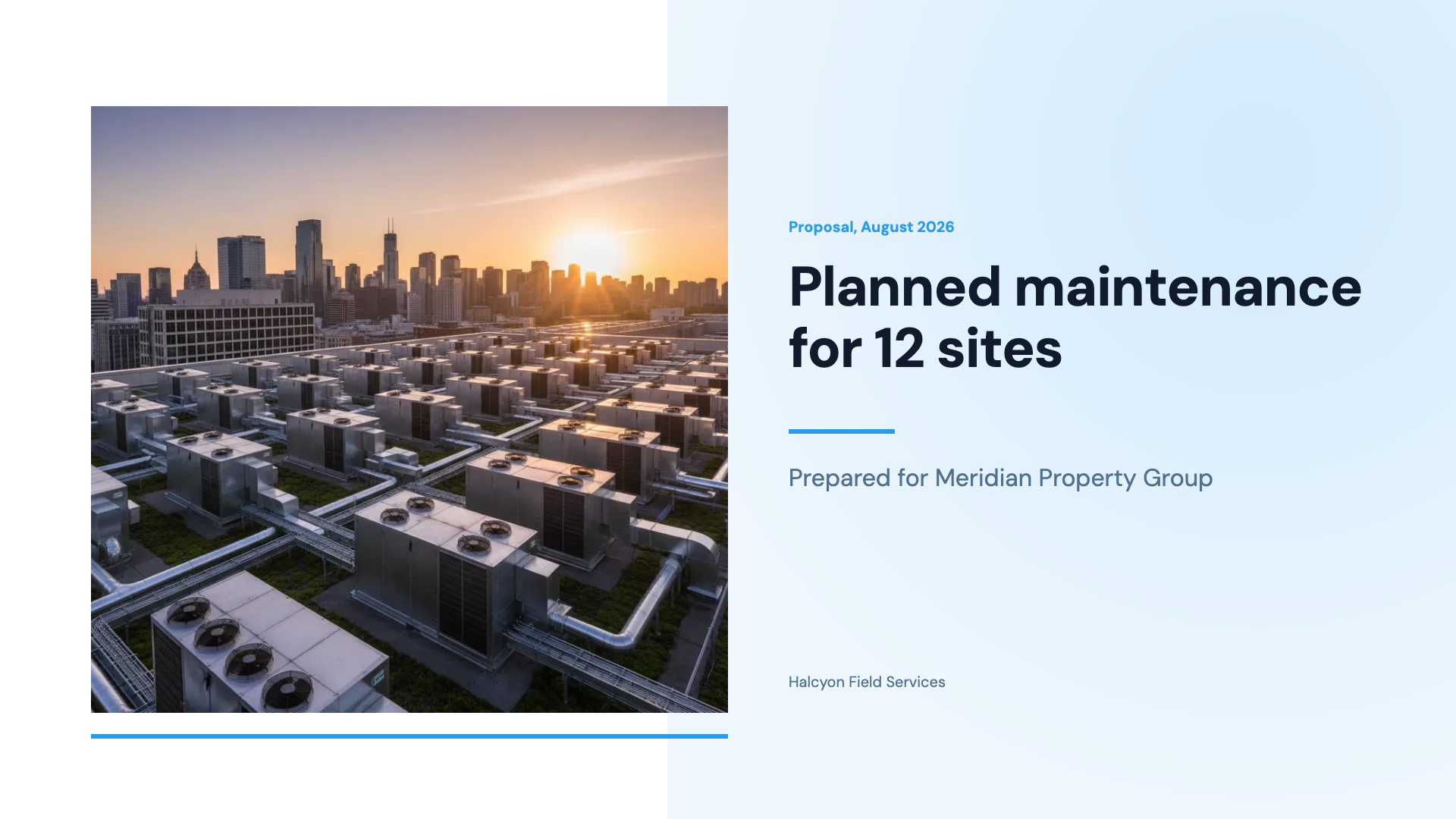
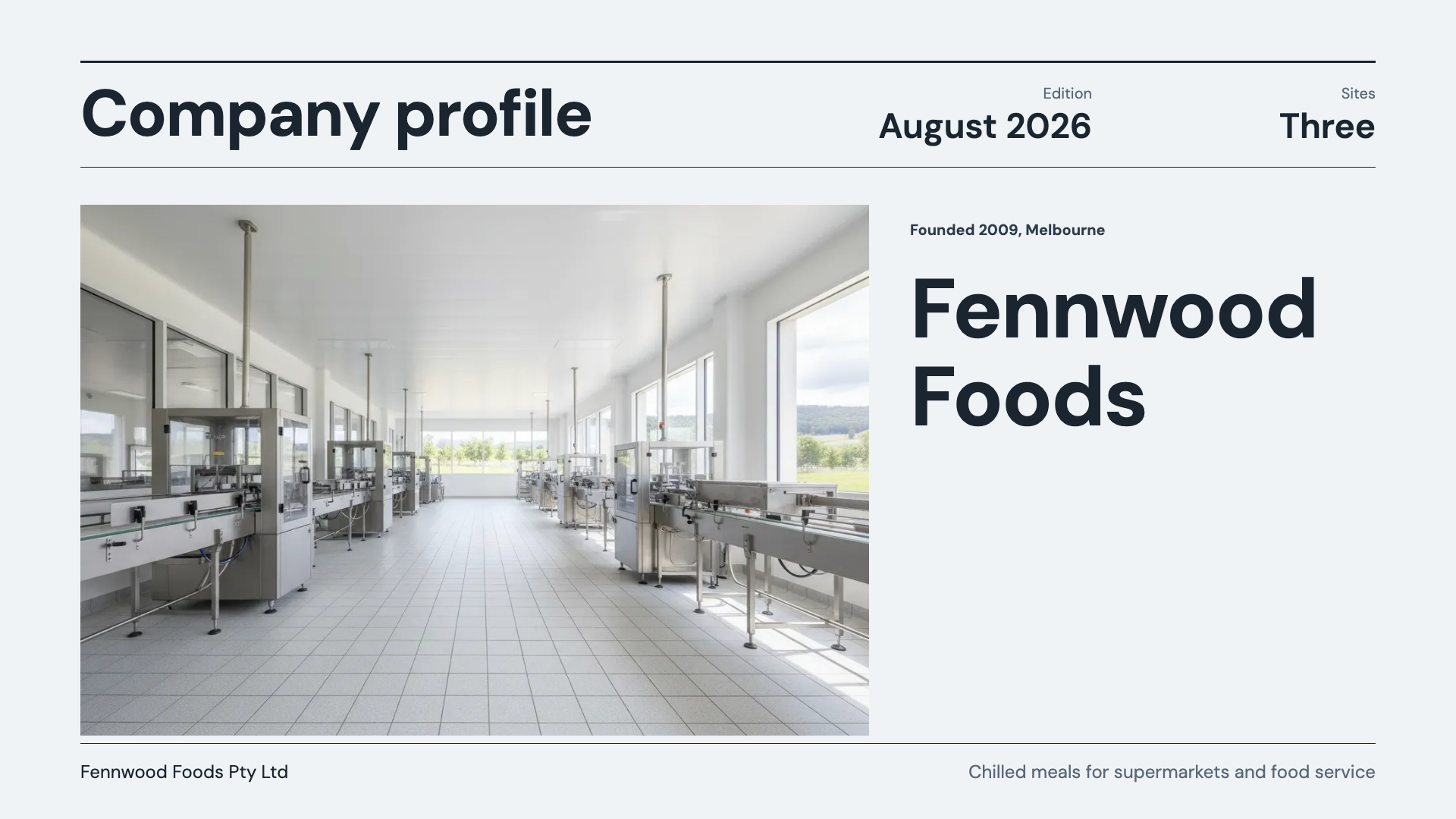
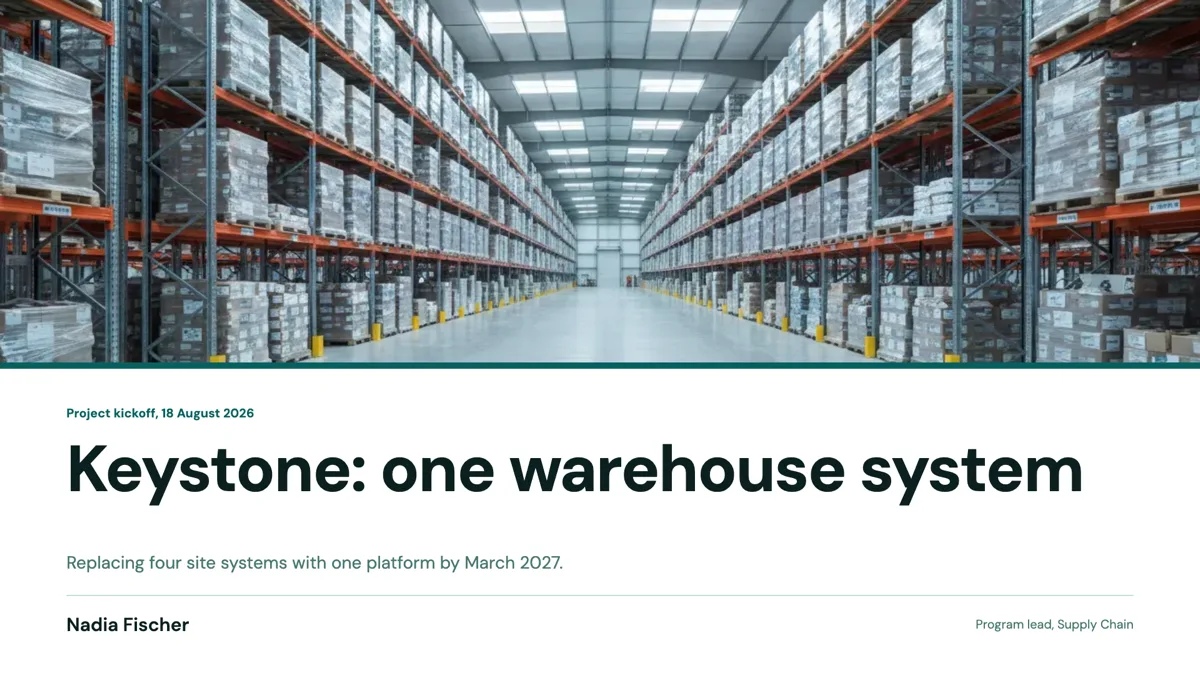
See it on a finished piece
Questions people ask
Can I select the text in the PDF?
No. Each page is a high resolution image of the slide, so text is not selectable or searchable. Use the editable PowerPoint export if real text objects matter.
Is PDF export restricted by plan?
No. PDF is available on every plan including free. The two PowerPoint formats are the ones that need a paid plan.
What page size do I get?
The slide canvas, 1920 by 1080 landscape, one page per slide. It is not scaled to A4, so printing centres it with margins.
Why was my second export instant?
Because it was the same saved version. Exports are stored against the version they were made from and reused, so you neither wait nor pay twice.
Make your own presentation
The button opens the generator with this use case already described. Change the wording to match yours, generate, then edit anything you like.
Create a presentation with OneCraftRelated pages
Flyer to PDF for print
Pressing Export does not save a picture of your screen. It saves the flyer, hands the saved version to a headless browser on the server, screenshots each page at twice its canvas resolution and assembles those into a PDF. Knowing that explains almost every question people have about the file.
Share a presentation link
One link per deck. It does not change, it cannot be edited through, and it always serves the most recent version you saved. That last part is the reason to use it: nobody ends up presenting last Tuesday's numbers because they downloaded the file on Tuesday.
Document to PDF
Export is not a print dialog. The document is rendered on the server from the same page layout you have been editing, which is why the PDF matches the screen rather than approximating it.
More finished work of this kind is on the presentation examples hub.
Written and checked by the OneCraft team. Last checked .