Presentations
Share a presentation link
One link per deck. It does not change, it cannot be edited through, and it always serves the most recent version you saved. That last part is the reason to use it: nobody ends up presenting last Tuesday's numbers because they downloaded the file on Tuesday.
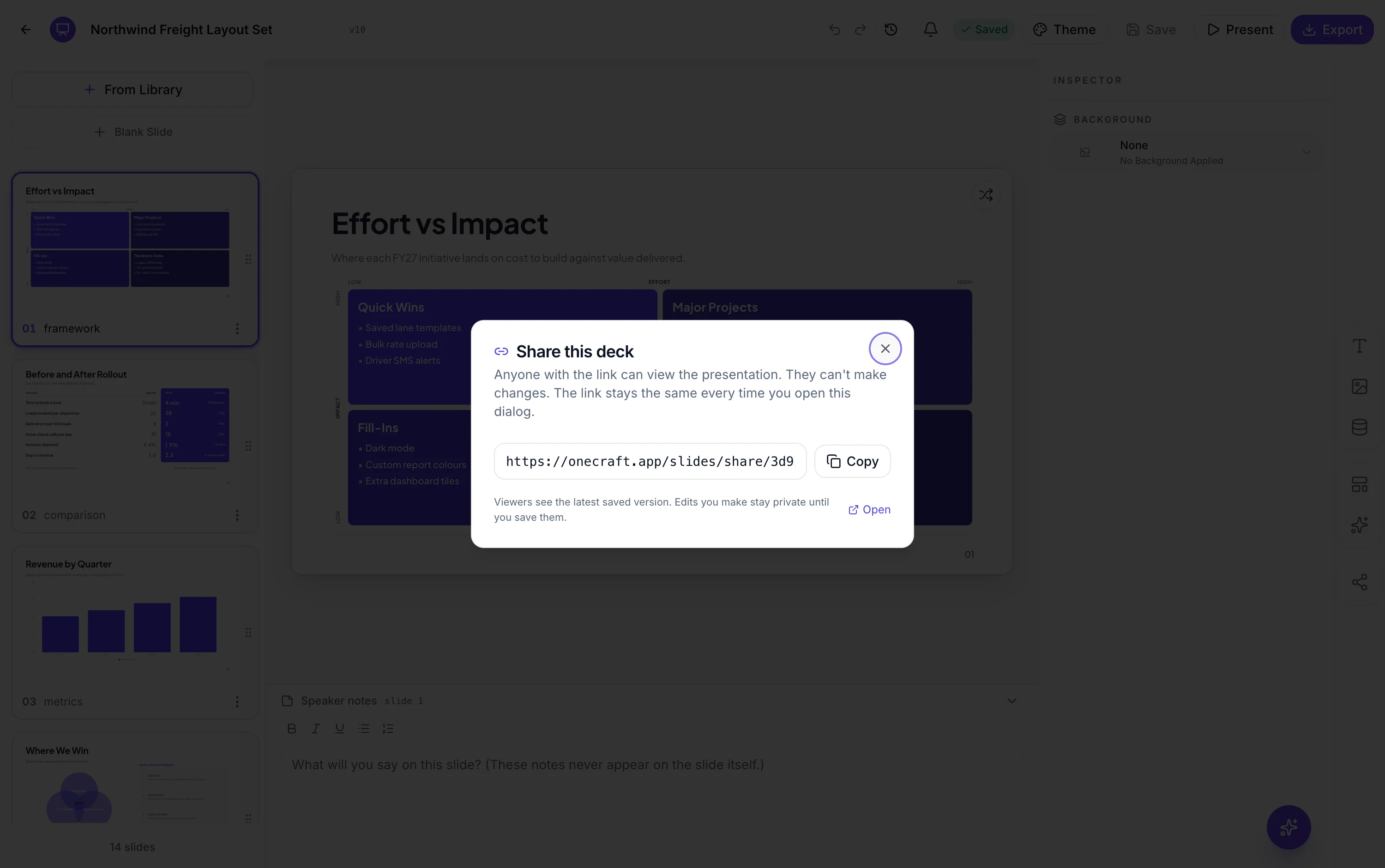
The link is stable, and there is only one
Opening the share dialog either finds the deck's existing link or creates it, and it returns the same one every time after that. So the address you sent in March still works in September, and you can put it in a document or a calendar invitation without worrying that a later share action will mint a different one.
It serves the last save, not your draft
The viewer is handed the version the deck currently points at, which is what you last saved. Edits you have made since are not visible to anyone holding the link until you press Save. That is a feature, not a lag: it means you can rework the middle of a deck at 9am without the person who opened the link at 9:05 seeing it half finished.
The viewer gets the presentation, not the editor
The link opens the same full screen presentation view you use, so they click or use the arrow keys, go full screen, and see any transitions you set. There is no editing, no rail, no inspector and no save. There is also no exit button, because there is nowhere for a viewer to go back to; closing the tab is the way out.
Two things a viewer can reach that you might not expect
The speaker notes, because the notes toggle is present in the same viewer, so anyone with the link can press N and read every note in the deck. And the deck's title. Everything else is fenced: the images are served through short lived signed URLs minted for that specific deck, an image identifier belonging to another deck resolves to nothing, and the extracted text of any file you generated from is stripped out before the deck is sent.
How to take the link back
There is no revoke button in the share dialog and no expiry setting. What does work is disabling the deck from your dashboard: a disabled deck's share link returns not found, and enabling it again brings the same link back to life. That is a blunt instrument, since it also hides the deck from your own list, so treat a share link as public to anyone it reaches.
How it works, in three steps
Step 1
Save first
The link serves your last saved version, so anything unsaved is invisible to viewers until you press Save.
Step 2
Open Share and copy
The dialog creates the link the first time and returns the same one afterwards.
Step 3
Check your notes before you send it
Viewers can open the speaker notes from the same viewer, so read them once with that in mind.
The full walkthrough with screenshots is in the guide Share a presentation with a link.
Limits worth knowing
- No password, no expiry date and no revoke button. Anyone who has the link can open the deck.
- Speaker notes are reachable from the shared viewer, so treat them as published alongside the slides.
- Disabling the deck from your dashboard is the only way to make the link stop working.
- The link always shows the last saved version. Unsaved work is invisible until you save.
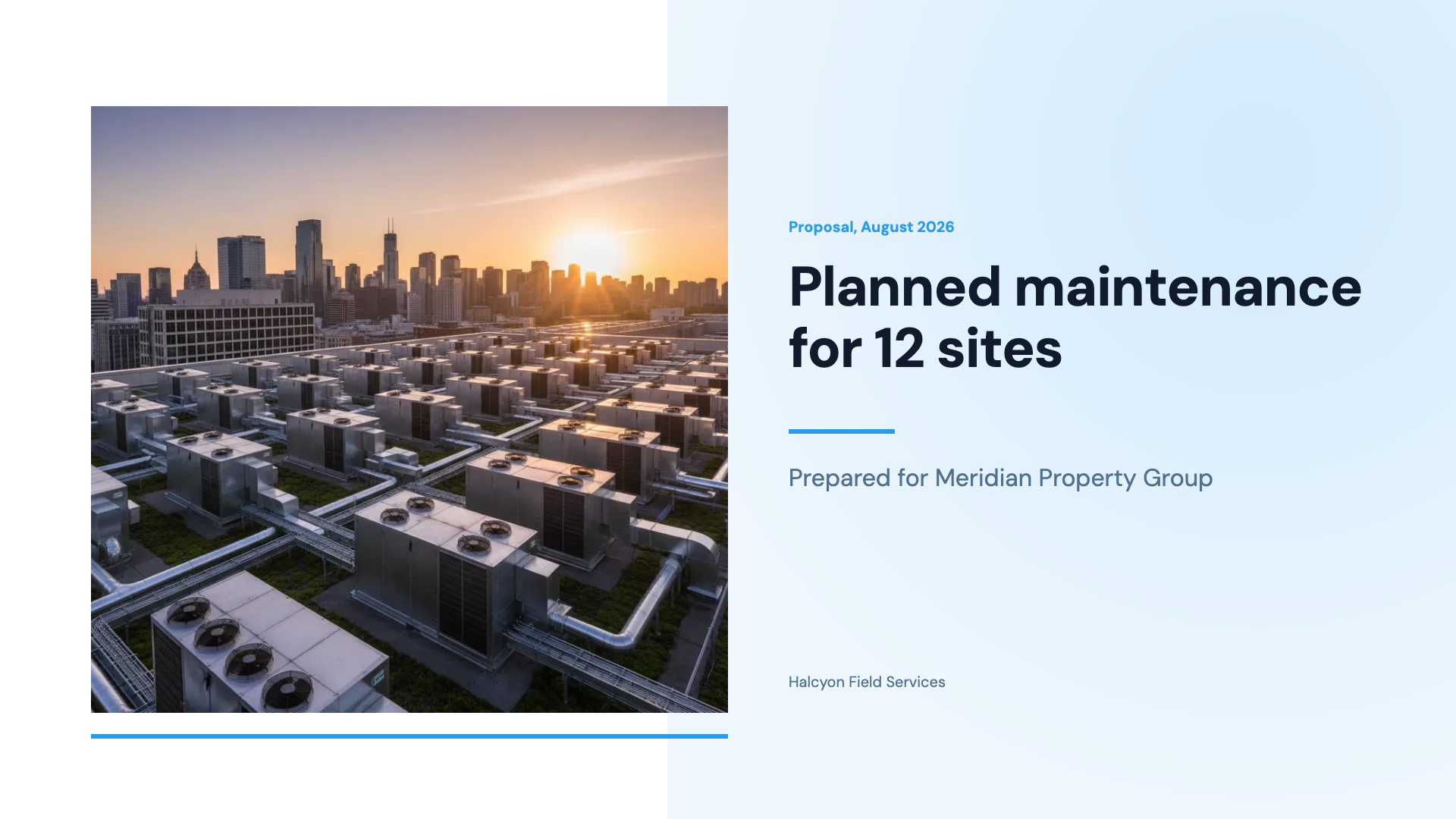
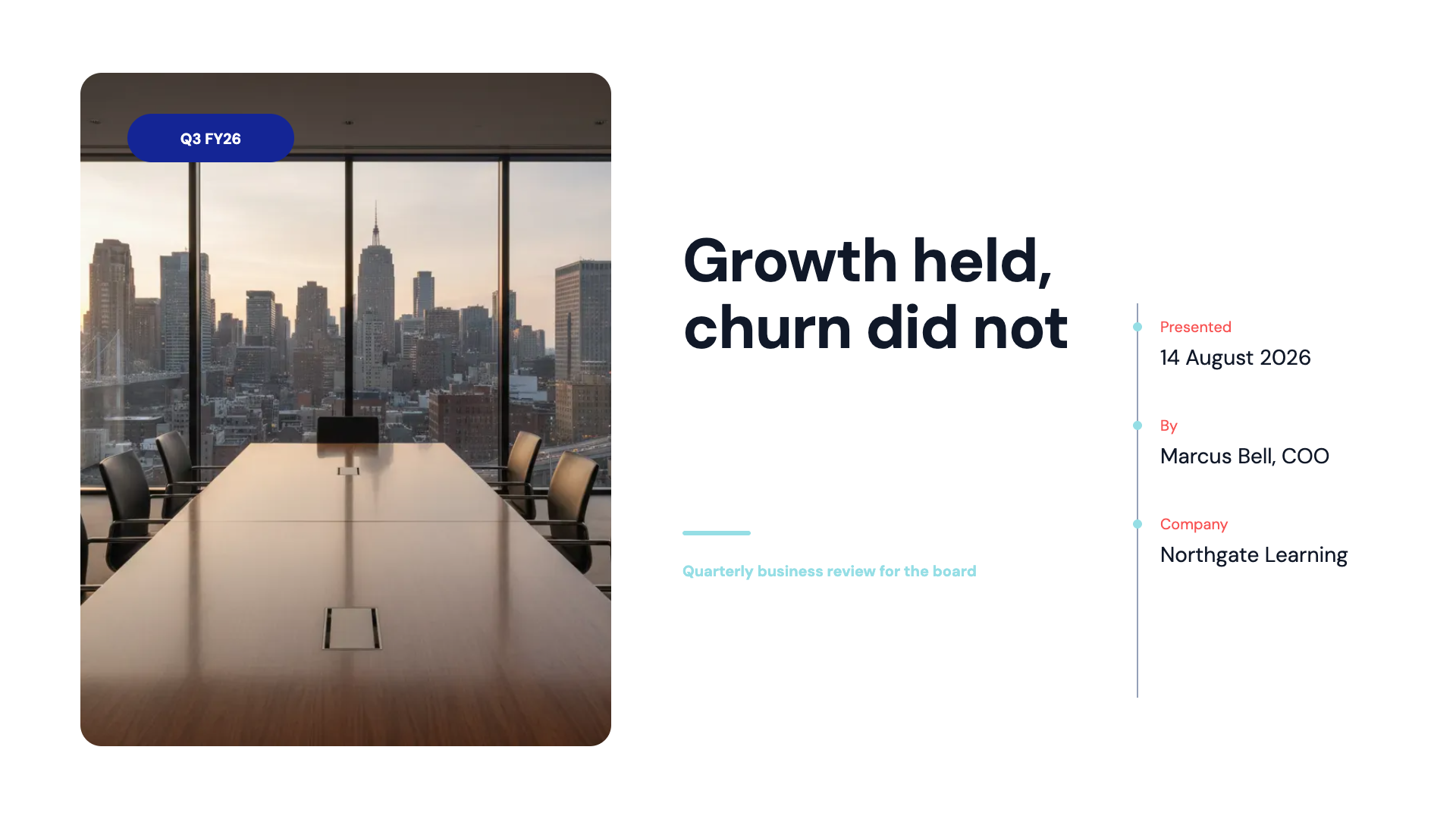
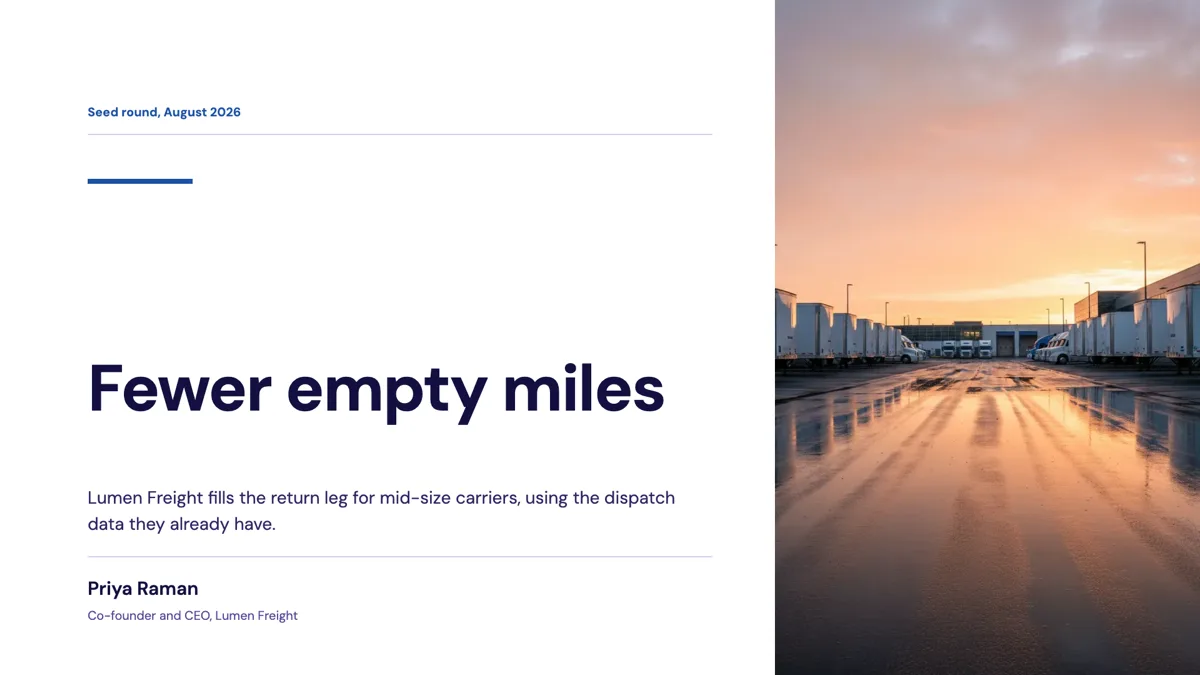
See it on a finished piece
Questions people ask
Does the link update when I edit the deck?
When you save, yes. Viewers always get the current saved version, so unsaved edits stay private until you press Save.
Can I password protect it?
No. There is no password, no expiry and no allowed list. The link is the credential, so send it only to people who should have the deck.
Can a viewer download or edit the deck?
No. They get the read only presentation view with no editing controls and no export. They can screenshot it, as with anything on a screen.
How do I stop an old link working?
Disable the deck from your dashboard. The link then returns not found, and enabling the deck again restores the same link.
Make your own presentation
The button opens the generator with this use case already described. Change the wording to match yours, generate, then edit anything you like.
Create a presentation with OneCraftRelated pages
An invoice with a pay link
An invoice with a pay link gives the client one place to see what they owe and pay it, instead of copying bank details from a PDF. The link can go in the invoice email, a text message or a chat.
Signature request expiry
A signing link that works forever is a small liability sitting in somebody's inbox. Thirty days after the envelope was created, it stops working, and the sweep that does it runs whether anyone is watching or not.
Pricing slides
A pricing slide is a short form with strict fields, and the reason so many look amateur is that the copy was written before the fields were known. Tier names get twenty characters. Prices get twelve. Feature lines get sixty. Write to those and the slide designs itself.
More finished work of this kind is on the presentation examples hub.
Written and checked by the OneCraft team. Last checked .