Documents
Document to PDF
Export is not a print dialog. The document is rendered on the server from the same page layout you have been editing, which is why the PDF matches the screen rather than approximating it.
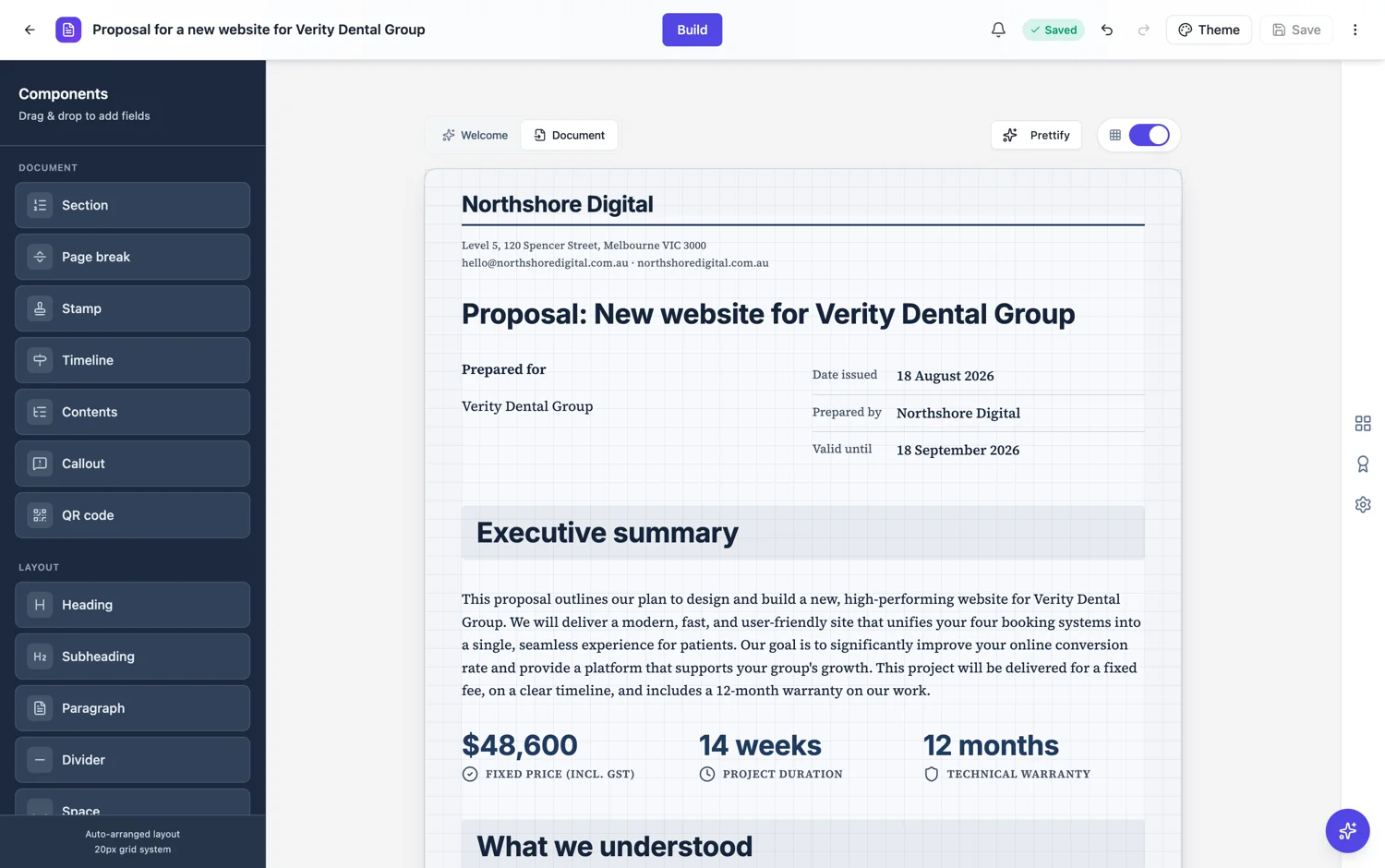
Rendered, not printed
The export runs on the server in a headless browser against the real document, then hands back a file. That is the reason the PDF has the same page breaks, the same fonts and the same page numbers as the canvas: it is the same layout engine, not a second interpretation of it in a print stylesheet.
It saves first, then queues
If there are unsaved edits they are written before the render starts, so you never export yesterday’s version by accident. The request is then polled until the file is ready. A short document is quick; a long one with charts takes longer, and the wait is the render rather than the download.
What you get
A single PDF with real text, so it can be searched, selected and read by a screen reader. Charts and diagrams are drawn rather than screenshotted. The footer and page numbers are on every page they were set for, and the cover, if the document has one, is the first sheet.
Check these three before you send it
The last page, because a stranded signature block or a single orphaned line is the one thing readers notice. The contents page, if there is one, because a late edit can move a section. And the footer, which is where an unedited placeholder survives longest, since nobody reads their own footer.
Rendered by a headless browser on a queue
The export is not a print dialog. The document is handed to a worker that opens it in headless Chromium, waits for the page to settle, and writes the PDF from the same renderer that draws the document on screen. That is why it takes a few seconds rather than being instant, and why what you see in the builder is what lands in the file: there is no second layout engine to disagree with the first.
The text is real text, unlike a flyer PDF
Because the PDF is written by the browser rather than assembled from screenshots, the words in it are selectable, searchable and copyable, and a screen reader can read them. A flyer or slide PDF from the same product is a different path: those place one image per page, so their text is a picture. If you need a document somebody can search or quote from, this is the export that gives it to you.
How it works, in three steps
Step 1
Finish editing
Unsaved changes are written before the render, so what you see is what is exported.
Step 2
Export and wait
The render is queued and polled. Longer documents take longer, and that is the render, not the download.
Step 3
Read the last page and the footer
Those are where problems survive into a sent PDF.
The full walkthrough with screenshots is in the guide Create a document with AI.
Limits worth knowing
- The render happens on the server, so it takes a moment rather than being instant.
- PDF export can be limited by your plan; the app raises a plan message rather than failing quietly.
- The PDF matches the document layout; there is no separate print stylesheet to adjust.
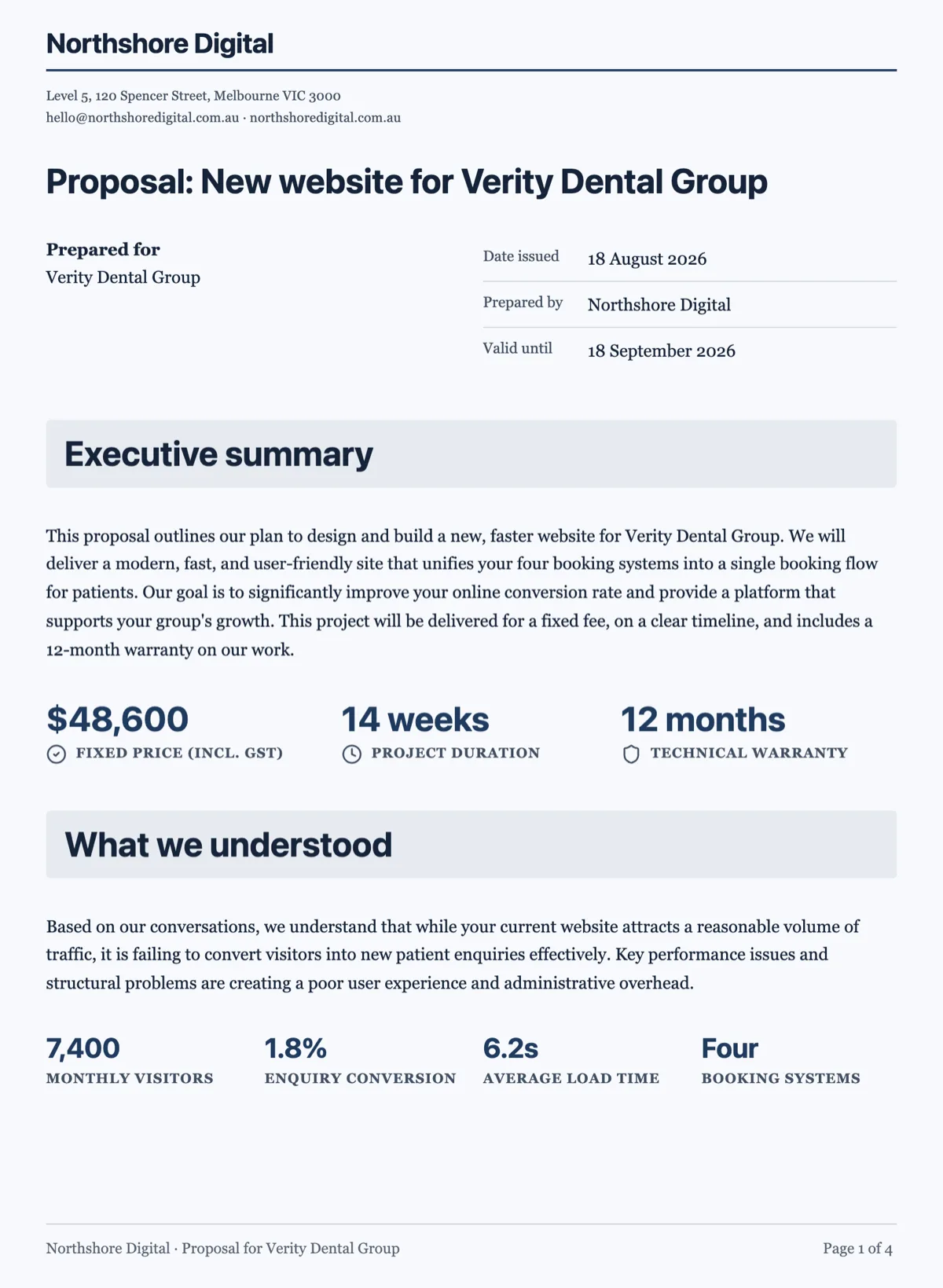
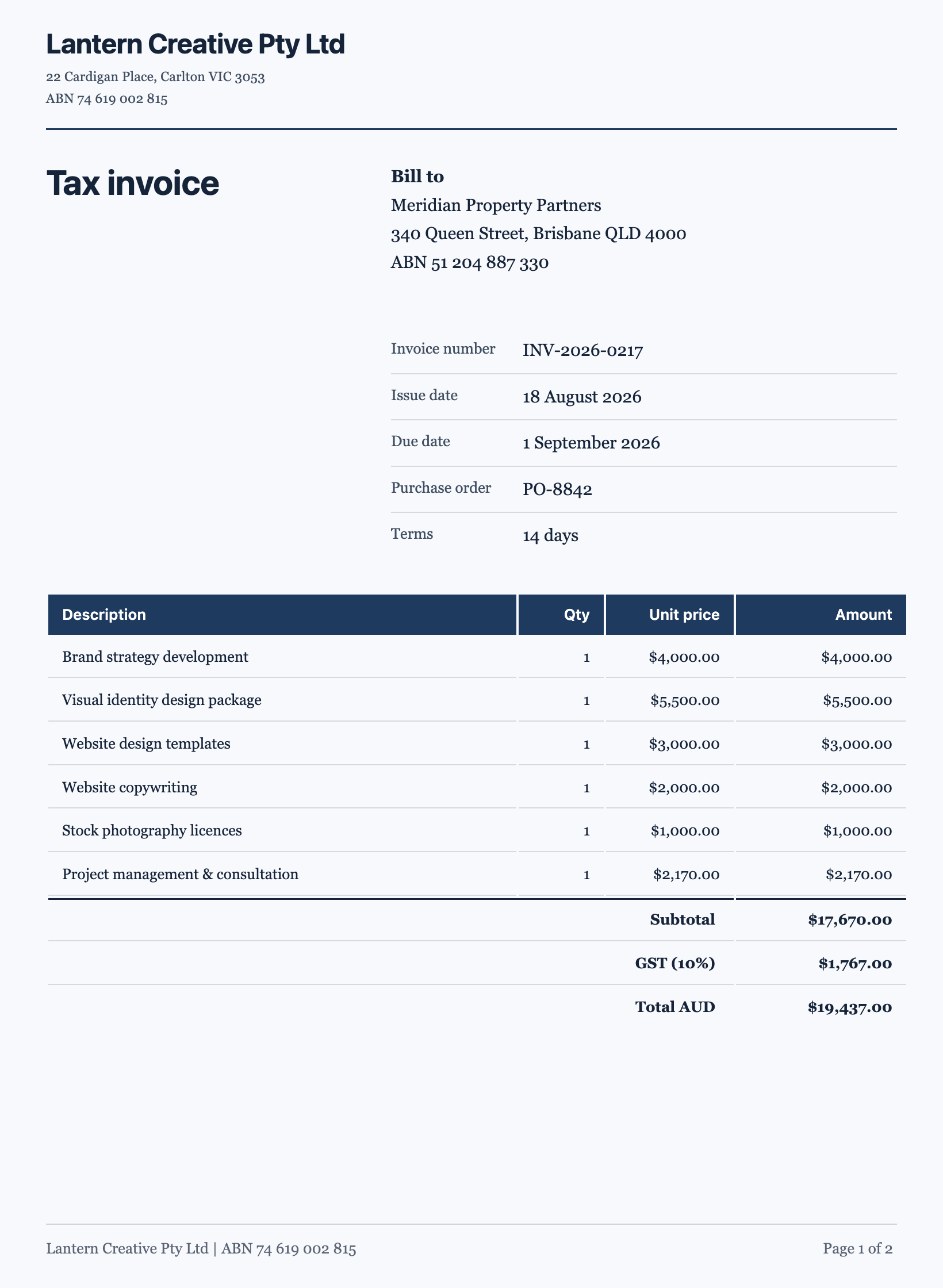
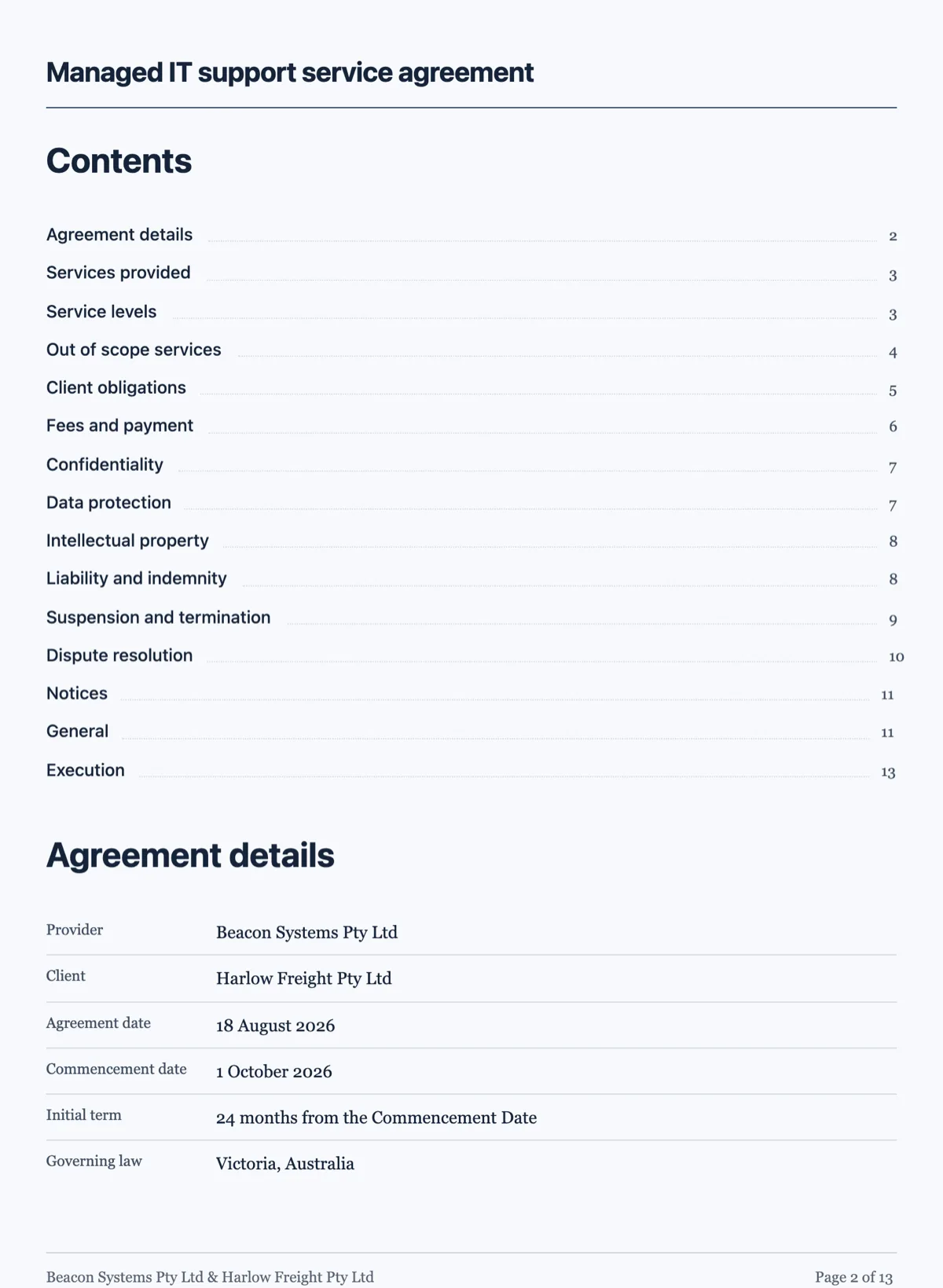
See it on a finished piece
Questions people ask
Is the text in the PDF selectable?
Yes. The file is written by a browser rendering the real document, so every word in it is real text: searchable, copyable and readable by a screen reader. That is worth knowing because a flyer or slide PDF from the same product works differently and places one image per page, which makes its words a picture rather than text.
Why does the export take a few seconds?
The document is rendered on the server, in the same engine that draws it on your screen, rather than printed by your own browser. That round trip costs a few seconds and buys you a file that matches the builder exactly, including the page breaks, the page numbers and the contents list.
Will the PDF page breaks match what I see?
Yes. One layout engine produces both the on screen document and the exported file, so the breaks, the page numbers and the contents entries are the same in each. There is no separate print stylesheet to drift out of step with the builder, which is the usual reason an export surprises people.
Can I export a single page?
The export writes the whole document. To send one page, export the document and take the page out in a PDF reader, or write the one page as its own document, which is usually the better answer when the page has to stand alone anyway.
Is there a Word export?
No. PDF is the export, and it is the right format for something you are sending to be read or signed rather than edited. If somebody needs to edit it, share the document itself so they work in the same layout engine rather than in a file that will re-flow on their machine.
Make your own document
The button opens the generator with this use case already described. Change the wording to match yours, generate, then edit anything you like.
Create a document with OneCraftRelated pages
Design the PDF version of a form
A form on screen and the same form on paper want different things. The PDF layout is a second arrangement of the same fields, with its own order, its own header and footer, and the ability to hide anything that only matters online.
Flyer to PNG
PNG and JPG are the social formats, and they behave differently from the PDF in two ways that catch people out: each one exports a single page rather than the whole flyer, and every file comes out at exactly twice the canvas dimensions.
Online form with file upload
An upload field turns a form into a way of collecting documents. You set how many files, how large each may be, and whether you want images, PDFs or both, and the files arrive attached to the response rather than in your inbox.
More finished work of this kind is on the document examples hub.
Written and checked by the OneCraft team. Last checked .