Flyers
Flyer to PNG
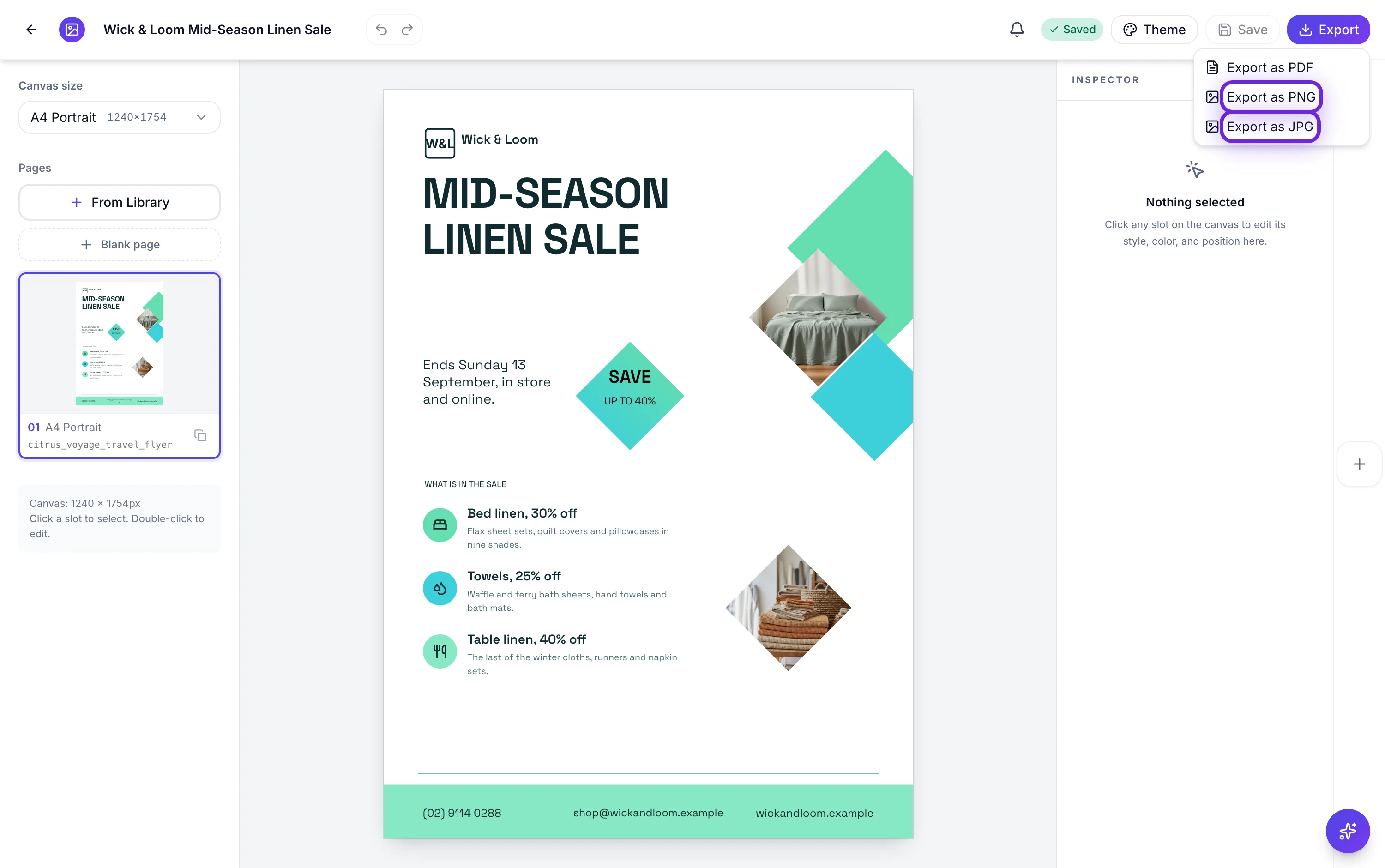
PNG and JPG are the social formats, and they behave differently from the PDF in two ways that catch people out: each one exports a single page rather than the whole flyer, and every file comes out at exactly twice the canvas dimensions.
Twice the canvas, every time
The server captures each page at a device pixel ratio of two, so the file you download is double the canvas in both directions. An Instagram post at 1080 by 1080 exports as 2160 by 2160. A story becomes 2160 by 3840, a Facebook post 2400 by 1260, a LinkedIn post 2400 by 1254, a Facebook cover 1640 by 624, a Twitter header 3000 by 1000 and an A4 page 2480 by 3508. There is no setting for this.
One page, the one you are looking at
Image exports carry a page index, and it is the page currently selected in the builder. A two page flyer therefore needs two exports, one page selected at a time. It is the single most common surprise here, and there is no batch or export all option to fall back on.
PNG for type, JPG for photographs
PNG is lossless, so flat colour panels, hard edged headlines and QR codes come out exactly as drawn. JPG is written at quality 95, which is high enough that a photograph is visually identical and the file is a fraction of the size. The practical rule: if the page is mostly type or flat colour, PNG. If it is mostly one large photograph, JPG.
Twice the size is not a mistake
Uploading a 2160 pixel square where the platform wanted 1080 is fine and often better, because the platform downsizes with a good filter and its own re-encode has more to work with. What you should not do is upscale a small export yourself, which is why the fixed doubling exists rather than a quality slider.
It saves before it renders
Any unsaved change is written first, so the image always matches your canvas. The flip side is that each save is a new version, and a version that has not been rendered in that format renders fresh. Exporting the same page from the same saved version again returns the existing file instantly with no further charge.
Every flyer size in one place
This page covers one part of the picture. The sizes page lists all eight canvases with their pixel dimensions and says which designs are native at each.
How it works, in three steps
Step 1
Select the page you want
Image exports take the active page. Click its thumbnail in the page rail first.
Step 2
Export as PNG or JPG
Both sit in the Export menu beside PDF, and both give you the one page.
Step 3
Repeat for each page
There is no batch export, so a front and a back are two selections and two exports.
The full walkthrough with screenshots is in the guide Create a flyer for Instagram and print.
Limits worth knowing
- PNG and JPG export the active page only. PDF is the only format that carries every page.
- Files are always twice the canvas dimensions. There is no size, scale or quality control.
- JPG is written at quality 95 and PNG is lossless. Neither is configurable.
- There is no transparent background option; pages are captured on white.
- The download link lasts ten minutes, after which you ask for the export again.
- Exports are charged in credits by page count once the file is stored, on every plan. Asking again for the same saved version in the same format returns the file already rendered with no second charge.
See it on a finished piece
Questions people ask
Can I export all pages as images at once?
No. Each image export covers one page and takes the page you have selected, so a multi page flyer means one export per page.
Can I get a transparent PNG?
No. Every page is captured on a white ground, so the export always has a background.
Why is the file bigger than the canvas size I picked?
The capture runs at twice the device pixel ratio, so a 1080 pixel canvas produces a 2160 pixel file. Platforms downscale it cleanly, and the extra resolution survives their re-encoding better.
Which one should I upload to a feed?
JPG if the page is a photograph with a little text over it, PNG if it is type and flat colour. The difference is most visible on the edges of large letters.
Make your own flyer
The button opens the generator with this use case already described. Change the wording to match yours, generate, then edit anything you like.
Create a flyer with OneCraftRelated pages
LinkedIn post design
The canvas is 1200 by 627 and the constraint is not really the pixels, it is the register. A LinkedIn feed rewards material that looks like it came out of a company rather than out of a sale, and most of that impression is decided by the theme and the blocks you choose, not by the layout.
Facebook cover maker
820 by 312 pixels is the smallest canvas in the set and by some distance the most abused by the platform that shows it. Desktop, mobile and the page card each crop it differently, so a cover is designed around the part that always survives rather than around the whole rectangle.
Trifold brochure maker
Two designs carry trifold in their name, an inside panel and an outside panel, both drawn as A4 portrait sheets of three stacked bands. What does not exist is a folded spread with panel guides, so if you need a genuine six panel trifold you set the geometry out yourself, and it is worth knowing that before you start.
More finished work of this kind is on the flyer examples hub.
Written and checked by the OneCraft team. Last checked .