Flyers
LinkedIn post design
The canvas is 1200 by 627 and the constraint is not really the pixels, it is the register. A LinkedIn feed rewards material that looks like it came out of a company rather than out of a sale, and most of that impression is decided by the theme and the blocks you choose, not by the layout.
The theme sets the register
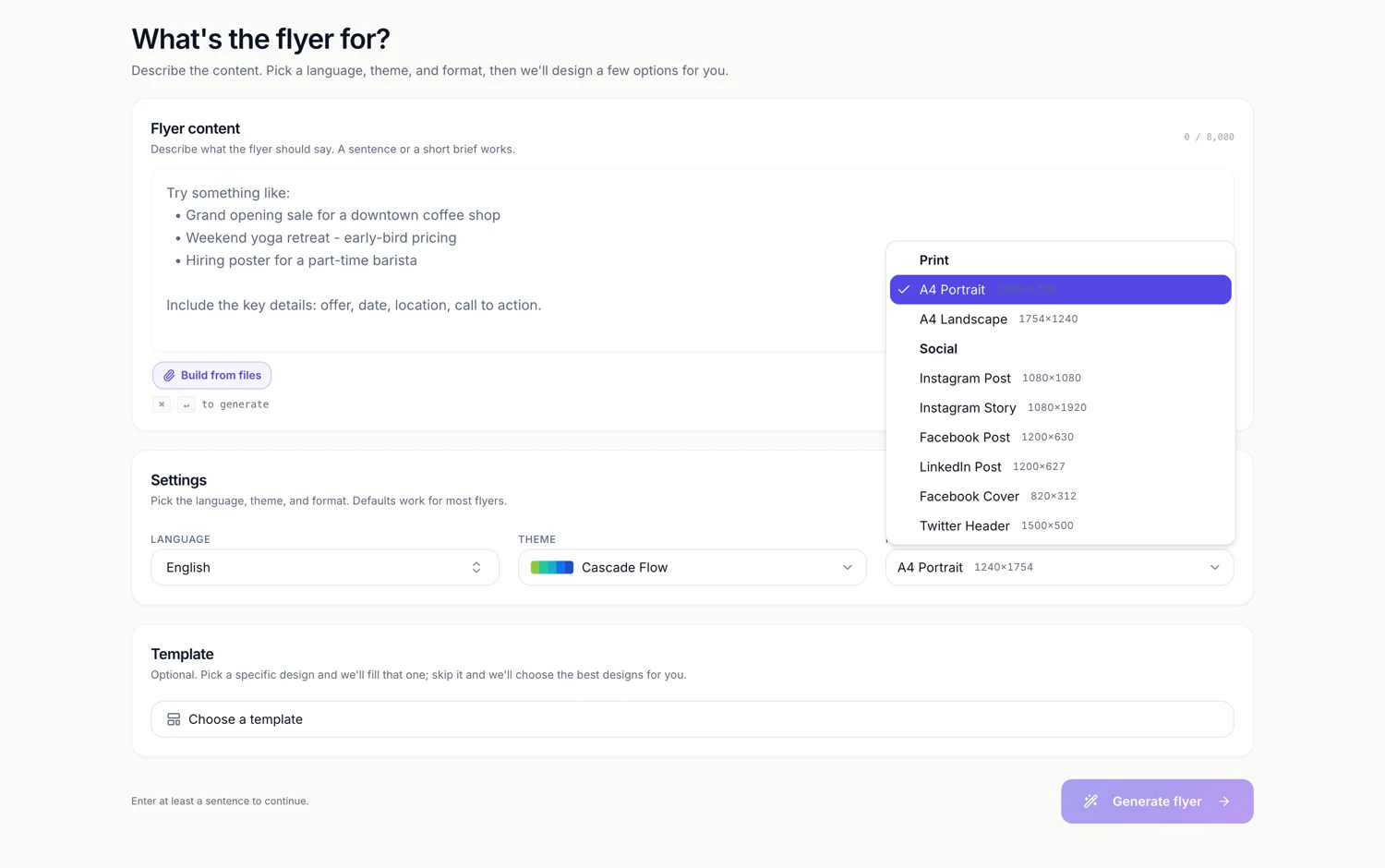
Ninety nine themes are available and they are not interchangeable in tone. Each palette is classified by hue variety: tonal palettes stay inside one hue family and read as corporate, diverse ones span several families and read as retail. The list opens with a curated Top picks band of forty two before the rest, and each row shows its colour strip, so you can judge the register before you commit.
Content blocks that belong on a business feed
This is the canvas where a stat, a chart or a small table earns its place. Ten chart kinds are insertable, from column and line through to waterfall and waffle. Series colours come straight from the theme tokens and there is no colour control on a flyer chart at all, so a chart can never clash with the design it sits on. One figure with a label out performs three lines of claim, and it looks like evidence instead of advertising.
It shares a layout with the Facebook canvas
1200 by 627 and 1200 by 630 are the same shape to within half a percent, so a design has one wide social layout serving both. There is no LinkedIn specific artwork to hunt for. In practice this means anything you build here transfers to the other platform without a second thought, and the reverse is equally true.
Keep the type count down
The wide band gives you room across and very little down. A headline, one supporting line and an attribution or logo is a complete graphic. Any text that will not fit is shrunk automatically rather than wrapped out of the design, so a long sentence quietly loses legibility on a feed viewed at half size.
Photographs versus flat colour
Generated images always come back as photographs of real scenes, never as diagrams or type, and they fill their frame to the edges. For an announcement, a flat brand panel with a stat block frequently reads better than a stock style photograph. Both are one click away, so build the panel version first and add a photograph only if the message actually has a subject.
How it works, in three steps
Step 1
Set Format to LinkedIn Post
Under Social, showing 1200 by 627 beside the label.
Step 2
Pick a restrained theme
Open the Theme control and choose from the Top picks band. The swatch strip on each row shows the palette before you commit.
Step 3
Add one number, not three claims
Insert a stat or a chart from the element panel and let the theme colour it.
The full walkthrough with screenshots is in the guide Add charts and diagrams to a flyer.
Limits worth knowing
- There is no LinkedIn specific layout; the canvas shares the wide social design with Facebook Post.
- Generated images are always photographic. Charts, logos and diagrams come from blocks, not from the image generator.
- Charts hold the values you type. Nothing is calculated, summed or read from a file.
- Image exports take the active page only, so select this page before exporting.
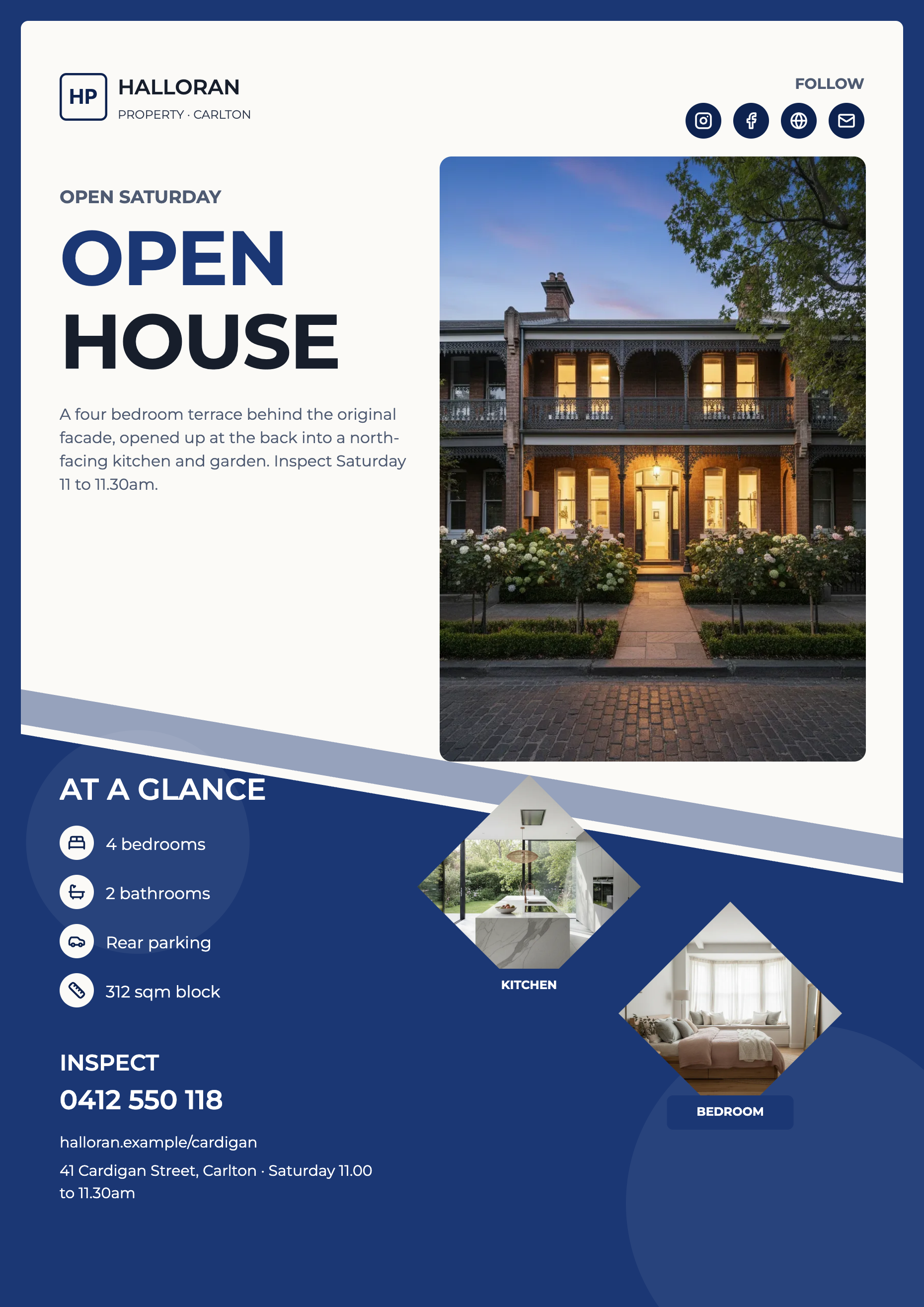
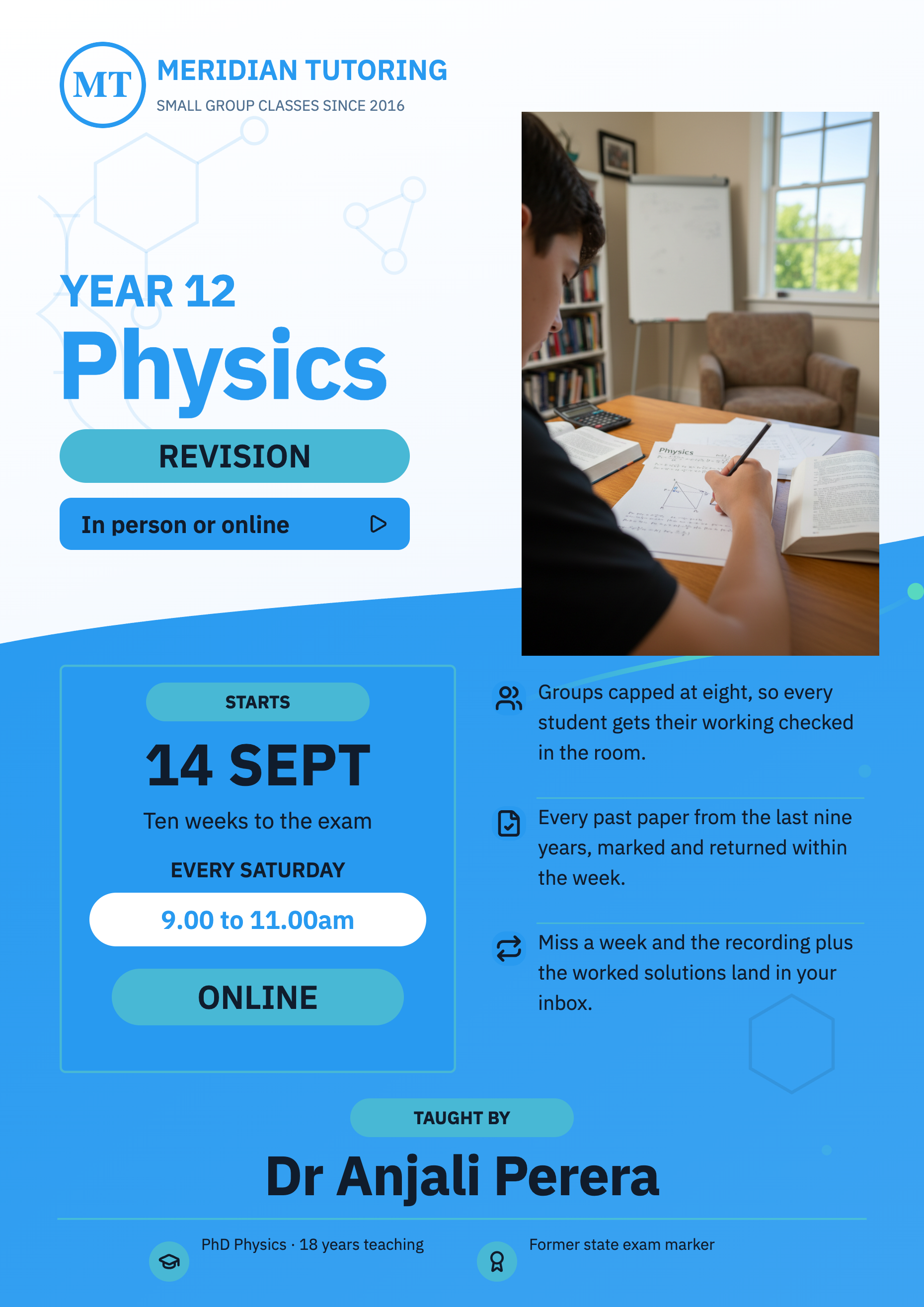
See it on a finished piece
Questions people ask
Do I need a different file for LinkedIn and Facebook?
Not really. The two canvases differ by three pixels of height and share one design, so switching between them carries everything across untouched.
Can I put our brand colours on it?
Colours come from the theme, and the theme sets every element together. Pick the palette closest to your brand from the ninety nine available; individual text colours can then be overridden with a custom hex in the inspector.
Can a chart read a spreadsheet?
No. You type the categories and the series values into the chart's inspector. It is a presentation block, not a data connection.
What size file should I upload?
Just export the page. The canvas is 1200 by 627 and the export captures at twice that, so you get a 2400 by 1254 file with resolution to spare after LinkedIn re-encodes it.
Make your own flyer
The button opens the generator with this use case already described. Change the wording to match yours, generate, then edit anything you like.
Create a flyer with OneCraftRelated pages
Resize a flyer for social media
Resizing here does not mean scaling. Change the canvas and the builder looks for that design's layout drawn natively for the new shape, swaps it in, and then works out which of your words belong in which of its slots. Understanding that matching step is what makes the result predictable.
Facebook post design
1200 by 630 is a landscape band roughly one and nine tenths as wide as it is tall. That shape is the reason a Facebook graphic never behaves like a poster: there is width to spare and only 630 pixels of height, so the design is a headline with support rather than a page of content.
Instagram post maker
Square is the shape that punishes a stretched poster the most. A one to one canvas has neither the height of a story nor the width of a banner, so a design has to be recomposed for it rather than resized into it, and that is what makes a square post look intentional.
More finished work of this kind is on the flyer examples hub.
Written and checked by the OneCraft team. Last checked .