Flyers
Flyer size guide
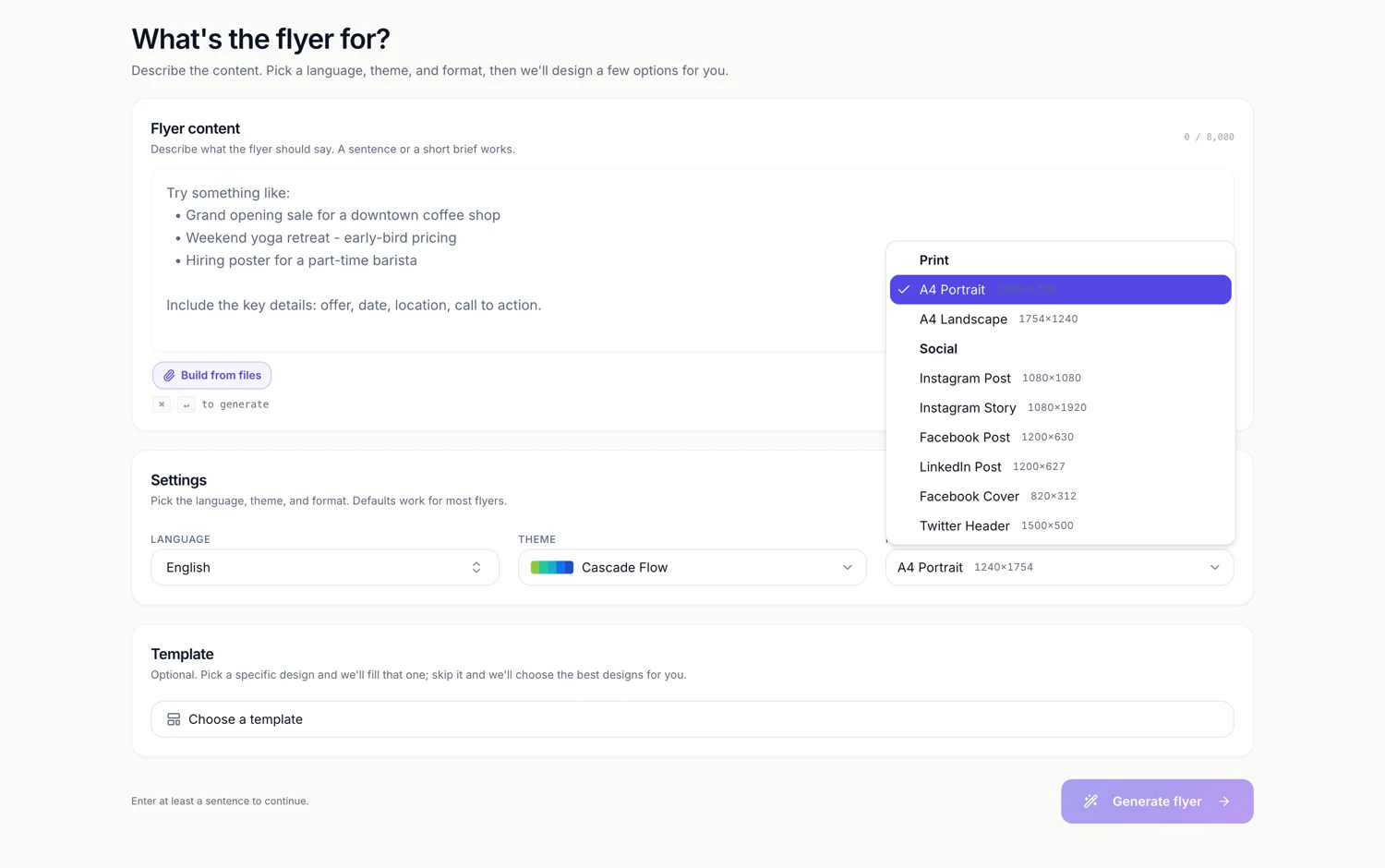
Eight canvases, two for print and six for social, each with a fixed pixel size you can see in the dropdown before you commit. This page is the reference: the numbers, where they come from, and which of them are close enough to share a design.
The print pair
A4 Portrait is 1240 by 1754 pixels and A4 Landscape is 1754 by 1240. Those are not arbitrary. A4 measures 8.27 by 11.69 inches, and at 150 pixels per inch that lands exactly on 1240 by 1754. Every canvas in the set is defined at that same 150 DPI baseline, which is why the print sizes look large next to the social ones.
The social six
Instagram Post is 1080 by 1080. Instagram Story is 1080 by 1920. Facebook Post is 1200 by 630. LinkedIn Post is 1200 by 627. Facebook Cover is 820 by 312. Twitter Header is 1500 by 500. They follow each platform's own figures rather than being rounded to something tidy, which is why two of them differ by three pixels.
Facebook and LinkedIn share one layout
1200 by 630 and 1200 by 627 are the same shape to within half a percent, so a design has one wide social layout and it serves both. That is deliberate and it is why each of the 259 designs, all drawn for every size, has seven distinct layouts, not eight.
Aspect ratio decides what is offered
When the generator gathers the designs for a size it matches on aspect ratio within twelve percent, not on a size label. That tolerance is what lets the 1.90 to 1 Facebook shape and the 1.91 to 1 LinkedIn shape draw from the same pool, and it is also why a size you pick always has designs available rather than an empty list.
Size is a property of the page, not the flyer
The canvas dropdown changes the page you are looking at. A three page flyer can therefore hold an A4 front, an A4 back and a square version of the same message, which is occasionally exactly what you want and occasionally a surprise. Check the size on each page thumbnail before you export.
Where each size is covered in detail
Three pages go deeper than this one: the A4 print size, moving one design between sizes, and exporting a single page as an image. This page is the map; those are the instructions.
How it works, in three steps
Step 1
Pick the size before the design
Format sits in the generator's settings row, above the Template field, and it filters which designs are even offered.
Step 2
Read the pixel size in the dropdown
Every entry shows its dimensions on the right, grouped under Print and Social headings.
Step 3
Change it later from the canvas picker
The builder's Canvas size control moves the active page, swapping in that design's native layout for the new shape.
The full walkthrough with screenshots is in the guide Resize one flyer for every social size.
Limits worth knowing
- There are eight sizes and no custom dimensions. You cannot type your own width and height.
- There is no US Letter, DL, A5 or A3 preset. A4 portrait and landscape are the print options.
- Canvas size is per page, so a multi page flyer can end up mixing shapes if you change it on one page only.
- The dimensions are pixels at 150 DPI, not physical millimetres, and there is no bleed allowance.
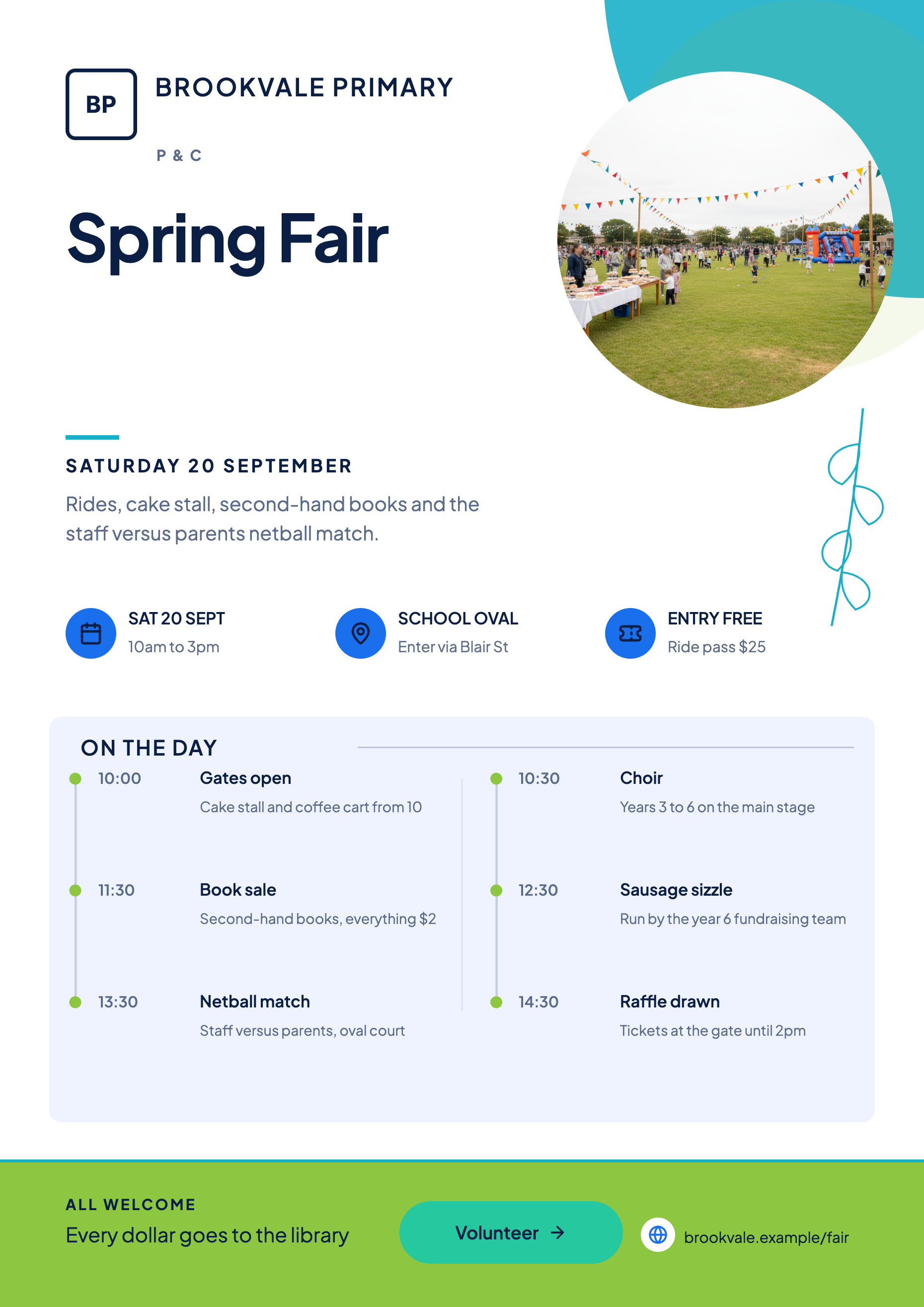
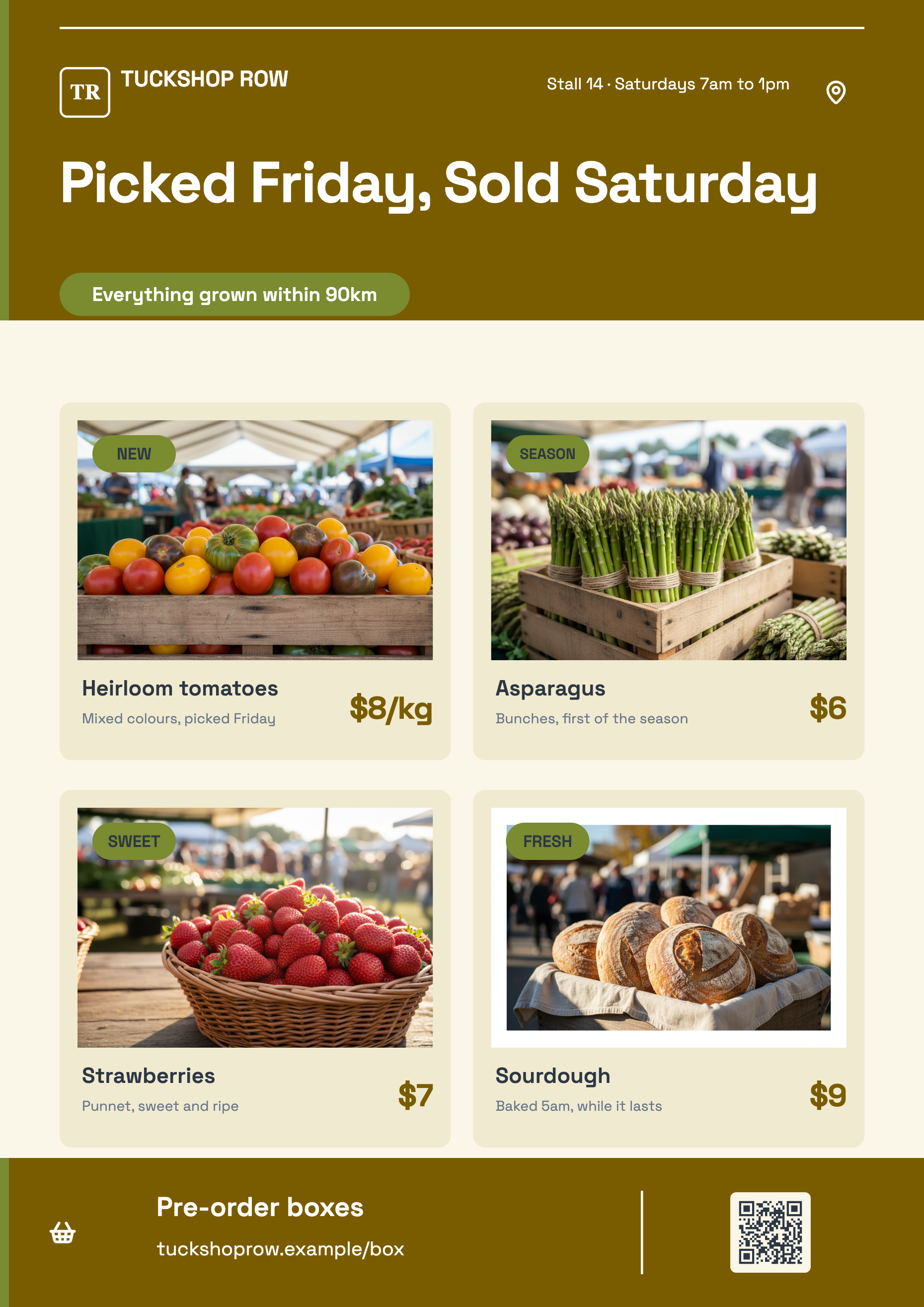
See it on a finished piece
Questions people ask
Which size should I start in?
Start in the one you will print or post first, because that page is the one the design was laid out for. Moving to the other sizes afterwards takes one click each and re-lays the design natively.
Is every design available at every size?
Yes. All 259 designs are drawn natively for all eight canvases, so the picker shows 259 designs at every size and resizing swaps in the layout drawn for the new shape.
Why is A4 1240 pixels wide rather than 2480?
The canvas is defined at 150 DPI so the builder stays fast, and the export doubles it. An A4 page is captured at 2480 by 3508 pixels, which is 300 DPI at A4.
Can I add a custom size?
No. The eight presets are the whole set, and a design's variants are filed against those ids. An arbitrary canvas would fall back to scaling the nearest shape.
Make your own flyer
The button opens the generator with this use case already described. Change the wording to match yours, generate, then edit anything you like.
Create a flyer with OneCraftRelated pages
Double sided and multi page flyers
Every flyer the generator returns is a single page, and that is a design decision rather than an oversight: a flyer is read at a glance and the writer is told there is no second page. Extra pages are yours to add, and once added they behave exactly like the first one.
Twitter header maker (X)
1500 by 500 is the widest canvas in the set at exactly three to one. Nothing about that shape behaves like a flyer. It is a banner, it is read in passing above a profile, and the designs drawn for it treat it that way: one statement, one mark, and a lot of considered empty space.
A4 flyer maker
A4 is the default canvas and the only paper size on offer, in portrait at 1240 by 1754 pixels and landscape at 1754 by 1240. If the flyer is going on a noticeboard, into a letterbox or across a counter, this is the one to build in and everything else is a derivative of it.
More finished work of this kind is on the flyer examples hub.
Written and checked by the OneCraft team. Last checked .