Flyers
Double sided and multi page flyers
Every flyer the generator returns is a single page, and that is a design decision rather than an oversight: a flyer is read at a glance and the writer is told there is no second page. Extra pages are yours to add, and once added they behave exactly like the first one.
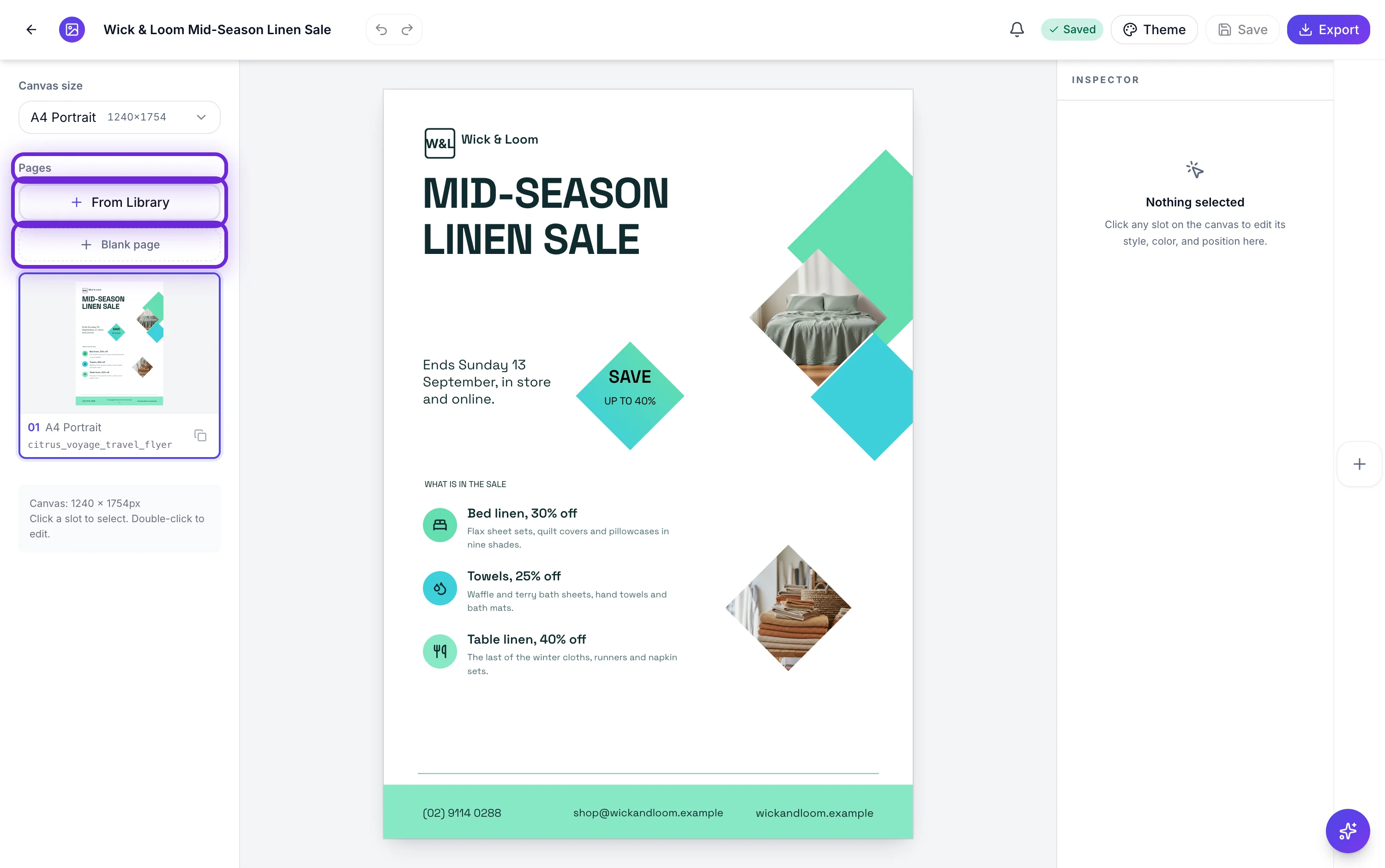
Two ways to add a page
From Library opens the design picker and inserts the design you choose as a new page, already set to the canvas size the page you were on is using. Blank page inserts an empty A4 portrait sheet with a plain themed background and no slots at all, which you then build up from the element panel. The first is how a back page usually starts, the second is for something bespoke.
Each page carries its own design
A page holds a template, its content, its user added elements and its canvas size. So a front and back pair can use two different layouts, which is normally what you want: a photo led front and a text led back. The theme, on the other hand, is set once for the whole flyer, so the two pages stay visually related without any effort.
Reordering, duplicating and deleting
Every page thumbnail in the side rail carries a duplicate and a delete control, and the last remaining page cannot be deleted. Duplicating is the fastest way to build a consistent set: make the second page, duplicate it, and change the content rather than rebuilding the arrangement each time.
PDF is the format that keeps the set
PDF export walks every page and writes them into one file in order, each at its own proportions. PNG and JPG only ever export the page you are currently looking at, which catches people out on a two page flyer. If you need images of both sides, select each page and export twice.
Watch the canvas size on each page
Size lives on the page, not on the flyer, and a blank page always arrives as A4 portrait regardless of what the page beside it is. If your front is a square social design and you add a blank back, you now have a mixed set. Change the new page's canvas size before you build anything on it.
How it works, in three steps
Step 1
Generate the front
One prompt, one page. Get that side right before you think about the back.
Step 2
Add the back from the library
From Library inserts a second design at the same canvas size. Blank page gives you an empty A4 sheet instead.
Step 3
Export as PDF
Every page lands in one file, in the order the thumbnails show.
The full walkthrough with screenshots is in the guide Make a multi-page or double-sided flyer.
Limits worth knowing
- AI generation only ever returns one page. Extra pages are added by hand.
- A blank page is always A4 portrait, whatever size the rest of the flyer is.
- The last page cannot be deleted; a flyer always has at least one.
- PNG and JPG export the active page only. PDF is the only format that carries the whole set.
- Export credits are charged per render, and the charge scales with the number of pages.
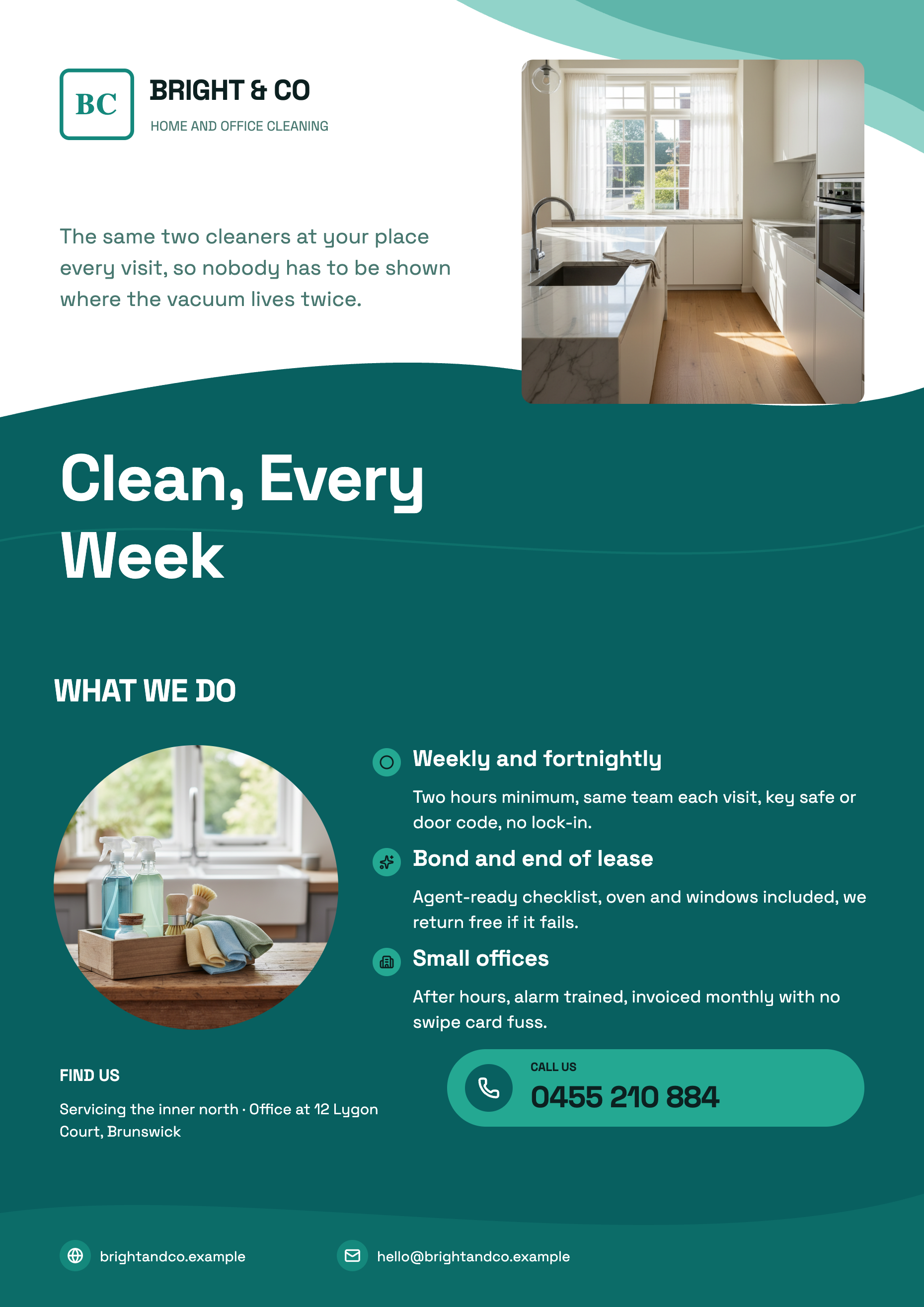
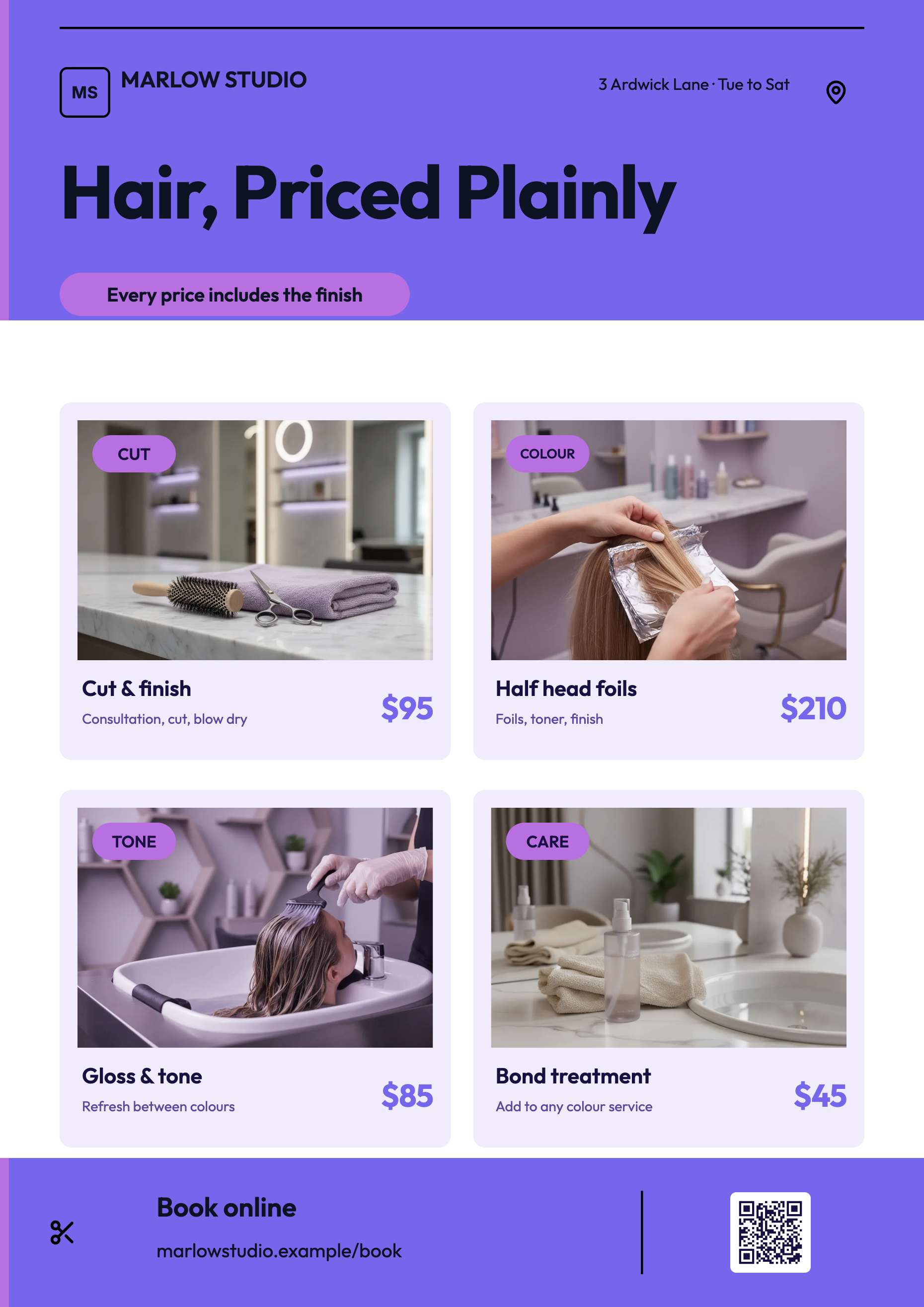
See it on a finished piece
Questions people ask
Can the AI write the back page for me?
Not as part of the same generation. What it can do afterwards is rewrite the text on a page you have already added, since the chat editor works on any page's slots.
Does the printer get the pages in order?
Yes. The PDF holds them in the order shown in the page rail, one PDF page each, so a two page flyer prints front then back.
Can two pages use different themes?
No. The theme applies to the whole flyer. Per element colour overrides are the way to make one page feel different, and those are stored per canvas size.
How many pages can a flyer have?
There is no fixed cap in the builder. What grows with page count is the export render time and the credits each render costs.
Make your own flyer
The button opens the generator with this use case already described. Change the wording to match yours, generate, then edit anything you like.
Create a flyer with OneCraftRelated pages
A4 flyer maker
A4 is the default canvas and the only paper size on offer, in portrait at 1240 by 1754 pixels and landscape at 1754 by 1240. If the flyer is going on a noticeboard, into a letterbox or across a counter, this is the one to build in and everything else is a derivative of it.
Flyer to PDF for print
Pressing Export does not save a picture of your screen. It saves the flyer, hands the saved version to a headless browser on the server, screenshots each page at twice its canvas resolution and assembles those into a PDF. Knowing that explains almost every question people have about the file.
Edit a PDF flyer without the original file
Print PDFs outlive the people who made them. When the artwork file is gone and only the export survives, the useful question is not whether a PDF can be rebuilt but how much of it comes back, and the answer depends on something most people would never guess: the PDF is read as pictures, not as text.
More finished work of this kind is on the flyer examples hub.
Written and checked by the OneCraft team. Last checked .