Flyers
A4 flyer maker
A4 is the default canvas and the only paper size on offer, in portrait at 1240 by 1754 pixels and landscape at 1754 by 1240. If the flyer is going on a noticeboard, into a letterbox or across a counter, this is the one to build in and everything else is a derivative of it.
Where 1240 by 1754 comes from
A4 is 8.27 by 11.69 inches. At 150 pixels per inch that is 1240 by 1754, and that is the working canvas the builder draws and you edit on. It is deliberately not 300 DPI, because a 2480 pixel canvas would make dragging blocks around noticeably heavier for no visible gain on screen.
The export doubles it
Exports render server side in headless Chromium at twice the device pixel ratio. So an A4 page leaves as a 2480 by 3508 pixel image, which is exactly 300 DPI at A4 and the number most print shops ask for. You do not set this anywhere and there is no quality slider; it is the fixed behaviour of the render.
The PDF is a page image, not vector art
Each page is captured and placed into the PDF as a bitmap, one PDF page per flyer page. That means the file opens anywhere and prints predictably, and it also means the text inside it is not selectable or searchable. If your printer asks for outlined text, this is effectively that, and if they ask for live text, it is not.
Four things it does not carry
There is no bleed allowance, no crop marks, no CMYK conversion and no colour profile embedding. The export is RGB at the flyer's exact proportions. For a normal digital print run on a laser or an inkjet that is fine. For an offset job with edge to edge colour, tell the printer up front and let them fit and trim it.
Design for the margin you actually have
Because there is no bleed, treat the canvas edge as the trim line and keep anything that must not be cut, phone numbers especially, well inside it. A background that runs to the edge will print with a hairline of white if the sheet shifts. Most desktop printers also enforce their own unprintable margin, so a design with a full bleed panel will be scaled slightly by the driver.
Every flyer size in one place
This page covers one part of the picture. The sizes page lists all eight canvases with their pixel dimensions and says which designs are native at each.
How it works, in three steps
Step 1
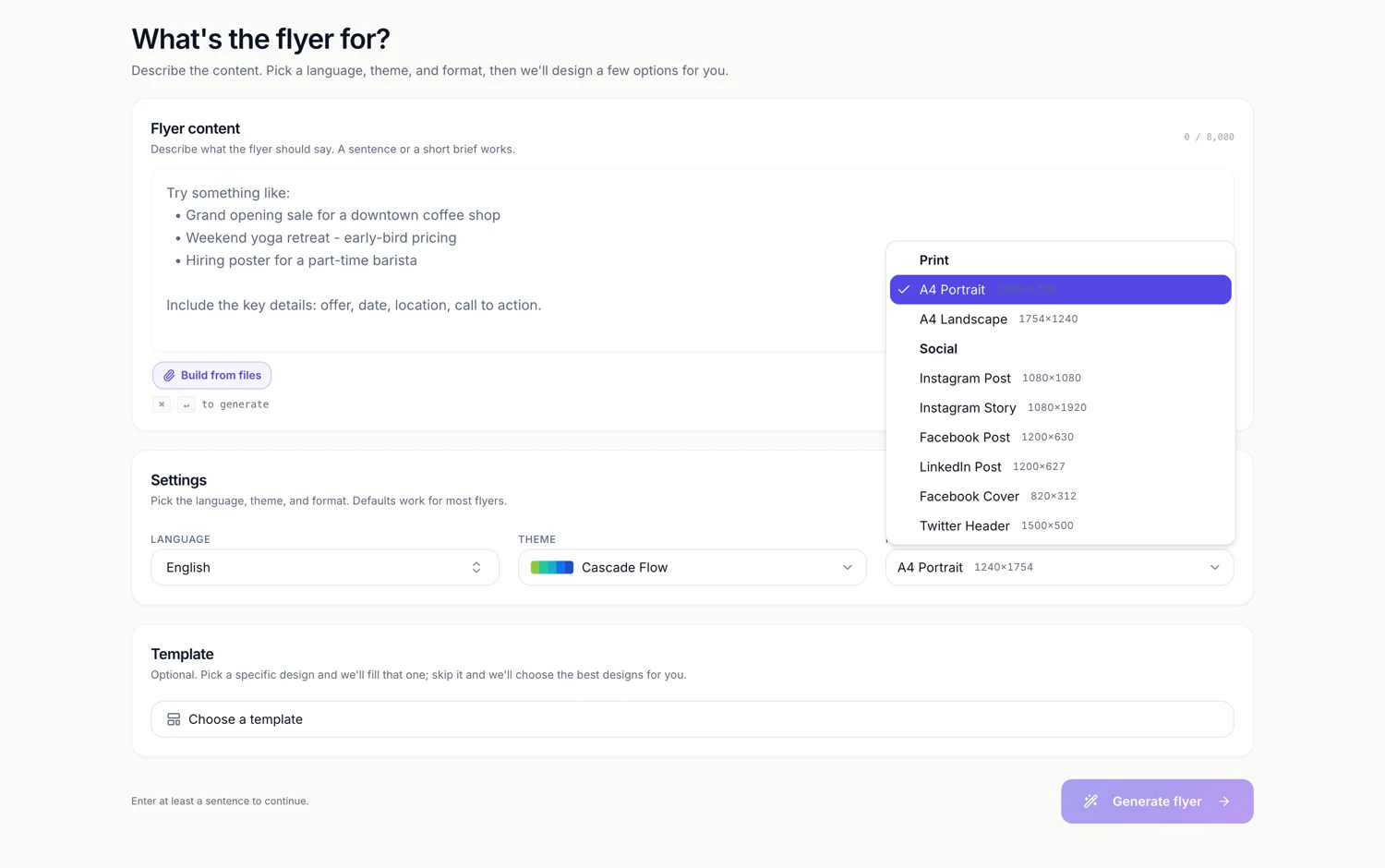
Set Format to A4 Portrait or A4 Landscape
They sit under the Print heading in the dropdown, above the six social sizes.
Step 2
Build it, then hit Export
Export saves any unsaved change for you first, so the file always matches what is on the canvas.
Step 3
Export as PDF
PDF writes every page of the flyer into one file. PNG and JPG only ever export the page you are looking at.
The full walkthrough with screenshots is in the guide Create a flyer for Instagram and print.
Limits worth knowing
- A4 portrait and A4 landscape are the only print presets. There is no A5, A3, DL or US Letter.
- No bleed, no crop marks, no CMYK. Exports are RGB.
- Text in the exported PDF is part of the page image, so it cannot be selected or searched.
- Export saves the flyer first when it is dirty, and every save is a new version, so an edited flyer always costs a fresh render.
- Exports are charged in credits by page count once the file is stored, on every plan. Asking again for the same saved version in the same format returns the file already rendered with no second charge.
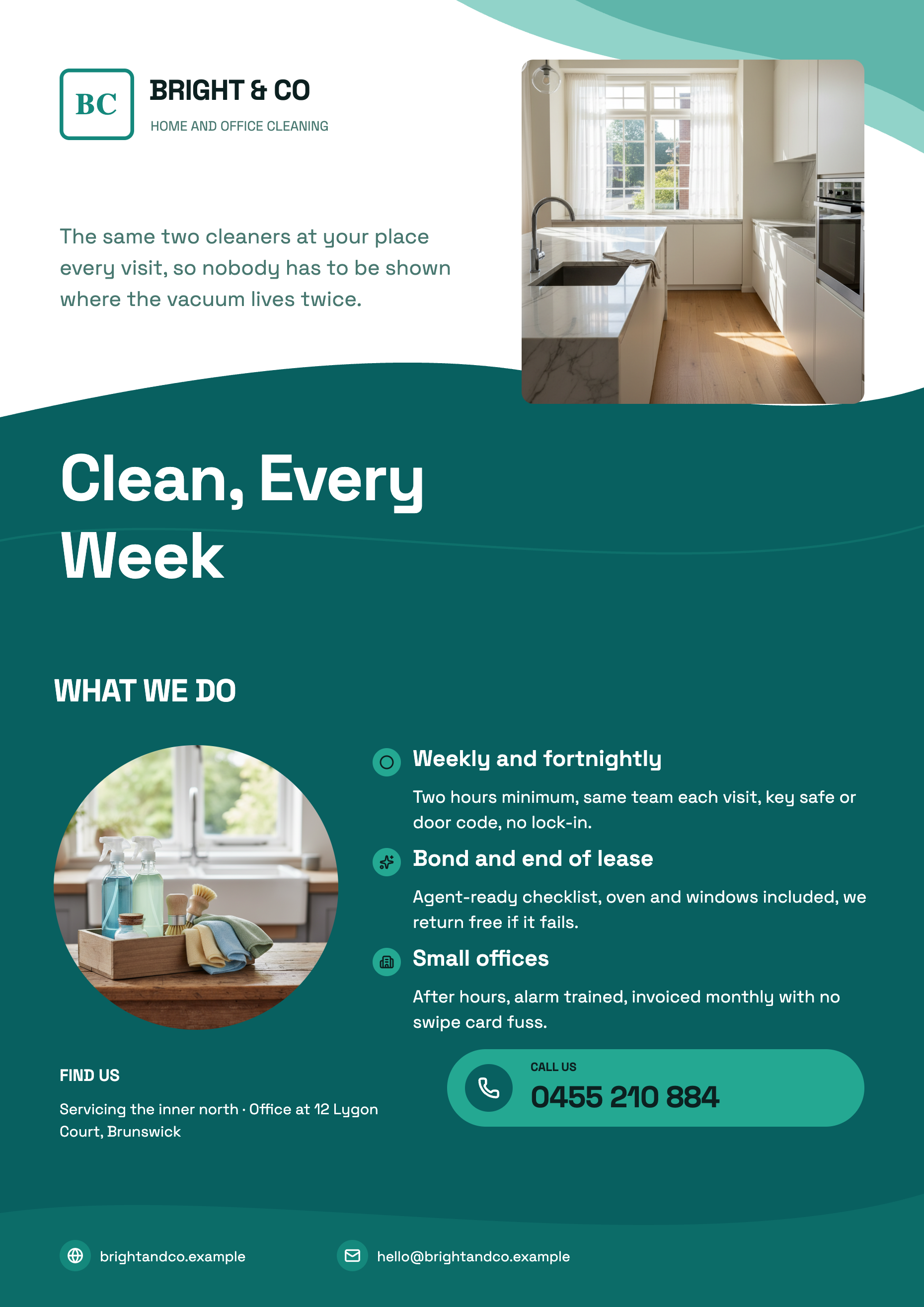
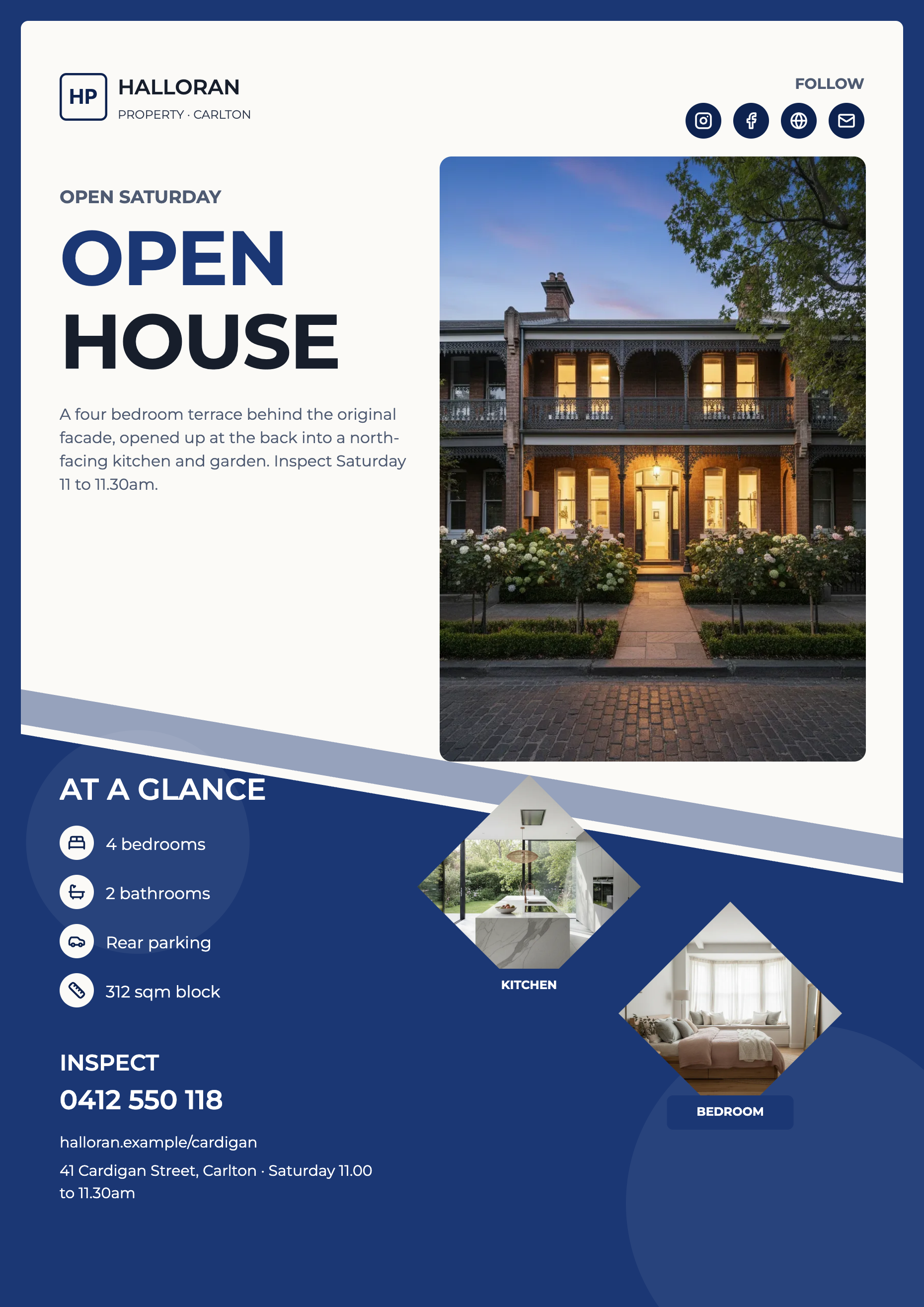
See it on a finished piece
Questions people ask
Is the PDF good enough for a commercial printer?
For most short run digital printing, yes, at 300 DPI equivalent. For offset work with colour to the edge, the missing bleed and the RGB colour space are the two things to raise with them before you order.
Can I get 600 DPI?
No. The capture runs at a fixed two times the canvas, which puts A4 at 2480 by 3508 pixels. There is no setting to raise it.
How do I make a double sided A4 flyer?
Add a second page in the builder, from the design library or blank, and export as PDF. Both pages land in the one file in order.
Does the PDF page come out physically A4?
It carries the flyer's exact A4 proportions rather than a stamped A4 page box, so a print shop fits it to the sheet with no cropping and no distortion. Ask them to print at fit to page.
Make your own flyer
The button opens the generator with this use case already described. Change the wording to match yours, generate, then edit anything you like.
Create a flyer with OneCraftRelated pages
Flyer to PDF for print
Pressing Export does not save a picture of your screen. It saves the flyer, hands the saved version to a headless browser on the server, screenshots each page at twice its canvas resolution and assembles those into a PDF. Knowing that explains almost every question people have about the file.
Edit a PDF flyer without the original file
Print PDFs outlive the people who made them. When the artwork file is gone and only the export survives, the useful question is not whether a PDF can be rebuilt but how much of it comes back, and the answer depends on something most people would never guess: the PDF is read as pictures, not as text.
Double sided and multi page flyers
Every flyer the generator returns is a single page, and that is a design decision rather than an oversight: a flyer is read at a glance and the writer is told there is no second page. Extra pages are yours to add, and once added they behave exactly like the first one.
More finished work of this kind is on the flyer examples hub.
Written and checked by the OneCraft team. Last checked .