Flyers
Edit a PDF flyer without the original file
Print PDFs outlive the people who made them. When the artwork file is gone and only the export survives, the useful question is not whether a PDF can be rebuilt but how much of it comes back, and the answer depends on something most people would never guess: the PDF is read as pictures, not as text.
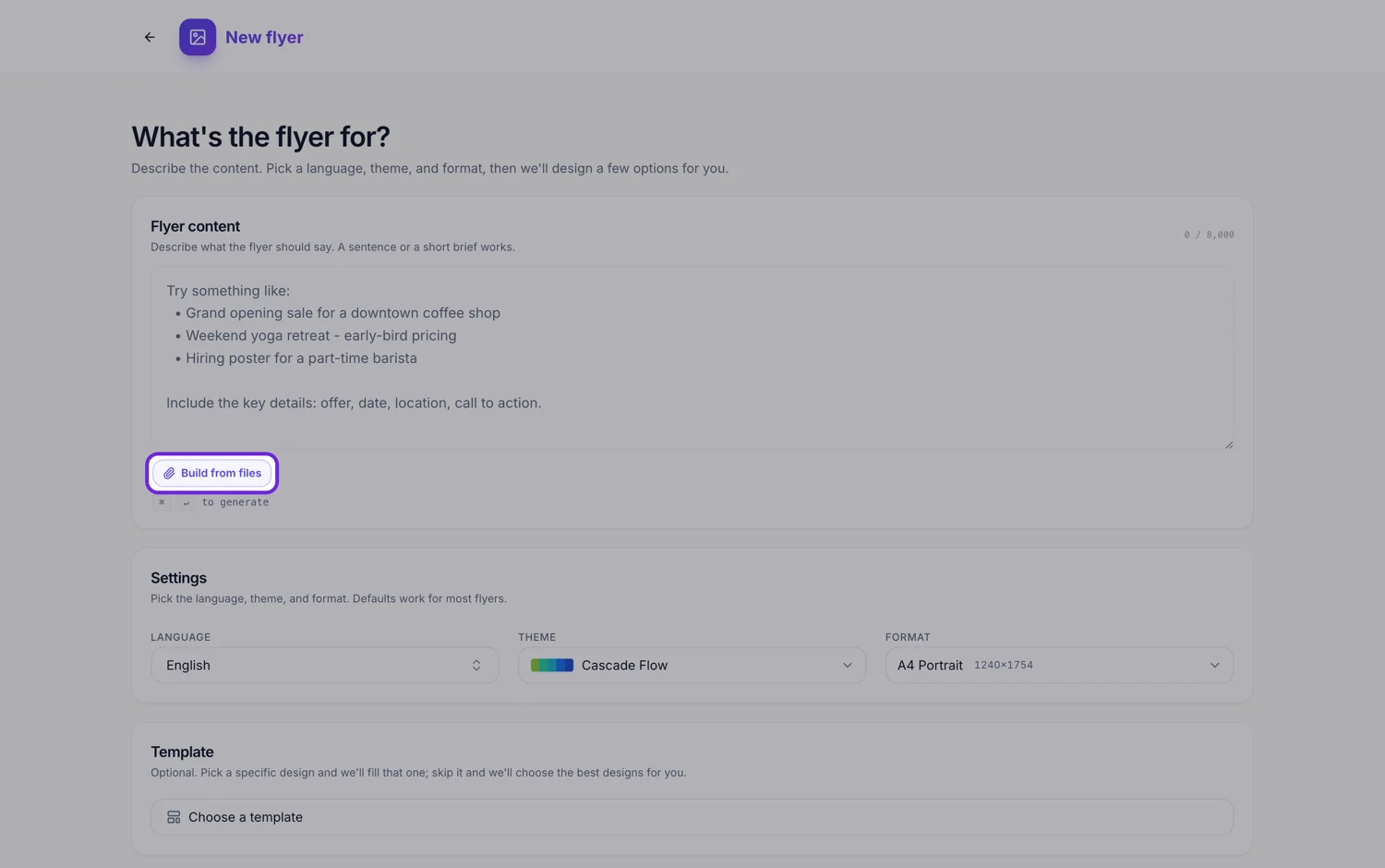
The PDF is rasterised and read by eye
It is not parsed. Every page is rendered to an image at roughly 200 dots per inch, up to a hundred pages, and those images go to a vision model. That is true whether the file was exported from a design tool or scanned off a printed sheet, which means the two behave far more alike than you would expect.
What comes back is a summary and a field list
The read returns the document type, the language, a short summary, three to seven topics, the key points as sentences, and every labelled field with its value exactly as written. Prices, phone numbers, opening hours and anything else shaped like a label and a value are the part that survives verbatim. Running body copy comes back as key points, not as your sentences.
The screenshot trick
An attached image is read under a different instruction that asks for every visible word to be transcribed verbatim in reading order. A PDF is not. So if the exact wording matters, open the PDF, screenshot the page and attach the PNG instead. It sounds backwards and it is the single most useful thing on this page.
Nothing visual is imported, ever
No fonts, no spot colours, no vector artwork, no photographs, no spacing and no crop marks. The new flyer is drawn by a library design in the theme you pick, which is exactly what makes every block on it editable. If the old look has to be preserved to the pixel, keep the old file and use this for the version people can change.
One page comes back, whatever went in
Generation always returns a single page design, so a two sided or folded PDF arrives as one flyer built from everything the file said. If the original genuinely had two sides, generate once and then add the second page in the builder and move the content that belongs there.
How it works, in three steps
Step 1
Decide PDF or screenshot
PDF for the gist and the labelled values. A screenshot of each page when the wording has to be exact.
Step 2
Paste the critical lines into the prompt
The prompt is the only channel that is guaranteed word for word. Prices and contact details belong there.
Step 3
Rebuild the second side if there was one
Add a page from the design library at the same canvas size and move the back page content into it.
The full walkthrough with screenshots is in the guide Make a flyer from a PDF or a photo.
Limits worth knowing
- Attaching a file is a Starter plan feature. Free accounts get the upgrade dialog instead.
- A PDF is rendered to page images and read by a vision model. It is never parsed as text.
- A PDF read returns a summary, topics, key points and labelled fields. It does not return a verbatim transcription.
- Up to 100 pages are read, and the extracted text is capped at 50,000 characters per file.
- Fonts, spot colours, vector artwork and images from the PDF are not imported.
- Generation returns one page. A double sided PDF needs its second page added by hand.
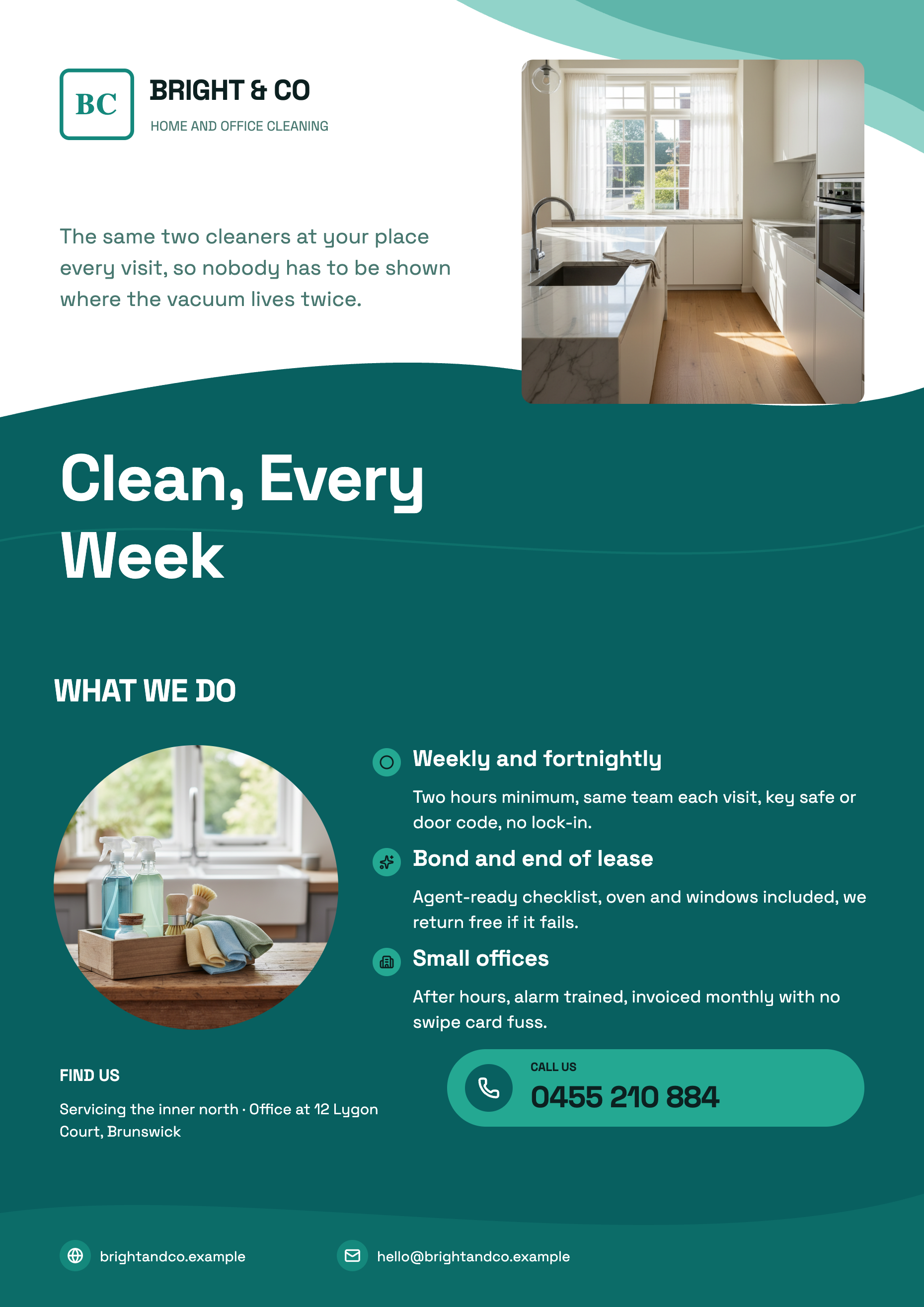
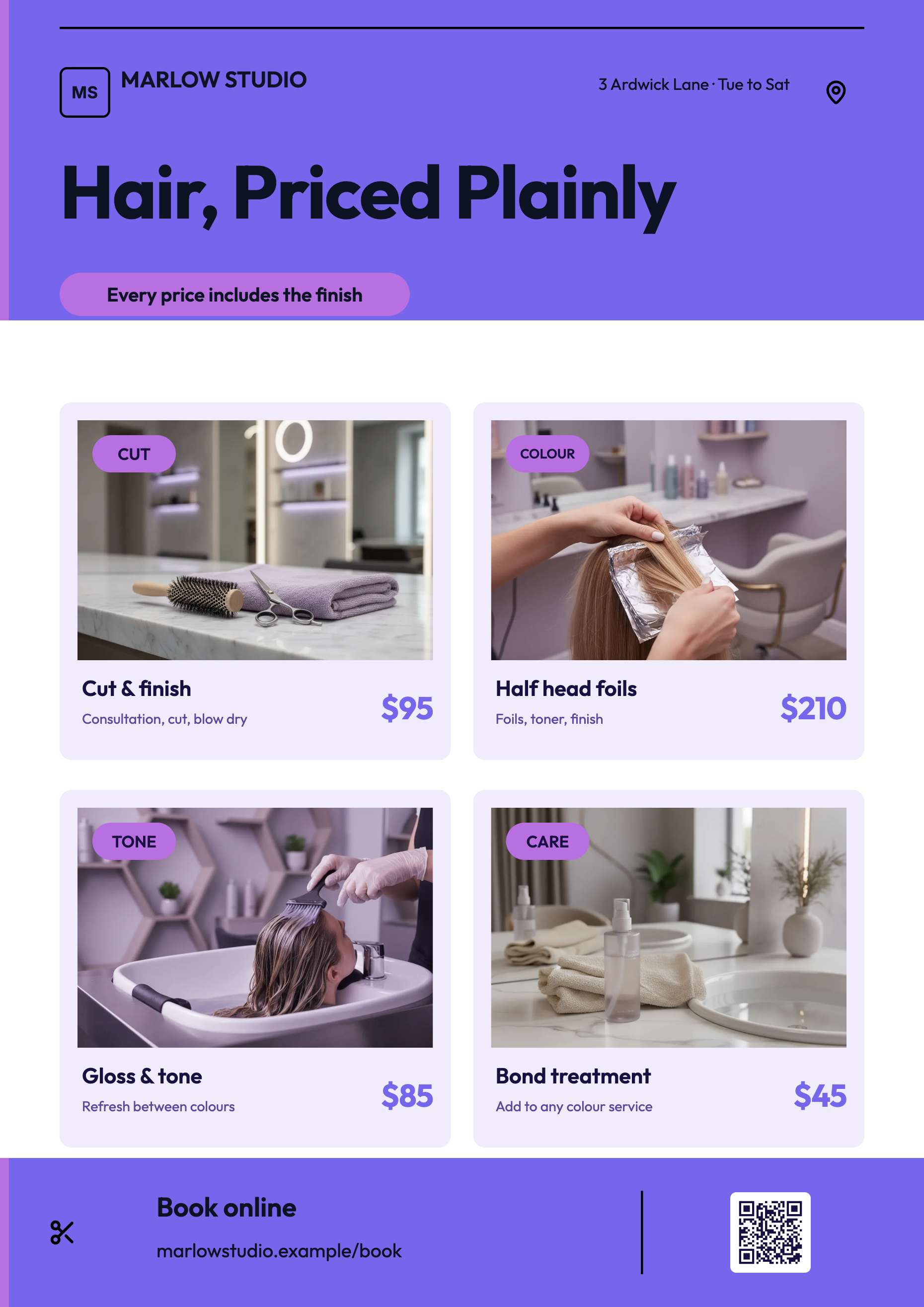
See it on a finished piece
Questions people ask
Will my exact wording survive?
Labelled values will, since fields are extracted exactly as written. Sentences will not, because a PDF read produces key points rather than a transcript. Paste the lines you cannot lose into the prompt, where they are treated as the source of truth.
Does a scanned PDF work as well as an exported one?
Better than you would think, because both are read as page images anyway. The only difference is render quality: an exported page rasterises crisply while a scan carries whatever the scanner produced.
Will the rebuilt flyer look like the original?
No. The layout comes from a library design, which is what makes it editable. Choosing a template with a similar shape in the generator's Template field is the closest you can get.
Is the exported PDF I get back print ready?
It exports at twice the canvas resolution, so A4 lands at 2480 by 3508 pixels. There is no bleed, no crop marks and no CMYK, so tell the printer it is an RGB file to fit to the sheet.
Make your own flyer
The button opens the generator with this use case already described. Change the wording to match yours, generate, then edit anything you like.
Create a flyer with OneCraftRelated pages
Double sided and multi page flyers
Every flyer the generator returns is a single page, and that is a design decision rather than an oversight: a flyer is read at a glance and the writer is told there is no second page. Extra pages are yours to add, and once added they behave exactly like the first one.
A4 flyer maker
A4 is the default canvas and the only paper size on offer, in portrait at 1240 by 1754 pixels and landscape at 1754 by 1240. If the flyer is going on a noticeboard, into a letterbox or across a counter, this is the one to build in and everything else is a derivative of it.
A0 poster size
A0 is 841 by 1189 millimetres, or 33.1 by 46.8 inches, and it is the size nearly every conference asks for. In the builder it is a 1656 by 2340 pixel canvas in portrait and 2340 by 1656 in landscape, and the export scales that up for print.
More finished work of this kind is on the flyer examples hub.
Written and checked by the OneCraft team. Last checked .