Presentations
Outline to slides
To turn an outline into slides, paste it into the prompt box with one line per slide and set the length slider to the number of lines. Each line then becomes one slide, in your order, with a layout chosen for what that line is about. This is the case where you are not asking for ideas: the structure is settled, and an outline pasted this way is treated as a specification rather than a suggestion.
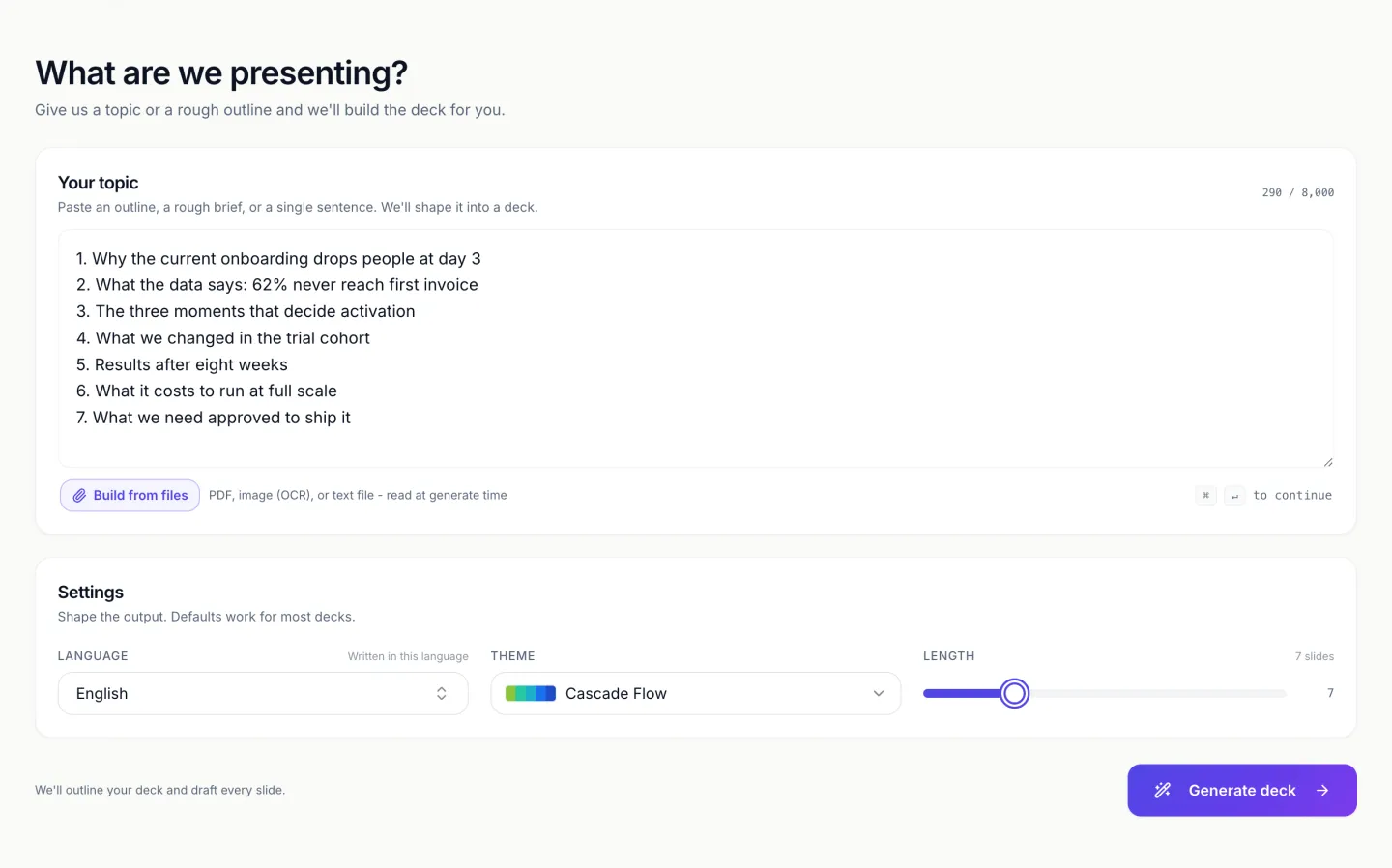
The prompt box expects this shape
The placeholder text in the topic field literally offers it as an option, showing lines beginning Slide 1, Slide 2, Slide 3. Numbered lists, dashed lists and a line per slide all read the same way. You do not need a special mode or a different upload path, and the outline can sit alongside a paragraph of context above it.
Match the slide count to your point count
This is the setting that decides whether one point equals one slide. The planner is instructed to hit the requested count exactly and to flex by one only when the narrative strictly demands it, so an outline of nine points with the length left at three will be compressed into three slides. Set the slider to nine and each point gets its own.
What is still decided for you
Your outline fixes the running order and the subject of every slide. It does not fix the design. Each point is still matched to a purpose and then to a layout, so a point about pricing tiers lands on a pricing layout with tier cards and a point listing two case studies lands on something built to hold two blocks. The wording under each heading is written too, because an outline line is a title and not a slide.
Add a hint per line when the shape matters
A short parenthetical is read as instruction. Writing pricing tiers as a table, or timeline across four quarters, or three columns after a line will steer the layout choice for that slide. This is the cheapest way to get a specific shape without hunting for it in the layout picker afterwards.
When your outline is longer than the cap
A free account tops out at 6 slides and a paid one at 20. An outline of 30 points needs to be split. Generate the first part, then generate the second as its own deck and paste the slides together, or group related points into one line before you paste so the count comes down without losing anything.
Paste the outline rather than attaching it
An outline that lives in a Word file or a PDF is better copied into the prompt box than attached. Text in the box is used as written, line by line. An attached PDF is turned into page pictures and read back as a summary, key points and labelled fields, which can merge or reword your lines before the planner sees them. The box holds 10,000 characters, which is room for an outline of twenty lines with a short hint on each and a paragraph of context above.
How it works, in three steps
Step 1
Paste the outline
One line per slide. Numbering is optional, a line break is enough.
Step 2
Set the length to your point count
The slider under the box. This is what makes one line become one slide.
Step 3
Add shape hints where you care
A few words in brackets after a line steers which layout that slide gets.
The full walkthrough with screenshots is in the guide Add, reorder and restructure slides.
Limits worth knowing
- Slide count is capped at 6 on the free plan and 20 on paid plans, so a longer outline has to be split or grouped.
- The prompt box holds 10,000 characters including your outline and any context.
- The planner may flex by one slide when the narrative demands it, so an exact count is close to guaranteed rather than absolute.
- An outline gives titles. The body copy under each title is written for you and will need reading.
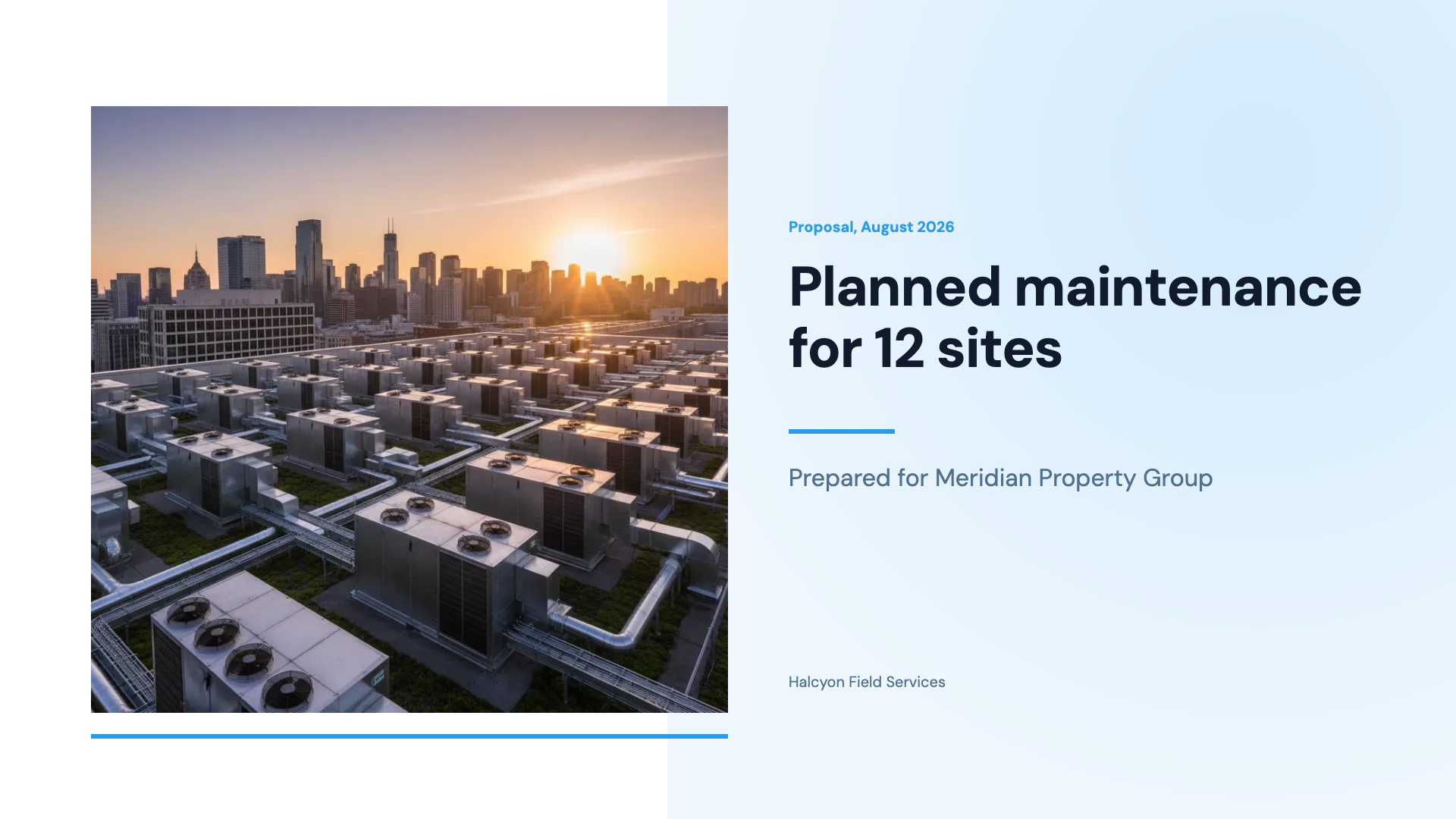
See it on a finished piece


Questions people ask
Do outline lines need numbers in front of them?
No. A line break per point is enough, and dashes, bullets or Slide 1 style prefixes all read the same way. Numbers help when the outline has sub points, because they make the hierarchy unambiguous: 3 and 3a are clearly one slide with a detail, while two unnumbered lines could be read as two slides. Keep the numbering consistent and the planner follows it.
Why did a nine point outline become five slides?
Because the length slider was set to five. The slider is treated as a hard target and the outline is compressed to fit it, so neighbouring points get merged onto shared slides. Set the slider to the number of lines you pasted before you generate. On a free account the slider stops at 6, so a nine point outline needs grouping or a paid plan.
Can one outline line be steered onto a particular layout?
Not by layout name, but a short hint after the line reliably steers it. Writing as a table, as a four step timeline or three columns in brackets after a point is read as an instruction for that slide. If a slide still lands on the wrong shape, ask the AI assistant to swap its layout, and the content moves across to the new one by box.
What fills the spare slides when the length is longer than the outline?
Structure slides. When you ask for more slides than you gave points, the extra room tends to become a cover, a section divider, an agenda or a closing slide rather than a second slide on one of your points. If you would rather have the spare room spent on a specific point, say so next to that line, for example two slides on pricing.
Will the slide titles match my outline lines word for word?
Close, but not guaranteed. Each line is treated as the subject of a slide, and titles are written within the character budget of the chosen layout, so a long outline line can be shortened. If the exact wording matters, for example an agreed agenda, say keep my headings exactly in the prompt, then check the titles before anything else and fix any that drifted.
What happens to a 25 point outline on a paid plan?
The paid cap is 20 slides, so 25 points cannot all get their own slide in one deck. Either group related points into single lines before pasting, which keeps everything in one deck, or generate the first 20 and build the remainder as a second deck. Grouping usually gives the better presentation, since a 25 slide deck is long for most meetings.
Make your own presentation
The button opens the generator with this use case already described. Change the wording to match yours, generate, then edit anything you like.
Create a presentation with OneCraftRelated pages
Convert a Word document to slides
To convert a Word document to slides, either save it as a PDF and attach that to the slide generator, or copy the sections you need into the prompt box. A .docx file is not an accepted attachment, so one of those two routes is required. The PDF route gives the planner a summary and key points of the whole document, while pasted text is used exactly as written, and which one you pick decides how close the slides stay to your wording.
How many slides your presentation gets
Plan on roughly one slide per minute you will be talking, so a ten minute slot wants about ten slides and a five minute update about five. In the generator that number is set with the length slider, which runs from 3 to 20, starts at 8, and stops at 6 on the free plan; Auto hands the count to the planner instead. The count you set is a target the writer is told to hit exactly, so choosing it badly produces a deck that is padded or crushed rather than one that is simply longer or shorter.
Convert a PDF to a presentation
To convert a PDF to a presentation, attach the PDF to the slide generator, set the slide count and say who the deck is for. The file is read for its content and the content is rebuilt as slides, so this is not a page for page conversion. A report argues in paragraphs and a deck asserts in headlines, which is why the result keeps the facts and rewrites the sentences.
More finished work of this kind is on the presentation examples hub.
Sources
Written and checked by the OneCraft team. Last checked .