Presentations
Record a presentation
You present the deck exactly as you would live, and a recording is made of it: the slides, your narration, your camera in a corner, and any marks you draw. When you stop, you download the file. Nothing is uploaded and nothing is hosted.
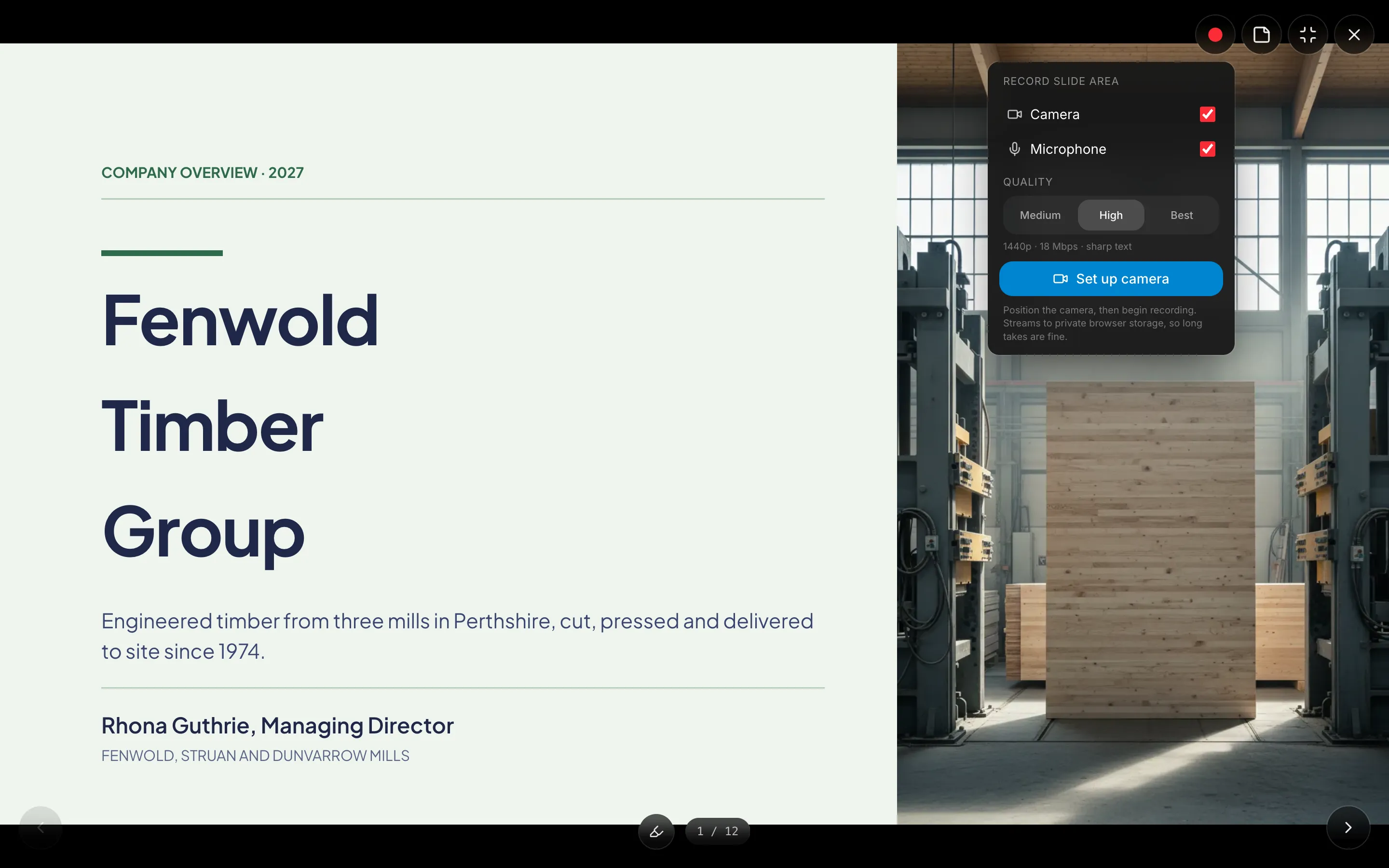
Set the camera up before the countdown
Recording has two stages on purpose. Set up camera turns on the preview so you can see yourself, place the camera overlay by dragging it and size it before anything is being captured. Then Begin recording runs a three, two, one countdown and starts. That order exists because repositioning your own face mid take is the single most common reason a recording gets thrown away.
Three quality settings, described by what they cost
1080p at 8 megabits per second for smaller files. 1440p at 18, labelled sharp text, which is the one to use when slides carry tables or code. 4K at 40, pristine and correspondingly large. All three record at 30 frames per second. The slides are captured at their native size and scaled up to the output resolution, so higher settings buy sharper type rather than more detail.
Everything on the slide is composited in
Not just the slides. Your camera overlay wherever you positioned it, the highlighter and pen strokes you draw, and the spotlight ring following your cursor all end up in the frame. That is what makes it a walkthrough rather than a slideshow with audio: you can circle the number you are talking about and the viewer sees it happen.
It streams to private browser storage
Chunks are written to a private area of your browser's storage as you record rather than being held in memory, which is why a forty minute take does not run the tab out of memory. The consequence is a browser floor: Chrome or Edge 102 and up, Firefox 111 and up, or Safari 17.4 and up. On anything older, recording reports that it is unavailable rather than failing halfway through.
You get a WebM file, and that is the whole delivery
Stopping ends the take and Download saves it, named from the deck title and a timestamp. The container is WebM with VP9 or VP8 video and Opus audio, which every modern browser plays and most video editors accept. It is not uploaded anywhere, so there is no link to share and no player to embed: you put the file where your audience already is, whether that is a drive, a learning system or a message.
How it works, in three steps
Step 1
Choose camera, microphone and quality
In the record menu. 1440p is the sensible default when slides carry tables or small text.
Step 2
Set up the camera, then place the overlay
The preview runs before recording so you can drag and size your camera without it being in the take.
Step 3
Present, then download
A three second countdown, then present as normal with pause and resume available. Stop, then Download saves the WebM.
The full walkthrough with screenshots is in the guide Record a presentation with voiceover.
Limits worth knowing
- Recording is a paid feature. On a free account the control does not appear in present mode.
- Needs Chrome or Edge 102+, Firefox 111+, or Safari 17.4+, because of the storage API it streams to.
- The output is WebM. There is no MP4 option and no in product trimming or editing.
- Nothing is uploaded. There is no hosted link, no embed and no viewing statistics.
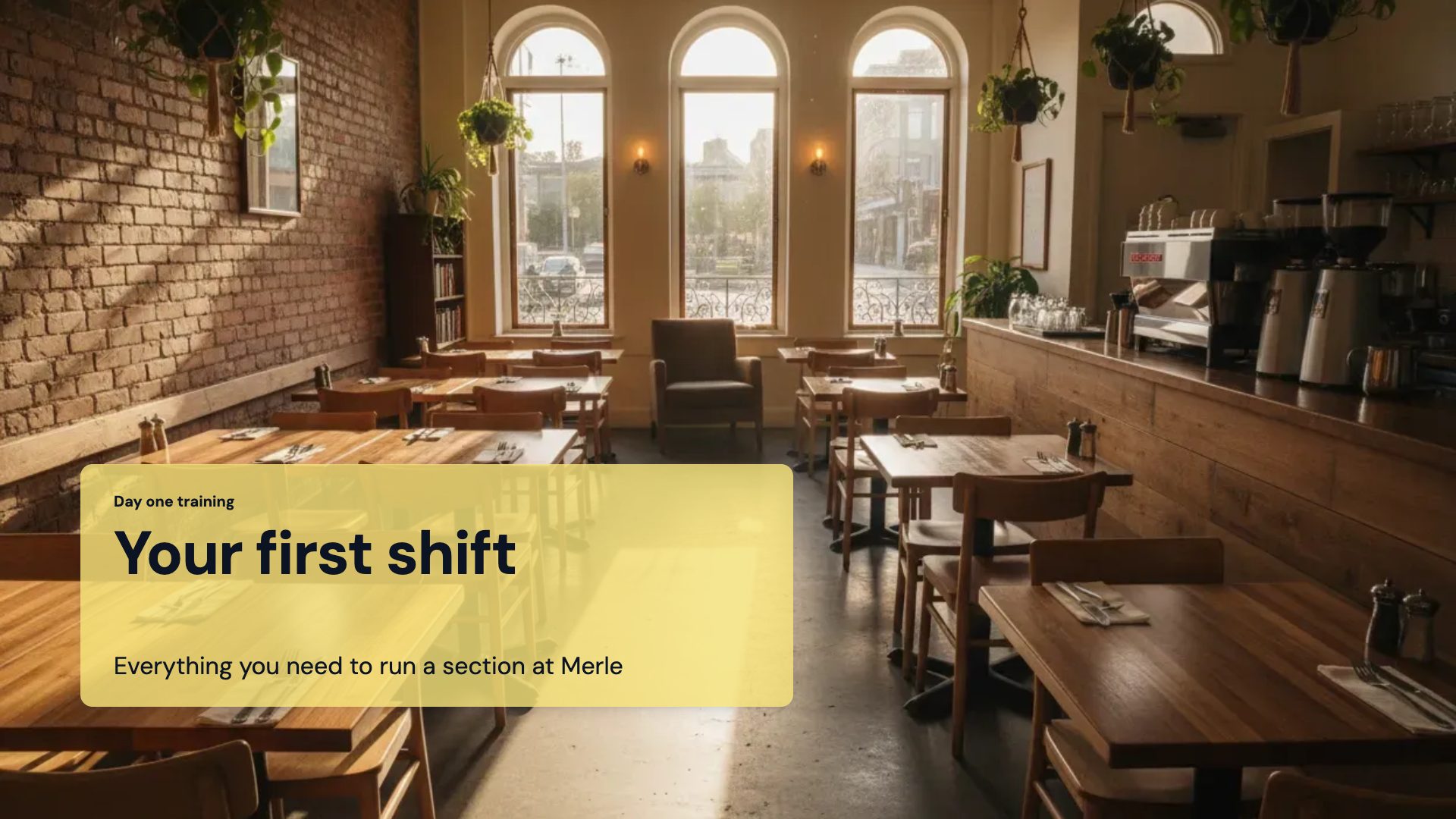
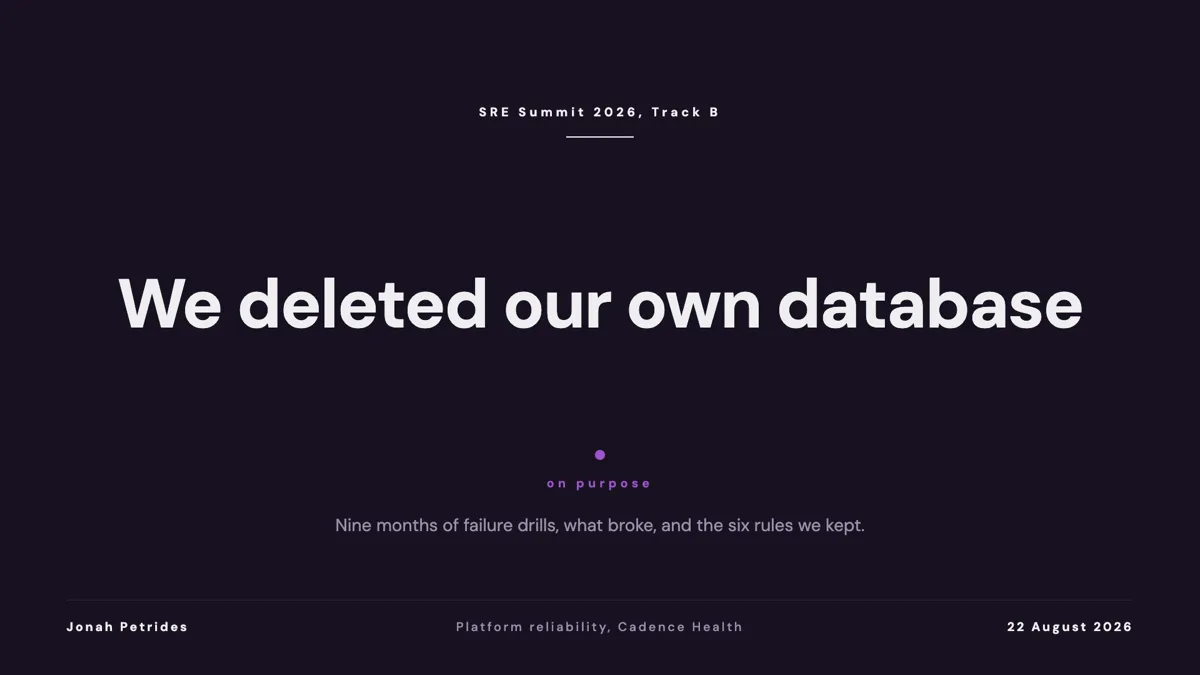
See it on a finished piece

Questions people ask
Where does the video end up?
On your machine. It streams to private browser storage while you record and Download saves it as a file. It is never uploaded, so there is no link to share.
Can I get an MP4?
Not directly. The recording is WebM with VP9 or VP8 video and Opus audio. Any video editor or a conversion tool will turn it into MP4 if a platform demands one.
Can I pause partway through?
Yes. Pause and resume are both available while recording, and the elapsed timer holds while paused.
Do my pen marks appear in the video?
Yes. Highlighter strokes, pen strokes and the spotlight ring are composited into the frame along with your camera overlay.
Make your own presentation
The button opens the generator with this use case already described. Change the wording to match yours, generate, then edit anything you like.
Create a presentation with OneCraftRelated pages
Forms that collect video answers
A recording field set to video asks someone to answer on camera. For screening candidates, collecting testimonials or checking a physical thing, it replaces a scheduling thread with a two minute recording.
Outline to slides
To turn an outline into slides, paste it into the prompt box with one line per slide and set the length slider to the number of lines. Each line then becomes one slide, in your order, with a layout chosen for what that line is about. This is the case where you are not asking for ideas: the structure is settled, and an outline pasted this way is treated as a specification rather than a suggestion.
Profile slides
A profile slide answers who, and the honest version carries what each person actually did rather than a job title. Ten layouts cover the range, from a single headshot with a bio to a four by four directory grid and a team row over a strip of client logos.
More finished work of this kind is on the presentation examples hub.
Written and checked by the OneCraft team. Last checked .